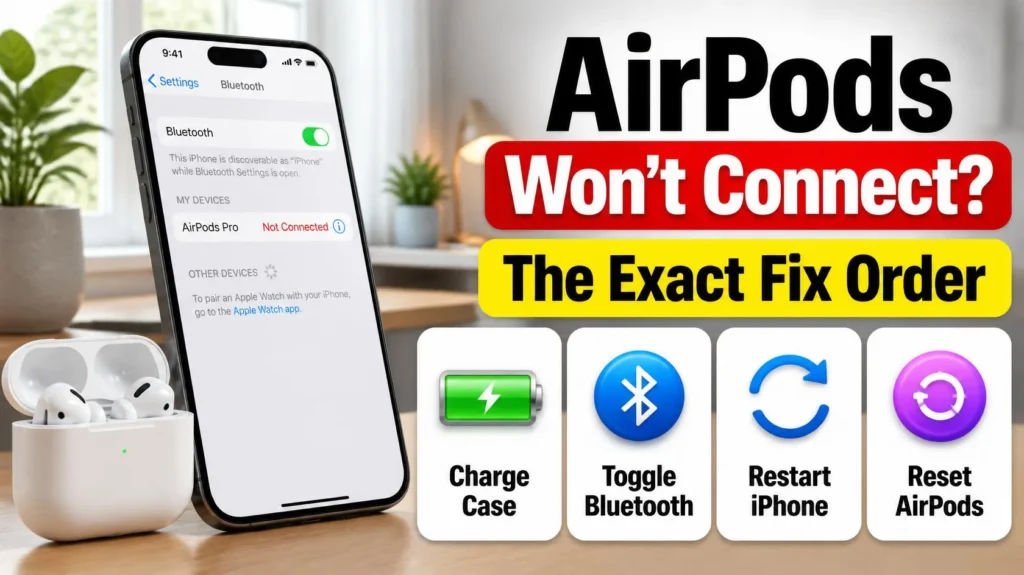
If your AirPods won’t connect to iPhone, or they show up in Bluetooth settings but never actually pair, this is one of the most common accessory complaints Apple’s own Community forums see after every iOS update — including the current iOS 26 cycle. Here’s the exact order to work through it, starting with the fix that resolves the majority of cases in under a minute.
Official Apple Store on Amazon
Genuine cases, cables, and accessories — sold and shipped by Apple.
📋 Quick Summary
- Most AirPods won’t connect issues are a stale Bluetooth session, not a hardware fault — closing and reopening the case lid is the fastest first check.
- A bud below roughly 5% charge will often refuse to pair at all. Charge the case for at least 15 minutes before troubleshooting further.
- Dirty charging contacts inside the case are a frequently overlooked cause — wipe them with a dry, lint-free cloth.
- If soft fixes fail, forgetting the device in Bluetooth settings and re-pairing from scratch resolves most remaining cases.
- A full factory reset of the AirPods (holding the case’s setup button until the light flashes amber) is the last resort before treating it as hardware.
Table of Contents
Why AirPods Suddenly Stop Connecting
AirPods pair over Bluetooth Low Energy and stay linked to your Apple Account so they can hand off automatically between your iPhone, iPad, and Mac. That handoff mechanism is convenient, but it’s also exactly why AirPods won’t connect to iPhone problems tend to appear right after something changes the underlying Bluetooth session — an iOS update, a fresh restart, low battery in the case, or simply too much time since the last successful connection. According to Apple’s own support documentation on connecting AirPods to iPhone, your device needs Bluetooth turned on and, for full functionality including Find My, an active Wi-Fi or cellular connection during setup.
Check This First — Battery and Contacts
Before touching any settings, rule out the two most physical causes. A bud sitting below roughly 5% charge will frequently refuse to pair at all, even though the case itself still has power — put both AirPods in the case, close the lid, and let them charge for at least 15 minutes before trying again. Separately, check the charging contacts: built-up earwax, pocket lint, or grime on the metal contacts inside the case or on the AirPods stems is a genuinely common cause of what looks like a “dead” pair, and a dry, lint-free cloth is often all it takes to fix it.
The Bluetooth Reset That Fixes Most Cases
If charge and contacts aren’t the issue, the next step is the one that resolves the largest share of AirPods won’t connect complaints: toggling Bluetooth off and back on in Settings. This forces your iPhone to drop its stale Bluetooth session and re-scan for nearby devices rather than continuing to retry a handshake that’s already broken. Put the AirPods back in the case, close the lid, wait 15 seconds, then reopen it near your iPhone — this alone clears the issue often enough that it’s worth doing before any deeper troubleshooting.
Full Reset — When Forgetting the Device Isn’t Enough
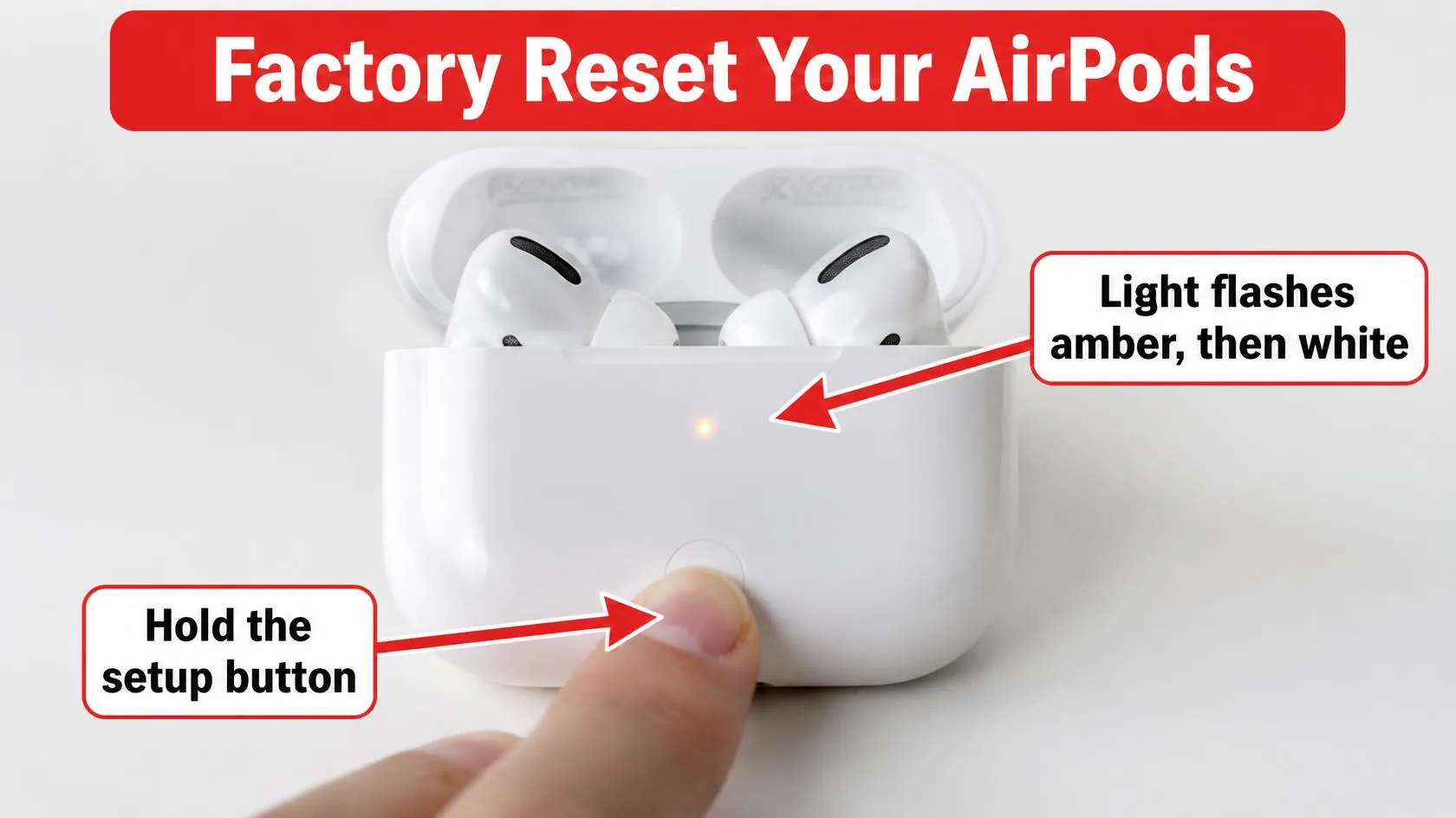
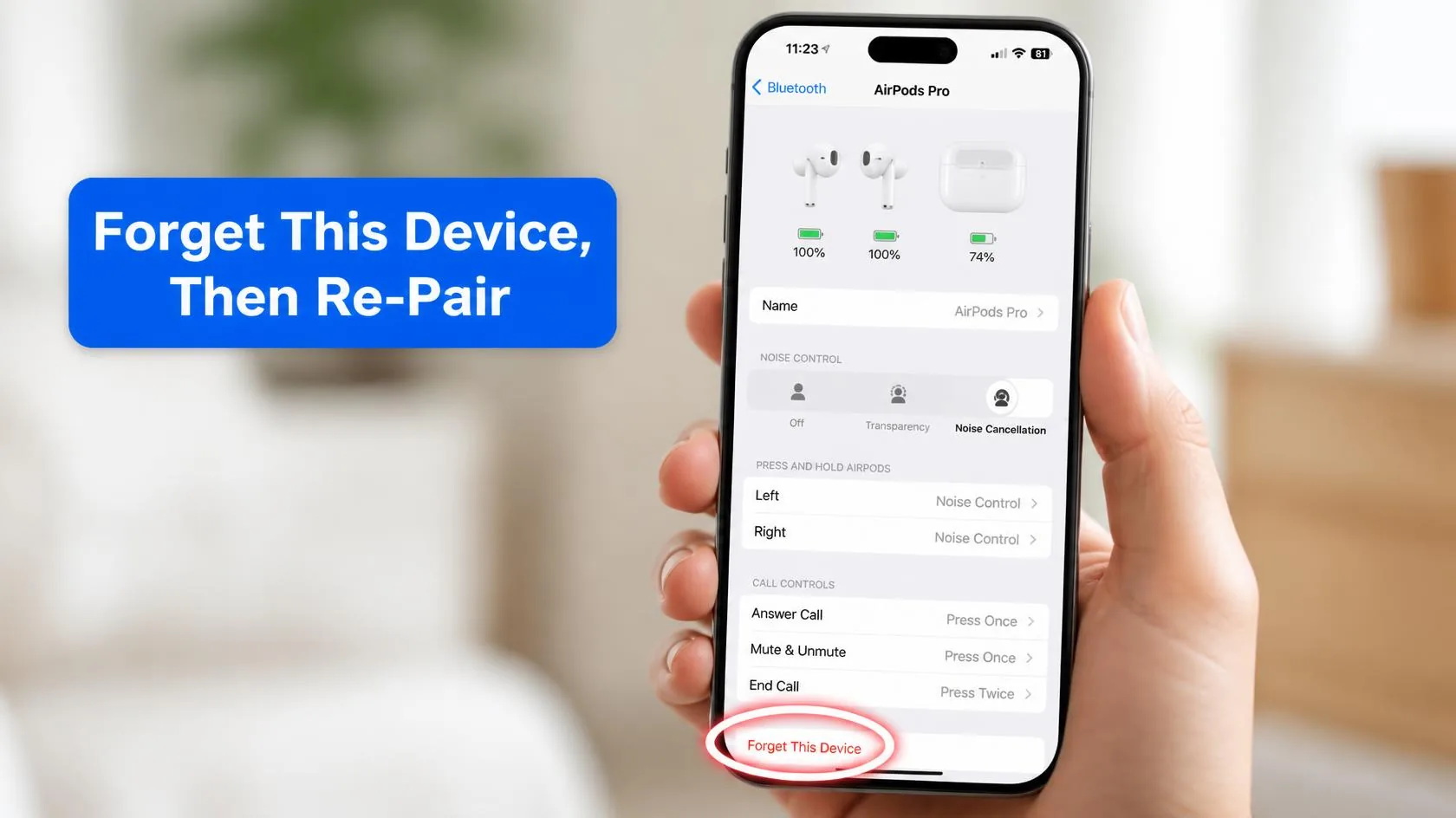
If the soft reset doesn’t fix it, go to Settings → Bluetooth, tap the info icon next to your AirPods, and choose Forget This Device. This clears the paired record entirely rather than just refreshing the connection. Once forgotten, perform a manual factory reset: with the AirPods inside, open the case lid and press and hold the setup button on the back for at least 15 seconds, until the status light flashes amber, then white. At that point, treat it as a brand-new pairing — open the lid next to your unlocked iPhone and wait for the setup animation to appear.
Is This an iOS Update Bug?
Pairing regressions tied to a specific iOS version are a real, recurring pattern — reports of AirPods failing to pair or dropping connection have followed multiple recent iOS releases, this iOS 26 cycle included. If your AirPods paired fine before a specific update and stopped immediately after, check Settings → General → Software Update for a follow-up patch before assuming it’s the AirPods themselves. Also confirm your AirPods firmware is current — it updates automatically while connected and charging near your iPhone, but a firmware mismatch after an iOS update can occasionally cause exactly this symptom until it catches up.
AirPods Won’t Connect to iPhone? Fix Order, Step by Step
- Charge the AirPods case for at least 15 minutes, then check the metal contacts for grime and wipe them with a dry cloth.
- Close the case lid, wait 15 seconds, and reopen it near your unlocked iPhone.
- Toggle Bluetooth off and back on in Settings to force a fresh scan.
- Restart your iPhone — this clears background Bluetooth stack glitches a simple toggle sometimes doesn’t.
- Go to Settings → Bluetooth, tap your AirPods, and select Forget This Device.
- Perform a manual factory reset by holding the case’s setup button until the light flashes amber, then re-pair from scratch.
- Check Settings → General → Software Update for a pending iOS patch if the problem started right after an update.
Match Your Situation
| Symptom | Likely cause | What to do |
|---|---|---|
| Shows in Bluetooth list but won’t connect | Stale Bluetooth session | Toggle Bluetooth off/on, reopen the case lid nearby |
| Doesn’t appear at all when case is opened | Low charge or dirty contacts | Charge 15+ minutes, clean the contacts |
| Connects but audio won’t play through them | Wrong output device selected | Select AirPods manually in Control Center |
| Started right after an iOS update | Possible software regression | Check for a follow-up iOS update |
| Nothing above works | Corrupted pairing record | Forget device, then factory reset the AirPods |
A note on scope: this guide covers AirPods pairing specifically. If you’re seeing a broader “Accessory Not Supported” warning instead, that’s a different, cable-related issue — see Accessory Not Supported iPhone.
RECOMMENDED FIRST STEP
Close the case, wait 15 seconds, reopen
This single step, done right next to your unlocked iPhone, resolves the largest share of AirPods won’t connect reports before any deeper troubleshooting is needed.
See the Full Battery & Charging GuideFeatured Apple Deals on Amazon
Current discounts on AirPods, chargers, cables, and other Apple gear.
Frequently Asked Questions
Why won’t my AirPods connect to my iPhone all of a sudden?
Most often it’s a stale Bluetooth session rather than a hardware fault — closing the case lid for 15 seconds and reopening it near your iPhone clears this in the majority of cases.
Why do my AirPods show up in Bluetooth settings but won’t actually connect?
This points to a broken handshake rather than a missing pairing record. Toggle Bluetooth off and back on, and if that doesn’t work, forget the device and re-pair from scratch.
Can low battery really stop AirPods from pairing?
Yes — a bud below roughly 5% charge will often refuse to pair entirely, even though the case shows power remaining. Charge the case for at least 15 minutes before troubleshooting further.
Does resetting AirPods erase anything important?
No — a factory reset only clears the pairing record and any customized settings like ear tip fit test results. Nothing personal is stored on the AirPods themselves.
Is this a known issue with a specific iOS version?
AirPods pairing regressions tied to specific iOS releases are a real, recurring pattern, including reports during the current iOS 26 cycle. If the problem started right after an update, check for a follow-up patch before assuming it’s the AirPods.
Should I clean the charging contacts even if the AirPods seem fine?
It’s worth doing periodically regardless — built-up grime on the contacts is a frequently overlooked cause of intermittent connection and charging issues, and a dry cloth is enough to prevent it becoming a problem.
📚 Related Guides
Written by S M Momin Arif
Founder and lead writer at iPhoneFixDaily, covering iPhone battery and charging diagnostics based on direct hands-on testing. Read more about our approach →