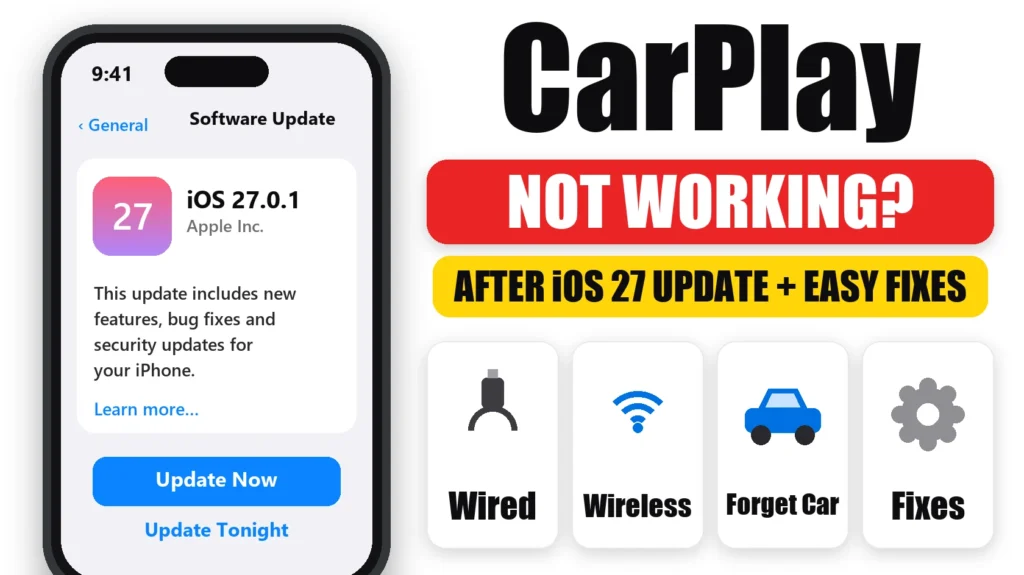
CarPlay not working after the iOS 27 update? Some drivers report CarPlay disconnecting mid-drive, a black screen, or a wired connection that suddenly stops working. Apple hasn’t acknowledged an iOS 27 CarPlay bug, and most cases come down to the cable, the wireless connection or a stale pairing. Here are the fixes for wired and wireless CarPlay, and Apple’s own fix order.
Official Apple Store on Amazon
Genuine cases, cables, and accessories — sold and shipped by Apple.
📋 Quick Summary
- Wired: try a different data cable and a different USB port, with no adapters.
- Wireless: turn on Bluetooth and Wi-Fi, and make sure Auto-Join is on for the CarPlay network.
- Restart both your iPhone and your car’s infotainment system.
- Check that Siri is on and CarPlay isn’t blocked in Screen Time.
- Still broken? Forget This Car, set CarPlay up again, and update the car’s software.
Table of Contents
What’s Happening With CarPlay on iOS 27
Since iOS 27 came out, users have reported CarPlay disconnecting and reconnecting while driving, wired CarPlay failing with a cable that worked before, freezes and black screens, according to a roundup by The Mac Observer. Other drivers say CarPlay works the same or better than on iOS 26. Apple hasn’t confirmed a CarPlay bug in iOS 27, so start with the fixes below. They solve most cases.
Fix Wired CarPlay
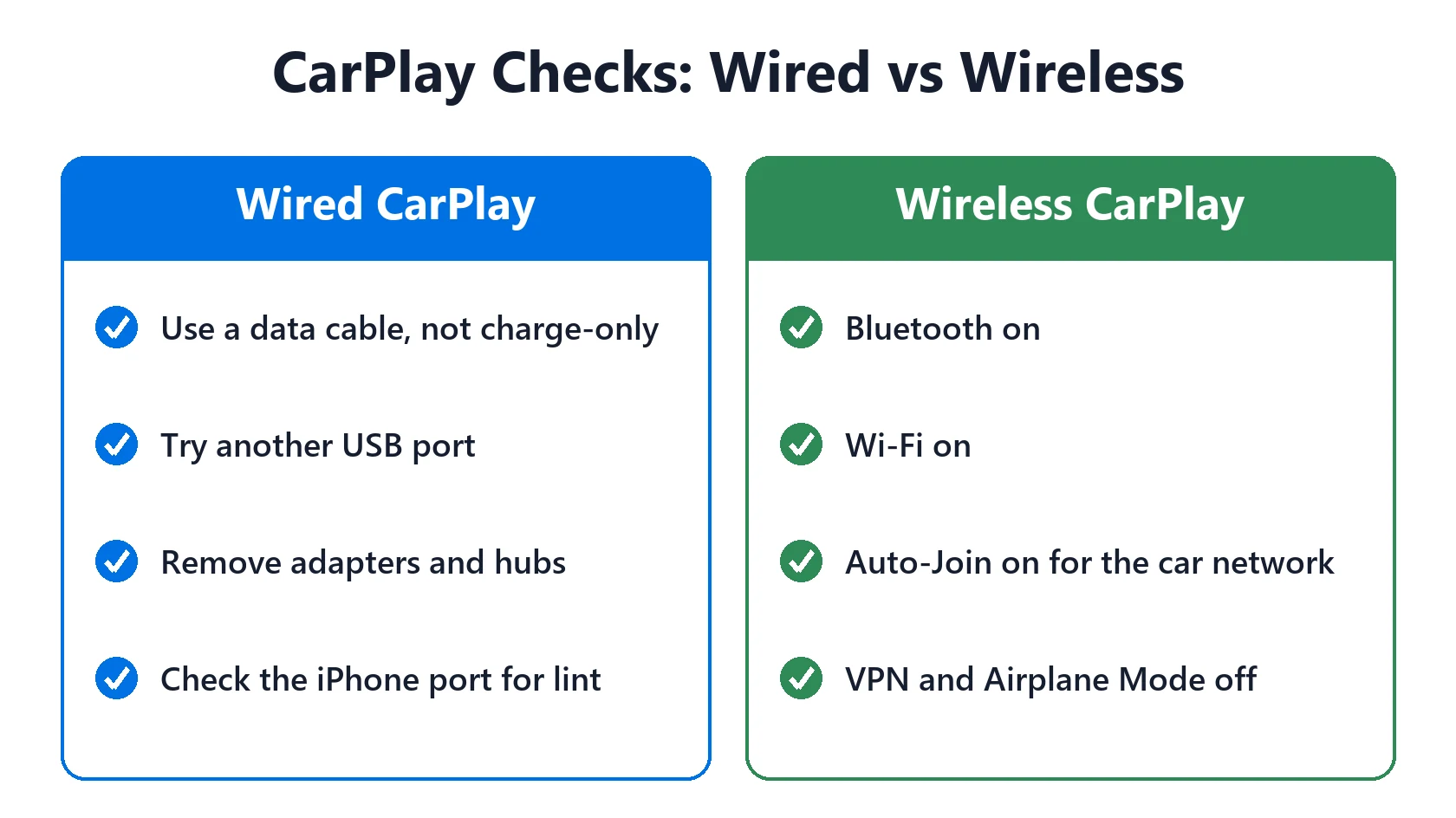
- Try a different cable. It must be a data cable, not a charge-only one. Apple or MFi-certified cables are the safest choice for Lightning iPhones.
- Try a different USB port in the car. Many cars have only one port that supports CarPlay, often marked with a phone or CarPlay icon.
- Remove adapters and hubs. Apple says some combinations of adapters, cables and car systems can disrupt wired CarPlay. Connect directly.
- Check the port. Lint in your iPhone’s port can cause a loose connection. See iPhone charging port not working.
Fix Wireless CarPlay
- Turn on Bluetooth in Settings → Bluetooth.
- Turn on Wi-Fi in Settings → Wi-Fi. Wireless CarPlay needs both.
- Check Auto-Join. In Settings → Wi-Fi, tap your car’s CarPlay network and make sure Auto-Join is on.
- Turn off a VPN temporarily if you use one, and check that Airplane Mode is off.
Apple’s Fix Order for CarPlay Not Working
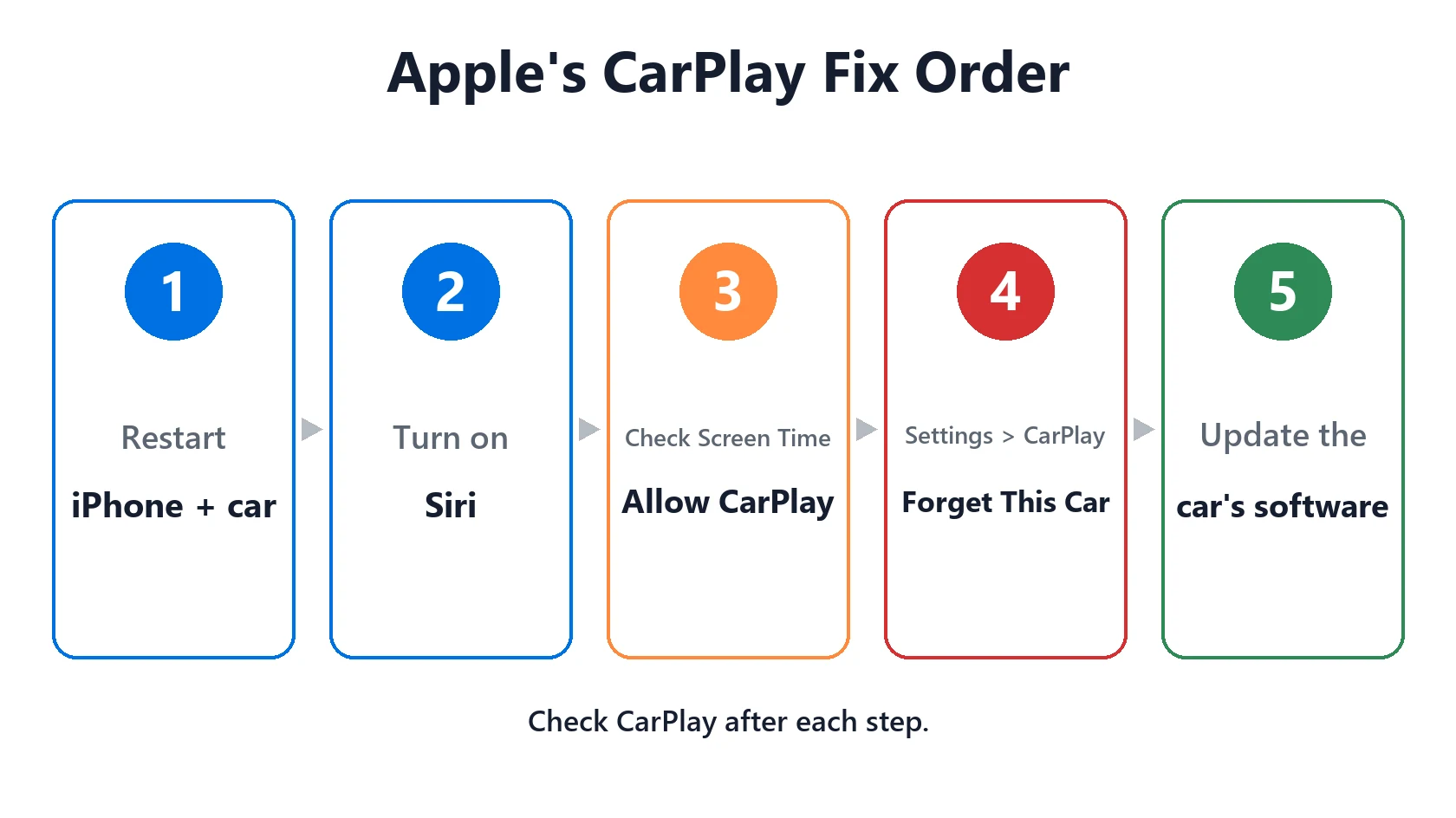
These are the steps in Apple’s CarPlay support article. Check CarPlay after each one:
- Update iOS to the latest version.
- Select CarPlay manually on the car’s screen if it doesn’t start on its own. Look for the CarPlay logo.
- Restart your iPhone and your car. Turning the car off and on usually restarts the infotainment system.
- Make sure Siri is on in Settings → Siri. CarPlay needs it.
- Check Screen Time. In Settings → Screen Time → Content & Privacy Restrictions → Allowed Apps, make sure CarPlay is on.
- Forget the car and set it up again. Go to Settings → General → CarPlay, tap your car, tap Forget This Car, then reconnect.
- Update the car’s software. Carmakers often release infotainment updates after major iOS releases. Check your car’s manual or the manufacturer’s app.
If CarPlay still drops, Settings → General → Transfer or Reset iPhone → Reset → Reset Network Settings is a last resort. It erases saved Wi-Fi networks and passwords, so try everything above first.
CarPlay Black Screen or One App Not Working
Black screen: if your iPhone shows as connected but the car screen stays black, unplug, restart the infotainment system, and reconnect. If it keeps happening, forget the car and set it up again.
One app not working: if CarPlay works but one app doesn’t, such as a music or maps app, update or reinstall that app, then contact its developer if it still fails. Apple says app-specific problems are up to the developer.
Match Your Problem to the Fix
| What you see | Likely cause | Fix |
|---|---|---|
| Wired CarPlay won’t start | Cable, port or adapter | Different data cable, different port, no adapter |
| Wireless CarPlay won’t connect | Bluetooth, Wi-Fi or Auto-Join off | Turn on both and Auto-Join |
| Disconnects while driving | Loose cable or stale pairing | New cable, then Forget This Car |
| Black screen | Infotainment glitch | Restart the car system and reconnect |
| CarPlay missing completely | Screen Time restriction or Siri off | Allow CarPlay, turn on Siri |
| Only one app fails | That app | Update it or contact the developer |
Featured Apple Deals on Amazon
Current discounts on AirPods, chargers, cables, and other Apple gear.
Frequently Asked Questions
Why is CarPlay not working after the iOS 27 update?
Usually the cable, the wireless connection or an old pairing. Restart your iPhone and car, try a different cable or check Bluetooth, Wi-Fi and Auto-Join, then forget the car and set it up again.
Why does CarPlay keep disconnecting?
A worn cable, a dirty Lightning or USB-C port, or a stale pairing are the most common causes. Replace the cable, clean the port gently, and forget and re-add the car.
Does wireless CarPlay need Wi-Fi?
Yes. Wireless CarPlay uses both Bluetooth and Wi-Fi, so both need to be on, with Auto-Join on for the car’s CarPlay network.
Why is my CarPlay screen black?
Usually an infotainment glitch. Restart the car’s system and reconnect. If it keeps happening, forget the car in Settings → General → CarPlay and set it up again.
Will Apple fix CarPlay in iOS 27.2?
Apple hasn’t announced a CarPlay fix. Check the release notes when iOS 27.2 arrives, expected in late October.
📚 Related Guides
Written by S M Momin Arif
Founder and lead writer at iPhoneFixDaily, covering iPhone battery and charging diagnostics based on direct hands-on testing. Read more about our approach →