iPhone won’t turn on? Don’t panic. Most of the time it isn’t dead. The battery is fully drained, the software has frozen with a black screen, or iPhone is stuck during startup. Apple’s fix is the same short list every time: force restart, charge it for an hour, then use recovery mode. Here’s each step for your model, and how to tell when it really needs a repair.
Official Apple Store on Amazon
Genuine cases, cables, and accessories — sold and shipped by Apple.
📋 Quick Summary
- Force restart first: volume up, volume down, then hold the side button until the Apple logo appears.
- Still nothing? Charge for one hour with a cable and adapter you know work, then try again.
- Seeing a red battery icon? Check the cable, adapter and port, then charge for 30 minutes or until it starts.
- Stuck on the Apple logo? Use recovery mode and choose Update, which keeps your data.
- Nothing works, or it was dropped or got wet? It needs service.
Table of Contents
Quick Fixes First
Work through these in order. They follow Apple’s guide for an iPhone that won’t turn on or is frozen.
- Hold the side button for a few seconds. If it was simply off, the Apple logo appears.
- Force restart it (steps for your model below). This fixes a frozen black screen.
- Charge it for one hour, then force restart again.
- Check the charger. Try another cable, adapter and wall outlet, and clean out the charging port.
- Connect it to a computer and use recovery mode if it starts but gets stuck.
- Get service if it still won’t turn on.
How to Force Restart Your iPhone
A force restart doesn’t erase anything. It cuts power to the software and starts it again. Press the buttons quickly, and keep holding the last one even if the screen stays black.
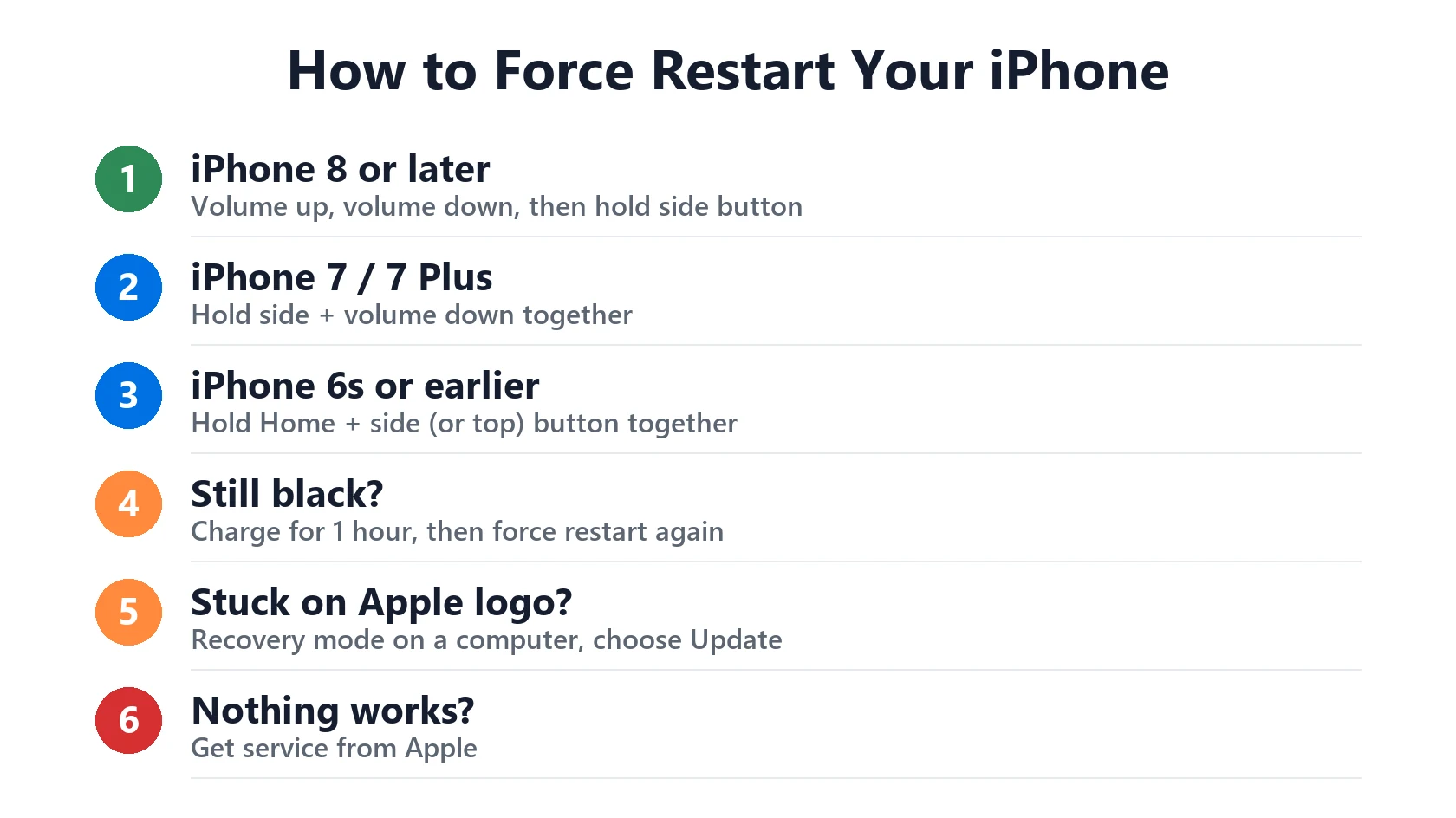
iPhone 8 or later (including iPhone SE 2nd and 3rd generation)
- Press and quickly release the volume up button.
- Press and quickly release the volume down button.
- Press and hold the side button until you see the Apple logo. Apple says this can take longer than 10 seconds.
iPhone 7 or iPhone 7 Plus
Press and hold the side button and the volume down button together until you see the Apple logo.
iPhone 6s or earlier (and iPhone SE 1st generation)
Press and hold the Home button and the side or top button together until you see the Apple logo.
Let go as soon as the logo appears. If you keep holding after the logo on iPhone 8 or later, you may end up on the power-off or recovery screen instead.
Charge It the Right Way
A completely drained battery can’t even show the charging screen straight away. Apple says to charge for one hour, then try again.
- Plug straight into a wall outlet, not a laptop or a power strip that might be off.
- Use a cable and adapter you know work on another device. Look for breaks, kinks or bent prongs.
- Check the charging port with a light. Pocket lint stops the cable from seating. Clean it gently with a wooden toothpick. See our charging port guide.
- If you see a low-charge battery icon (a red battery), it is charging. Leave it for 30 minutes or until it starts.
- If the icon shows with a cable or plug symbol, iPhone isn’t getting power. Change the cable, adapter or outlet.
Apple’s charging guide adds one more step: if the screen still only shows the battery icon after half an hour, force restart, then charge for another half hour. Still no luck? Read iPhone not charging when plugged in.
Very cold or very hot iPhones can also refuse to start. Let it get back to room temperature before you try again. Never put it near a heater. If it shows a Liquid Detected alert, unplug it and let it dry first.
Black Screen but iPhone Is On
If you hear sounds, feel vibrations or get notification alerts, but the screen stays black, iPhone is on. Either the software has frozen or the display has a problem.
- Force restart it using the steps above.
- Call it from another phone. If it rings, the phone works and the problem is the screen.
- Turn up the brightness by asking Siri, “Turn the brightness up”. Low brightness in a bright room can look like a dead screen.
- If it was dropped, or the screen was replaced recently, a black screen usually means display damage. That needs a repair.
Stuck on the Apple Logo or “Connect to Computer”
If iPhone starts but freezes on the Apple logo, or shows a picture of a computer and cable, the software needs reinstalling. Apple’s recovery mode steps:
- Update your Mac, or install the latest Apple Devices app on a Windows PC.
- Connect iPhone to the computer with a USB cable.
- Open Finder on a Mac, or the Apple Devices app on a PC.
- Use the force restart buttons for your model, but keep holding until you see the Connect to computer screen.
- When asked, choose Update. This reinstalls iOS and keeps your data.
- Only choose Restore if Update doesn’t work. Restore erases your iPhone.
If the download takes more than 15 minutes, iPhone may leave the Connect to computer screen. Let the download finish, then enter recovery mode again. If the progress bar hasn’t moved for over an hour during a restore, Apple says to start recovery mode again. More detail in iPhone stuck on the Apple logo.
Why an iPhone Won’t Turn On: 6 Causes
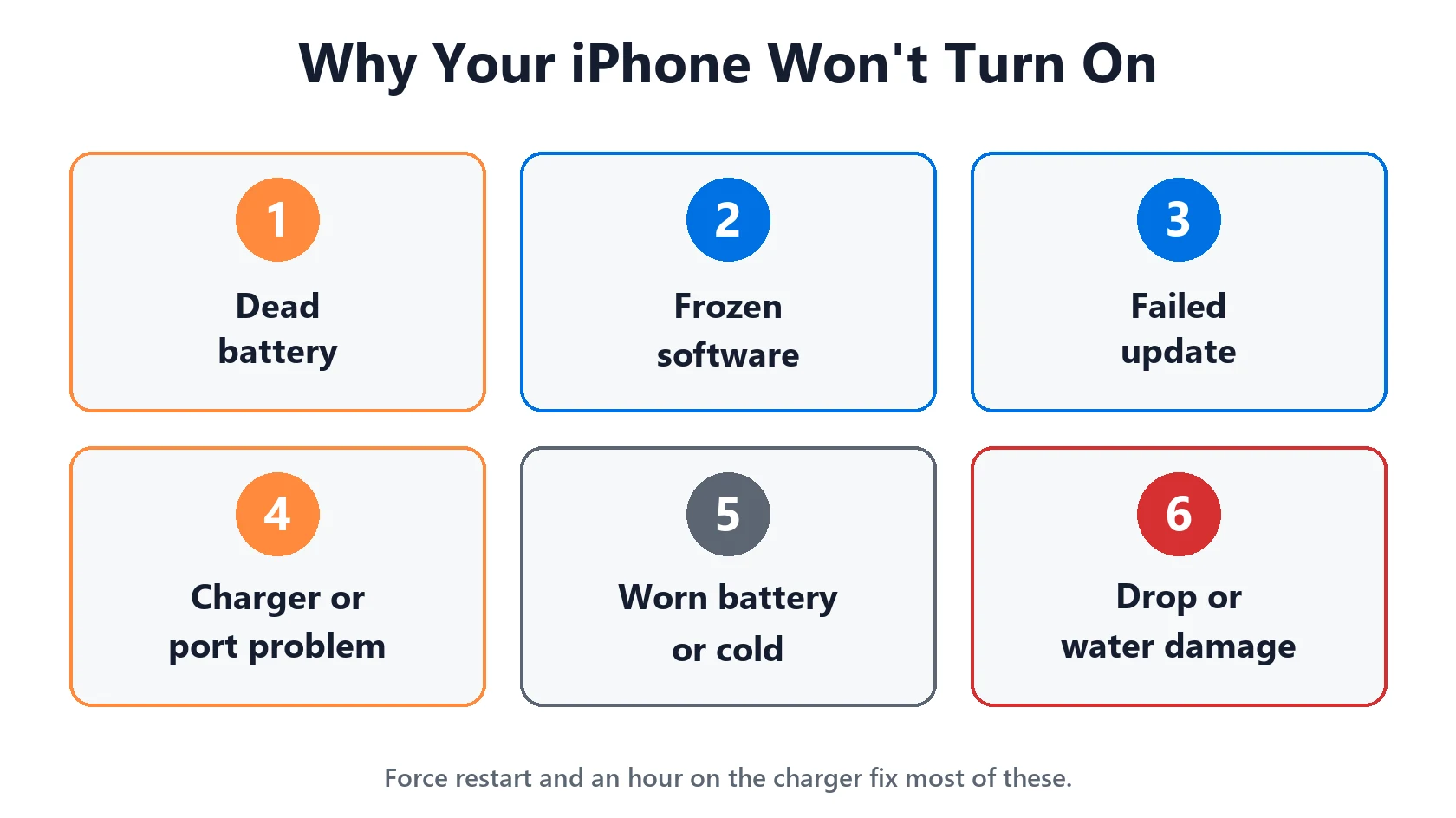
- A dead battery. The most common cause. It needs time on the charger before anything shows.
- Frozen software. The screen is black but iPhone is on. A force restart fixes it.
- A failed update. iPhone gets stuck on the Apple logo. Recovery mode fixes it.
- A charging problem. A bad cable, adapter or a port full of lint means the battery never charges.
- An old battery. A worn battery can shut iPhone down suddenly, especially in the cold. Check iPhone dies at 20 percent.
- Hardware damage. A drop, water or a failed repair can damage the screen, battery or logic board.
Match Your Situation
| What you see | Likely cause | What to do |
|---|---|---|
| Nothing at all | Drained battery or frozen | Force restart, then charge for 1 hour |
| Red battery icon | Battery very low | Charge 30 minutes or until it starts |
| Battery icon with a cable symbol | No power reaching iPhone | Change cable, adapter or outlet; clean port |
| Black screen, but it rings or vibrates | Frozen software or display fault | Force restart; repair if it stays black |
| Stuck on the Apple logo | Failed update or corrupt software | Recovery mode, choose Update |
| Connect to computer screen | iPhone is in recovery mode | Connect to a computer, choose Update |
| Nothing after a drop or water | Hardware damage | Get service |
If none of the steps work, or a button is broken so you can’t force restart, contact Apple Support or visit an Apple Authorized Service Provider. Want a rough price first? Try our repair cost estimator.
Featured Apple Deals on Amazon
Current discounts on AirPods, chargers, cables, and other Apple gear.
Frequently Asked Questions
Why won’t my iPhone turn on?
Usually the battery is fully drained or the software has frozen. Force restart it, then charge it for one hour and try again.
How do I turn on an iPhone with a black screen?
Force restart it. On iPhone 8 or later, press volume up, press volume down, then hold the side button until the Apple logo appears.
How long should I charge a dead iPhone before it turns on?
Apple says to charge it for one hour. If you see the red battery icon, it can take about 30 minutes before it starts.
Will a force restart delete my data?
No. A force restart only restarts iPhone. Recovery mode Update also keeps your data. Only Restore erases it.
My iPhone is on but the screen is black. What does that mean?
If it rings or vibrates, the software may be frozen, so force restart it. If the screen stays black, the display may be damaged and needs a repair.
When should I take my iPhone to Apple?
If it still won’t turn on after a force restart, an hour on a working charger and recovery mode, or if it was dropped or got wet.
📚 Related Guides
- iPhone Stuck on the Apple Logo After an iOS 27 Update? Fix It Without Losing Data
- iPhone Not Charging When Plugged In? 8 Fixes That Actually Work
- iPhone Charging Port Not Working? How to Clean It and When to Repair It
- Liquid Detected in Lightning or USB-C Connector: What to Do (and Not Do)
- iPhone Battery Replacement Cost (2026 Price Guide)
Written by S M Momin Arif
Founder and lead writer at iPhoneFixDaily, covering iPhone battery and charging diagnostics based on direct hands-on testing. Read more about our approach →