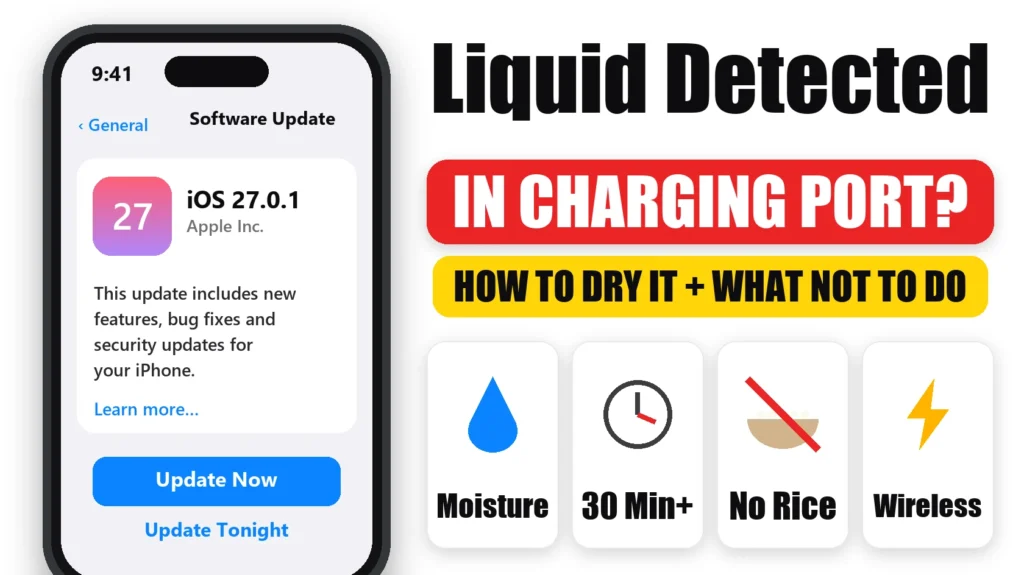
If your iPhone shows “Liquid Detected in Lightning Connector”, “Liquid Detected in USB-C Connector” or “Charging not available”, it has sensed moisture in the charging port and blocked charging to protect itself. Usually the fix is simply to let it dry properly. The advice people reach for first, like rice, a hair dryer or a cotton swab, is exactly what Apple says not to do.
Official Apple Store on Amazon
Genuine cases, cables, and accessories — sold and shipped by Apple.
📋 Quick Summary
- The alert appears on iPhone XS, XS Max, XR and later when moisture is detected in the Lightning or USB-C port.
- Unplug everything, tap the phone gently against your hand with the port facing down, and leave it somewhere dry and airy.
- Try charging again after at least 30 minutes. It can take up to 24 hours to dry fully.
- Don’t use rice, a hair dryer, compressed air, or anything poked into the port.
- Need power now? A wireless charger still works once the back of the phone is dry.
Which Liquid Alert Are You Seeing?
Apple’s liquid-detection support article lists four versions of the alert. They all mean the same thing: moisture in the port, charging or accessory paused.
| Alert wording | When it appears |
|---|---|
| “Charging not available” | Lightning iPhone connected to a charger |
| “Liquid detected in Lightning Connector” | Lightning accessory that doesn’t charge the phone (e.g. wired headphones) |
| “Liquid Detected in USB-C Connector” | USB-C iPhone connected to a charger or accessory using a USB-C to USB-A cable |
| “Liquid Detected” | USB-C accessory connected to a USB-C iPhone |
How to Dry Your iPhone the Way Apple Recommends
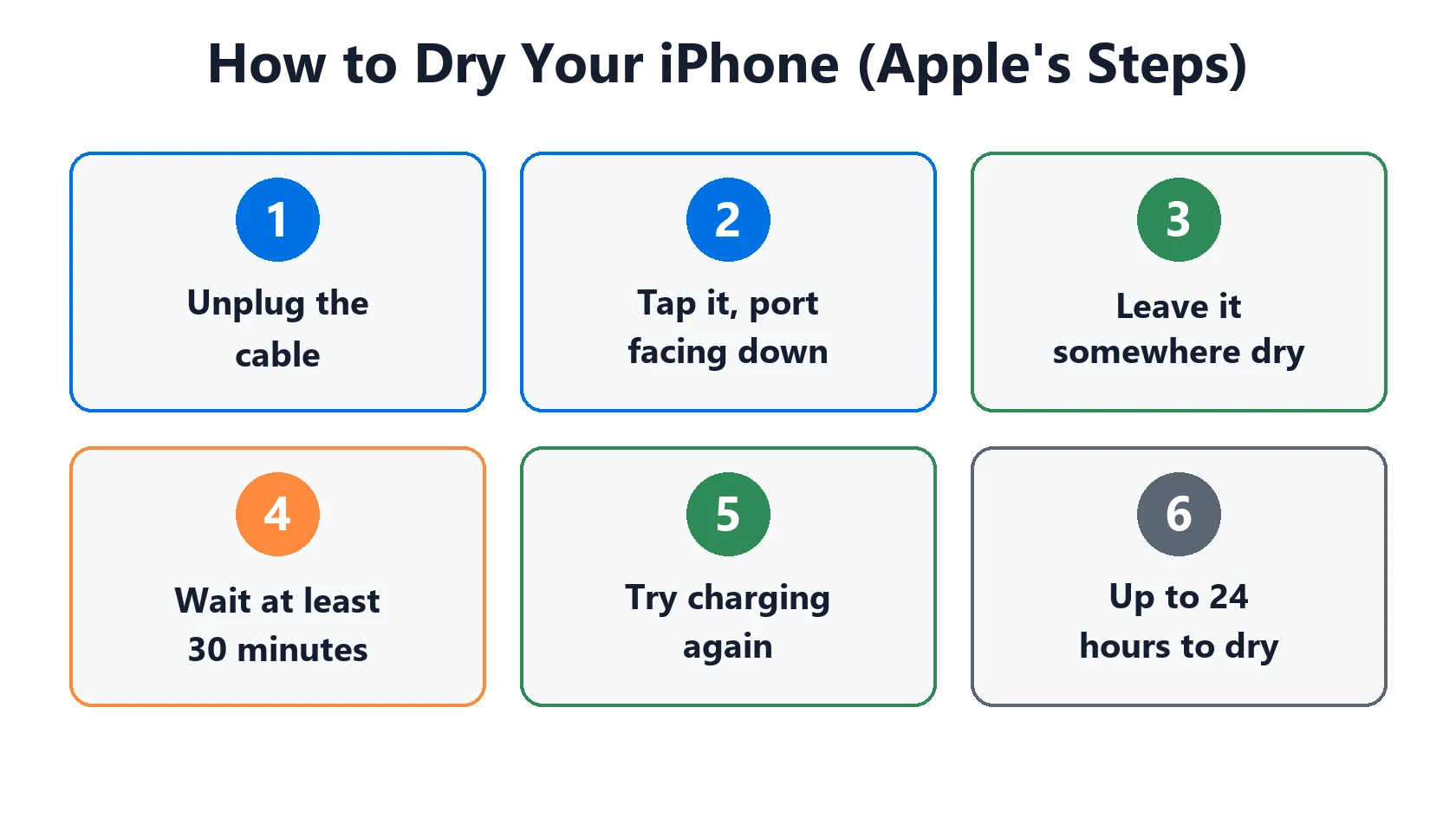
- Unplug the cable from the iPhone and from the power adapter.
- Tap the iPhone gently against your hand with the port facing down to shake out excess liquid.
- Leave it in a dry area with some airflow. Out of a bag or pocket, not face-down on a towel.
- After at least 30 minutes, try charging with the cable or reconnecting the accessory.
- If the alert comes back, the port is still wet. Apple says it can take up to 24 hours to dry, and you can keep retrying during that time.
- Once it’s dry but still won’t charge, unplug the cable from the adapter and the adapter from the wall, then plug everything back in.
What Not to Do (Including the Rice Myth)
Apple is explicit about these three:
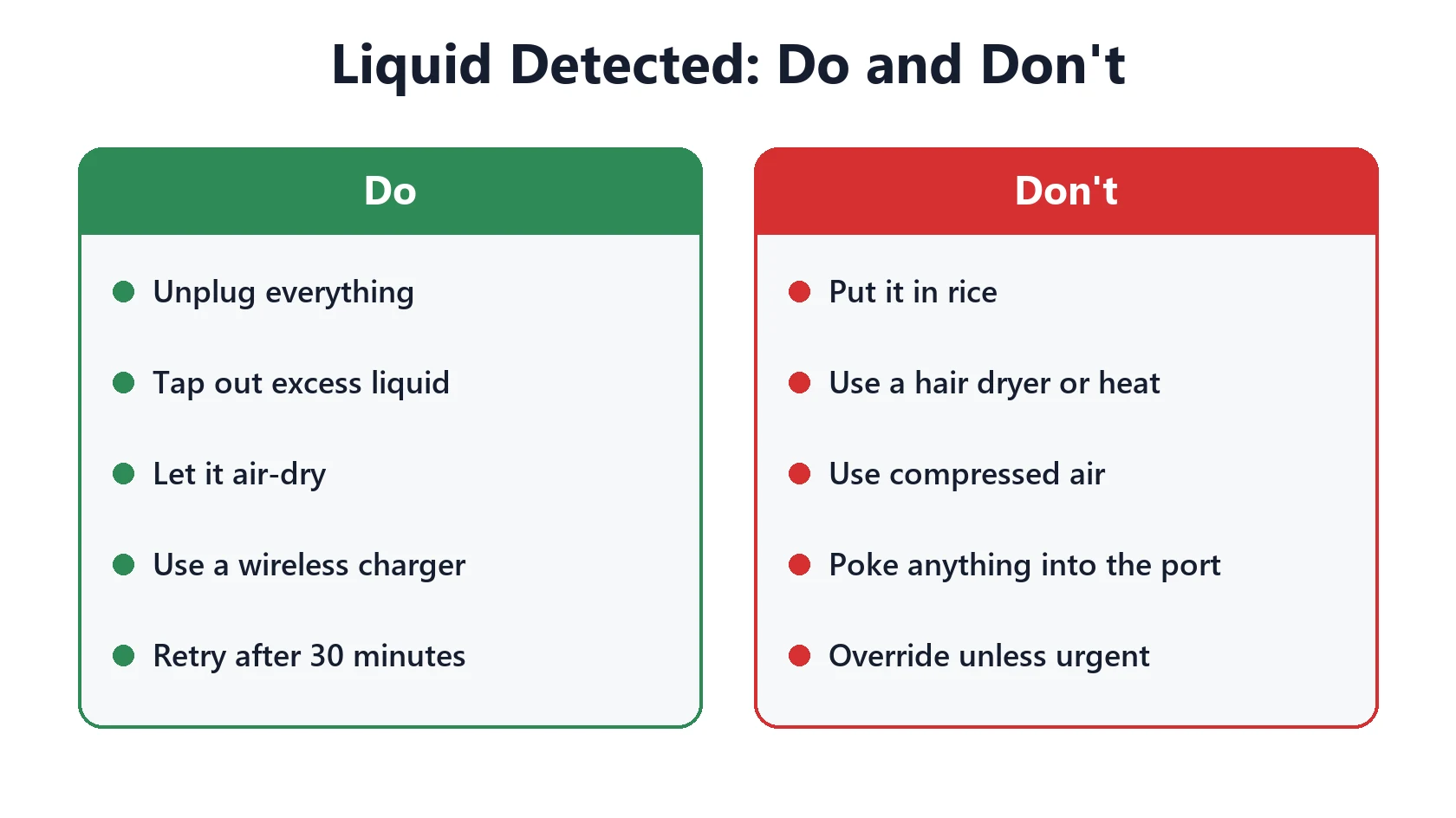
- No external heat or compressed air. A hair dryer, radiator or air duster can push moisture further in or damage parts.
- Don’t insert anything into the port, such as a cotton swab or paper towel.
- Don’t put your iPhone in a bag of rice. Apple warns that small particles of rice can damage the phone. Rice doesn’t dry the port any faster than open air.
How to Charge in an Emergency
You have two options if you need battery before the port is dry:
- Wireless charging. Apple says you can still use a wireless charger. Make sure the back of the iPhone is dry first. This is the safer choice.
- Emergency Override. When you reconnect the cable, Apple gives you the option to override liquid detection and charge anyway. Use it only in a real emergency. Apple warns that charging while the connector is wet can corrode the pins on the connector or cable and cause permanent damage.
“But My iPhone Never Got Wet”
False alarms happen. Humidity, sweat in a gym pocket, or condensation after moving from a cold place to a warm one can all leave enough moisture to trigger the sensor. If you’re sure the phone is dry, use this to narrow it down:
| Pattern | Likely cause | What to do |
|---|---|---|
| Only happens with one cable or accessory | That cable or accessory is damaged (Apple’s own guidance) | Replace it or contact the accessory’s maker |
| Happens with every cable, including a new Apple one | Debris, corrosion or damage in the iPhone’s port | Inspect the port with a light; see charging port not working |
| Appeared after a drop in water, then never cleared after 24+ hours | Liquid got past the port | Apple recommends contacting Apple Support or a repair provider |
| Comes and goes on humid days or after the gym | Condensation or sweat | Let it air-dry before plugging in; wipe the cable end too |
If it looks like a port repair, our iPhone repair cost estimator gives you a ballpark before you book.
Featured Apple Deals on Amazon
Current discounts on AirPods, chargers, cables, and other Apple gear.
Frequently Asked Questions
Is my iPhone waterproof, so why does this happen?
iPhones are water-resistant, not waterproof, and Apple notes that resistance can decrease over time with normal wear. The port is open by design. The sensor exists precisely because water can sit in it after a splash.
Can I use my iPhone while the alert is showing?
Yes. Only charging and wired accessories through the port are paused. Everything else works normally.
Will the alert void my warranty?
The alert itself doesn’t. Apple states that liquid damage isn’t covered under its warranty (you may still have rights under consumer law), so if a repair is needed after real water exposure, check your AppleCare+ coverage first.
Still not charging once it’s dry? Work through iPhone not charging when plugged in, or see every charging issue in our battery and charging problems hub.