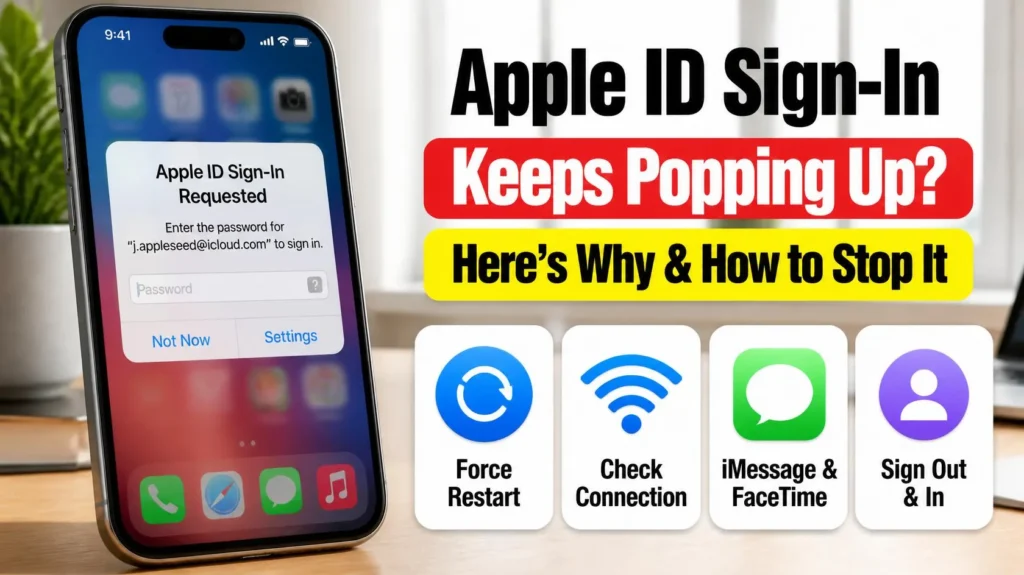
If Apple ID sign-in requested keeps popping up on your iPhone even though you never signed out, you’re not imagining it and you’re not being hacked in most cases — this is a known, recurring iOS behavior with a handful of specific triggers. Here’s what’s actually causing the repeated prompt and the order to work through fixes so it stops interrupting you every few minutes.
Official Apple Store on Amazon
Genuine cases, cables, and accessories — sold and shipped by Apple.
📋 Quick Summary
- Repeated Apple ID sign-in prompts are usually caused by a token refresh failure between your iPhone and Apple’s servers, not an actual security issue.
- An expired or incorrect saved password in Settings is the single most common trigger — the prompt keeps reappearing because it keeps failing silently.
- Toggling iMessage and FaceTime off/on forces a fresh authentication handshake and resolves a large share of cases.
- A weak or dropping network connection can cause the exact same repeating-prompt symptom, since the device can’t complete the verification round-trip.
- If it’s genuinely a security flag from a new sign-in elsewhere, Apple will show device and location details in the prompt — don’t approve a request you don’t recognize.
Table of Contents
Why Apple ID Sign-In Requested Keeps Popping Up (It’s Usually Not a Security Problem)
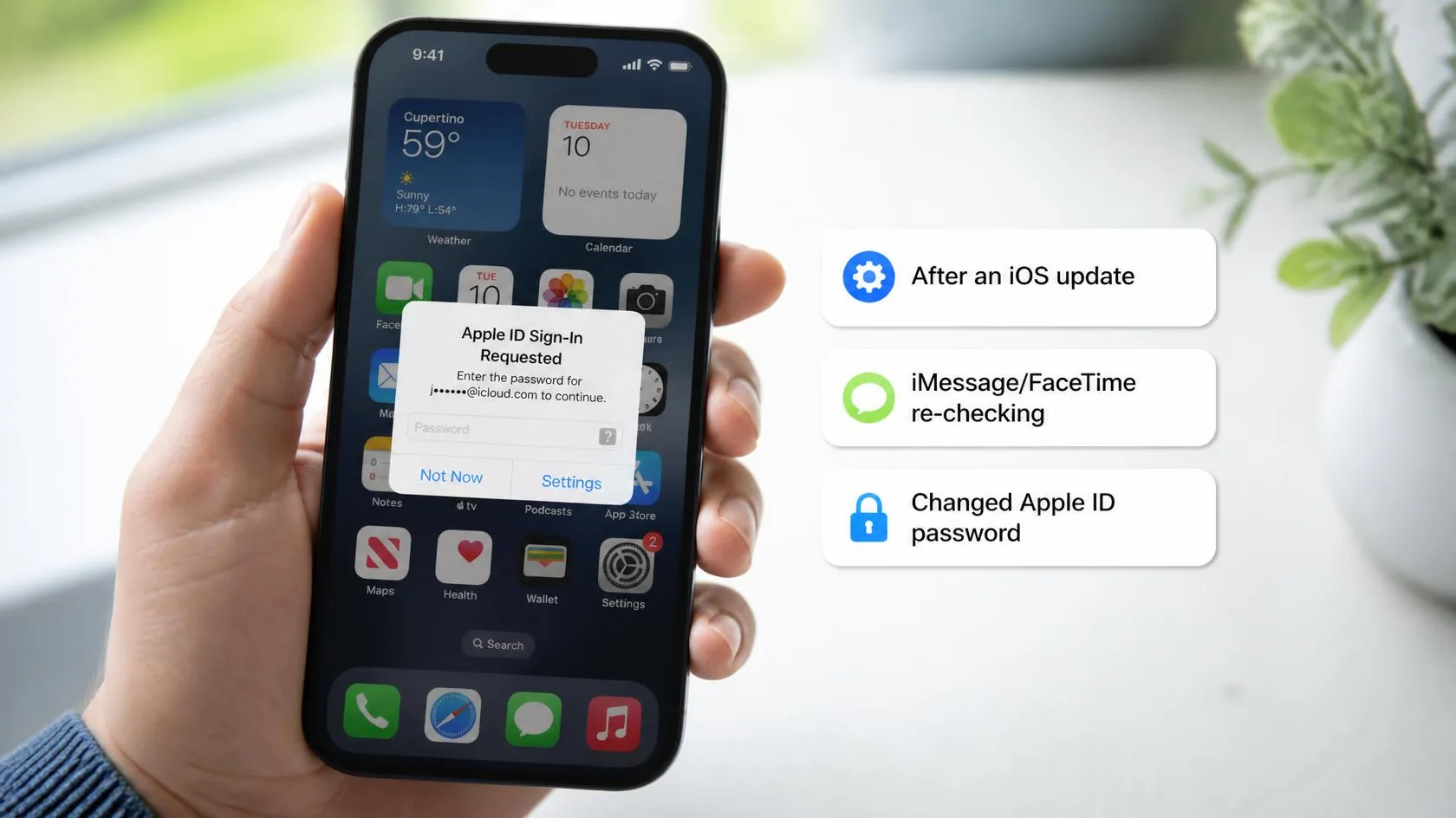
Your iPhone periodically re-validates its Apple ID session in the background to keep iCloud, iMessage, FaceTime, and the App Store working smoothly. According to Apple’s own documentation on trusted phone numbers and devices, this two-factor system relies on your device successfully completing that handshake — and when it fails silently (a stale cached password, a network hiccup, or a session token that expired mid-check), iOS just asks you to sign in again rather than explaining what went wrong. That’s why the prompt can reappear every few minutes: each failed background check triggers another visible request, and if the underlying cause isn’t fixed, it just keeps happening.
Rule Out an Actual Security Event First
Before troubleshooting, check what the prompt is actually asking. If it shows a specific device name, approximate location, and asks you to approve or decline a new sign-in, that’s a genuine authentication request — decline it if you don’t recognize the device, then change your Apple ID password immediately from a device you trust. If instead it’s just repeatedly asking you to re-enter your existing password with no device/location detail shown, that’s the routine token-refresh issue this guide covers, not a security event.
Apple ID Sign-In Requested Keeps Popping Up? Try These Fixes In Order
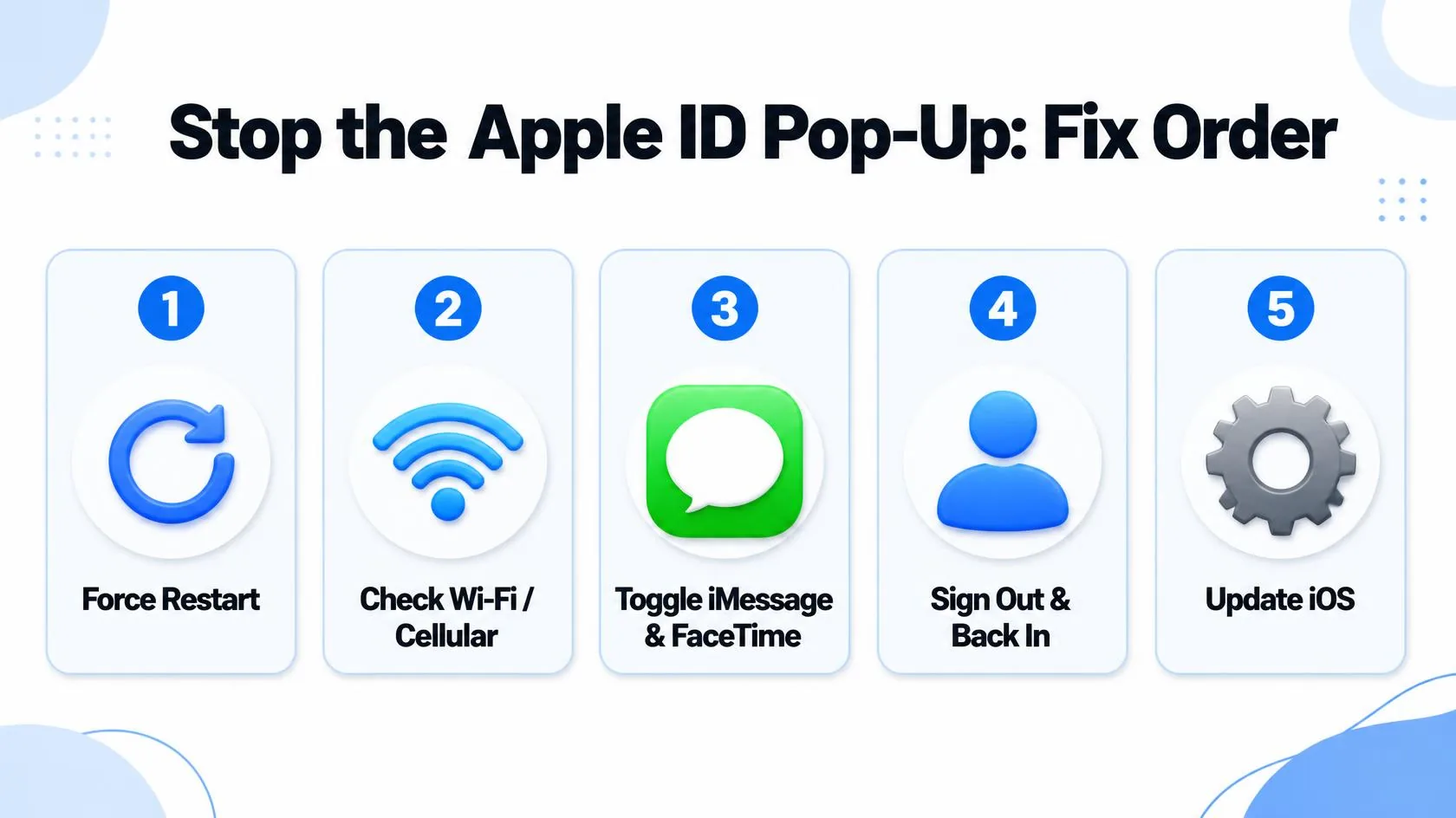
- Force restart your iPhone. This alone resolves it a surprising amount of the time, since it clears the stuck authentication state without touching any settings.
- Check Wi-Fi/cellular connectivity. A weak or dropping connection can prevent the sign-in handshake from completing, which the device then reports as a failed sign-in rather than a network issue. Switch networks or move somewhere with a stronger signal and see if the prompts stop.
- Toggle iMessage and FaceTime off, then back on. Settings → Apps → Messages → iMessage, and Settings → Apps → FaceTime — turning each off, waiting a few seconds, then re-enabling forces a fresh authentication token for both services, which are common sources of this loop.
- Sign out of your Apple ID and back in. Settings → [your name] → Sign Out, restart the device, then sign back in with your current password. This clears any stale cached credential that keeps silently failing.
- Confirm you’re on the latest iOS version. Settings → General → Software Update — outdated iOS versions occasionally carry authentication bugs that get patched in a subsequent release.
- If it persists, check account.apple.com from a browser to confirm your password, trusted phone numbers, and trusted devices list all look correct — an outdated trusted phone number is a less obvious but real trigger for repeated verification requests.
When To Take It Seriously
If the prompts stop entirely once you fix your saved password or reconnect to a stable network, that confirms it was the routine issue. If they continue even after signing out and back in on a fresh network, or if you ever see a device/location you don’t recognize, treat it as a genuine account security check — change your password from a trusted device, review your account’s trusted devices at account.apple.com, and don’t approve any request you can’t verify came from you.
Match Your Situation
| Symptom | Likely cause | What to do |
|---|---|---|
| Prompt shows no device/location, just asks for password | Routine token-refresh failure | Restart, toggle iMessage/FaceTime, re-check network |
| Prompt shows an unfamiliar device or location | Genuine new sign-in attempt | Decline it, change your password immediately |
| Happens mainly on weak Wi-Fi or cellular | Handshake failing due to connectivity | Switch networks and re-test |
| Started right after an iOS update | Possible authentication bug in that release | Check for a follow-up software update |
| Persists after signing out and back in | Outdated trusted phone number or device entry | Review account.apple.com trusted devices/numbers |
RECOMMENDED FIRST STEP
Read the prompt carefully before doing anything else
A prompt with no device or location shown is almost always the routine issue this guide covers — one showing unfamiliar device details is different and needs a password change first.
See More Troubleshooting GuidesFeatured Apple Deals on Amazon
Current discounts on AirPods, chargers, cables, and other Apple gear.
Frequently Asked Questions
Does Apple ID sign-in requested popping up repeatedly mean I’ve been hacked?
Not usually. Most repeated prompts trace back to a stale saved password or a failed background authentication check, not an actual intrusion — but always check whether the prompt shows an unrecognized device or location before dismissing it.
Why does entering my correct password not make the prompt stop?
If the underlying cause is a network issue or a stuck authentication token rather than an actually wrong password, re-entering the correct password won’t fix it — the handshake keeps failing for a different reason, which is why restarting or toggling iMessage/FaceTime often works when re-entering the password alone doesn’t.
Will signing out of my Apple ID delete anything?
No — signing out and back in doesn’t delete your data; it clears the locally cached authentication state and forces a fresh, valid login. Your iCloud data remains on Apple’s servers throughout.
Can a weak Wi-Fi signal really cause an Apple ID prompt?
Yes — the sign-in verification is a round-trip process between your device and Apple’s servers, and if the connection drops mid-check, iOS reports it as a failed sign-in rather than a network timeout, which looks identical to an actual credential problem.
Should I use “Reset All Settings” to fix this?
Only as a last resort. It can resolve deeper configuration bugs causing the loop, but it erases network, keyboard, and privacy settings (not your data), so back up first and try the lighter steps above before reaching for it.
What if I see a device I don’t recognize asking to sign in?
Decline the request immediately, then change your Apple ID password from a device you trust, and review your trusted devices list at account.apple.com to remove anything unfamiliar.
Is this more common after an iOS update?
It can be — authentication-related bugs occasionally ship in a specific iOS release and get patched in a follow-up update, so checking Settings → General → Software Update is worth doing if the prompts started right after updating.
📚 Related Guides
This page may contain affiliate links. If you purchase through one, we may earn a commission at no extra cost to you. See our full Affiliate Disclosure for details.
Written by S M Momin Arif
Founder and lead writer at iPhoneFixDaily, covering iPhone battery and charging diagnostics based on direct hands-on testing. Read more about our approach →