Seeing Update Finishing in Background on your iPhone under Settings → Battery? It means iOS installed fine, but your iPhone is still doing setup work like indexing your data for search, downloading new assets and updating apps. That’s normal for a few days after an update, especially a big one like iOS 27. Here’s how long it should take, why it sometimes won’t go away, and 7 ways to make it finish.
Updated October 12, 2026 for iOS 27.
Official Apple Store on Amazon
Genuine cases, cables, and accessories — sold and shipped by Apple.
🎧 LISTEN TO THIS GUIDE
~90 sec listen
📋 Quick Summary
- The message means the update installed successfully. Setup is still running in the background.
- Apple says this can cause temporary battery drain and warmth after an update.
- A few days is normal. More than a week with no change is worth fixing.
- The best fix: charge overnight, locked, on Wi-Fi, with Low Power Mode off.
- It doesn’t damage your battery. It only affects battery life for a few days.
Table of Contents
What Update Finishing in Background Means
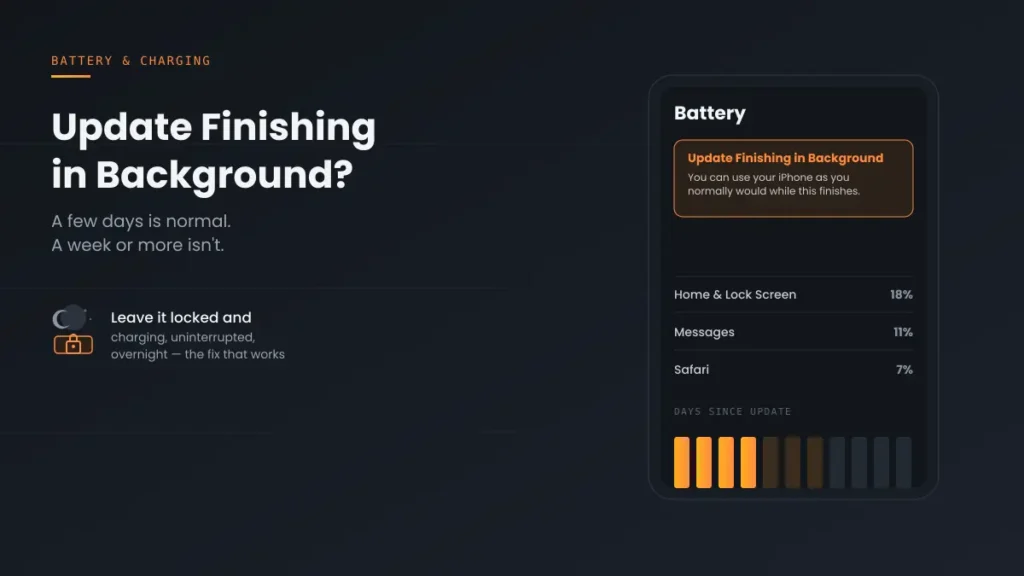
After you update, iOS shows a note in Settings → Battery saying a recent software update is finishing in the background and you can keep using your iPhone as normal. The note disappears by itself when the work is done.
According to Apple, after an update, particularly a major release, your device needs time to complete setup in the background:
- Indexing data and files for search, so Spotlight, Photos and Mail search work.
- Downloading new assets, such as on-device models and features added in the update.
- Updating apps to versions built for the new iOS.
Apple says you might notice a temporary hit to battery life and thermal performance while this runs. So a warmer iPhone and faster drain for a few days are expected, not a sign of a problem.
How Long Is Normal?
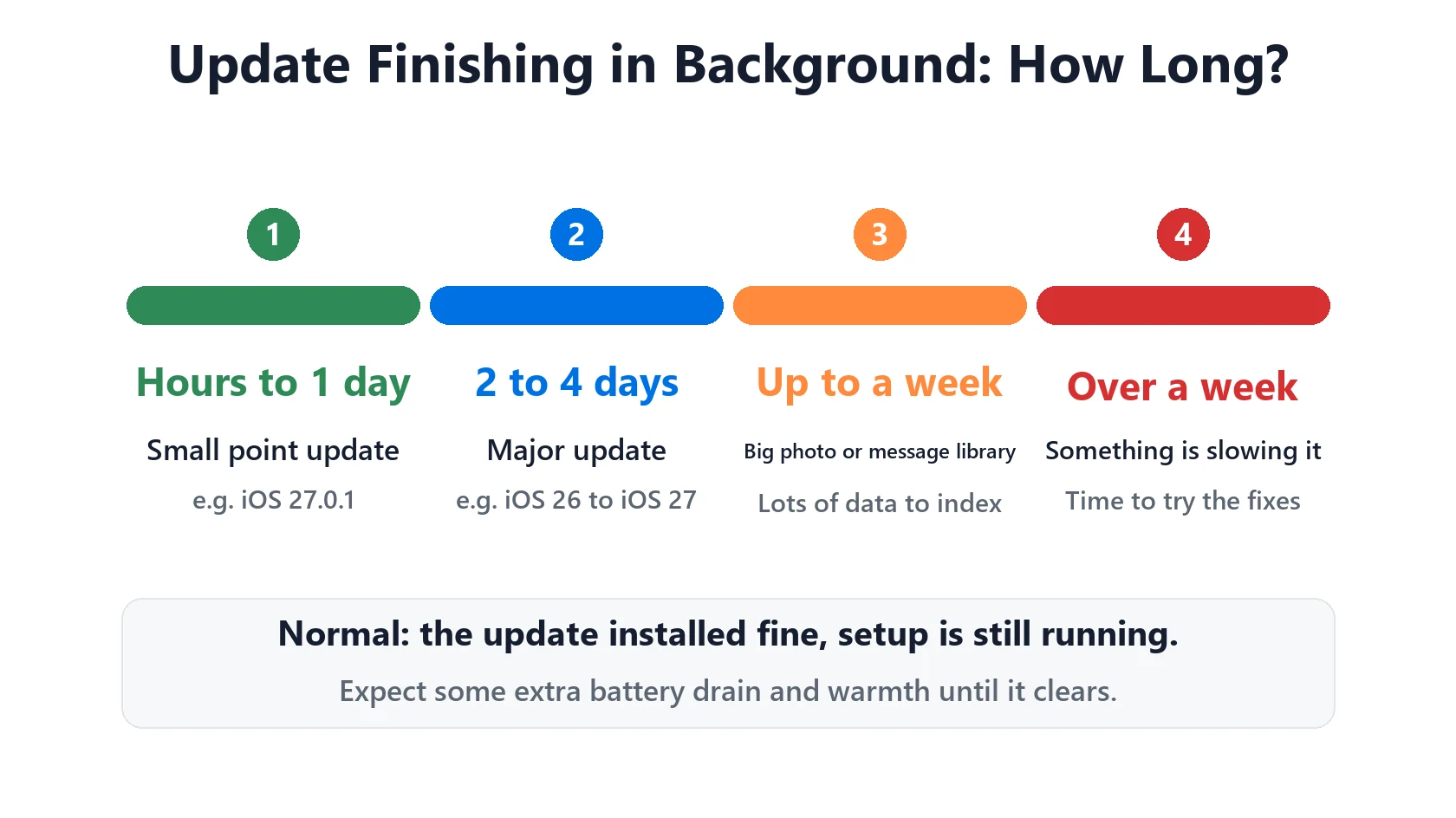
Apple doesn’t give an exact time, and it depends on how much data you have. As a rough guide:
- Small point updates (like iOS 27.0.1): often a few hours to a day.
- Major updates (like iOS 26 to iOS 27): usually 2 to 4 days.
- Big libraries (tens of thousands of photos or years of messages): can take close to a week.
If it’s been more than a week and the message is still there, especially if your iPhone stays warm or drains fast even when idle, something is slowing it down. Work through the fixes below.
Why It Won’t Go Away: 5 Causes
- Your iPhone rarely sits idle on power. Much of this work tends to run while your iPhone is locked and charging. If you use it all day and charge in short bursts, it keeps getting interrupted.
- Low Power Mode is on. Apple says Low Power Mode reduces background activity like downloads, so setup crawls along.
- No Wi-Fi. New assets and app updates download mainly over Wi-Fi, so they can wait indefinitely on cellular.
- Storage almost full. Downloads and app updates need free space. With little left, they can stall without an error.
- A stuck app update or bug. Sometimes one app update hangs, or an early iOS release has a bug that a later point update fixes.
How to Fix Update Finishing in Background: 7 Steps
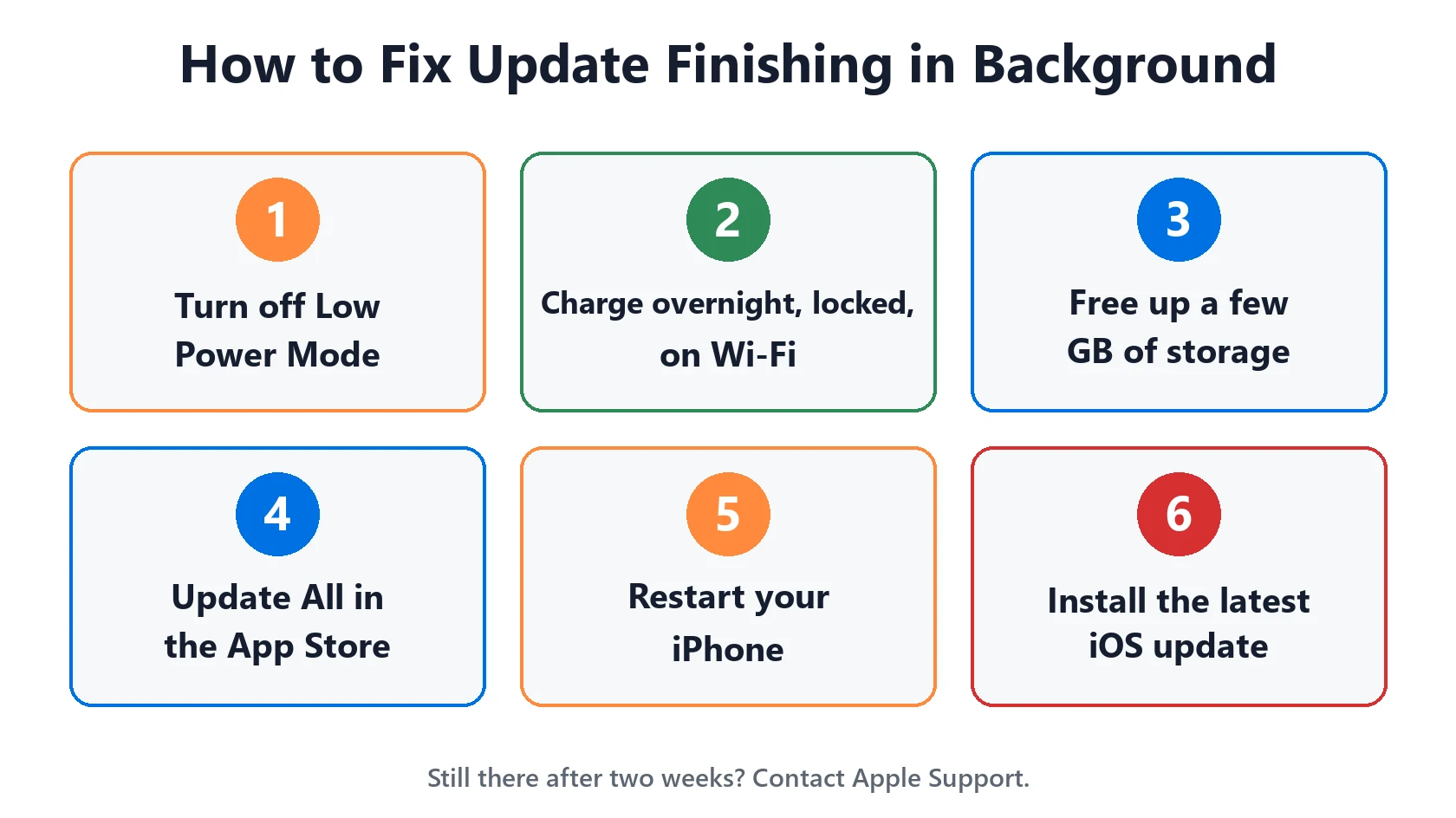
- Give it a few days first. If the update was recent, the message is normal and needs no action.
- Turn off Low Power Mode in Settings → Battery.
- Charge overnight, locked, on Wi-Fi. Plug in before bed and don’t use your iPhone. This is the fix that works most often.
- Free up storage. Go to Settings → General → iPhone Storage. Aim for at least a few GB free. See iPhone storage full.
- Finish pending app updates. Open the App Store, tap your profile and tap Update All.
- Restart your iPhone. A restart can clear a stuck process so setup picks up again.
- Install the latest update. Check Settings → General → Software Update for a newer point release, like iOS 27.2, which may fix a bug causing it.
Don’t delete anything under iPhone Storage to fix this. Once the update has installed, there’s no update file left to remove. If the message is still there after two weeks of overnight charging, contact Apple Support. If your iPhone won’t install an update at all, that’s a different problem: see iPhone won’t update and Apple’s update guide.
Match Your Situation
| What you see | Likely cause | What to do |
|---|---|---|
| Message appeared in the last 1 to 3 days | Normal setup after updating | Keep using your iPhone and wait |
| Over a week, rarely charged overnight | Setup keeps getting interrupted | Charge overnight, locked, on Wi-Fi |
| Low Power Mode on the whole time | Background work is limited | Turn off Low Power Mode |
| Storage nearly full | Downloads can’t finish | Free up a few GB |
| Apps still showing updates | App updates pending | Update All in the App Store |
| Over two weeks, everything tried | Stuck process or iOS bug | Restart, update iOS, then contact Apple |
Battery still draining after the message clears? See iOS 27 battery drain or which apps actually drain iPhone battery. Running hot? See iPhone overheating. Want to check your battery itself? Use this:
🔋 Free Tool
Battery Health Checker
Enter your numbers below for an instant read on whether your battery is aging normally.
How to find these numbers on your iPhone
General estimate based on Apple’s own published battery-retention guidance — not a diagnostic. For an exact reading, check Settings → Battery → Battery Health & Charging.
Recommended First Step
Leave it locked and charging on Wi-Fi overnight
Apple says your iPhone finishes setup in the background after an update. Plug it in, connect to Wi-Fi and leave it alone overnight to give it uninterrupted time.
See the Full Battery & Charging GuideFeatured Apple Deals on Amazon
Current discounts on AirPods, chargers, cables, and other Apple gear.
Frequently Asked Questions
What does Update Finishing in Background mean on iPhone?
Your update installed successfully, but your iPhone is still doing setup work such as indexing data for search, downloading new assets and updating apps. The message goes away on its own when that finishes.
How long does Update Finishing in Background take?
Usually a few hours to a few days. After a major update with a lot of data it can take close to a week. Longer than that usually means something is slowing it down.
Can I use my iPhone while it says Update Finishing in Background?
Yes. iOS says you can use your iPhone as normal. Heavy use just means setup takes longer.
Why is my iPhone hot and draining fast after an update?
Apple says background setup after an update can temporarily affect battery life and thermal performance. It should settle once the message clears.
Does the update finishing in background message mean the update failed?
No. Check Settings → General → About and you’ll see the new iOS version. The message only means background setup isn’t done.
Should I delete the update to fix it?
No. Once installed, there’s no update file to delete. Charge overnight on Wi-Fi, free up storage, restart and install any newer iOS update instead.
📚 Related Guides
This page may contain affiliate links. If you purchase through one, we may earn a commission at no extra cost to you. See our full Affiliate Disclosure for details.
Written by S M Momin Arif
Founder and lead writer at iPhoneFixDaily, covering iPhone battery and charging diagnostics based on direct hands-on testing. Read more about our approach →