If you’re trying to figure out which apps actually drain iPhone battery instead of just guessing based on reputation, the real answer is sitting in your own Settings app — you just need to know what you’re looking at. Here’s how to actually read that data, the specific signal patterns worth knowing, and what to do once you’ve found the real culprit.
Official Apple Store on Amazon
Genuine cases, cables, and accessories — sold and shipped by Apple.
🎧 LISTEN TO THIS GUIDE
~90 sec listen
📋 Quick Summary
- Which apps actually drain iPhone battery is answered by your own Settings data, not generic app reputation.
- The key distinction: On Screen time (using the app) versus Background Activity (running while closed).
- A No Mobile Coverage and Low Signal tag means location, not the app itself, is the real cause.
- Compare today against the last seven days — a sudden spike matters more than a high raw percentage.
- Already found Photos, Home & Lock Screen, or Find My as your top consumer? See the dedicated guide for that exact pattern.
Which apps actually drain iPhone battery is a different question than which apps have a bad reputation. Generic lists claiming to answer which apps actually drain iPhone battery based on Facebook, TikTok, or streaming apps aren’t wrong exactly, but they’re guessing at averages across millions of users — not telling you what’s actually happening on your specific phone. iOS already tracks this at the kernel level, pulling real data from the CPU, GPU, network radio, display, and location hardware every time an app runs. The data you need already exists; most people just never open it correctly.
How to Actually Tell Which Apps Actually Drain iPhone Battery
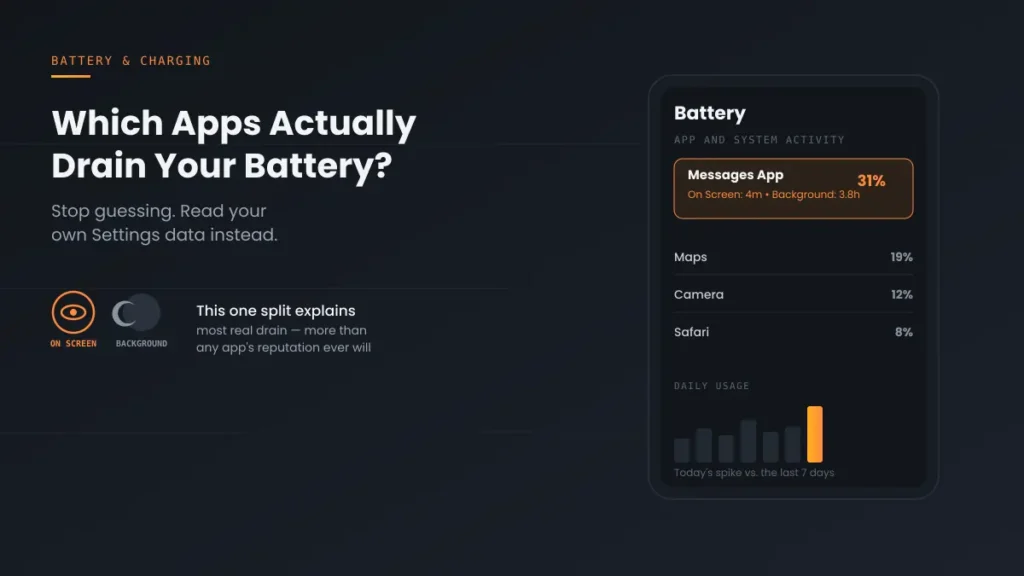
Apple’s own battery usage screen breaks each app down into specific categories, and learning to read them is the entire skill here. Under Settings → Battery → View All Battery Usage, tapping any app shows exactly how its usage split between On Screen time (the app was open and visible) and Background Activity (running while closed) — and that split is the single most useful piece of information on the whole screen.
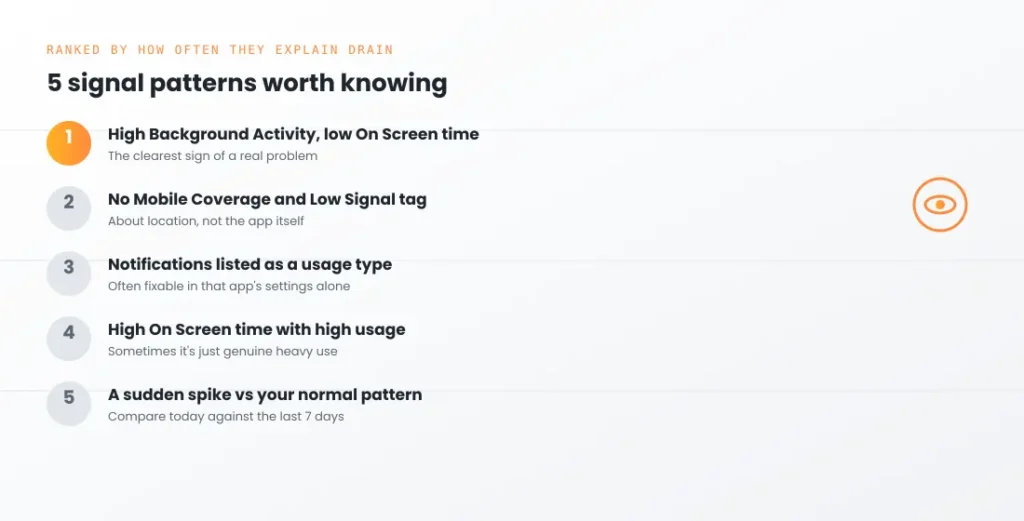
5 Signal Patterns Worth Knowing, Ranked by How Often They Explain Real Drain
- High Background Activity, low On Screen time. When trying to determine which apps actually drain iPhone battery, this is the clearest sign of a real problem — an app doing meaningful work while you’re not using it, whether that’s syncing, tracking location, or checking for updates far more often than it needs to.
- No Mobile Coverage and Low Signal tagged against a specific app. Apple’s own battery documentation confirms this category means the app was used in a low-signal environment, which increases power draw regardless of which app it is — this isn’t really about the app at all, it’s about where you were using it.
- Notifications listed as a significant usage type. This means the app is waking your device frequently to check for new information — often fixable by adjusting notification settings for that one app rather than deleting it.
- Consistently high On Screen time with proportionally high usage. Sometimes the honest answer is simply that you used the app a lot — navigation apps during a long drive, or a game during a long session, aren’t malfunctioning, they’re just genuinely demanding.
- A sudden spike compared to your normal pattern for that app. The Daily Usage chart lets you compare today against the last seven days — a sudden jump in an app you’ve had for months, with no change in how you use it, is worth investigating specifically rather than assuming it’s just “that kind of app.”
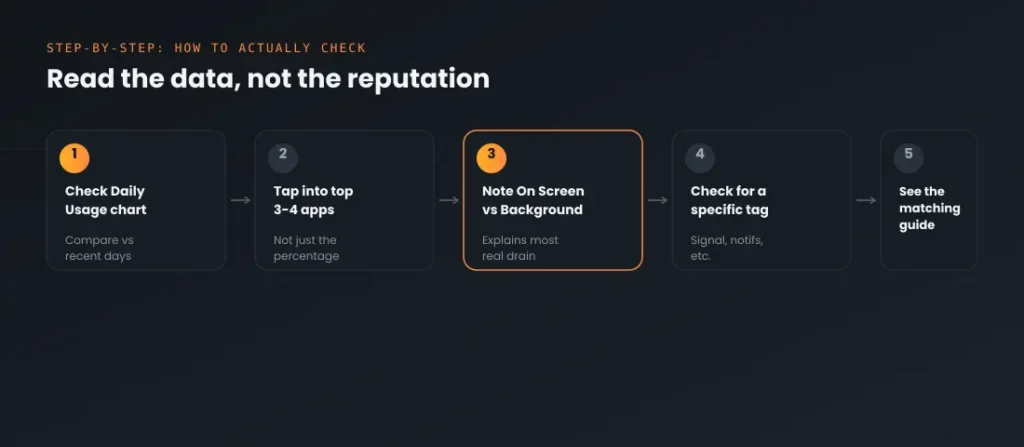
Step-by-Step: How to Actually Check
- Open Settings → Battery and look at the Daily Usage chart first, comparing today against recent days before assuming anything is currently unusual.
- Tap View All Battery Usage, then tap into your top 3-4 apps individually rather than just reading the percentage next to each name.
- For each one, note whether the usage is mostly On Screen or Background Activity — this single distinction explains most real drain.
- If an app shows a specific tag like No Mobile Coverage and Low Signal or Notifications, treat that as the actual explanation rather than blaming the app itself.
- If a specific category matches a pattern you already recognize — Photos syncing, Find My tracking, Home and Lock Screen widgets — check the dedicated guide for that exact pattern instead of guessing at a generic fix.
A note on scope: this guide covers how to identify which apps actually drain iPhone battery using your own data, not general app reputation. If you’ve already identified Photos, Home and Lock Screen, or Find My as your top consumer, see the dedicated guides for those specific patterns rather than general app-blaming advice.
Recommended First Step
Check On Screen vs. Background Activity first
Before blaming any app by reputation, tap into your top 3 apps in Settings → Battery and check this one split. It explains most real drain more reliably than any generic list ever will.
See the Full Battery & Charging GuideFeatured Apple Deals on Amazon
Current discounts on AirPods, chargers, cables, and other Apple gear.
Frequently Asked Questions
Is it true that social media apps always drain the most battery?
Not universally when it comes to which apps actually drain iPhone battery — they’re common because of how frequently people open them and how much background activity they run, but the honest answer for any specific phone is whatever your own Settings → Battery screen actually shows, not a generic reputation.
Does deleting a battery-draining app actually help?
Sometimes, but checking whether the drain is On Screen time (from using it) or Background Activity (from it running unattended) tells you whether deleting it will actually change anything, since heavy on-screen use won’t improve just by uninstalling and reinstalling.
Why does an app I barely open show high battery usage?
This is exactly the pattern worth investigating — high usage with low On Screen time almost always means Background Activity, meaning the app is doing something while closed, which is worth checking specifically rather than dismissing.
What does the No Mobile Coverage and Low Signal tag actually mean?
It means the app was used somewhere with a weak signal, which increases power draw for any app in that situation — it’s a location and connectivity factor, not something wrong with the app itself.
Can I trust the percentage next to each app, or do I need to tap into details?
The percentage alone doesn’t tell you why — two apps can show the same percentage for completely different reasons, one from heavy legitimate use and one from unwanted background activity, so tapping in for the On Screen versus Background breakdown is where the real answer lives.
How often should I check which apps are draining my battery?
There’s no fixed schedule, but checking after noticing a real change in battery life, or after installing a new app, is more useful than checking on a routine basis when nothing has actually changed.
📚 Related Guides
This page may contain affiliate links. If you purchase through one, we may earn a commission at no extra cost to you. See our full Affiliate Disclosure for details.
Written by S M Momin Arif
Founder and lead writer at iPhoneFixDaily, covering iPhone battery and charging diagnostics based on direct hands-on testing. Read more about our approach →