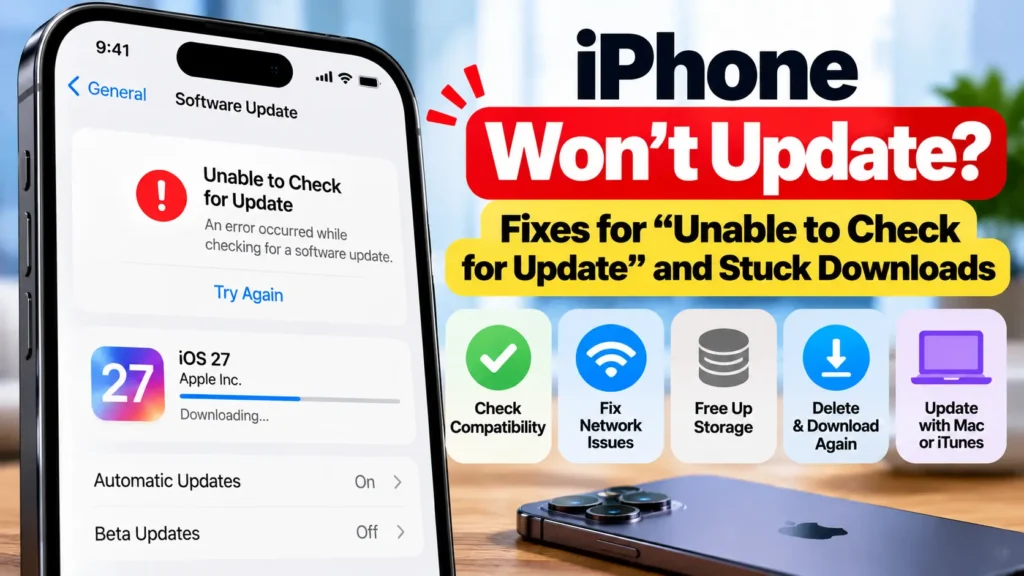
Tapped Software Update and got “Unable to Check for Update”, an update that never finishes downloading, or no update offered at all? Apple’s own troubleshooting page traces almost every case to one of five causes. Work through them in order below. Most people are fixed by step 2 or 3.
Official Apple Store on Amazon
Genuine cases, cables, and accessories — sold and shipped by Apple.
📋 Quick Summary
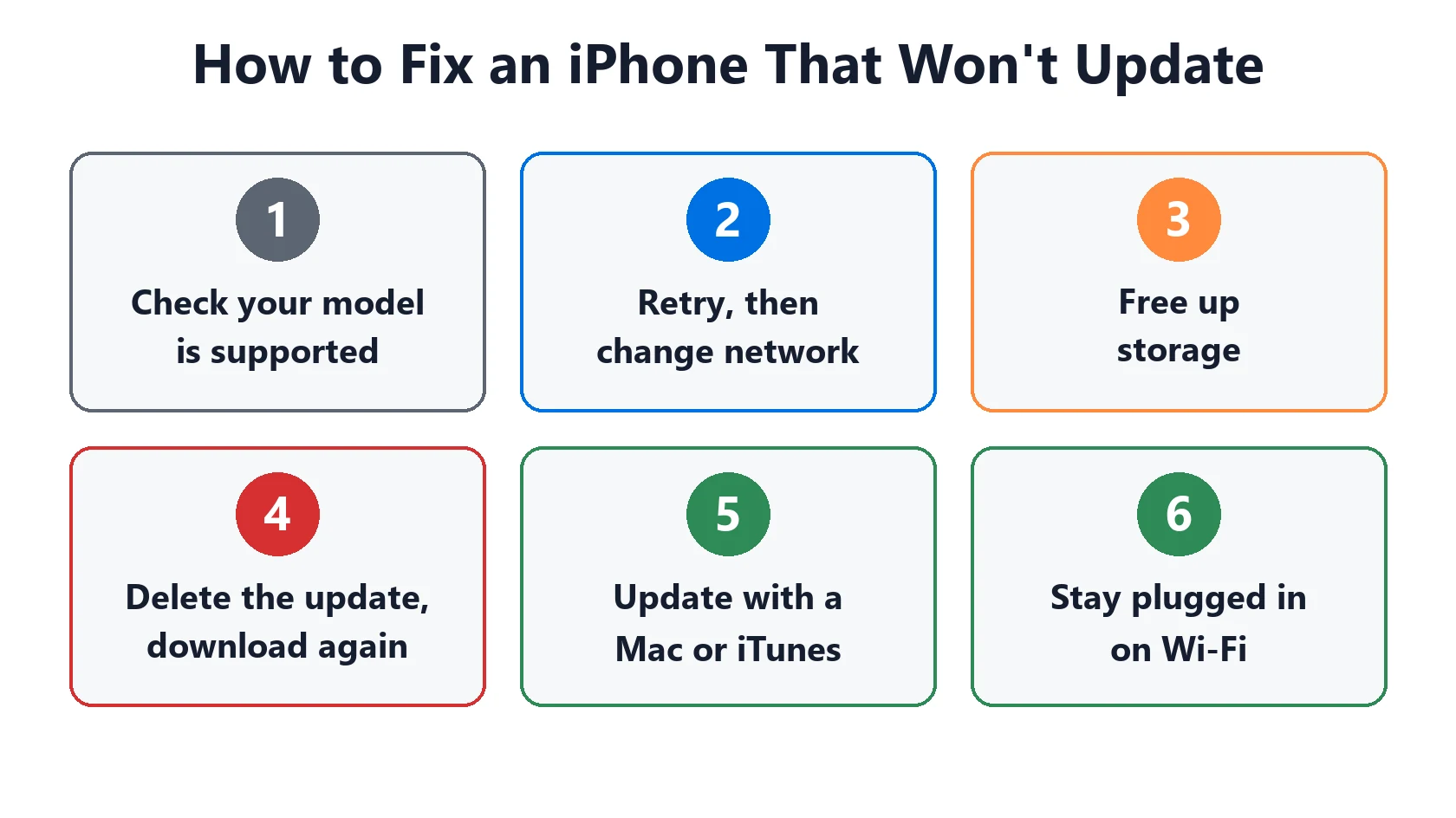
- First check your iPhone supports the new version. Older models stop receiving major updates.
- “Unable to Check for Update” is a connection or server problem. Retry, then switch networks.
- Not enough space? Use Offload Unused Apps in iPhone Storage.
- Stuck or failed download: delete the update in iPhone Storage and download it again.
- Still failing: update with a Mac or iTunes (Apple’s final fallback).
Before You Start: What Every Update Needs
According to Apple’s “If your iPhone or iPad won’t update” article, an update needs four things: a compatible device, an internet connection, enough free storage, and ideally a power source. Plug your iPhone in before you start. If the battery runs out mid-install, the update can’t complete until you reconnect it.
Fix 1: Check Your iPhone Can Get the Update
If Software Update says you’re up to date but friends have a newer iOS, your model may not be supported. Each major iOS release drops some older iPhones. Enter your model in our iOS compatibility checker to see the newest version it can run. Unsupported models usually still get security updates for their last supported version for a while. To see which version is current right now, check our iOS update status page.
Fix 2: “Unable to Check for Update”: Retry, Then Change Network
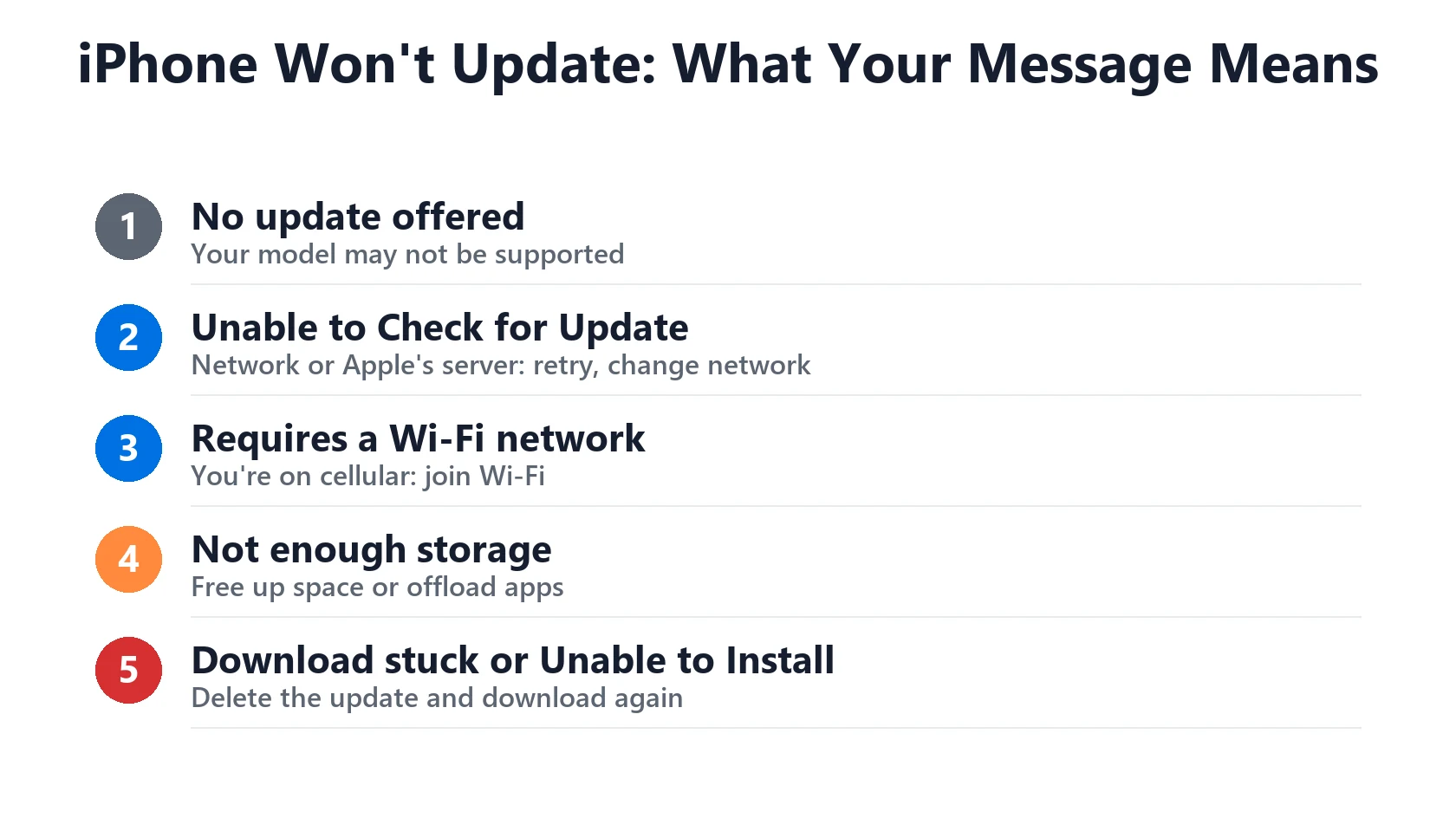
Apple lists these messages as signs your iPhone couldn’t reach the update server:
- “Unable to Check for Update. An error occurred while checking for a software update.”
- “Unable to Check for Update. Checking for a software update failed because you are not connected to the internet.”
- “Unable to Download. This update requires a Wi-Fi network connection.”
Apple’s fix order: try again on the same network first, then on a different network, and if that still fails, update with a Mac or iTunes (Fix 5). On release day Apple’s servers are busy, so an error in the first few hours often clears on its own. Two more things worth checking: turn off any VPN or content-blocking profile, and if you’re on public or work Wi-Fi, try home Wi-Fi or a personal hotspot, since some networks block Apple’s update servers.
Fix 3: Free Up Storage
Major iOS updates need several gigabytes of free space to download and unpack. Go to Settings → General → iPhone Storage:
- Turn on Offload Unused Apps. Apple notes this removes apps you don’t use but keeps their data, so you can reinstall them later with nothing lost.
- Or delete apps, large videos and old message attachments you don’t need.
- Go back to Settings → General → Software Update and try again.
Fix 4: Delete the Update and Download It Again
If the download stalls, fails verification or the install keeps failing, the downloaded file may be damaged. Apple’s steps:
- Go to Settings → General → iPhone Storage.
- Find the update in the list of apps and tap it.
- Tap Delete Update.
- Go to Settings → General → Software Update and download it again.
Download times depend on your connection. Apple recommends Wi-Fi and pausing other big downloads while the update comes down. You can keep using your iPhone while it downloads.
Fix 5: Update Using a Mac or iTunes
If none of the above works, Apple’s fallback is to update with a computer. Connect your iPhone to a Mac (using Finder) or to a Windows PC with iTunes or the Apple Devices app, select your iPhone, and choose Check for Update. Choose Update, not Restore: Restore erases the iPhone. Back up first, either way.
Match Your Symptom
| What you see | Most likely cause | Go to |
|---|---|---|
| No update offered, friends have it | Model not supported | Fix 1 |
| “Unable to Check for Update” | Network or Apple server | Fix 2 |
| “This update requires a Wi-Fi network connection” | On cellular | Fix 2 (join Wi-Fi) |
| Not enough storage warning | Storage | Fix 3 |
| Download stuck or “Unable to Install Update” | Damaged download | Fix 4 |
| Update started, phone died, now stuck | Power ran out mid-install | Plug in and restart, then Fix 5 if still stuck |
After the Update: Expect a Few Warm, Hungry Days
Once it installs, it’s normal for your iPhone to run warmer and drain faster for a day or two while it re-indexes photos and data in the background. See what “update finishing in background” means, and check our iOS 27 battery drain guide if battery life doesn’t settle down. Before your next major update, our iOS update prep checklist covers backups and storage in advance.
Featured Apple Deals on Amazon
Current discounts on AirPods, chargers, cables, and other Apple gear.
Frequently Asked Questions
Why is the update taking hours?
Download time depends on the size of the update and your connection. Busy servers on release day make it slower. If the progress bar hasn’t moved for a long time on good Wi-Fi, use Fix 4.
Will updating delete my photos or data?
A normal update over the air or with Update on a computer keeps your data. Only Restore erases it. Back up first anyway, in case something goes wrong mid-install.
Can I skip an update?
Yes. You can stay on your current version, and Apple sometimes offers security updates for the previous major version alongside the new one. Check under Software Update for an option to upgrade to the new version or stay current on the old one.