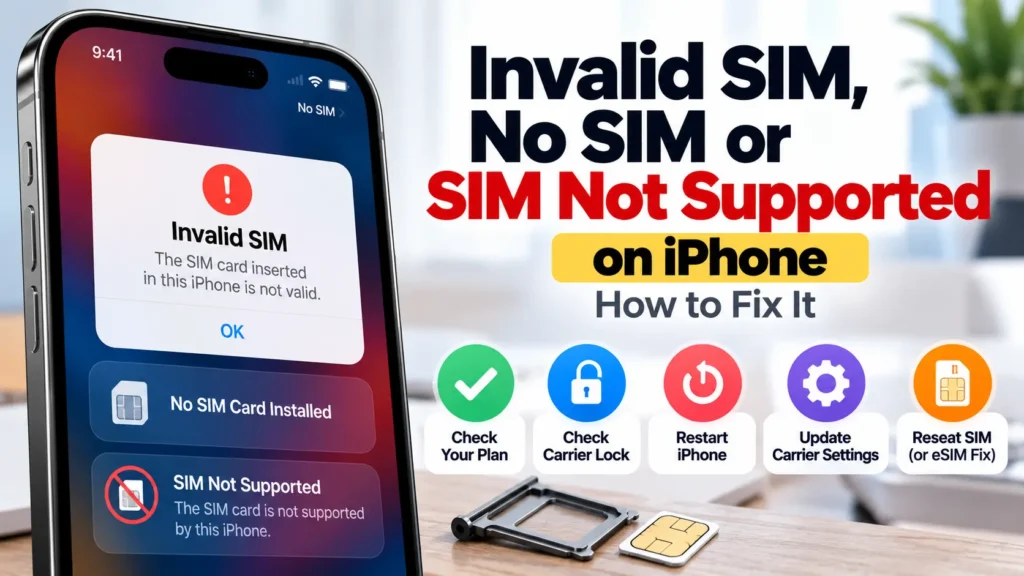
“Invalid SIM”, “No SIM Card Installed” and “SIM Not Supported” all mean your iPhone can’t use the SIM or eSIM it has, but the fixes differ. Usually it’s a plan or carrier-lock issue, a SIM that needs reseating, or a missed carrier settings update. Less often, the SIM itself is faulty. Here’s Apple’s troubleshooting order and how to tell which one you’re dealing with.
Official Apple Store on Amazon
Genuine cases, cables, and accessories — sold and shipped by Apple.
📋 Quick Summary
- First, confirm you have an active plan with your carrier.
- “SIM Not Supported” usually means the iPhone is locked to another carrier. Check Settings → General → About → Carrier Lock.
- Then: restart, check for a carrier settings update, and reseat the physical SIM.
- On an eSIM, there’s nothing to reseat. Apple says to contact your carrier.
- Still failing with a known-good SIM? The iPhone may need service.
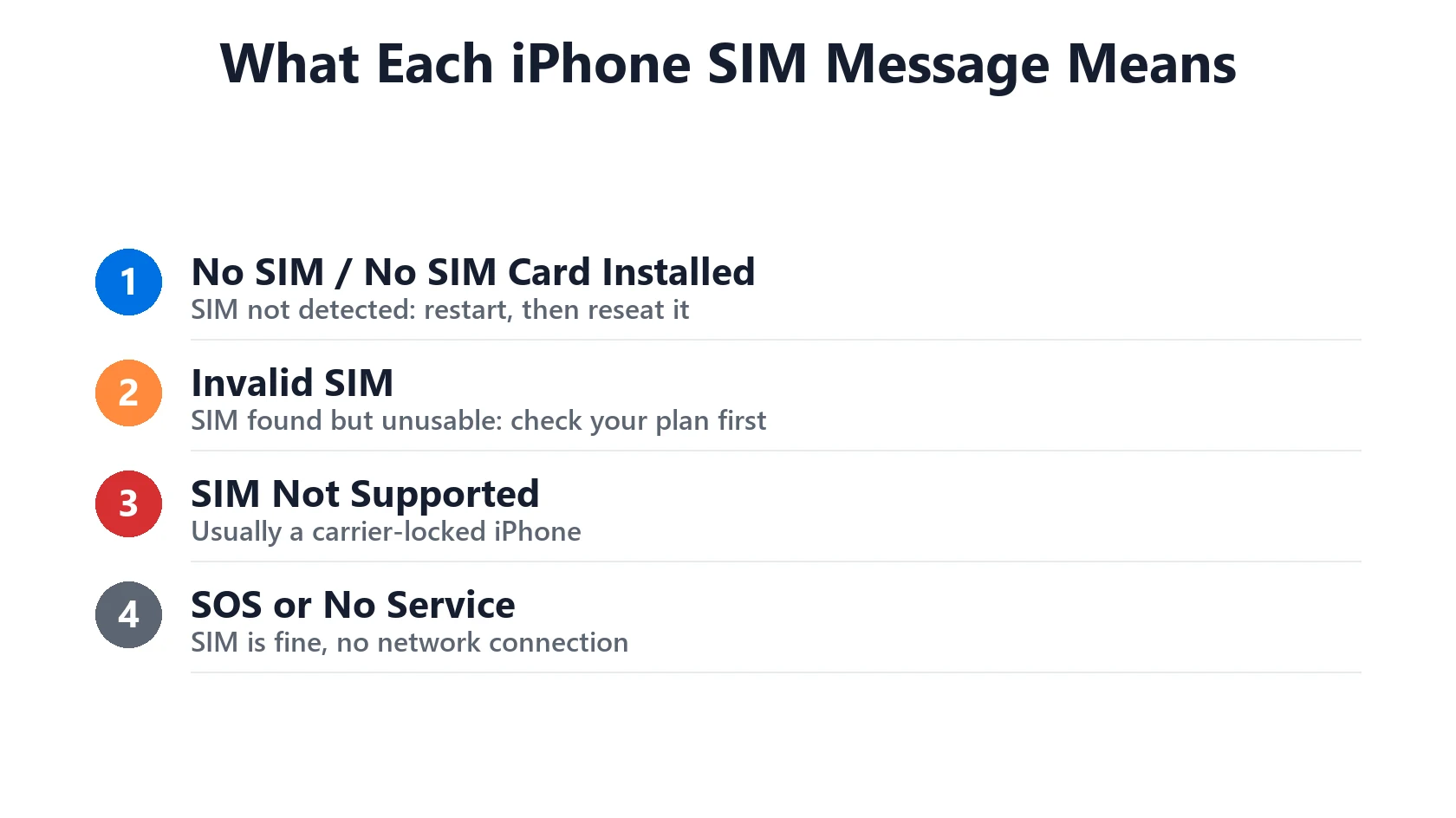
What Each SIM Message Means
| Message | Most likely meaning | Start with |
|---|---|---|
| No SIM / No SIM Card Installed | The iPhone can’t detect a SIM: not seated, damaged, or no eSIM set up | Fix 3 (restart), then Fix 5 (reseat) |
| Invalid SIM | A SIM is detected but can’t be used: inactive plan, carrier issue, or faulty SIM | Fix 1 (plan), then Fix 4 (carrier settings) |
| SIM Not Supported | Usually a carrier-locked iPhone with another carrier’s SIM | Fix 2 (carrier lock) |
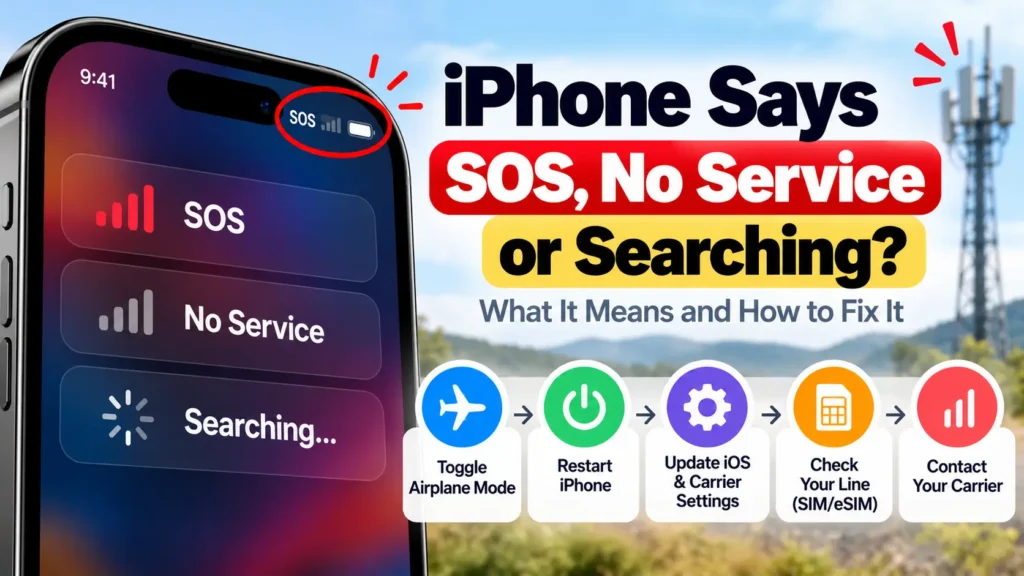
| SOS / No Service (no SIM alert) | SIM is fine; no connection to the network | See SOS or No Service on iPhone |
Fix 1: Confirm Your Plan Is Active
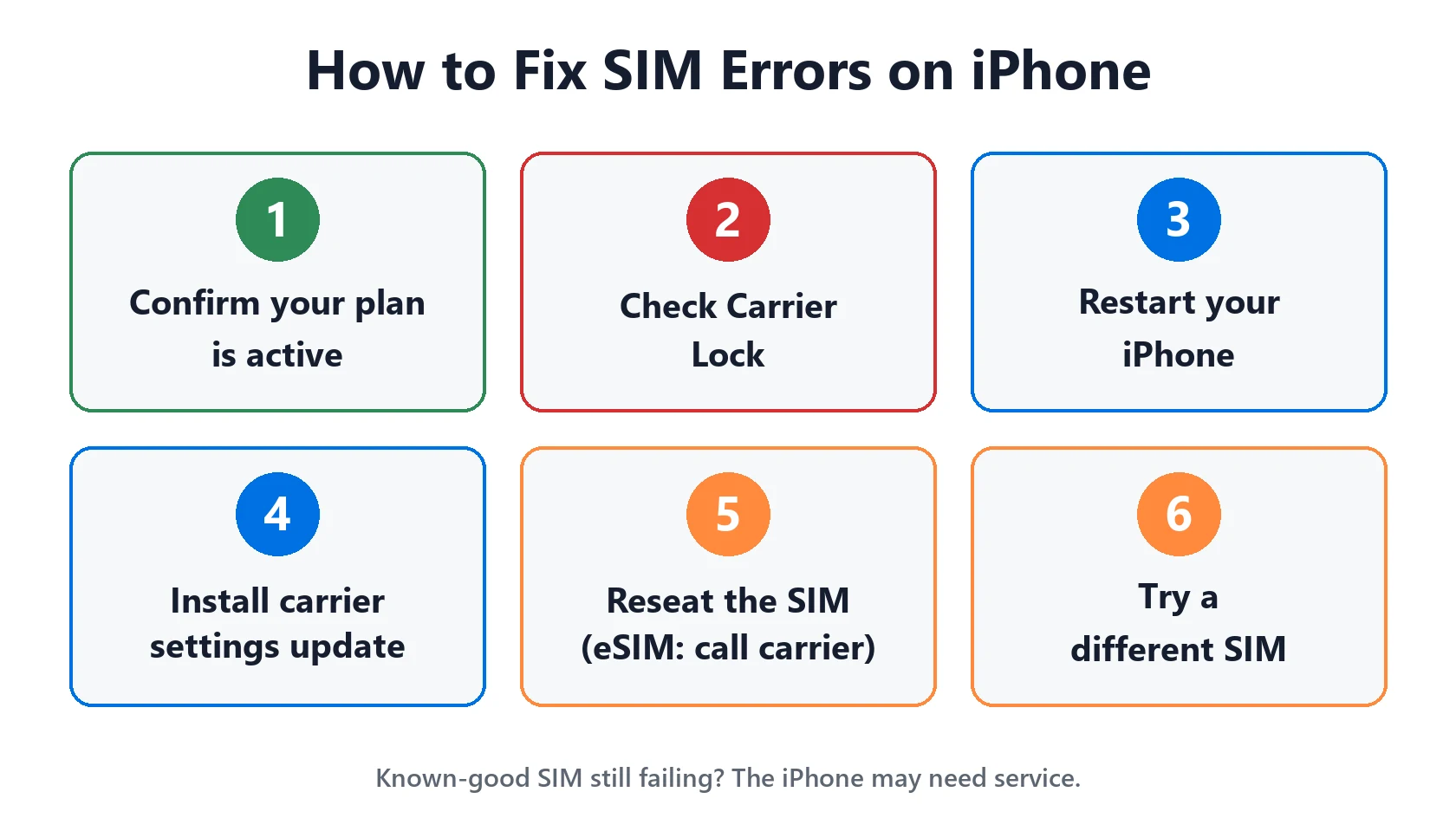
Apple’s Invalid SIM / No SIM article starts here for a reason. A suspended, unpaid, cancelled or not-yet-activated line produces exactly this error, and no amount of restarting will fix it. If you’ve just switched carriers, changed plans or ported a number, check with your carrier first.
Fix 2: Check If Your iPhone Is Carrier-Locked
A carrier-locked iPhone only works with the carrier it’s locked to. Put in another carrier’s SIM (a travel SIM, or a new carrier after switching) and you’ll get “SIM Not Supported” or “Invalid SIM.”
- Open Settings → General → About.
- Look next to Carrier Lock. If it says “No SIM restrictions,” the iPhone is unlocked.
- If it doesn’t, only the original carrier can unlock it. Contact them and ask for a carrier unlock. Apple can’t do it for you.
Buying a used iPhone? Check the Carrier Lock line before you pay. A locked phone from a different carrier is one of the most common second-hand surprises.
Fix 3: Restart Your iPhone
A restart forces the iPhone to re-read the SIM and reconnect to the carrier, and it clears a surprising number of one-off SIM errors. Turn it off fully and back on rather than just locking the screen.
Fix 4: Install a Carrier Settings Update
Carriers push small settings updates separate from iOS updates. Go to Settings → General → About and wait a few seconds. If an update is available, you’ll get a prompt to select OK or Update. Apple notes that if you insert a new carrier’s SIM, you need that carrier’s settings too. It’s also worth making sure iOS itself is current: see the latest iOS version.
Fix 5: Reseat the Physical SIM (or Contact Your Carrier for eSIM)
Physical SIM: eject the tray with a SIM tool or paperclip, take the SIM out, check for dirt or damage, and put it back. Apple specifically says to make sure the tray closes completely and isn’t loose, and warns that a tray from a different iPhone model or another brand of phone might not fit properly.
eSIM: there’s no card to reseat. Apple’s advice is to contact your carrier, who can check the eSIM on their side or issue a new one. Many recent iPhones sold in the US have no SIM tray at all. Our model number lookup tells you which regional version you have.
Fix 6: Try a Different SIM
If you have another SIM from the same carrier (or any SIM, if the iPhone is unlocked), try it. If you don’t have one, Apple suggests asking at your carrier’s store to test with another SIM. If the other SIM works, yours needs replacing. SIM cards do fail, especially ones moved between phones or trimmed down to fit.
“SIM Not Supported” While Setting Up a New iPhone
If the error appears during activation, Apple’s activation troubleshooting adds a few checks:
- Check Apple’s System Status page. If iOS Device Activation isn’t green, wait and try later.
- Restart, and use a reliable Wi-Fi network rather than cellular for activation.
- Try activating through a computer (Finder on Mac, or iTunes). If the computer says the SIM or eSIM is incompatible or invalid, contact your carrier.
- If you’re asked for an Apple Account password during setup, Activation Lock is on. You’ll need the password of the account the iPhone was last signed in to.
When It’s the iPhone, Not the SIM
If a known-good SIM from an active plan still shows an alert on an unlocked, updated iPhone, Apple says the iPhone might need service. Liquid exposure and drops are common culprits, since they can damage the SIM reader. Our repair cost estimator gives you a ballpark before you book.
Featured Apple Deals on Amazon
Current discounts on AirPods, chargers, cables, and other Apple gear.
Frequently Asked Questions
Why did “No SIM” appear out of nowhere?
Common triggers are a SIM that shifted after a drop, a carrier-side change (plan, number port, eSIM transfer), or a software hiccup after an update. Work through Fixes 3 to 5. If it keeps coming back, try a replacement SIM from your carrier.
Can I still use Wi-Fi with a SIM error?
Yes. Wi-Fi, iMessage over Wi-Fi, and apps keep working. Only cellular calls, texts and data are affected. Wi-Fi Calling also depends on your carrier line being active.
Will resetting network settings help?
It isn’t in Apple’s steps for SIM alerts, and it also erases saved Wi-Fi passwords. Try the steps above first. If your SIM is fine but you have no signal, the SOS / No Service guide is the better fit.