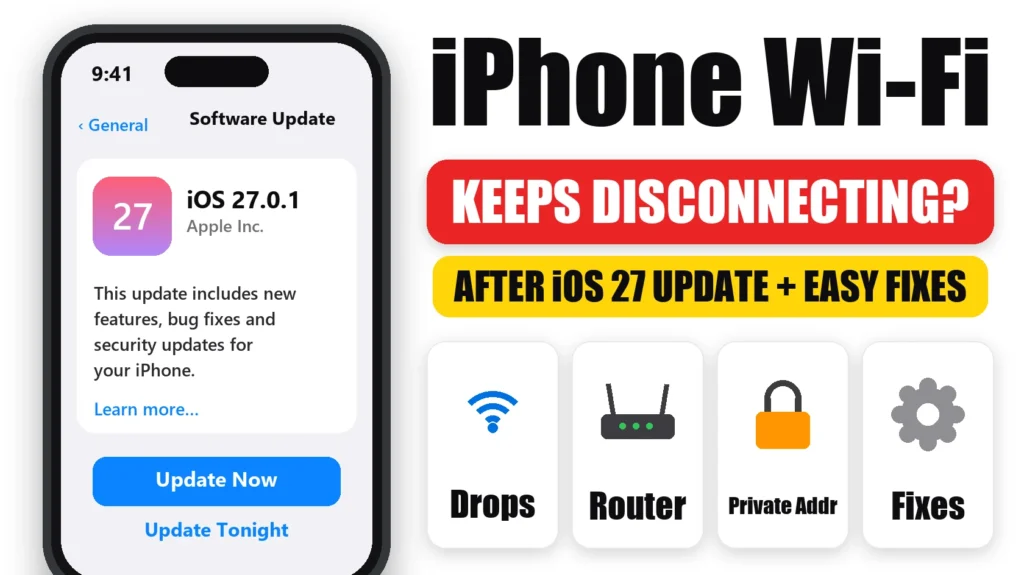
iPhone Wi-Fi keeps disconnecting, especially since the iOS 27 update? Some users report random drops, slow speeds or networks that won’t reconnect after a major update. Apple hasn’t confirmed a Wi-Fi bug in iOS 27, and most drops come from a stale network setting, the router, or an iPhone feature like Private Wi-Fi Address or Wi-Fi Assist. Here’s how to find the cause and fix it, starting with Apple’s own steps.
Official Apple Store on Amazon
Genuine cases, cables, and accessories — sold and shipped by Apple.
📋 Quick Summary
- Test another device. If everything drops, it’s the router, not your iPhone.
- Turn Wi-Fi off and on in Settings, restart your iPhone, and restart the router.
- Forget the network and join again with the password.
- On your home network, try turning Private Wi-Fi Address off.
- Still dropping? Reset Network Settings as a last resort.
Table of Contents
Is It Your iPhone or Your Router?
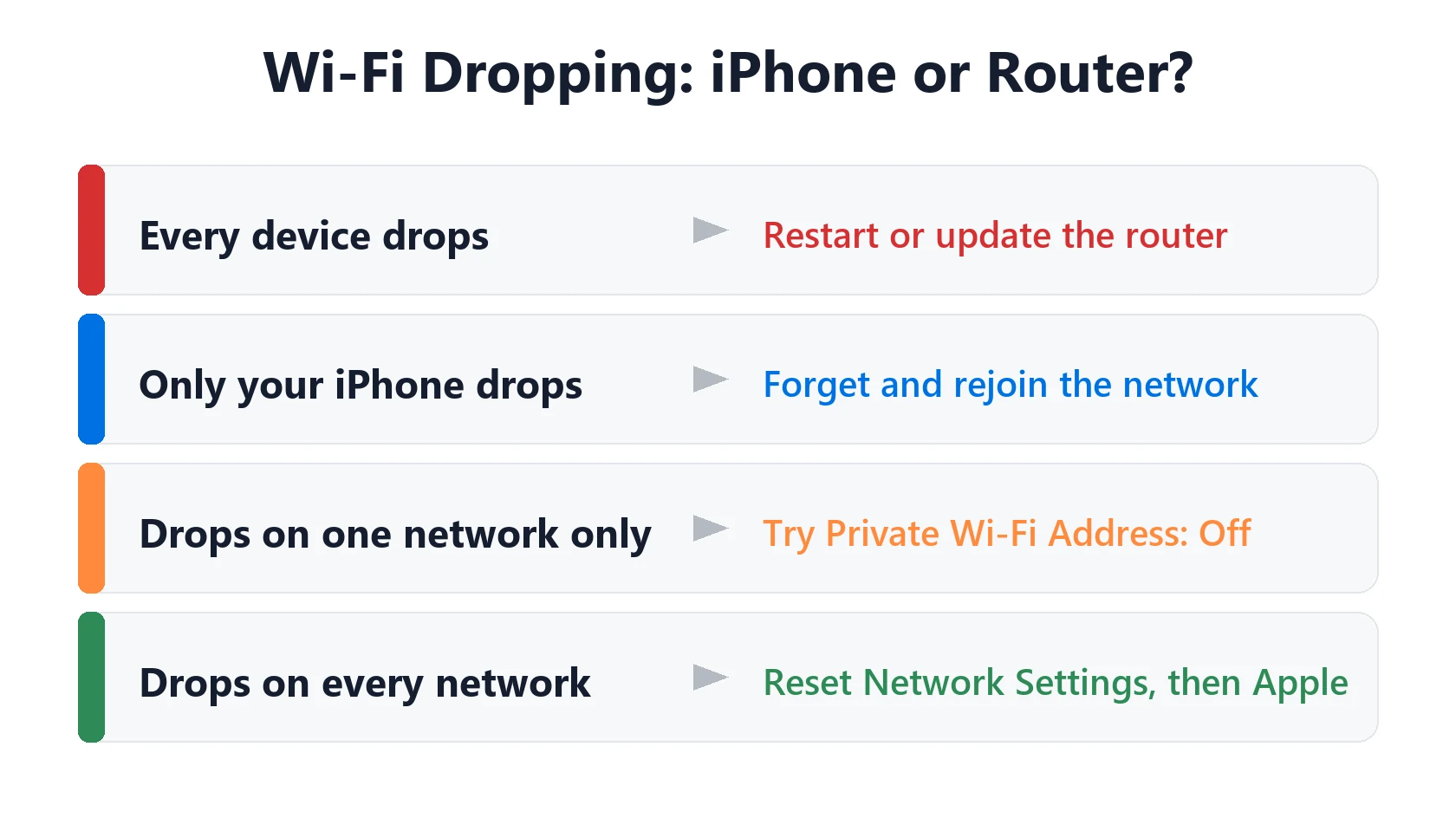
If your iPhone Wi-Fi keeps disconnecting, start by narrowing down where the problem is:
- Other devices drop too? The router or your internet service is the problem. Skip to the router fixes.
- Only your iPhone drops? It’s a setting on your iPhone. Work through the fixes below.
- Your iPhone drops on every network? Apple says to contact Apple Support if it can’t stay connected to any Wi-Fi network after the steps below.
- Only one network? Look under the network name in Settings → Wi-Fi for alerts such as No Internet Connection.
Quick Fixes First
- Turn Wi-Fi off and on in Settings → Wi-Fi. The Control Center button only disconnects you from the current network for a while.
- Restart your iPhone.
- Restart the router and modem. Unplug them, wait 30 seconds and plug them back in.
- Move closer to the router to rule out a weak signal.
- Update iOS in Settings → General → Software Update.
If your iPhone Wi-Fi keeps disconnecting after these, move on to the settings below. These steps are the core of Apple’s guide for an iPhone that can’t connect to Wi-Fi. Check whether the drops stop after each one.
Settings That Make iPhone Wi-Fi Keep Disconnecting
- An old saved network. Tap the ⓘ next to the network, tap Forget This Network, then join again with the password.
- Private Wi-Fi Address. Some routers drop or block devices whose address changes. Try turning it off for your home network (steps below).
- Auto-Join turned off. In the network’s ⓘ screen, make sure Auto-Join is on.
- Wi-Fi Assist. It switches to cellular when Wi-Fi is weak, which can look like a disconnect. Check Settings → Cellular → Wi-Fi Assist.
- Low Data Mode. In the network’s ⓘ screen, turn off Low Data Mode if pages seem to stall.
- A VPN or security app. Apple suggests temporarily removing VPN or security software to see if it’s the cause.
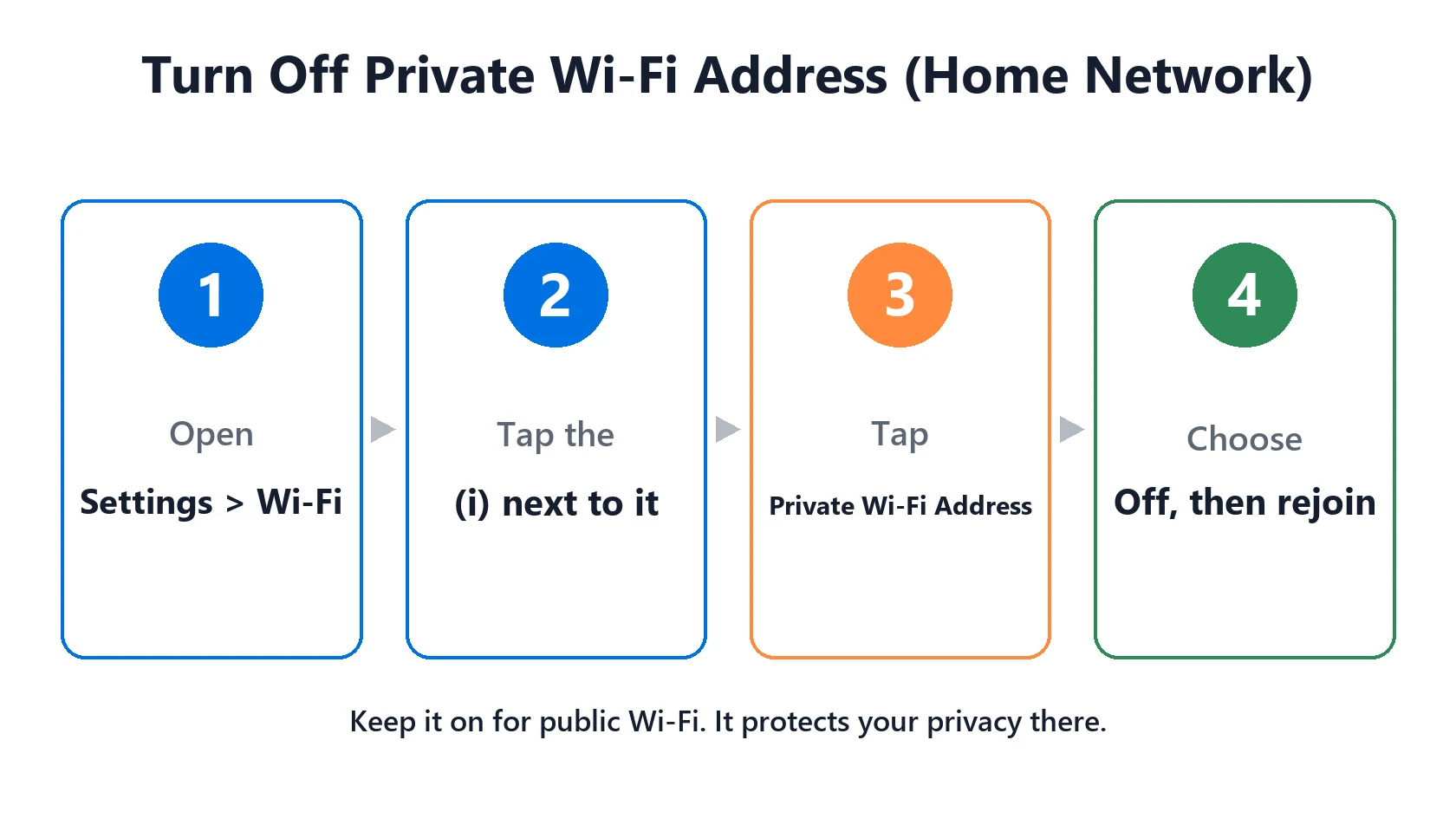
How to Change Private Wi-Fi Address
- Go to Settings → Wi-Fi.
- Tap the ⓘ next to your home network.
- Tap Private Wi-Fi Address and choose Off.
- Rejoin the network if asked.
Only do this for networks you trust, like your home Wi-Fi. Leave it on for public Wi-Fi, where it protects your privacy.
Last Resort: Reset Network Settings
If nothing else works, go to Settings → General → Transfer or Reset iPhone → Reset → Reset Network Settings. Apple notes this also erases saved Wi-Fi networks and passwords, cellular settings, and VPN settings, so you’ll need to rejoin your networks. Your photos, apps and messages aren’t affected.
If your iPhone still won’t stay connected to any network, contact Apple Support.
Router Fixes That Help
- Update the router’s firmware through its app or admin page.
- Check cables between the router and modem, and make sure both are powered on.
- Give the 2.4 GHz and 5 GHz bands the same name and password, or try joining the other band, if your router lets you.
- Move the router to a central, open spot, away from microwaves and thick walls.
Featured Apple Deals on Amazon
Current discounts on AirPods, chargers, cables, and other Apple gear.
Frequently Asked Questions
Why does my iPhone Wi-Fi keep disconnecting?
Usually an old saved network, Private Wi-Fi Address on a router that doesn’t like it, Wi-Fi Assist switching to cellular, or the router itself. Forget and rejoin the network, then check those settings.
Why did my iPhone Wi-Fi start disconnecting after the iOS 27 update?
Updates can leave old network settings behind. Restart your iPhone and router, forget and rejoin the network, and reset network settings if the drops continue.
Should I turn off Private Wi-Fi Address?
Only on networks you trust, like home Wi-Fi, and only if you’re having connection problems. Keep it on for public networks.
What does Wi-Fi Assist do?
It uses cellular data when your Wi-Fi is weak. Turning it off keeps you on Wi-Fi, but pages may load more slowly on a poor connection.
Does Reset Network Settings delete data?
No. It removes saved Wi-Fi networks, passwords, VPN and cellular settings, but not your photos, apps or messages.
📚 Related Guides
Written by S M Momin Arif
Founder and lead writer at iPhoneFixDaily, covering iPhone battery and charging diagnostics based on direct hands-on testing. Read more about our approach →