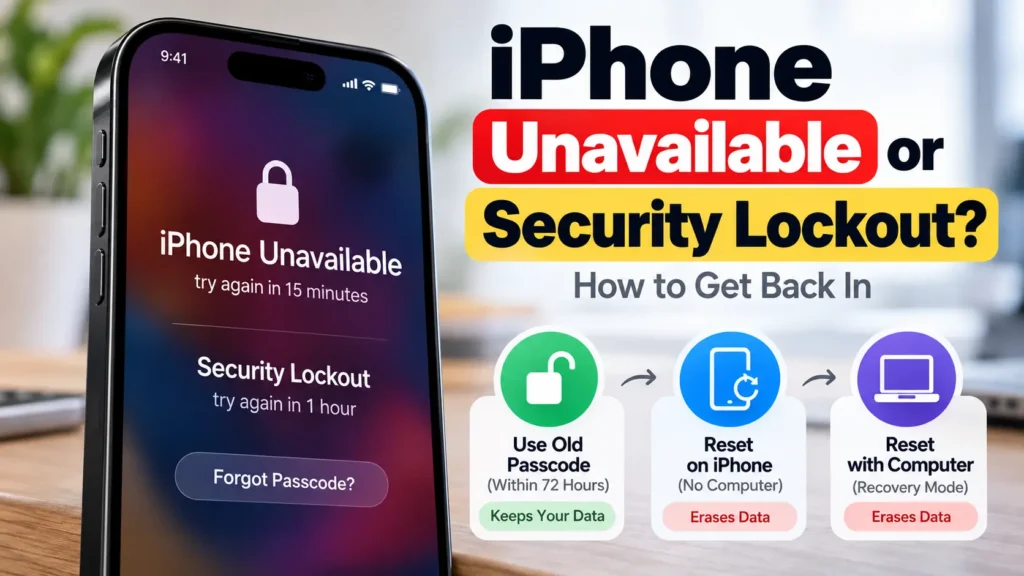
Your iPhone says “iPhone Unavailable” or “Security Lockout” because the wrong passcode was entered too many times. Before you do anything drastic, check one thing. If you changed your passcode in the last 72 hours, you may be able to get back in with your old one and keep all your data. If not, the only way back in is to erase the iPhone. This guide covers every option in the order Apple recommends, and what you’ll need for each.
Official Apple Store on Amazon
Genuine cases, cables, and accessories — sold and shipped by Apple.
📋 Quick Summary
- Changed your passcode in the last 72 hours? Tap Forgot Passcode? → Enter Previous Passcode. Your data is kept.
- Otherwise, Apple’s order is: reset on the iPhone itself (no computer), then reset with a computer.
- Both resets erase the iPhone. Your data comes back only from a backup.
- You’ll need your Apple Account password. Resetting on the phone also needs Find My on and a Wi-Fi or cellular connection.
- Using an eSIM on iOS 16 or earlier? Ask your carrier for an eSIM QR code first.
Why Your iPhone Says “Unavailable”
After several wrong passcode attempts, iOS locks the screen and shows “iPhone Unavailable”, sometimes with a countdown before you can try again. Keep entering wrong codes and it moves to Security Lockout. Apple’s Passcode Reset article says the Unavailable screen appears after five incorrect attempts. It’s a security feature, not a fault. It’s what stops a thief from guessing their way into your phone, and it’s why there’s no way around it that keeps your data, apart from the old-passcode option below.
Kids pressing buttons, a phone unlocking in a pocket, or a passcode changed and forgotten the same week are the usual causes.
Option 1: Use Your Old Passcode (Changed Within 72 Hours)
From iOS 17 on, Apple’s Passcode Reset feature lets you use your previous passcode for 72 hours after changing it. This is the only option that doesn’t erase anything.
- On the “iPhone Unavailable” screen, tap Forgot Passcode? in the bottom corner.
- Tap Enter Previous Passcode.
- Enter the old passcode, then set a new one when prompted.
The Forgot Passcode? button only appears if the iPhone is connected to Wi-Fi or cellular, signed in to your Apple Account, and has Find My turned on.
Option 2: Reset the iPhone Without a Computer
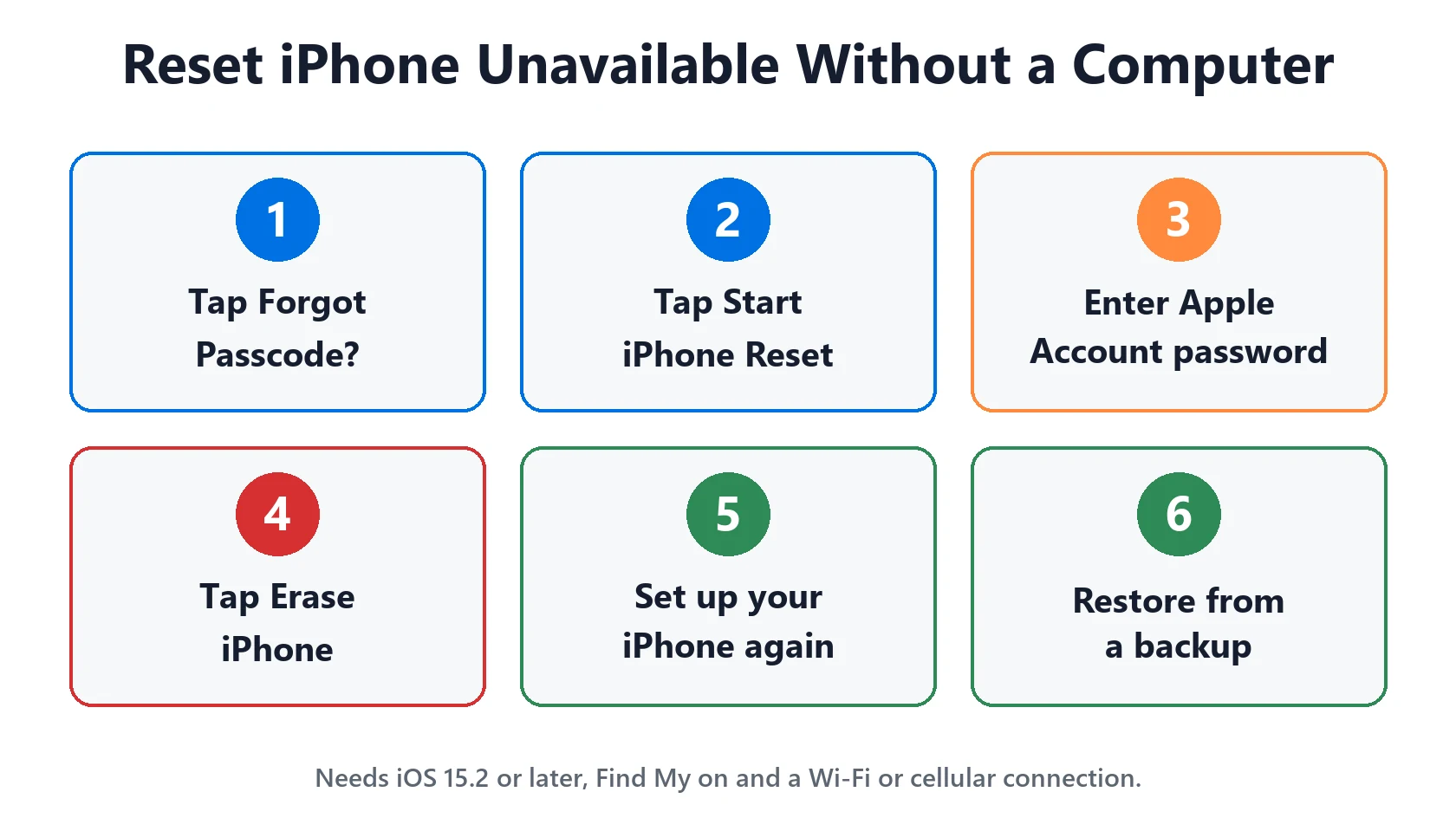
If you don’t have a recent old passcode, Apple’s lockout article lets you erase and reset the iPhone from the lock screen. You need: iOS 15.2 or later, Find My previously turned on, a Wi-Fi or cellular connection, and your Apple Account password.
- On the Lock Screen, keep trying the passcode until the iPhone Unavailable screen appears.
- Tap Forgot Passcode? (on iOS 15.2 and iOS 16 the button says Erase iPhone).
- On the Security Lockout screen, tap Start iPhone Reset.
- Enter your Apple Account password to sign out of your account on the phone.
- Tap Erase iPhone. On iOS 17 or later with an eSIM, you can choose to keep the eSIM or delete it while erasing.
- When the iPhone restarts, set it up again, restore from a backup if you have one, and choose a new passcode.
eSIM on iOS 16 or earlier? Apple says to contact your carrier before resetting and ask for a QR code to set up your eSIM again. Otherwise you may lose cellular service until the carrier reissues it.
Option 3: Reset the iPhone With a Computer
If there’s no Forgot Passcode? or Erase option, for example because the phone is offline or Find My was off, Apple’s computer method uses recovery mode. You’ll need a Mac or Windows PC, a cable that charges your iPhone, an internet connection, and up to about an hour.
- Turn the iPhone off. On Face ID models, hold the side button and volume down until the power-off slider appears. On Home button models, hold the side or top button.
- Enter recovery mode. Connect the cable to the computer, then to the iPhone while holding the right button, and keep holding until you see a computer-and-cable image:
• iPhone 8 and later, including SE (2nd and 3rd gen): side button
• iPhone 7 and 7 Plus: volume down
• iPhone 6s and earlier, SE (1st gen): Home button - Restore. On a Mac, open Finder and select the iPhone under Locations. On Windows, open the Apple Devices app. When offered Restore or Update, choose Restore.
- If the download takes more than 15 minutes and the iPhone leaves recovery mode, let the download finish, then turn the iPhone off and enter recovery mode again.
- When the Hello screen appears, disconnect and set the iPhone up.
No computer to use or borrow? Apple says to go to an Apple Store or Apple Authorized Service Provider. If the buttons don’t respond and you can’t reach the recovery screen, the iPhone may need service.
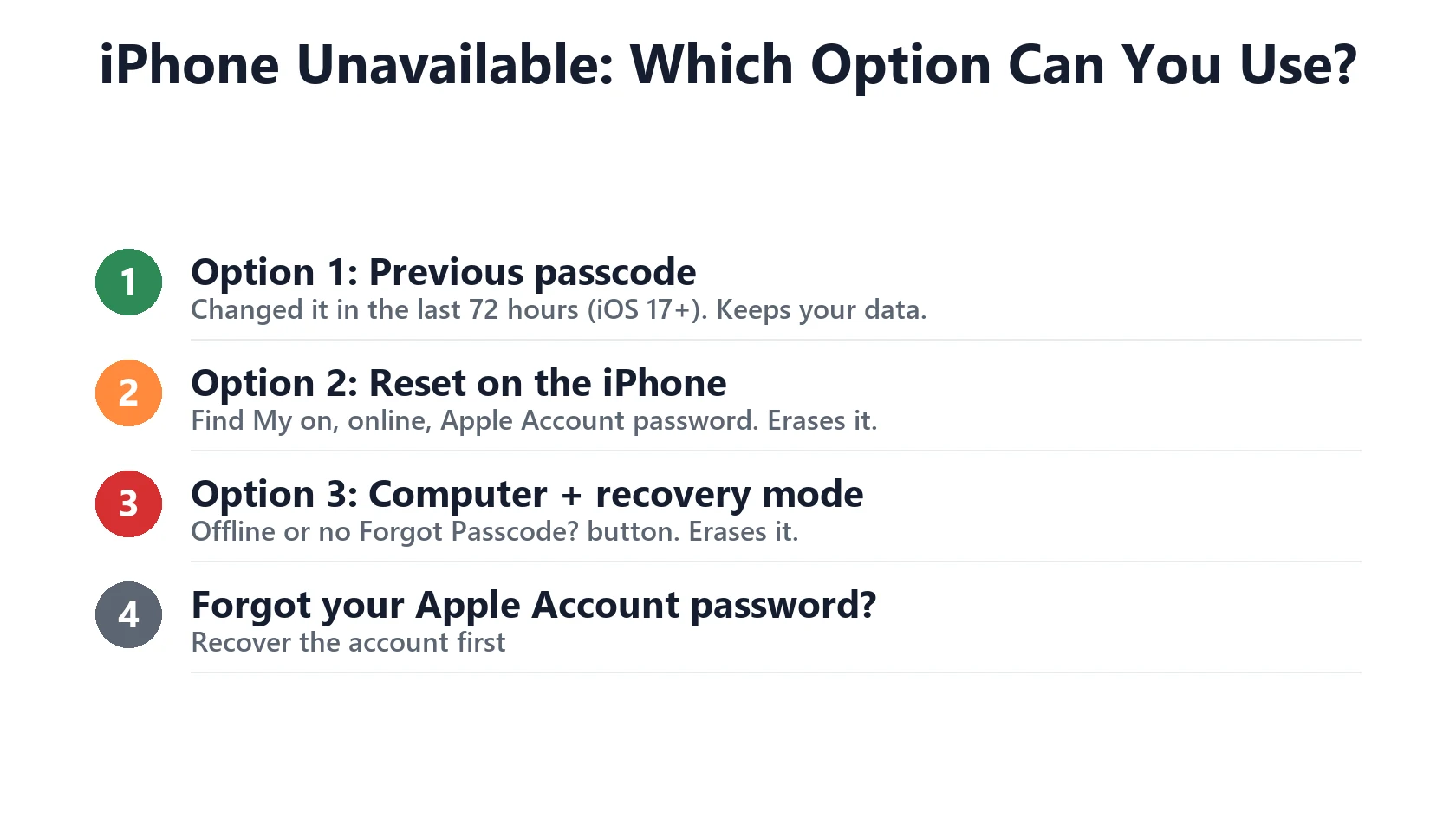
Which Option Can You Use?
| Your situation | Use | Keeps your data? |
|---|---|---|
| Changed passcode in last 72 hours, on iOS 17+ | Option 1: previous passcode | Yes |
| Find My on, phone online, you know your Apple Account password | Option 2: reset on the iPhone | No (restore from backup) |
| Phone offline, Find My off, or no Forgot Passcode? button | Option 3: computer + recovery mode | No (restore from backup) |
| Don’t know the Apple Account password | Recover the account first at Apple’s account recovery | n/a |
After the Reset: Getting Your Data Back
Erasing the iPhone removes everything on it. What you get back depends on your backups. Anything in iCloud, such as iCloud Photos, Contacts, Notes and iCloud Backup, returns when you sign in during setup. If you had no backup, anything stored only on the phone is gone. Hard as that is, it’s the security design working as intended.
Because you’ll sign in with your Apple Account during setup, the phone reactivates normally. A second-hand iPhone still signed in to the previous owner’s account is different: it will ask for their password (Activation Lock).
Featured Apple Deals on Amazon
Current discounts on AirPods, chargers, cables, and other Apple gear.
Frequently Asked Questions
Can I unlock “iPhone Unavailable” without losing data?
Only with Passcode Reset, if you changed your passcode within the last 72 hours on iOS 17 or later. Any other route erases the iPhone. Tools or services claiming to bypass the passcode without erasing should be treated with serious suspicion.
How long does “iPhone Unavailable, try again in X minutes” last?
The wait gets longer with each wrong attempt. If you’re sure you now remember the code, wait out the timer. If you’re guessing, stop, because each wrong try brings you closer to Security Lockout.
Will Apple unlock it for me?
Apple can help you through the reset, but it can’t recover your passcode or unlock the phone without erasing it.
Updating after the reset? Check the current iOS update status first, and if the restore gets stuck, see iPhone won’t update. Buying a used iPhone? Our model number lookup confirms exactly which model it is.