
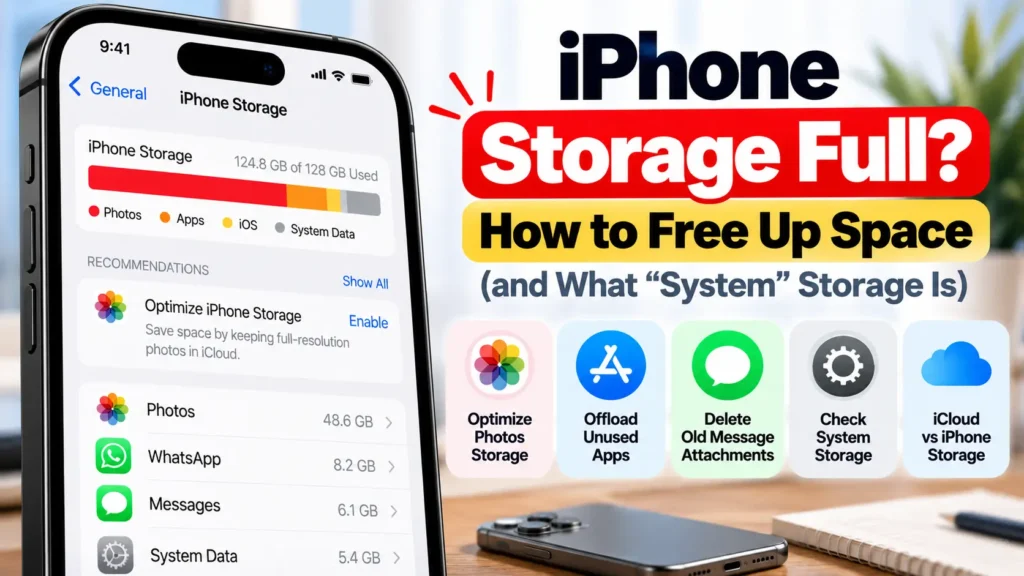
Getting “iPhone Storage Full” alerts, or can’t take photos or install updates because there’s no space? First make sure you’re looking at the right storage. iPhone storage and iCloud storage are two different things, and buying more iCloud doesn’t free up space on the phone. Here’s how to see what’s actually using space, the fixes that recover the most, and what to do when System Data balloons after an iOS update and won’t go down.
Official Apple Store on Amazon
Genuine cases, cables, and accessories — sold and shipped by Apple.
📋 Quick Summary
- Check Settings → General → iPhone Storage. That’s the phone’s own storage, not iCloud.
- Biggest wins are usually photos and videos: turn on Optimize Storage for iCloud Photos.
- Offload apps you rarely use. Apple says offloading frees the app’s space but keeps its documents and data.
- Deleted photos stay in Recently Deleted for 30 days. Empty it to get the space back now.
- System Data often swells for a few days after an iOS update. Restart, free a few GB, and give it time before trying anything drastic.
- “iCloud Storage Full” is a different alert. Fix it in Settings → [your name] → iCloud.
Table of Contents
iPhone Storage Full? iPhone Storage vs iCloud Storage
Apple explains the difference this way. Device storage is the fixed capacity of your iPhone, such as 128GB or 256GB. iCloud storage is online space for backups, iCloud Photos and files, synced across your devices.
| Alert | What’s full | Where to check |
|---|---|---|
| “iPhone Storage Almost Full” | The phone itself | Settings → General → iPhone Storage |
| “iCloud Storage Is Full” / backup failed | Your iCloud account | Settings → [your name] → iCloud |
This guide covers the iPhone alert. If iCloud is full, Apple says iCloud features such as backups and Photos syncing might stop updating until you free up iCloud space or upgrade your plan. It’s a separate problem, and deleting things from your phone may not fix it.
Step 1: See What’s Using Your Space
The “iPhone Storage Full” warning is easiest to troubleshoot from Settings → General → iPhone Storage. Per Apple’s storage article, you’ll see a colored bar by category, recommendations for saving space, and a list of apps sorted by size. Tap Show All to see every recommendation, then tap Enable on the ones you want, or tap one to review what it would delete. Give the screen a few seconds to finish calculating.
Step 2: Shrink Your Photo Library With Optimize Storage
For most people, Photos is the largest category. If you use iCloud Photos, Optimize Storage keeps space-saving versions on your iPhone while the full-resolution originals stay in iCloud. When you need more space, it optimizes the photos and videos you look at least first.
- Go to Settings, tap your name, then iCloud.
- Under Saved to iCloud, tap Photos.
- Tap iPhone Storage, then choose Optimize Storage. On iOS 26 or earlier, just choose Optimize Storage.
This needs enough iCloud storage to hold your whole library. If iCloud is too small, the originals can’t upload, and optimizing won’t free much.
Step 3: Empty Recently Deleted
Deleting photos doesn’t free space straight away. Apple keeps them in the Recently Deleted album for 30 days in case you change your mind. Open Photos, go to Recently Deleted, and delete them permanently to reclaim the space now. Only do this for items you’re sure you don’t want: after that, they’re gone for good.
Step 4: Offload or Delete Apps
In the iPhone Storage list, tap any large app to see its size and two options:
- Offload App: frees the space used by the app itself but keeps its documents and data. The icon stays on your Home Screen with a cloud symbol, and tapping it reinstalls the app with your data intact. Best for apps you use occasionally.
- Delete App: removes the app and its data. Best for apps you’re done with.
Want this done for you? The Offload Unused Apps recommendation (in the same screen) makes the iPhone automatically offload apps you haven’t used when storage runs low.
Step 5: Clear Big Message Attachments and Downloads
Tap Messages in the iPhone Storage list to review large attachments, such as years of videos and photos in group chats, and delete the ones you don’t need. Also check streaming apps (Netflix, Spotify, podcasts) for downloaded episodes and playlists, which count as app storage and can quietly reach many gigabytes.
What Is System Data on iPhone?
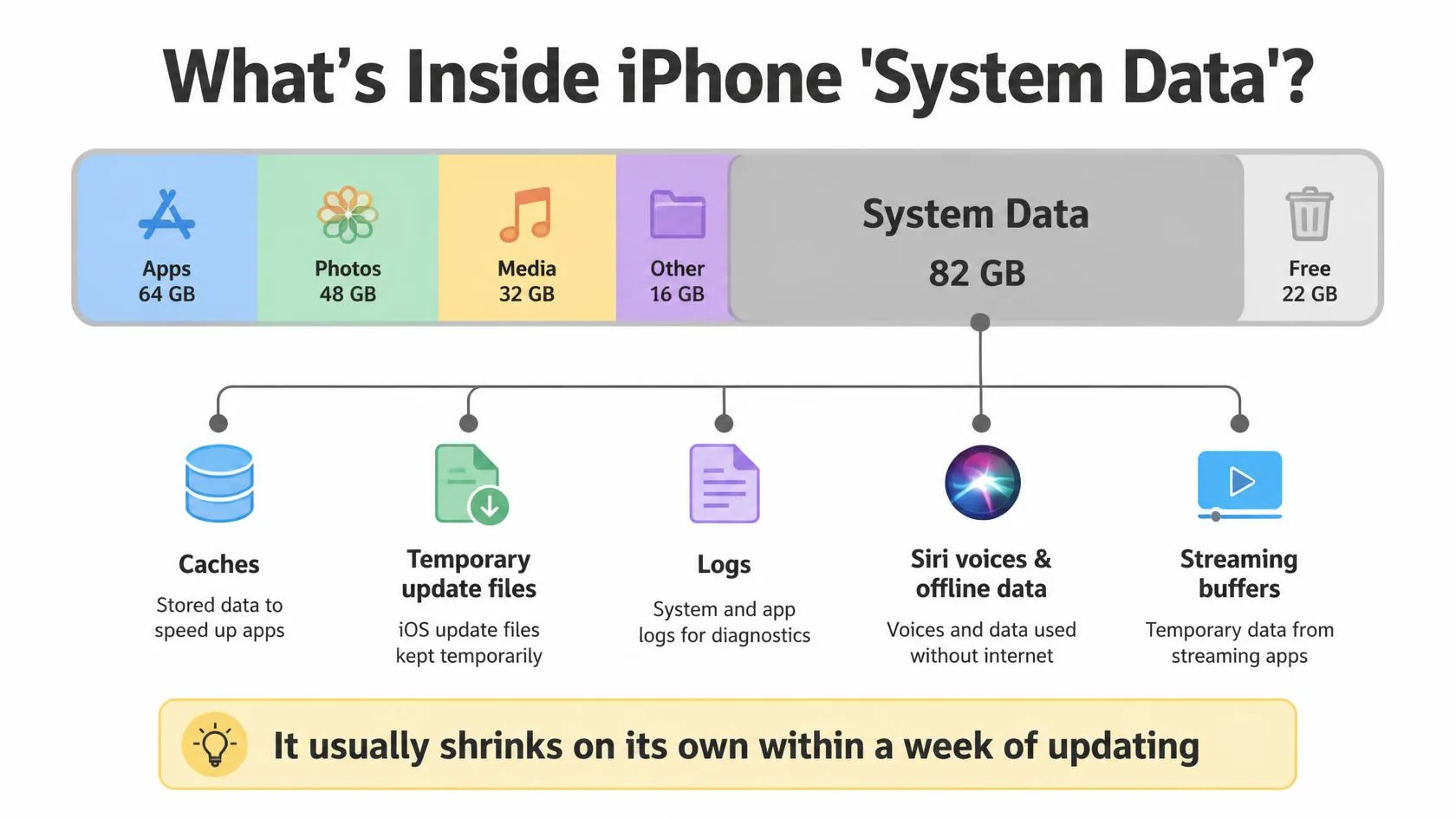
The storage bar has two categories you can’t tap into and clear like an app. Depending on your iOS version they’re labeled System and System Data (older versions called the second one Other). Apple defines them as:
- System: space used by iOS itself. It varies by device and model and you can’t delete it.
- System Data / Other: non-removable items like Siri voices, fonts, dictionaries, logs and caches, the Spotlight index, and system data such as Keychain. It also holds temporary files used while an iOS update downloads and installs.
Apple notes that the iPhone removes cached and temporary files on its own when it needs more space. That’s why the System Data number moves up and down, and why you don’t need “cleaner” apps.
System Data Huge After an iOS Update? Why It Won’t Go Down
A spike in System Data right after updating to iOS 26 or iOS 27 is one of the most common reasons the “Storage Full” alert keeps coming back. An update stages its installer files on the phone first. Afterwards, iOS spends several days in the background rebuilding the Spotlight search index, analyzing your photo library, and migrating app data. All of that temporarily counts as System Data.
Usually it clears on its own within about a week. The catch is a phone that was already nearly full before the update: iOS needs free space to clean up safely, so the cleanup can stall and System Data stays high. Freeing a few gigabytes with the steps above is often what gets it moving again. Update Finishing in Background explains how to tell whether that background work is still running.
How to Shrink System Data, In Order
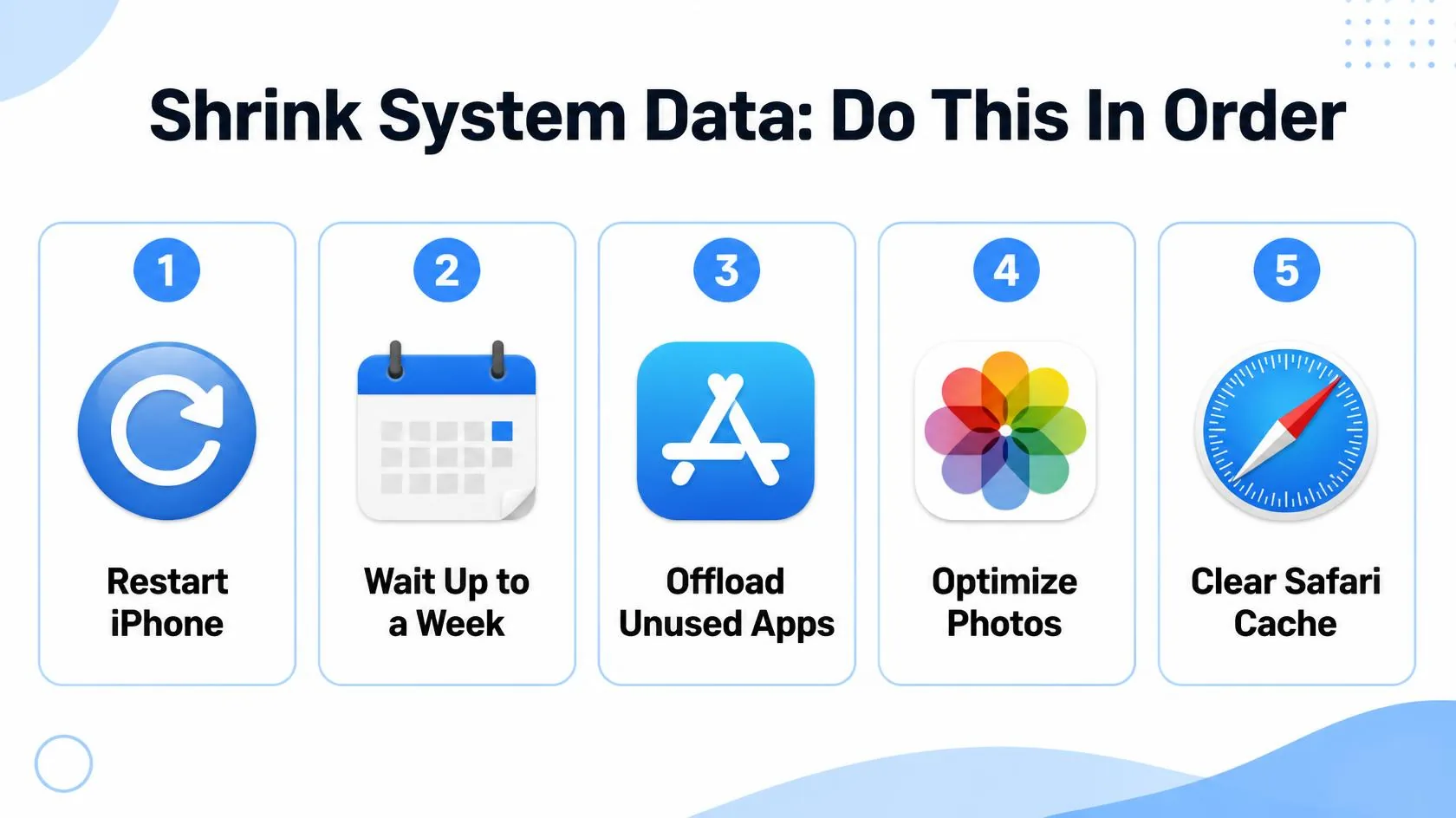
- Restart your iPhone. It clears temporary caches and costs nothing, so try it before deleting anything.
- Wait it out if you updated within the last week. Leave the phone charging on Wi-Fi overnight so background indexing can finish. Check Settings → General → iPhone Storage again the next day.
- Free a few gigabytes so iOS can clean up. Offload unused apps, turn on Optimize Storage for Photos, and empty Recently Deleted (Steps 2–4 above).
- Clear Safari’s website data. Go to Settings → Apps → Safari → Advanced → Website Data. On older iOS versions it’s Settings → Safari → Advanced → Website Data. Its cached files can quietly grow large.
- Still stuck after a week or more? Back up your iPhone, then consider erasing it and restoring from the backup. This rebuilds System Data from scratch. It’s a last resort, not a first step.
Skip “storage cleaner” apps. iOS doesn’t let third-party apps see inside System Data. The “junk” totals they report are estimates at best, and some apps flag data you actually want to keep.
How Much Free Space Should You Keep?
Apple doesn’t publish a fixed figure, but running at the limit causes practical problems. Major iOS updates need several gigabytes free to download and install (see iPhone won’t update), and there’s no room for new photos, videos or app downloads. A full iPhone also has less room for the temporary files iOS relies on, which can make it feel slower. Keeping a comfortable buffer of free space avoids most of that. If you’re constantly at the limit, the honest fix may be a bigger iCloud plan with Optimize Storage, or more capacity on your next iPhone.
Match Your Situation
| What you’re seeing | Likely cause | What to do |
|---|---|---|
| “iPhone Storage Almost Full” alert | Photos, videos and apps filling the phone | Optimize Storage, empty Recently Deleted, offload apps |
| “iCloud Storage Is Full” alert | Your iCloud plan is full, not the phone | Manage it in Settings → [your name] → iCloud |
| System Data spiked right after updating | Normal post-update staging and re-indexing | Restart, then give it up to a week |
| System Data still huge a week later | Cleanup stalled because free space is too low | Free a few GB, clear Safari website data |
| A cleaner app shows a huge “junk” total | It can’t actually see System Data | Ignore it; use Settings → General → iPhone Storage |
| Can’t install an iOS update | Not enough free space for the installer | Free space first, then see our won’t-update guide |
Featured Apple Deals on Amazon
Current discounts on AirPods, chargers, cables, and other Apple gear.
Frequently Asked Questions
I bought more iCloud storage. Why is my iPhone still full?
Because they’re separate. More iCloud only frees up iPhone space if you then use features that move data to iCloud, such as Optimize Storage for Photos.
Why does System Data keep growing even after I delete apps and photos?
System Data is separate from Apps and Photos. It’s made up of caches, logs and temporary files that iOS manages on its own schedule, so deleting your own content doesn’t shrink it directly. Restarting, or waiting out the few days of background work after an update, is usually what reduces it.
Is it safe to just wait and do nothing?
Yes, for the first several days after an update. iOS clears this temporary data automatically. It’s only worth stepping in if System Data hasn’t moved after about a week.
Do storage cleaner apps from the App Store work?
Not for System Data. iOS doesn’t let third-party apps read it, so their “junk file” totals are estimates. The iPhone already clears caches itself when it needs space.
Does offloading an app delete my progress or logins?
Apple says offloading keeps the app’s documents and data, so reinstalling brings you back where you were. Deleting the app removes that data.
Will erasing my iPhone fix huge System Data?
Usually, because erasing and restoring from a backup rebuilds it from scratch. But it takes time and carries some risk, so try the in-order steps above first.
Why does my computer show different storage numbers than my iPhone?
Finder, the Apple Devices app and iTunes count cached music, videos and photos as “Other,” so categories won’t match exactly. Apple says to trust Settings → General → iPhone Storage on the device.
Can a full iPhone make it slow?
It can contribute. See our iPhone running slow guide for the full list of causes.
📚 Related Guides
This page may contain affiliate links. If you purchase through one, we may earn a commission at no extra cost to you. See our full Affiliate Disclosure for details.
Written by S M Momin Arif
Founder and lead writer at iPhoneFixDaily, covering iPhone battery and charging diagnostics based on direct hands-on testing. Read more about our approach →