iPhone Bluetooth not working, or a device that connected fine before iOS 27 suddenly won’t pair? Most Bluetooth problems are fixed by a few quick checks and a fresh pairing. Here’s Apple’s own fix order for an iPhone that won’t connect to a Bluetooth accessory, plus what to do when audio cuts out or the Bluetooth switch is greyed out.
Official Apple Store on Amazon
Genuine cases, cables, and accessories — sold and shipped by Apple.
📋 Quick Summary
- Keep the accessory close and charged, and turn it off and on.
- Turn Bluetooth off and on in Settings, not just Control Center.
- Forget the device and pair it again. This fixes most cases after an update.
- If the accessory uses an app, allow Bluetooth for it in Privacy & Security.
- Bluetooth greyed out, or nothing connects at all? Contact Apple Support.
Table of Contents
Quick Checks First
- Restart your iPhone.
- Turn Bluetooth off and on in Settings → Bluetooth. The Control Center button only disconnects accessories. It doesn’t fully turn Bluetooth off.
- Update iOS in Settings → General → Software Update.
- Make sure Airplane Mode is off, or that Bluetooth is turned back on if you use it.
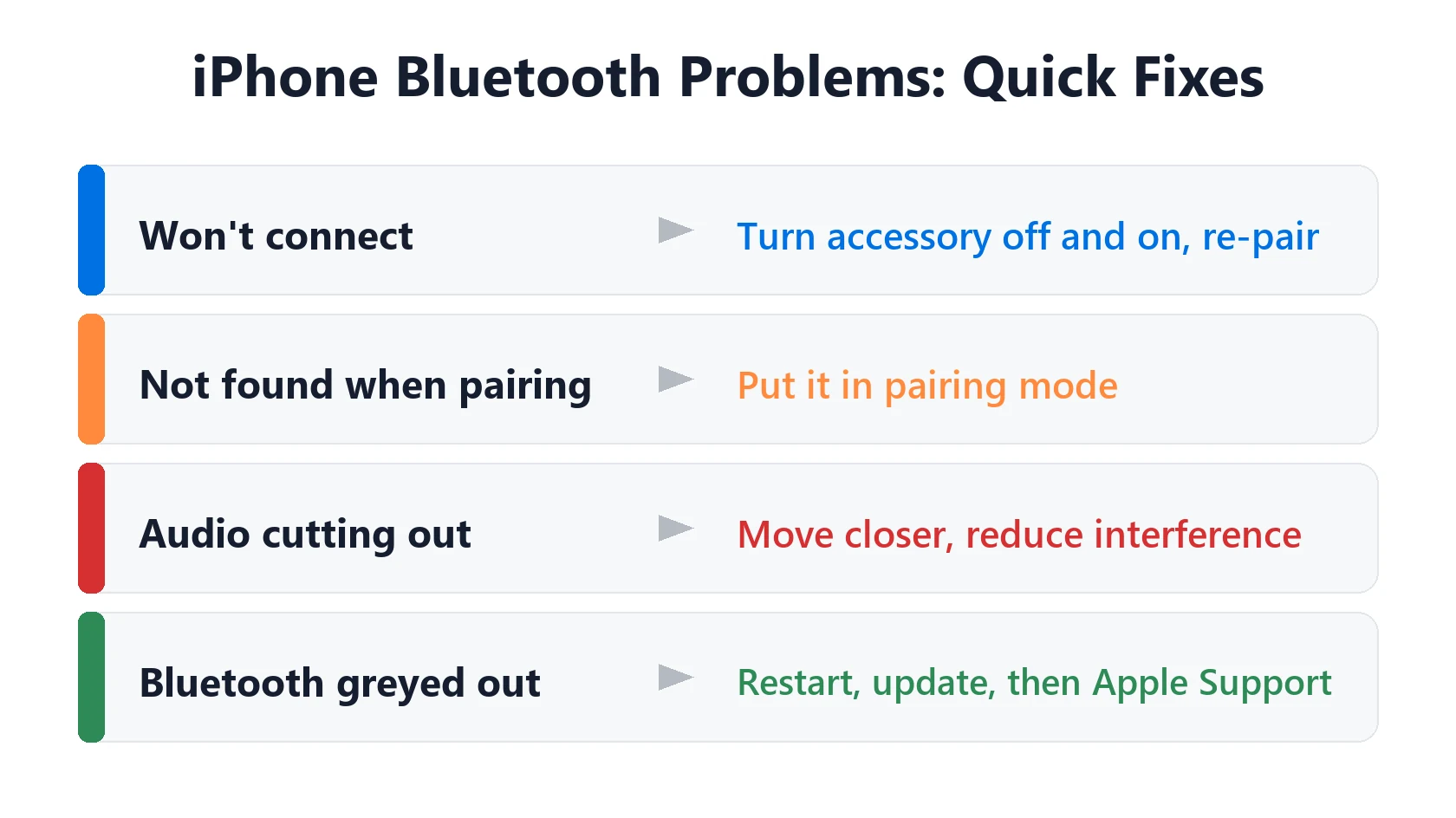
Apple’s Fixes for iPhone Bluetooth Not Working
These come from Apple’s support article for a Bluetooth accessory that won’t connect:
- Keep it close. Your iPhone needs to be within about 10 meters (33 feet) to pair.
- Turn the accessory off and on again.
- Charge it, plug it in, or replace its batteries.
- Put it in pairing (discovery) mode if it’s new. Check its manual for how.
- Allow Bluetooth for its app. If the accessory uses an app, go to Settings → Privacy & Security → Bluetooth and turn the app on.
- Forget it and pair again if it connected before (steps below).
- Unpair it from your other devices, like an iPad or Mac, if it connects to them but not your iPhone.
- Ask the manufacturer whether the accessory works with iPhone and needs a firmware update.
How to Forget and Re-Pair a Bluetooth Device
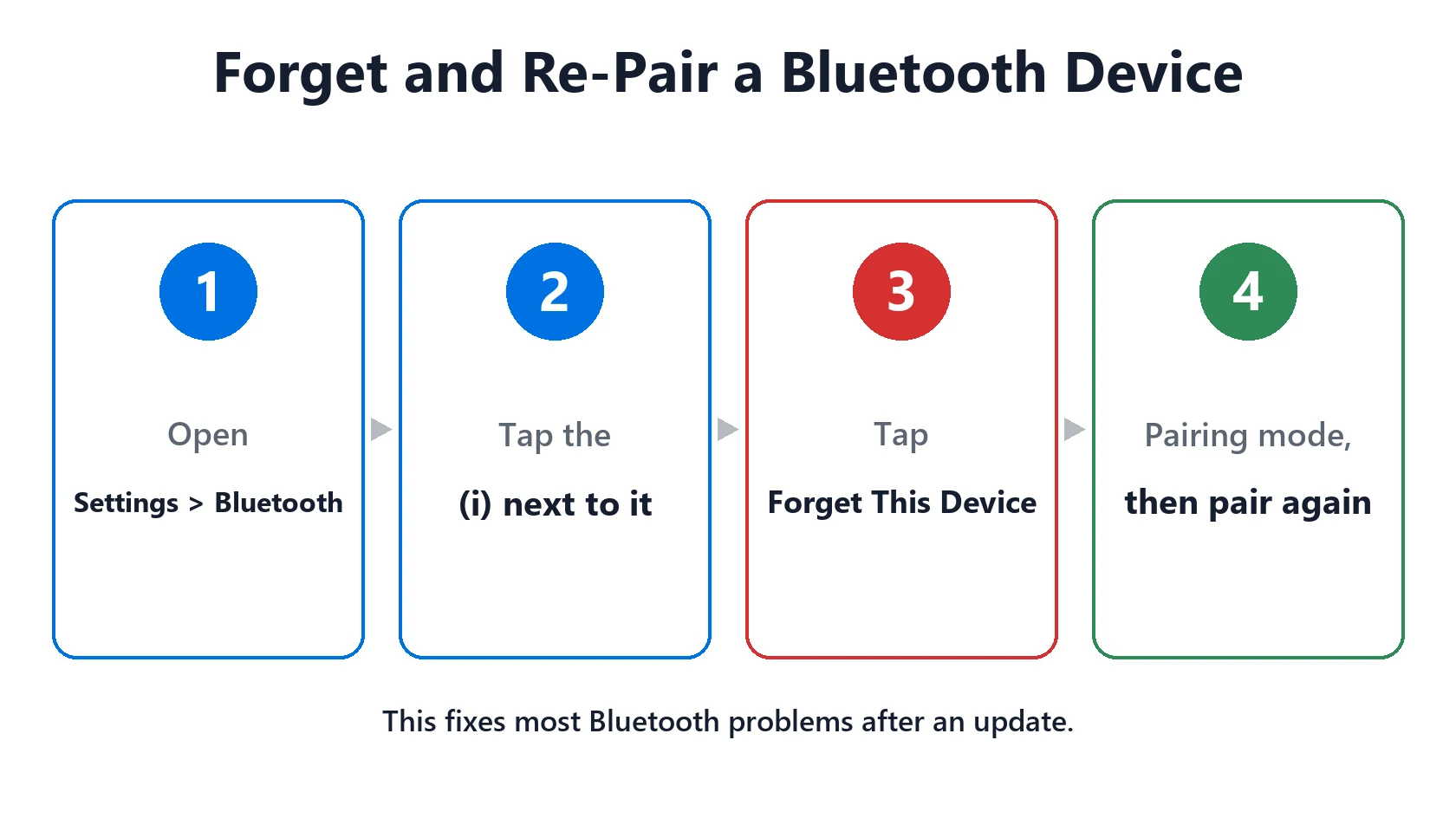
- Go to Settings → Bluetooth.
- Tap the ⓘ next to the device.
- Tap Forget This Device and confirm.
- Put the accessory in pairing mode, then tap it under Other Devices to pair again.
For AirPods, follow our AirPods won’t connect guide, which includes the reset steps. For your car, see CarPlay not working.
Bluetooth Audio Cutting Out
If Bluetooth connects but audio skips or drops, it’s usually distance or interference. Keep your iPhone closer, out of a back pocket or bag, and away from microwaves and crowded Wi-Fi. Apple also suggests repositioning the iPhone or accessory to improve the connection. If only one device cuts out, check it for a firmware update.
Bluetooth Greyed Out or Nothing Connects
If the Bluetooth switch is greyed out or won’t turn on, or no Bluetooth device connects to your iPhone at all, Apple says to contact Apple Support. Before you do, you can try Settings → General → Transfer or Reset iPhone → Reset → Reset Network Settings. It removes saved Wi-Fi networks and Bluetooth pairings, but not your data.
Featured Apple Deals on Amazon
Current discounts on AirPods, chargers, cables, and other Apple gear.
Frequently Asked Questions
Why is my iPhone Bluetooth not working after the iOS 27 update?
Usually an old pairing that needs refreshing. Restart, turn Bluetooth off and on in Settings, then forget the device and pair it again.
Why won’t my iPhone find my Bluetooth device?
The accessory probably isn’t in pairing mode, or it’s still connected to another device. Put it in pairing mode and unpair it from your other devices.
Does turning off Bluetooth in Control Center turn it off?
No. It disconnects accessories but leaves Bluetooth on for things like AirDrop and Apple Watch. Use Settings → Bluetooth to turn it fully off.
Why is Bluetooth greyed out on my iPhone?
Restart and update iOS first. If it’s still greyed out, Apple says to contact Apple Support.
Will Reset Network Settings delete my data?
No. It removes saved Wi-Fi networks, passwords, VPN settings and Bluetooth pairings, but not your photos, apps or messages.
📚 Related Guides
Written by S M Momin Arif
Founder and lead writer at iPhoneFixDaily, covering iPhone battery and charging diagnostics based on direct hands-on testing. Read more about our approach →