

iPhone apps crashing or closing as soon as you open them? Usually it’s one app with a bug, an app that hasn’t caught up with a new iOS version, or an iPhone that’s almost out of storage. Here are Apple’s fixes in order, plus how to tell whether it’s one app or your whole iPhone, and how to fix an app without losing its data.
📋 Quick Summary
- Force close the app and reopen it, then restart your iPhone.
- Update the app in the App Store, then update iOS.
- Low on space? Free up at least a few GB in Settings → General → iPhone Storage.
- Offload the app to reinstall it but keep its data. Deleting it may erase data.
- Still crashing? Contact the developer. If every app crashes, it’s your iPhone, not the apps.
Table of Contents
Quick Fixes First
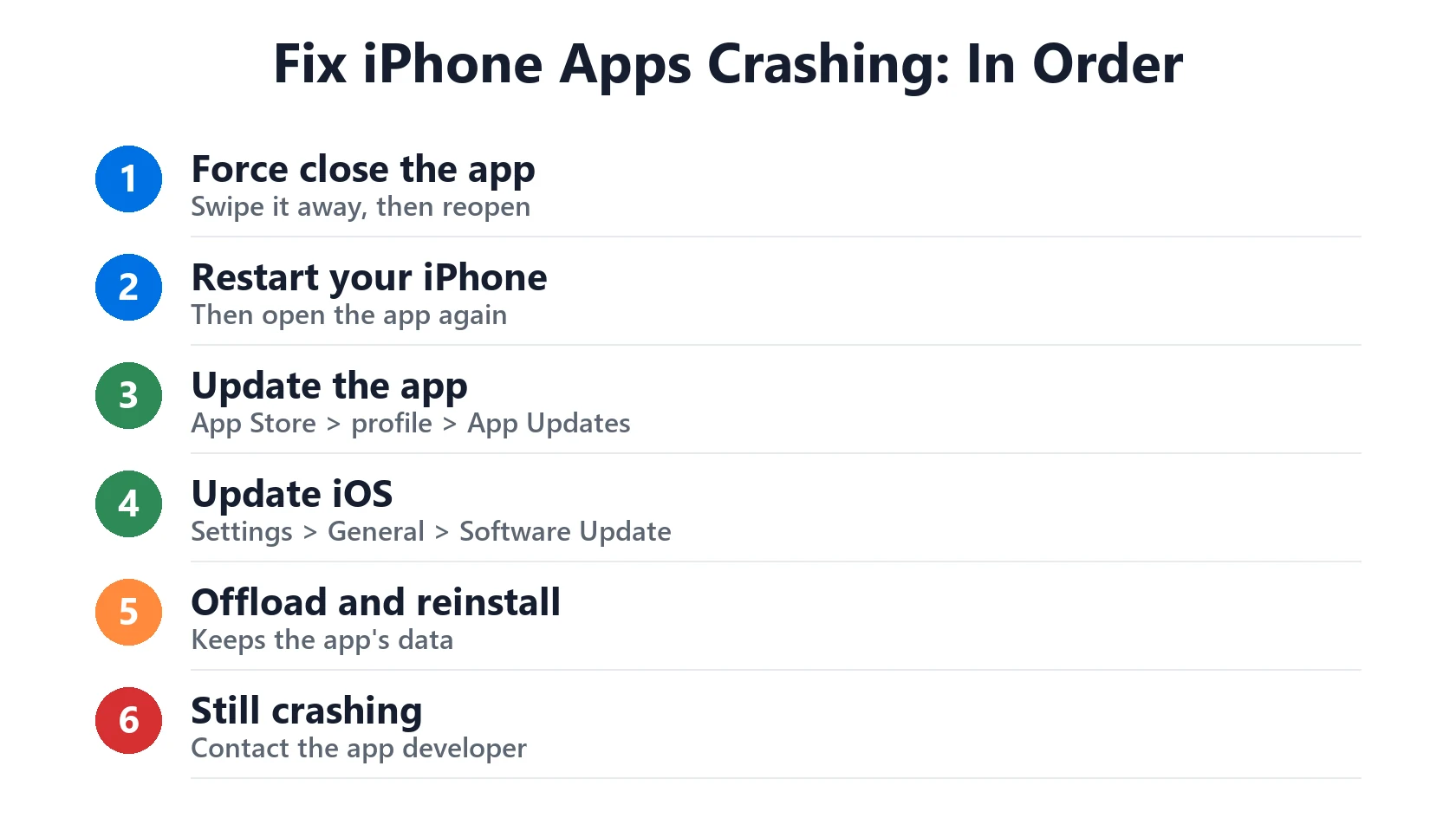
These are the steps in Apple’s guide for apps that stop responding or close unexpectedly. Test the app after each one.
- Force close the app. Swipe up from the bottom of the screen and pause (or double-click the Home button), then swipe the app up and away. Apple’s steps.
- Restart your iPhone, then open the app again.
- Update the app. Open the App Store, tap your profile picture and look under App Updates.
- Update iOS in Settings → General → Software Update, if no app update is waiting.
- Delete and reinstall the app. Apple warns this may erase data stored in the app, so try offloading first (below).
- Contact the developer if it still crashes.
One App Crashing vs Every App
This tells you where the problem is:
- One app crashes: it’s almost always the app. Update it, offload it, and check whether the service itself is down. Apple’s own services are listed on the System Status page.
- Several apps crash: check storage first. Go to Settings → General → iPhone Storage. If it’s nearly full, apps can’t save what they need. See iPhone storage full.
- Every app crashes, or iPhone restarts too: it’s your iPhone, not the apps. Update iOS, and if it keeps happening, back up and contact Apple Support.
iPhone Apps Crashing After an iOS Update
Right after a big update like iOS 27, some apps crash until their developers release an update. That’s normal and usually fixed within days.
- Check the App Store for updates every day or two after a big iOS update.
- Turn on automatic app updates in Settings → Apps → App Store → App Updates.
- Install the next iOS point update (like 27.0.1 or 27.1) when it arrives. See iOS 27 problems for known bugs.
- Give your iPhone a day or two after updating. It indexes and optimizes in the background, which can make apps feel slow. See iPhone running slow.
Offload or Reinstall the App
Reinstalling replaces a damaged copy of the app. There are two ways:
- Offload App (keeps your data): go to Settings → General → iPhone Storage, tap the app and tap Offload App. Then tap Reinstall App. Its documents and data stay on your iPhone.
- Delete App (may erase data): touch and hold the app, tap Remove App → Delete App, then download it again from the App Store. Make sure you know your login, and that chats or files are backed up inside the app first.
Try offloading first. Only delete the app if offloading doesn’t help.

App Won’t Open at All
If an app is greyed out, shows an hourglass, or won’t open at all:
- Screen Time limits: check Settings → Screen Time for App Limits, Downtime or Content & Privacy Restrictions on that app.
- Still downloading or offloaded: a cloud icon or a progress circle means it isn’t fully installed. Tap it and keep Wi-Fi on until it finishes.
- Sign-in or subscription issue: some apps close if your account or subscription has a problem. Check the app’s website or your Apple Account subscriptions.
- No longer supported: an old app that hasn’t been updated in years may not work on the newest iOS. Look for an alternative or ask the developer.
Find Out What’s Crashing
Your iPhone keeps a log each time an app crashes. Go to Settings → Privacy & Security → Analytics & Improvements → Analytics Data. Entries are named after the app, so you can see which app crashes and how often. The developer or Apple Support may ask for these when you contact them.
If the app came from the App Store and still crashes, contact the developer. If you bought it recently and it doesn’t work, you can request a refund.
Match Your Situation
| What you see | Likely cause | What to do |
|---|---|---|
| One app closes on launch | App bug or damaged install | Update it, then offload and reinstall |
| Apps crash after an iOS update | App not updated for new iOS | Update apps; install the next iOS update |
| Several apps crash | Storage almost full | Free up space in iPhone Storage |
| Every app crashes, iPhone restarts | iPhone software or hardware | Update iOS, back up, contact Apple |
| App greyed out with hourglass | Screen Time limit | Check App Limits and Downtime |
| App shows a cloud icon | Offloaded or still downloading | Tap it and stay on Wi-Fi |
| Old app won’t open | No longer supported | Contact developer or find an alternative |
Frequently Asked Questions
Why do my iPhone apps keep crashing?
Usually the app has a bug, it hasn’t been updated for the latest iOS, or your storage is nearly full. Update the app and iOS, and free up space.
How do I stop an app from crashing on iPhone?
Force close it, restart your iPhone, update the app and iOS, then offload and reinstall the app.
Will deleting an app delete my data?
It can. Apple says deleting an app may erase data stored in it. Offloading the app instead keeps its data.
Why are apps crashing after the iOS 27 update?
Some apps need an update for a new iOS. Check the App Store often for a few days, and install iOS point updates when they arrive.
Why does every app crash on my iPhone?
Check storage first. If storage is fine, update iOS. If it keeps happening, or iPhone also restarts, back up and contact Apple Support.
Where can I see which app is crashing?
In Settings → Privacy & Security → Analytics & Improvements → Analytics Data. Entries are named after the app.
📚 Related Guides
Written by S M Momin Arif
Founder and lead writer at iPhoneFixDaily, writing practical iPhone troubleshooting guides checked against Apple’s official support documentation. Read more about our approach →


