Is your iPhone keyboard lagging after the iOS 27 update, with letters appearing late or taps getting missed? You’re not imagining it. Some users have reported a slower keyboard on iOS 27, especially in Messages. Keyboard lag after an update usually has a simple cause, like background indexing, a bloated keyboard dictionary or an extra keyboard. Here are 9 fixes for iPhone keyboard lag, in the order to try them.
Official Apple Store on Amazon
Genuine cases, cables, and accessories — sold and shipped by Apple.
📋 Quick Summary
- Keyboard lag right after an update is often temporary while your iPhone re-indexes.
- Restart first. It’s the fastest fix.
- Resetting the keyboard dictionary fixes lag for many people and only erases learned words.
- Remove third-party and unused keyboards, and test with Predictive Text off.
- Lag in only one app? Update or reinstall that app.
Table of Contents
Why Your iPhone Keyboard Lags After an Update
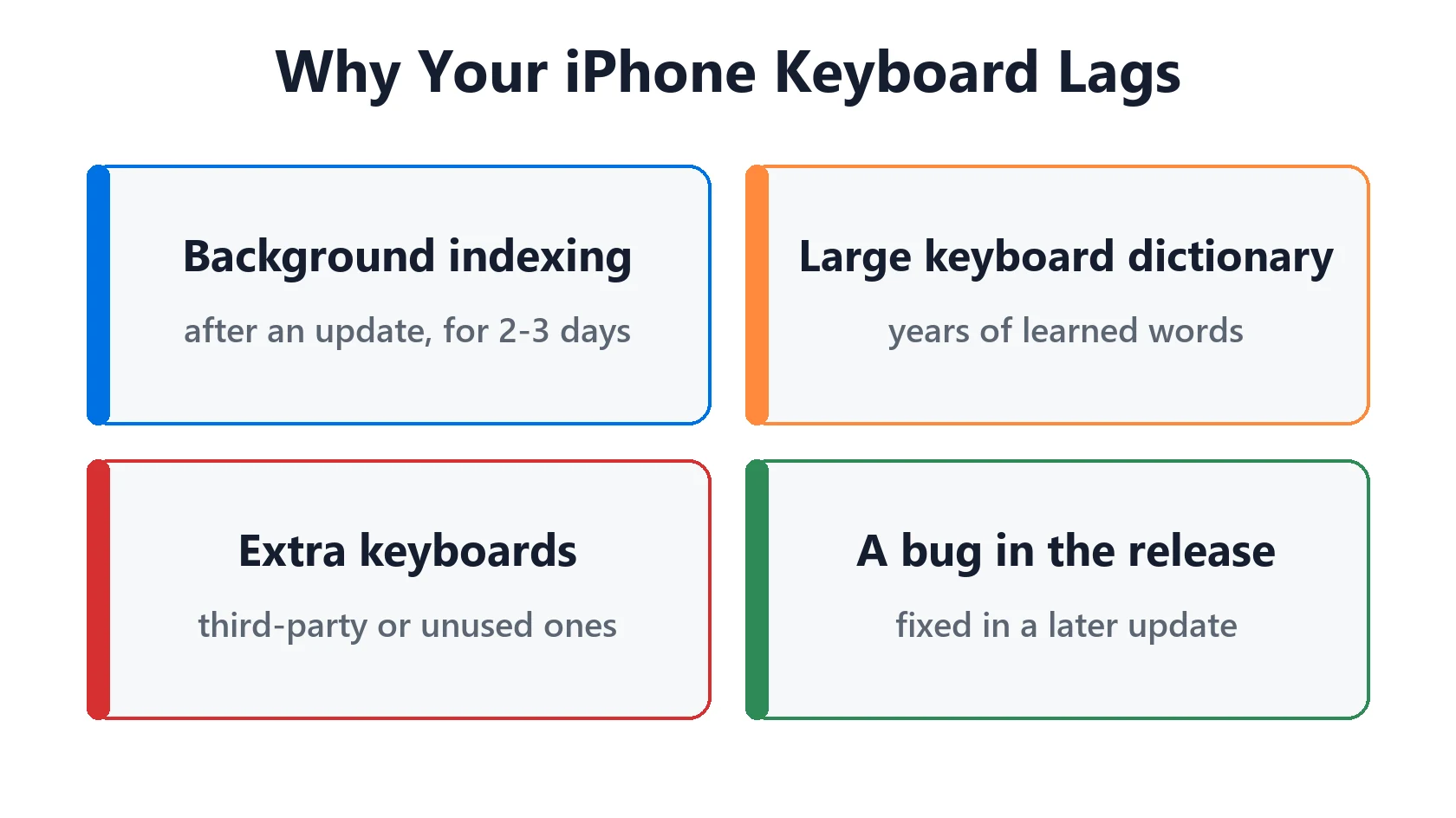
The keyboard does more than it looks like it does. It checks predictions, autocorrect, emoji suggestions and your learned words with every tap. After a major update, several things can slow that down:
- Background indexing keeps the processor busy for a few days.
- A large keyboard dictionary built up over years of typing.
- Extra or third-party keyboards that load alongside the Apple keyboard.
- A keyboard bug in the new release. Apple fixed a fast-typing accuracy problem in iOS 26.4, as TechRadar reported, so it does happen.
9 Fixes for iPhone Keyboard Lag, in Order
Try these one at a time, and test typing in Messages after each one:
- Restart your iPhone. It clears a stuck keyboard process and is the quickest fix.
- Give it 2–3 days after updating. Your iPhone re-indexes messages and search after a major update, which can slow everything, including typing.
- Reset the keyboard dictionary. A large learned-words list can slow predictions. Steps are below.
- Remove extra keyboards. In Settings → General → Keyboard → Keyboards, delete keyboards you don’t use, especially third-party ones.
- Test with Predictive Text off. Turn off Predictive Text and Slide to Type in Settings → General → Keyboard. If typing speeds up, turn them back on one at a time to find the culprit.
- Check accessibility settings. In Settings → Accessibility → Keyboards & Typing, make sure Slow Keys is off and check Key Repeat.
- Try turning off keyboard haptics. In Settings → Sounds & Haptics → Keyboard Feedback, turn off Haptic to see if it helps.
- Free up storage. A nearly full iPhone slows down across the board. See iPhone storage full.
- Update iOS. Apple has fixed keyboard issues in point releases before, so install the latest version when it’s available.
Still lagging after all nine? As a last resort, Settings → General → Transfer or Reset iPhone → Reset → Reset All Settings resets settings without deleting your data. You’ll need to re-enter Wi-Fi passwords afterwards.
How to Reset the Keyboard Dictionary
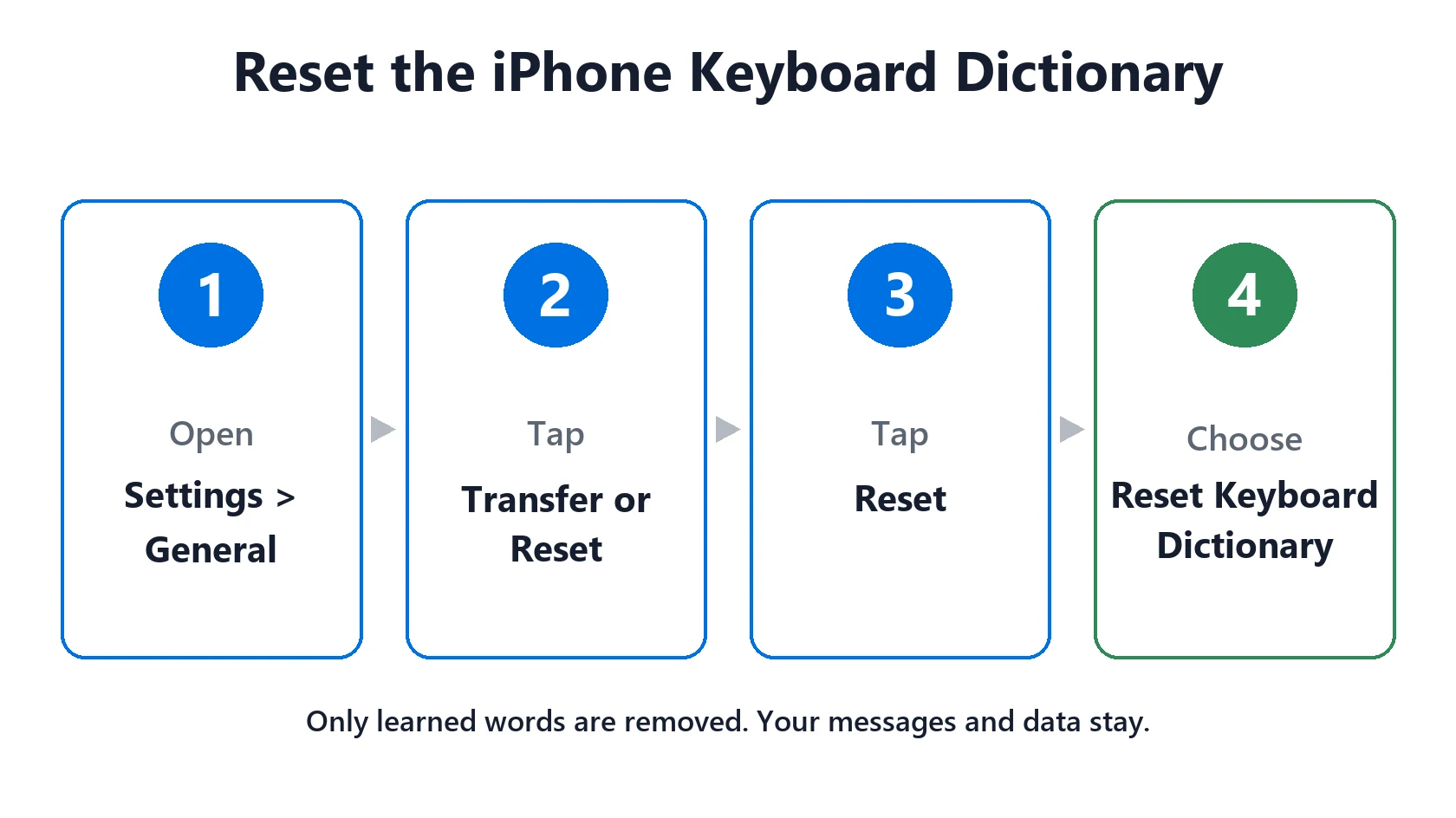
- Open Settings → General → Transfer or Reset iPhone.
- Tap Reset, then Reset Keyboard Dictionary.
- Enter your passcode and confirm.
This only removes the words your iPhone has learned from your typing. Your messages, contacts and other data aren’t touched. Autocorrect will relearn your common words over the next few days.
If the Lag Is Only in One App
If the keyboard is fast in Notes but slow in one app, the problem is that app, not iOS. Update it in the App Store, or delete and reinstall it. In Messages, very long threads with lots of photos can also slow typing. Deleting old attachments in Settings → General → iPhone Storage → Messages can help.
If your whole iPhone feels slow, not just the keyboard, see iPhone running slow or freezing and iOS 27 problems.
Featured Apple Deals on Amazon
Current discounts on AirPods, chargers, cables, and other Apple gear.
Frequently Asked Questions
Why is my iPhone keyboard lagging after the iOS 27 update?
Usually background indexing after the update, a large keyboard dictionary, or an extra keyboard. Restart, wait 2–3 days, then reset the keyboard dictionary if it’s still slow.
Does resetting the keyboard dictionary delete anything?
Only the words your iPhone has learned from your typing. Messages, contacts, photos and settings stay as they are.
Can a third-party keyboard cause lag?
Yes. Third-party keyboards can be slower to load. Remove the ones you don’t use in Settings → General → Keyboard → Keyboards.
Why is my iPhone keyboard slow only in Messages?
Long threads with lots of attachments can slow Messages. Update iOS, restart, and delete old attachments from Messages in iPhone Storage.
Will Apple fix iOS 27 keyboard lag?
Apple has fixed keyboard bugs in point updates before, such as iOS 26.4. Keep your iPhone updated and check the release notes for keyboard fixes.
📚 Related Guides
Written by S M Momin Arif
Founder and lead writer at iPhoneFixDaily, covering iPhone battery and charging diagnostics based on direct hands-on testing. Read more about our approach →