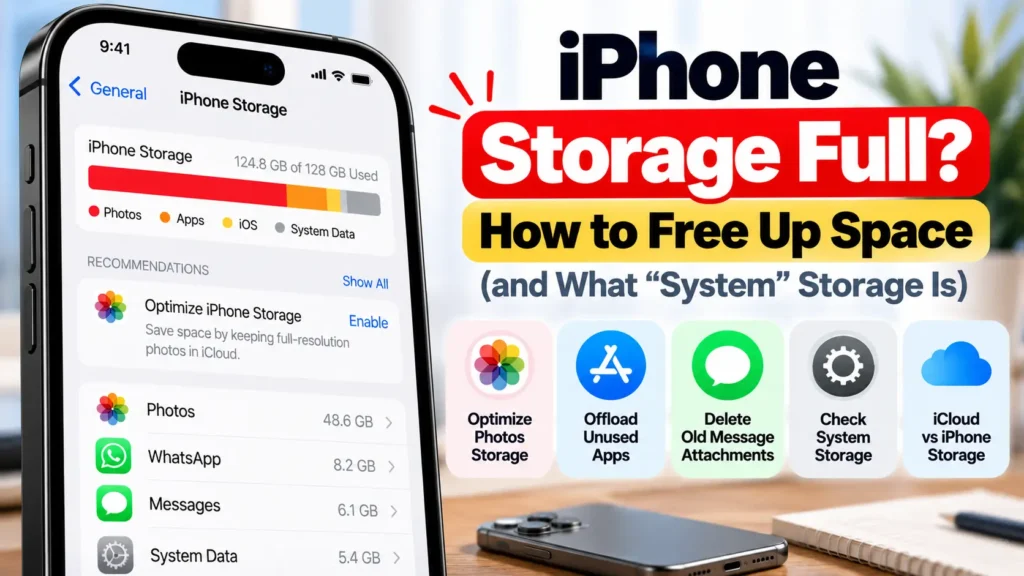

iCloud backup failed on your iPhone? Most of the time it’s one of two things: your backup is bigger than your free iCloud space, or iPhone couldn’t finish backing up on Wi-Fi. Here’s how to read the error, make your backup smaller without paying, and get it to complete, using Apple’s own steps.
📋 Quick Summary
- Check your Next Backup Size in Settings → [your name] → iCloud → Storage → Backups.
- Too big? Turn off backup for apps you don’t need and delete old backups from devices you no longer use.
- Photo Library is usually the biggest part. iCloud Photos stores photos outside the backup.
- “Couldn’t be completed”? Check Wi-Fi, update iOS, and try another network.
- Buying a new iPhone? Apple gives free temporary iCloud storage for the transfer.
Table of Contents
iCloud Backup Failed? Which Error Do You See?
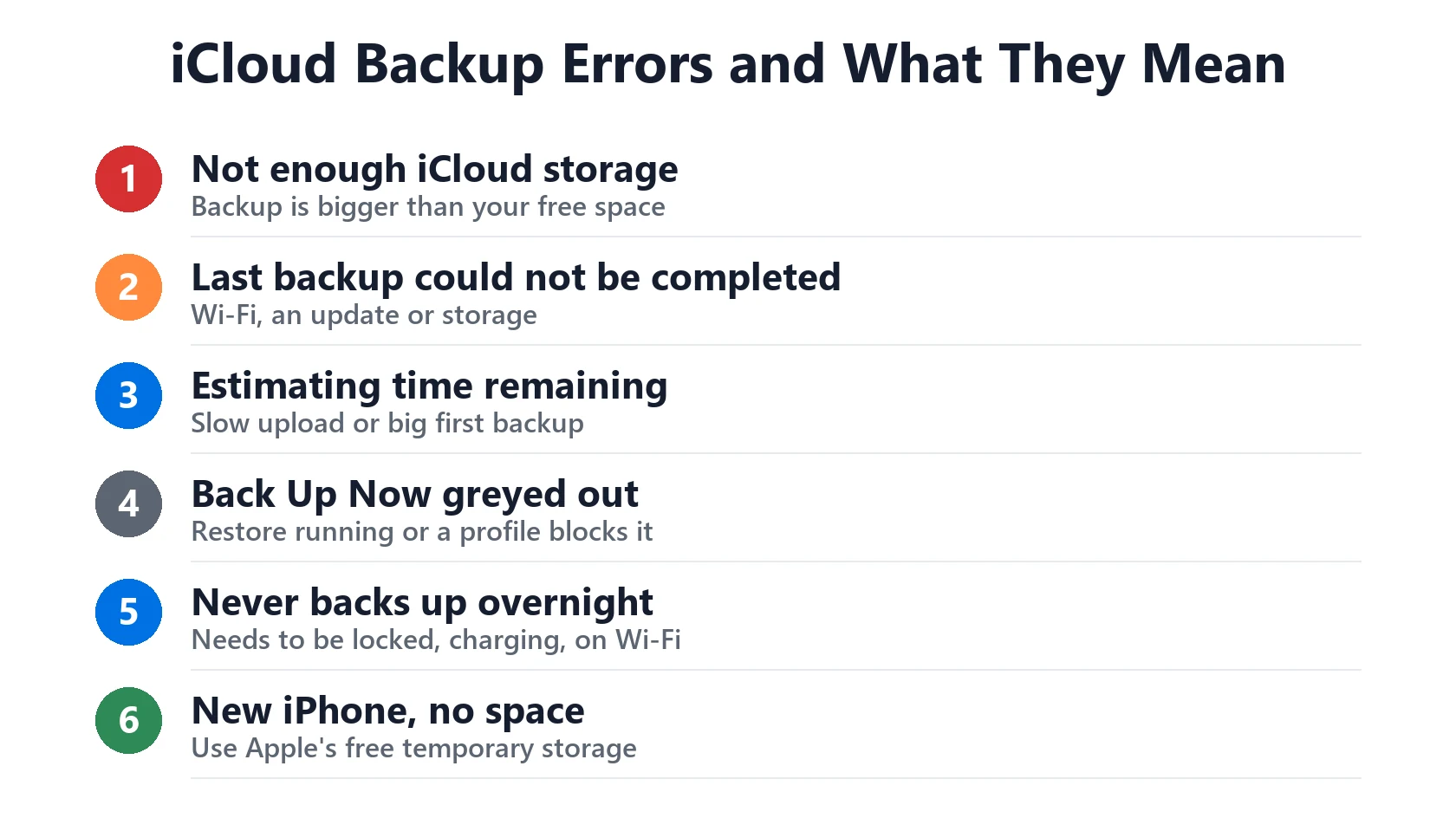
- “Not enough storage” or “iCloud backup failed”: your backup is bigger than your free iCloud space. Go to not enough storage.
- “The last backup could not be completed”: usually Wi-Fi, an update or storage. Go to last backup couldn’t be completed.
- Backup stuck on “Estimating time remaining”: a slow upload or a big first backup. Go to taking forever.
- Back Up Now is greyed out: a restore is still running or a profile blocks it. Same section.
Not Enough iCloud Storage to Back Up
Apple’s steps to see how much space your backup needs:
- Open Settings, tap your name, then tap iCloud.
- Tap Storage or Manage Account Storage.
- Tap Backups, then tap your iPhone.
- Look at Next Backup Size. It can take a few minutes to calculate.
If the backup is bigger than your free iCloud space, Apple gives you two choices: delete things you don’t need from the backup, or upgrade to a bigger iCloud+ plan. Every Apple Account comes with 5GB free, which fills up fast. Try making the backup smaller first.
Make Your Backup Smaller
- Turn off backup for apps you don’t need. In the same Backups screen, turn off apps whose data you can download again, like streaming, game or shopping apps.
- Delete old backups. Backups from an old iPhone or iPad you no longer use still count. In Backups, tap the old device and delete its backup.
- Check Photo Library. If you don’t use iCloud Photos, photos and videos are part of your backup and are usually the biggest item. Copy them to a computer, or turn on iCloud Photos so they’re stored separately (that still uses iCloud space, but your backup gets smaller).
- Clear big Messages attachments. Go to Settings → General → iPhone Storage → Messages and review large attachments.
- Manage iCloud storage overall with Apple’s storage guide. Also free up space on the iPhone itself: see iPhone storage full.
Then go to Settings → [your name] → iCloud → iCloud Backup and tap Back Up Now.

“The Last Backup Could Not Be Completed”
If iPhone says the last backup couldn’t be completed, Apple suggests:
- Check Wi-Fi. Go to Settings → Wi-Fi and make sure you’re connected. See Wi-Fi keeps disconnecting if it drops.
- Update iOS in Settings → General → Software Update.
- Try another Wi-Fi network. Some public and work networks block large uploads.
- Check you have enough iCloud storage (above).
Automatic backups only run when your iPhone is locked, connected to power and on Wi-Fi, usually overnight. If you unplug it every night before it finishes, it never completes. If iPhone keeps asking you to sign in, see Apple ID sign-in requested keeps popping up.
iCloud Backup Taking Forever or Greyed Out
- Taking forever: Apple says to check your upload speed and leave iPhone connected to power and Wi-Fi for 24 hours. The first backup is the slowest. Later ones only upload what changed.
- Greyed out during a restore: if iCloud Backup says your iPhone is still being restored, wait for the restore to finish first.
- Greyed out by a profile: go to Settings → General → VPN & Device Management. A work or school profile can block iCloud Backup.
- No Wi-Fi? Some iPhones with 5G can back up over cellular. Look for Back Up Over Cellular in the iCloud Backup screen, and watch your data plan.
Getting a New iPhone? Free Temporary iCloud Storage
If you’re moving to a new iPhone and don’t have enough iCloud space, Apple gives you free temporary storage for the transfer:
- Update your current iPhone to the latest iOS.
- Go to Settings → General → Transfer or Reset iPhone and tap Get Started under Prepare for New iPhone.
- If asked, tap Turn On Backup to Transfer, then Continue to accept the extra storage.
- Restore it on your new iPhone within 21 days. You can extend it by another 21 days with Keep My Backup Longer if your new iPhone is delayed.
Don’t erase your old iPhone until the restore on the new one has finished. Deciding whether to upgrade? See upgrade or repair.
Match Your Situation
| What you see | Likely cause | What to do |
|---|---|---|
| Not enough iCloud storage | Backup bigger than free space | Check Next Backup Size, shrink the backup |
| Backup is huge | Photo Library in the backup | Copy photos to a computer or use iCloud Photos |
| Old devices in Backups | Old backups still counted | Delete backups you don’t need |
| Last backup could not be completed | Wi-Fi, update or storage | Check Wi-Fi, update iOS, try another network |
| Never backs up overnight | Unplugged or off Wi-Fi | Leave it locked, charging and on Wi-Fi |
| Back Up Now greyed out | Restore running or profile | Wait for restore, check VPN & Device Management |
| New iPhone, no space | Too little iCloud storage | Use Apple’s free temporary storage |
Frequently Asked Questions
Why does it say iCloud backup failed on my iPhone?
Usually your backup is bigger than your free iCloud space, or iPhone couldn’t finish on Wi-Fi. Check Next Backup Size and your Wi-Fi connection.
How do I back up my iPhone without buying more iCloud storage?
Turn off backup for apps you don’t need, delete old device backups, and move photos to a computer. Or back up to a computer instead.
What does “the last backup could not be completed” mean?
The backup didn’t finish. Apple suggests checking Wi-Fi, updating iOS, trying another network and checking your iCloud storage.
How long should an iCloud backup take?
It depends on size and upload speed. Apple says to leave iPhone on power and Wi-Fi for 24 hours if it’s taking longer than expected.
Why is iCloud Backup greyed out?
A restore may still be running, or a work or school profile may block it. Check Settings → General → VPN & Device Management.
Can I get free iCloud storage for a new iPhone?
Yes. Apple offers temporary iCloud storage to move to a new iPhone. You have 21 days to restore, and you can extend it once.
📚 Related Guides
Written by S M Momin Arif
Founder and lead writer at iPhoneFixDaily, writing practical iPhone troubleshooting guides checked against Apple’s official support documentation. Read more about our approach →