
Latest status · Last checked November 22, 2026
What Live Listen does: Turns your iPhone into a microphone that sends sound to your AirPods, Beats or hearing aids
What you need: Supported AirPods or Beats on iOS 14.3 or later, or a Made for iPhone hearing device
Most common reason it’s greyed out: The AirPods are connected to another device, or not to the iPhone at all
The viral Remote Control warning: The setting is real; the spying claims are exaggerated
Live Listen not working on your iPhone usually comes down to the headphones rather than the phone. The button is greyed out, nothing happens when you tap it, or it switches itself off. Live Listen only works with certain AirPods, Beats and hearing aids, and only while they’re connected to that iPhone. This guide covers Apple’s requirements, the fixes in order, and what’s actually true about the Remote Control warning going around social media.
What You Need for Live Listen
Apple’s Live Listen page says the feature works with these headphones, on an iPhone or iPad running iOS or iPadOS 14.3 or later:
| Headphones | Live Listen? |
|---|---|
| AirPods, AirPods Pro, AirPods Max | Yes |
| Powerbeats Pro, Beats Fit Pro, Powerbeats Fit, Beats 360 | Yes |
| Made for iPhone (MFi) hearing aids and hearing devices | Yes, set up through Hearing Devices |
| Other Beats models, and non-Apple earbuds | Not on Apple’s list |
If your headphones aren’t in the table, Live Listen won’t show up for them, and no setting will change that. For hearing aids, Apple’s hearing devices guide says you can turn Live Listen on from the hearing device settings screen in Settings → Accessibility → Hearing Devices. That only applies to Made for iPhone hearing devices. Owners on Reddit’s hearing aid forum report Live Listen staying unavailable with hearing aids that connect to the iPhone some other way, so check Apple’s list of compatible hearing devices first.
Live Listen Not Working or Greyed Out: 9 Fixes
Work through these in order. The first four fix most cases.
1. Check your headphones and iOS version
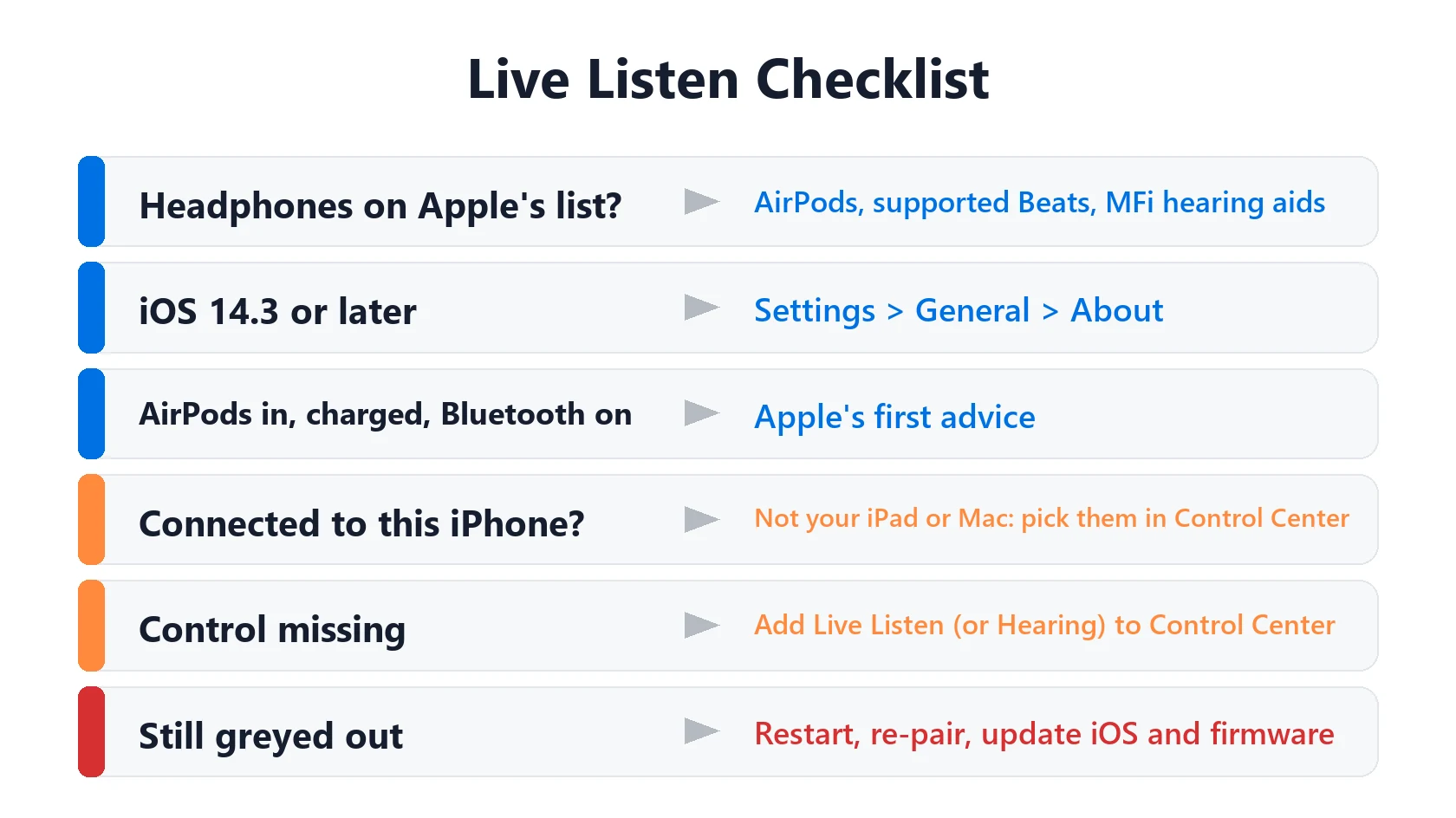
Go to Settings → General → About and make sure the iPhone is on iOS 14.3 or later. Then check your headphones against the table above. Earbuds from other brands can play audio from your iPhone without supporting Live Listen.
2. Put both AirPods in, charged, with Bluetooth on
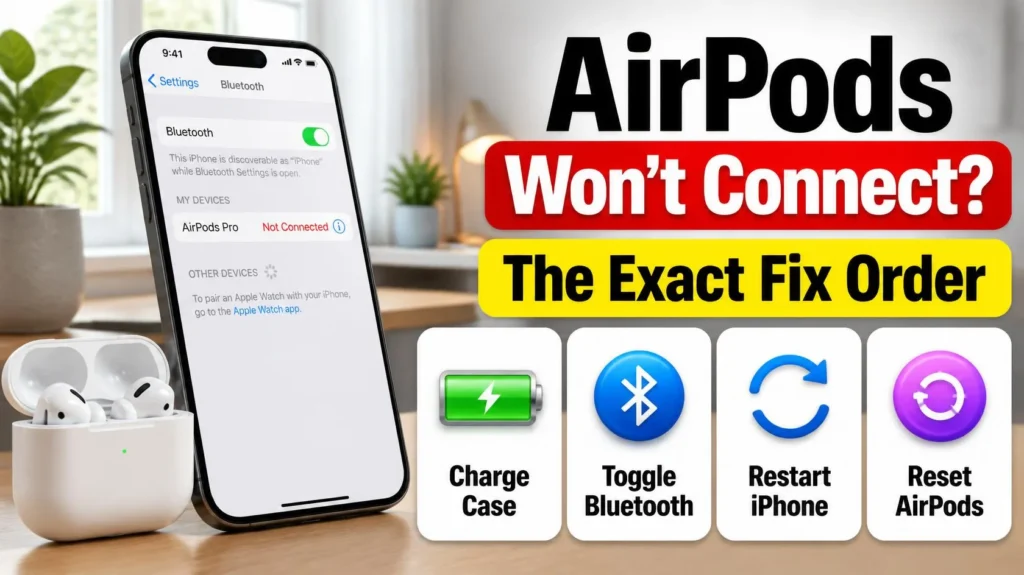
Apple’s advice for when Live Listen won’t turn on is short: “make sure that Bluetooth is on and that your headphones are charged.” Put the AirPods in your ears and wait for the connection sound. If the battery is low, charge them in the case for a few minutes first. If they won’t connect at all, the problem isn’t Live Listen; see AirPods won’t connect to iPhone.
3. Make the iPhone the device your AirPods are using
This is the fix that comes up most in owner reports. AirPods move between devices signed into the same Apple Account, so they may be connected to your iPad or Mac instead of the iPhone. Owners on Apple’s support forum describe a greyed-out Live Listen button that came back once the AirPods were connected only to the iPhone. Open Control Center, tap the audio output button on the music control, and choose your AirPods. If they keep jumping to another device, turn off Bluetooth on that device while you test.
4. Add the Live Listen control to Control Center
Live Listen doesn’t live in an app. You start it from Control Center, so if you can’t find it, the control probably isn’t added yet. The steps are in the next section. If the control is there but acting up, remove it and add it back. On some iOS versions the button shows as Hearing (an ear icon) and Live Listen is inside it. On recent iOS versions Apple’s iPhone User Guide also lets you start it from Settings → Accessibility → Audio & Visual → Live Listen by tapping Start Live Listen.
5. Check Automatic Ear Detection
Troubleshooting guides often suggest this one, though Apple doesn’t mention it for Live Listen. With the AirPods connected, go to Settings → [your AirPods’ name] and check that Automatic Ear Detection is on. If it’s on and Live Listen still misbehaves, try it off once to see if anything changes.
6. Restart the iPhone and the AirPods connection
Put the AirPods in their case, close the lid and wait about 30 seconds. Restart the iPhone, then take the AirPods out and try Live Listen again. This clears a stuck connection without changing any settings.
7. Forget the AirPods and pair them again
Go to Settings → Bluetooth, tap the info button next to your AirPods and choose Forget This Device. Then pair them again. Our AirPods pairing guide has the reset steps for each model. If other Bluetooth devices are acting up too, see iPhone Bluetooth not working.
8. Update iOS and the AirPods firmware
Check Settings → General → Software Update. AirPods firmware updates install on their own while the AirPods are charging near the iPhone, so leave them in the case, connected to power, next to the phone for a while. We haven’t found an iOS 27 bug that affects Live Listen. If you’re unsure about updating, should you update iOS? covers the trade-offs.
9. It’s on, but you can barely hear anything
Live Listen can be working and still sound faint. Turn the volume up with the iPhone’s side buttons while the session is running, and put the iPhone closer to the person or sound you want to hear, with the microphones uncovered. If it still won’t work after all nine fixes, try a second pair of supported AirPods if you can borrow one, then contact Apple Support.
How to Add Live Listen to Control Center
From Apple’s Live Listen page:
- Open Control Center
- Tap the add button (+), then Add a Control
- Under Hearing Accessibility, tap Live Listen, or search for “Live Listen”
- With your AirPods in and connected, open Control Center and tap the Live Listen button
- Turn Live Listen on and put the iPhone in front of the person you want to hear
To stop, open Control Center, tap the Live Listen button and switch it off. Apple’s user guide adds that on iOS 26 or later you can see Live Captions of what the iPhone hears, though captions aren’t available in every language or region.
The Live Listen Remote Control Warning: What’s True
In November 2026 a post spread on Facebook warning that an iPhone update added a “Remote Control” setting that lets other people listen through your phone. Local news fact-checks, such as WAKA 8’s, found the setting is real but the warning overstates it. Here’s what the reporting supports:
| The claim | What we found |
|---|---|
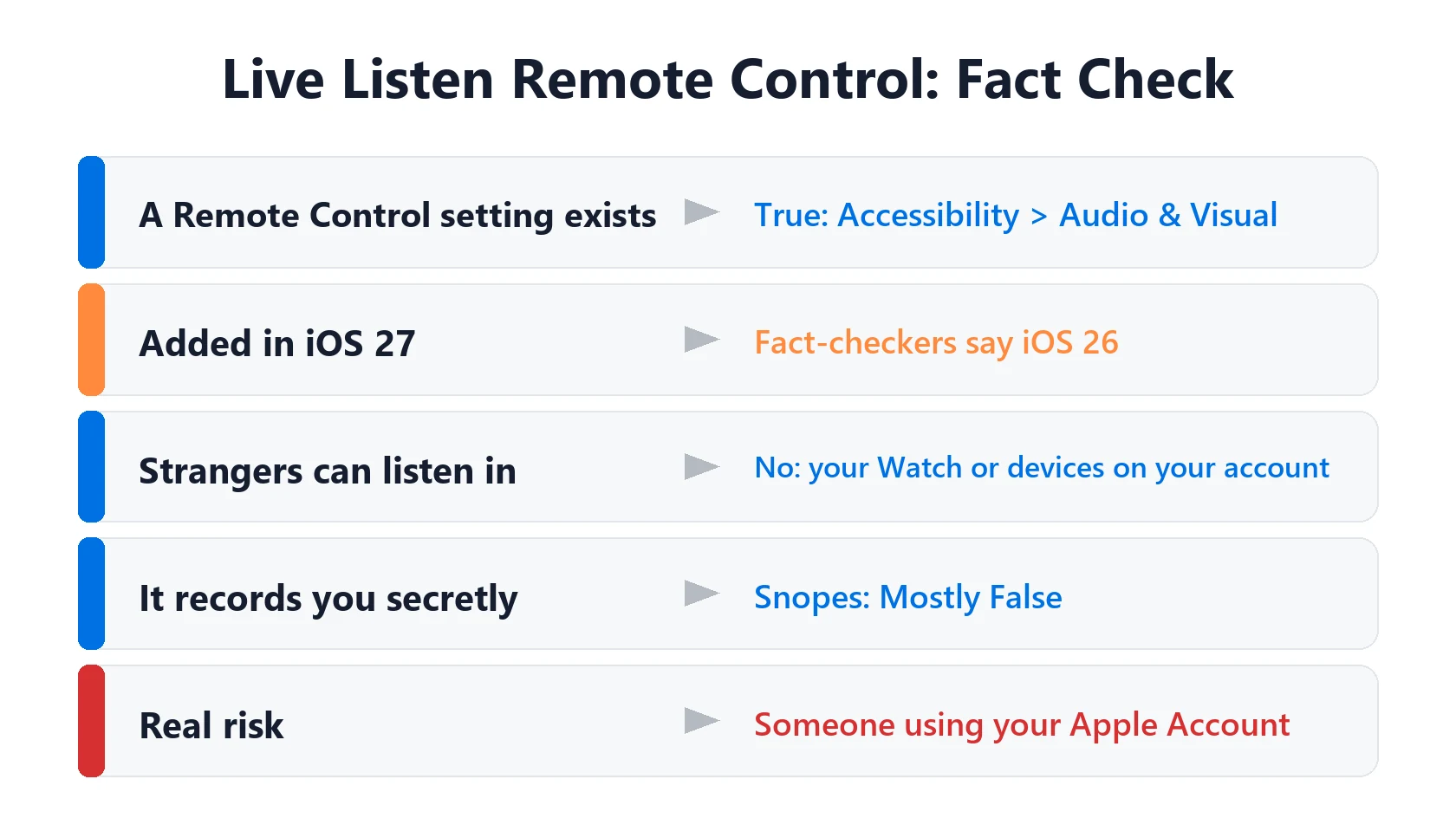
| There’s a new Remote Control setting | True. It’s in Settings → Accessibility → Audio & Visual → Live Listen → Remote Control |
| It came with iOS 27 | Fact-checkers cited by Neatoware say it arrived with iOS 26 |
| Anyone nearby can listen through your iPhone | No. WAKA reports it works from your paired Apple Watch or a nearby iPhone or iPad signed into the same Apple Account |
| It records you secretly | Snopes rated the viral claims Mostly False, and reported a pop-up on the iPhone when a session started in its testing |
| It’s switched on by default | Possibly for some people after updating, per Neatoware. Apple hasn’t said |
Apple’s Apple Watch guide describes the intended use: starting and stopping Live Listen on your iPhone from your watch, so you don’t have to reach for the phone. If you don’t do that, turning Remote Control off costs you nothing. Go to Settings → Accessibility → Audio & Visual → Live Listen and switch it off.
The real risk is the one in the reporting: someone else with a device signed into your Apple Account. That’s an account problem, not a Live Listen one. Turn on two-factor authentication, change your password if anyone else knows it, and check the device list at the bottom of Settings → [your name]. Remove anything you don’t recognize. For other signs someone has access to your iPhone, see how to check your iPhone for malware.
What Not to Do
- Don’t use Live Listen to listen in on people. It’s meant to help you hear a conversation you’re part of. Listening to or recording others without their consent can be illegal, depending on where you live
- Don’t install “spy detector” apps over the warning. Turning off Remote Control and securing your Apple Account does more than any app can
- Don’t erase your iPhone because of the Facebook post. A reset won’t fix a supported-headphones problem, and the Remote Control setting is one switch
- Don’t treat it as a medical device. Live Listen isn’t a hearing aid or a substitute for a hearing test
Frequently Asked Questions
Why is Live Listen greyed out on my iPhone?
Usually the AirPods aren’t connected to that iPhone, or they’re connected to your iPad or Mac instead. Put them in, choose them as the audio output in Control Center, and check they’re on Apple’s supported list.
Why does my iPhone say Live Listen is not active?
Live Listen only runs after you switch it on, and only while supported headphones are connected. Put your AirPods in, open Control Center, tap Live Listen and turn it on.
Does Live Listen work with Beats or without AirPods?
Yes, with supported Beats headphones (Powerbeats Pro, Beats Fit Pro, Powerbeats Fit and Beats 360) or a Made for iPhone hearing device. It doesn’t work with most other brands’ earbuds.
Does Live Listen record conversations?
Live Listen sends sound from the iPhone’s microphone to your headphones while it’s on. Fact-checkers found no evidence for the viral claims that it secretly records you.
Can someone use Live Listen on my iPhone remotely?
Fact-checks say only your own Apple Watch, or an iPhone or iPad close by that uses your Apple Account, can do it. Turn off Remote Control if you don’t use it, and keep your Apple Account secure.
Does Live Listen work with AirPods Pro 3?
Apple’s Live Listen page lists AirPods Pro without naming a generation. If yours connect to the iPhone but the control stays greyed out, work through the fixes above.
Why does Live Listen keep turning off?
Live Listen needs your headphones connected, so anything that disconnects them, such as taking them out, a low battery or the AirPods switching to another device, can end the session. Fixes 2, 3 and 6 cover these.
📚 Related Guides
Written by S M Momin Arif
Founder and lead writer at iPhoneFixDaily, writing practical iPhone troubleshooting guides checked against Apple’s official support documentation. Read more about our approach →