
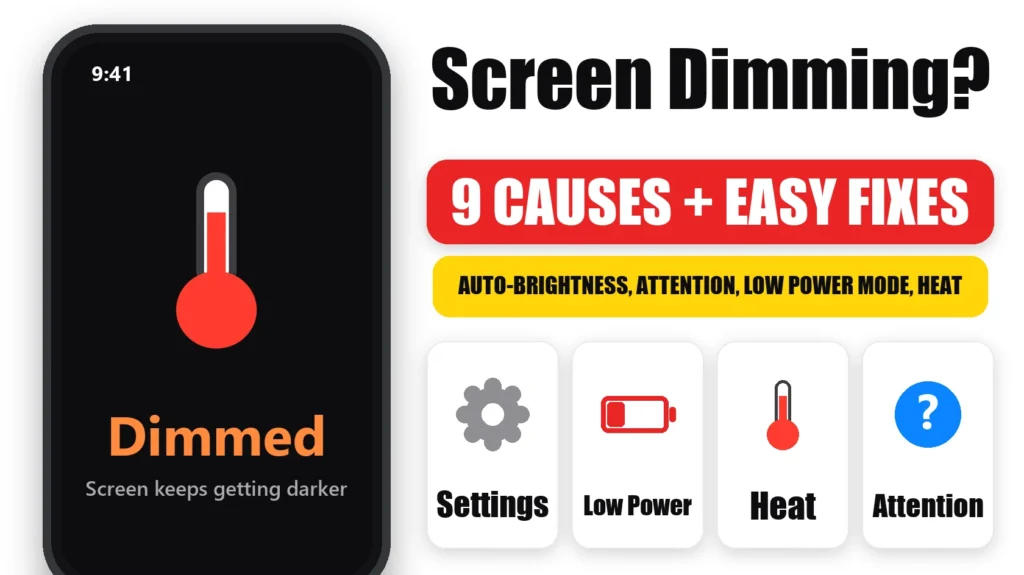
iPhone screen keeps dimming on its own? It’s almost always a setting doing what it was built to do: Auto-Brightness reacting to the light around you, Attention Aware Features dimming when you look away, Low Power Mode saving battery, or the iPhone cooling itself down. The quickest way to find yours is to notice when it dims, then match it in the table below. Every fix uses a setting Apple documents.
Table of Contents
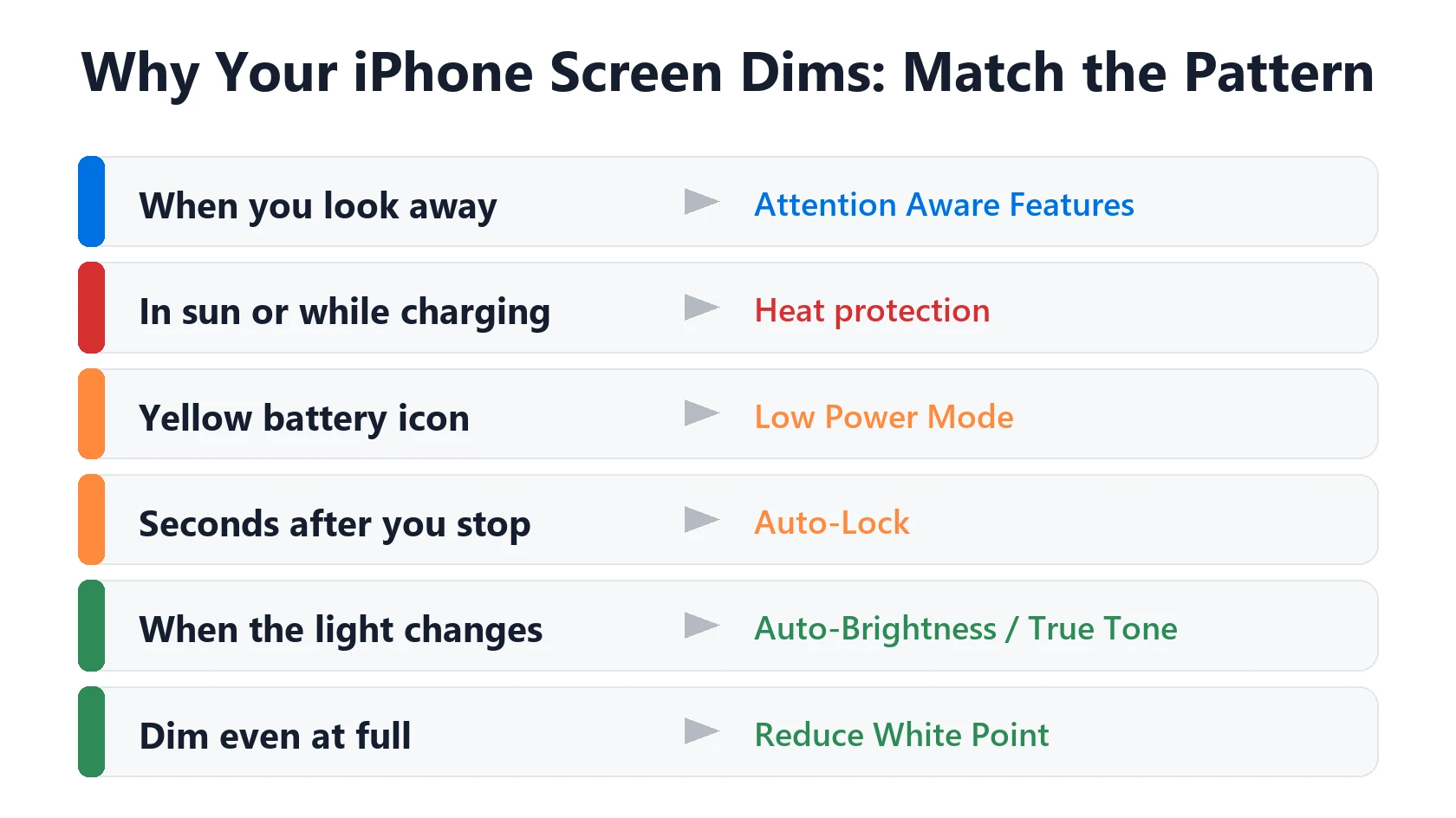
Why Your iPhone Screen Keeps Dimming: Match the Pattern
| When it dims | Most likely cause | Fix |
|---|---|---|
| When you look away or put it down | Attention Aware Features | Cause 2 |
| In sunlight, while charging, gaming or navigating | Heat protection | Cause 4 |
| Battery icon is yellow | Low Power Mode | Cause 3 |
| A few seconds after you stop touching it | Auto-Lock | Cause 5 |
| When the room or light changes | Auto-Brightness or True Tone | Causes 1 and 6 |
| Looks warmer and darker at night | Night Shift | Cause 6 |
| Dim even at full brightness, all the time | Reduce White Point | Cause 7 |
| Lock Screen goes dark but stays on | Always On display | Cause 8 |
9 Causes and How to Fix Each One
Change one thing at a time and use the phone normally for a while, so you know which setting it was.
1. Auto-Brightness
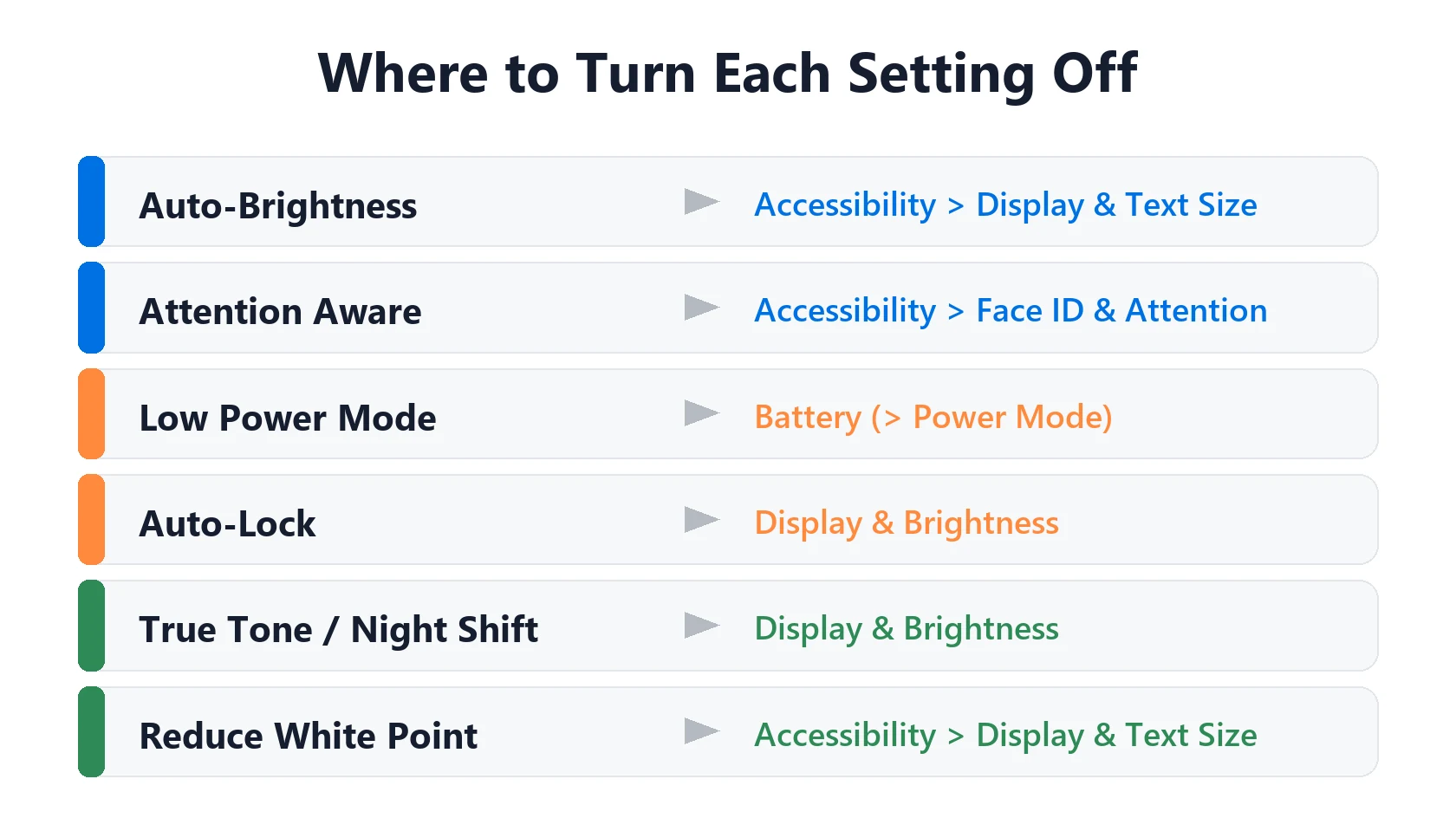
Auto-Brightness uses the light sensor at the top of the screen to set brightness for the room you’re in (Apple). Walk from a bright window into a dim hallway and the screen follows. To turn it off, go to Settings → Accessibility → Display & Text Size and switch off Auto-Brightness. Apple notes that turning it off may increase power use, so many people leave it on once they know it’s the cause. Some owners say switching it off and back on helps when it seems stuck too dark.
2. Attention Aware Features
On iPhones with Face ID, the phone checks whether you’re looking at it before dimming the display (Apple). Look away to read something, and the screen dims sooner. Sunglasses, a mask or a dark room can make it harder for the iPhone to see your eyes, so it may dim while you’re still reading. Turn it off in Settings → Accessibility → Face ID & Attention → Attention Aware Features. Owners on Apple’s support forums often report this one setting stopped the random dimming.
The opposite can happen too. A few iPhone 18 Pro owners, several on iOS 27.2, told the TechBetweenTheLines tracker that their phone doesn’t dim based on where they’re looking at all. Other owners can’t reproduce it, so it’s unconfirmed.
3. Low Power Mode
Low Power Mode reduces display brightness and sets Auto-Lock to 30 seconds. You’ll know it’s on because the battery icon turns yellow. It switches off by itself once you charge to 80%, and on iPhones with Adaptive Power it turns on below 20% (Apple). To check, go to Settings → Battery → Power Mode (iPhone 15 and later) or Settings → Battery (iPhone 14 and earlier). If it keeps turning on because the battery runs low, see which apps actually drain your battery.
4. Heat
When the inside of an iPhone gets too warm, Apple says "the display dims or goes black" to protect the parts inside, and charging can slow or stop at the same time (Apple). The usual triggers are direct sun, a hot car, navigation, games and long camera use. You can’t switch this off. Move into the shade, unplug it, close the game or camera, and brightness comes back once it cools. If it gets hot doing everyday things, see iPhone overheating.
5. Auto-Lock
Just before the screen locks, it dims for a moment as a warning. If that feels too soon, go to Settings → Display & Brightness → Auto-Lock and pick a longer time. Low Power Mode overrides this and keeps it at 30 seconds.
6. True Tone and Night Shift
True Tone adapts both the color and the intensity of the display to the light around you, so under warm indoor light the screen can look duller (Apple). Night Shift moves colors to the warmer end at night, which reads as dimmer. Turn either off in Settings → Display & Brightness, or check the Night Shift schedule there.
7. Reduce White Point
This accessibility setting tones down the intensity of bright colors (Apple). It’s easy to turn on, forget about, and then wonder why full brightness still looks dim. Check Settings → Accessibility → Display & Text Size → Reduce White Point. While you’re there, look for Color Filters too.
8. Always On display
On iPhones with an Always On display, the Lock Screen dims instead of switching off when you put the phone down. That’s the feature working. If you’d rather it went fully dark, turn off Settings → Display & Brightness → Always On Display.
9. A software bug
If none of the settings explain it, restart the iPhone, then update in Settings → General → Software Update. Apple hasn’t acknowledged a dimming bug in iOS 27, and iOS 27.2.1 doesn’t mention the display. Still, a restart clears a stuck brightness setting more often than you’d think.
Screen Dims Even With Auto-Brightness Off?
Auto-Brightness isn’t the only thing that changes brightness. With it off, the screen can still dim because of Attention Aware Features, Low Power Mode, heat, Auto-Lock and Reduce White Point. Check them in that order. If it only happens outdoors in summer or while charging, it’s almost certainly heat.
Seeing it at full brightness in the sun? Heat is again the first suspect, because sunlight warms the phone fast. If your iPhone screen keeps dimming at full brightness indoors and the phone feels cool, go back to Reduce White Point and Low Power Mode.
Screen Keeps Dimming and Brightening?
Brightness that keeps going down and up is usually Auto-Brightness and True Tone reacting to changing light, such as clouds, a moving car or a screen held at different angles. A case or screen protector that covers the area around the front camera can block the light sensor and make it jumpy, so check that part is clear and clean. If it swings while you’re reading in the dark, Attention Aware Features may be losing sight of your eyes.
Still Dimming? It May Be the Display
If the screen still dims or flickers with every setting above switched off, on a cool phone, after a restart and the latest update, a setting isn’t the cause. The same goes for lines, dark patches or flicker at any brightness. Those point to the display itself, so book a repair check with Apple Support. If the screen also stops responding, see iPhone touch screen not working.
Frequently Asked Questions
Why does my iPhone screen dim when I’m not touching it?
Attention Aware Features dims it when you look away, and Auto-Lock dims it just before locking. Low Power Mode shortens Auto-Lock to 30 seconds, so the dimming comes sooner when the battery icon is yellow.
Why does my iPhone keep dimming in the sun?
Usually heat. Apple says the display dims or goes black when the iPhone gets too warm, and direct sun is one of the main causes. Move into the shade and it recovers once it cools.
Does turning off Auto-Brightness drain the battery?
It can. Apple notes that turning off Auto-Brightness may increase power consumption, because the screen stays bright even in dim rooms. If you turn it off, lower brightness yourself indoors.
Why does my iPhone screen dim while watching videos?
Long videos warm the phone, especially while charging or in the sun, and heat dims the display. Low Power Mode lowers brightness too. Check both before changing other settings.
Is a dimming screen a sign of a bad battery?
Not on its own. A low battery can trigger Low Power Mode, which dims the screen, but dimming by itself doesn’t mean the battery is failing. To check, see iPhone battery health percentage.
📚 Related Guides
Written by S M Momin Arif
Founder and lead writer at iPhoneFixDaily, writing practical iPhone troubleshooting guides checked against Apple’s official support documentation. Read more about our approach →


