Personal Hotspot not working on your iPhone? Usually it’s one of a few things: Allow Others to Join is off, Cellular Data is off, your carrier plan doesn’t include hotspot, or the other device can’t find or join the network. Here are Apple’s fixes in order, plus what to do when the hotspot is missing, greyed out, or connected with no internet.
Official Apple Store on Amazon
Genuine cases, cables, and accessories — sold and shipped by Apple.
📋 Quick Summary
- Go to Settings → Personal Hotspot and turn on Allow Others to Join.
- Missing or greyed out? Turn on Cellular Data, then check your plan includes hotspot.
- Can’t see it? Stay on the Personal Hotspot screen and turn on Maximize Compatibility (iPhone 12 and later).
- Connected but no internet? Check your iPhone’s own data works, then your hotspot data allowance.
- Still stuck? Restart both devices, update, then Reset Network Settings.
Table of Contents
Quick Fixes First
Try these in order. They come from Apple’s Personal Hotspot troubleshooting guide.
- Turn it on. Go to Settings → Personal Hotspot and turn on Allow Others to Join.
- Restart both devices: the iPhone sharing data and the device trying to connect.
- Update iOS in Settings → General → Software Update, and update the other device too.
- Keep the devices close, with Wi-Fi and Bluetooth on for both.
- Reset network settings on the iPhone sharing data if nothing else works (details below).
Personal Hotspot Missing or Greyed Out
If there’s no Personal Hotspot option in Settings, or it’s dimmed:
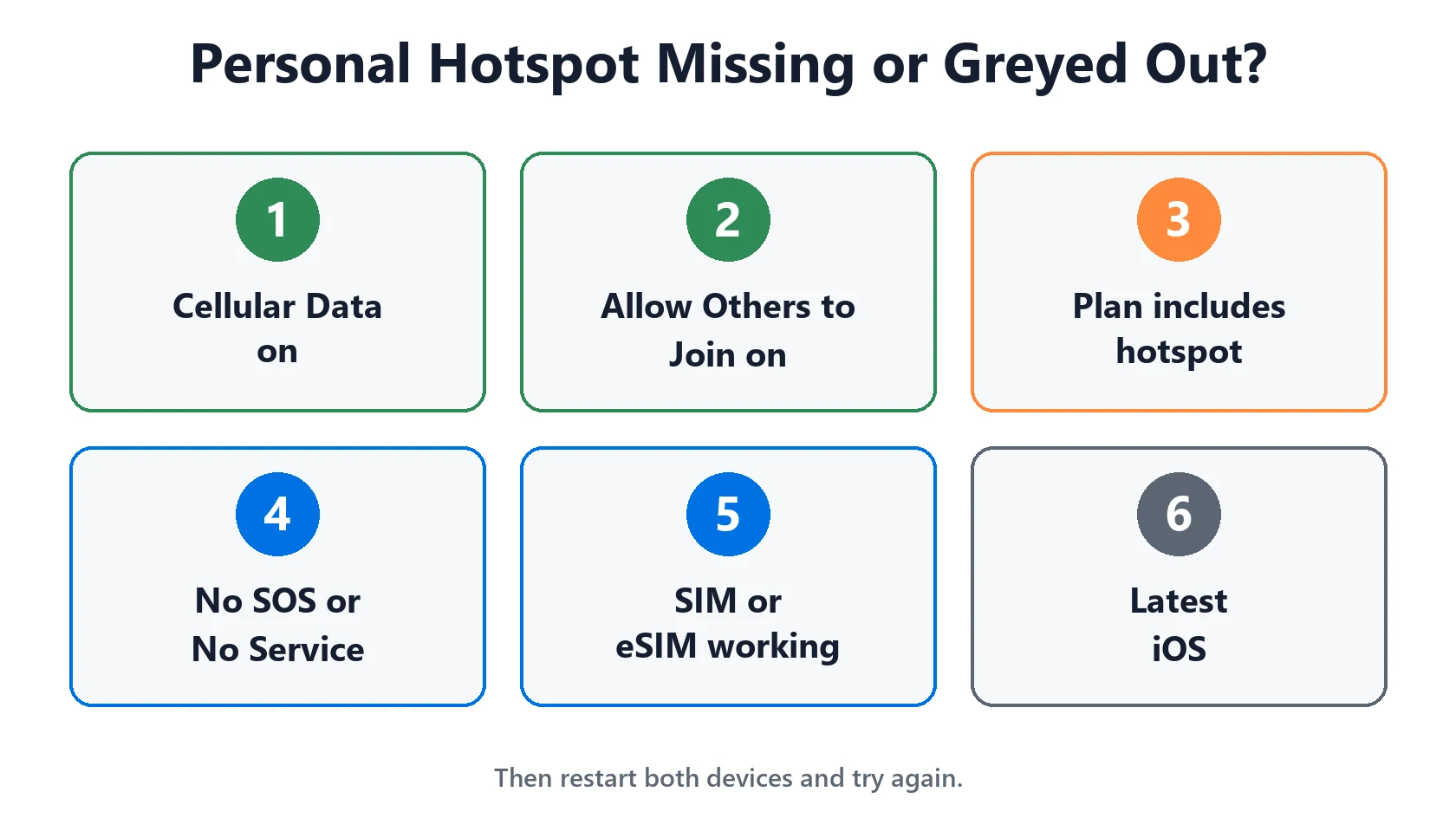
- Turn on Cellular Data. Go to Settings → Cellular. Apple says hotspot is unavailable when Cellular Data is off.
- Look under Cellular. Tap Settings → Cellular → Personal Hotspot. Apple lists it there too.
- Check your plan. Your carrier has to enable Personal Hotspot and your plan has to include it. Some plans only allow it with an add-on or a data limit.
- Check your signal. If iPhone shows SOS or No Service, there’s no data to share. Fix that first.
- Check your SIM. A new SIM or eSIM, or an Invalid SIM error, can stop hotspot until it’s sorted.
Devices Can’t See or Join Your Hotspot
If your laptop, tablet or another phone can’t find the hotspot, or the password won’t work:
- Stay on the Personal Hotspot screen on your iPhone until the other device connects.
- Turn on Maximize Compatibility in Settings → Personal Hotspot on iPhone 12 and later. It helps older devices find the network. Apple notes it may reduce speed and Wi-Fi security for connected devices.
- Turn Wi-Fi off and on on the device that’s trying to connect.
- Pick the right network. It has the same name as your iPhone, which you can check in Settings → General → About → Name.
- Check the password under Settings → Personal Hotspot → Wi-Fi Password. It must be at least 8 characters.
- Forget the network on the other device and join again, if it joined before.
Using your own iPad or Mac? With Instant Hotspot, devices signed in to the same Apple Account (or in your Family Sharing group) can join without a password. They need Wi-Fi and Bluetooth on, and to be near each other. If Bluetooth itself is acting up, see iPhone Bluetooth not working.
Connected but No Internet
If the other device joins but pages won’t load, the problem is the data, not the hotspot:
- Test your iPhone’s own data. Turn off Wi-Fi on the iPhone and open a website. If it doesn’t load, fix your cellular connection first.
- Check your hotspot allowance. Many plans have a separate hotspot data limit, and some slow it right down once you hit it. Your carrier app shows how much is left.
- Turn off any VPN on either device, then test again.
- Check Low Data Mode in Settings → Cellular → Cellular Data Options. It reduces background data, so turn it off while you test.
- Restart both devices and reconnect.
Also note: some features that need Wi-Fi, like iCloud Backup, may not run over a hotspot. That’s expected. Wi-Fi dropping on the iPhone itself? See iPhone Wi-Fi keeps disconnecting.
Hotspot Not Working on a Mac or PC (USB)
Sharing over a USB cable avoids Wi-Fi problems. If it doesn’t work, Apple’s steps for a Mac are:
- Update macOS.
- Connect your iPhone with a USB cable. If asked, tap Trust on the iPhone.
- Make sure the iPhone shows in Finder.
- Open System Settings → Network. Find iPhone USB, then make it inactive and active again. If it’s not listed, add it as a new service.
On a Windows PC, Apple says to install the latest Apple Devices app or iTunes, then connect and tap Trust. Turn off Personal Hotspot when you don’t need it, or your computer may use it whenever your iPhone charges from it.
Reset Network Settings
Personal Hotspot still not working after all of that? Reset network settings on the iPhone sharing data. Go to Settings → General → Transfer or Reset iPhone → Reset → Reset Network Settings.
This doesn’t delete your photos or apps. It does erase saved Wi-Fi networks and passwords, cellular settings, and VPN and APN settings, so have your Wi-Fi passwords ready. Then turn Personal Hotspot back on and try again. If it still fails, contact your carrier to check hotspot is active on your line.
Match Your Situation
| What you see | Likely cause | What to do |
|---|---|---|
| No Personal Hotspot in Settings | Cellular Data off or plan | Turn on Cellular Data, check Settings > Cellular |
| Personal Hotspot greyed out | Cellular Data off or no signal | Turn on Cellular Data, fix SOS or No Service |
| Other device can’t find it | Older device or wrong network | Stay on the hotspot screen, Maximize Compatibility |
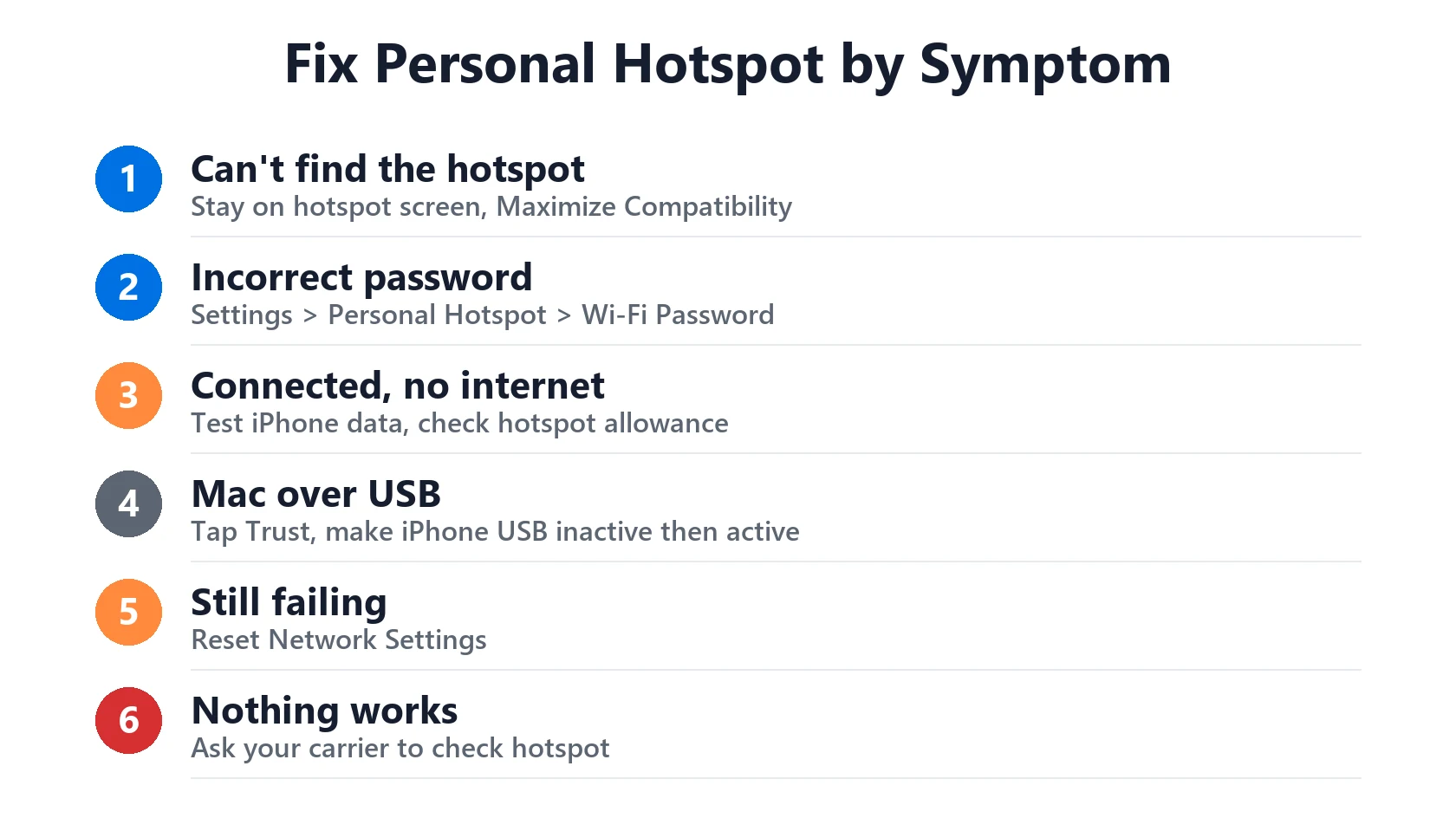
| Incorrect password | Wrong or changed password | Check Settings > Personal Hotspot > Wi-Fi Password |
| Connected, no internet | No data or hotspot limit reached | Test iPhone data, check your allowance |
| Mac won’t use it over USB | iPhone USB service | Tap Trust, make iPhone USB inactive then active |
| Nothing works | Network settings or carrier | Reset Network Settings, then call your carrier |
Featured Apple Deals on Amazon
Current discounts on AirPods, chargers, cables, and other Apple gear.
Frequently Asked Questions
Why is my Personal Hotspot not working?
Usually Allow Others to Join or Cellular Data is off, your plan doesn’t include hotspot, or the other device can’t find the network. Turn both on, restart both devices and update iOS.
Why is Personal Hotspot greyed out on my iPhone?
Apple says to check that Cellular Data is on in Settings → Cellular. If it is, ask your carrier whether hotspot is enabled on your plan.
Why is my Personal Hotspot not working on my laptop?
Stay on the Personal Hotspot screen and turn on Maximize Compatibility (iPhone 12 and later). Then turn the laptop’s Wi-Fi off and on.
Why is my hotspot connected but there’s no internet?
Your iPhone may have no data itself, or you’ve used your hotspot allowance. Test the iPhone’s data with Wi-Fi off, and check your carrier app.
Does resetting network settings delete my data?
No. It only erases saved Wi-Fi networks and passwords, cellular settings and VPN and APN settings.
How many devices can connect to my iPhone hotspot?
Apple says it depends on your carrier and iPhone model.
📚 Related Guides
- iPhone Wi-Fi Keeps Disconnecting After iOS 27? How to Fix It
- iPhone Says SOS, No Service or Searching: What It Means and How to Fix It
- iPhone Bluetooth Not Working or Won’t Connect? Apple’s Fix Order
- Invalid SIM, No SIM or SIM Not Supported on iPhone: How to Fix It
- iOS 27 Problems: Known Bugs and What 27.0.1 Fixed
Written by S M Momin Arif
Founder and lead writer at iPhoneFixDaily, covering iPhone battery and charging diagnostics based on direct hands-on testing. Read more about our approach →