
Latest status · Last checked November 16, 2026
Apple bug confirmed: No
iOS 27.2 reports: A few owners since October 31 say Macs and PCs stopped seeing their iPhone over USB (unconfirmed)
Latest iOS: iOS 27.2.1 (November 9, 2026)
Apple’s steps last updated: August 12, 2026
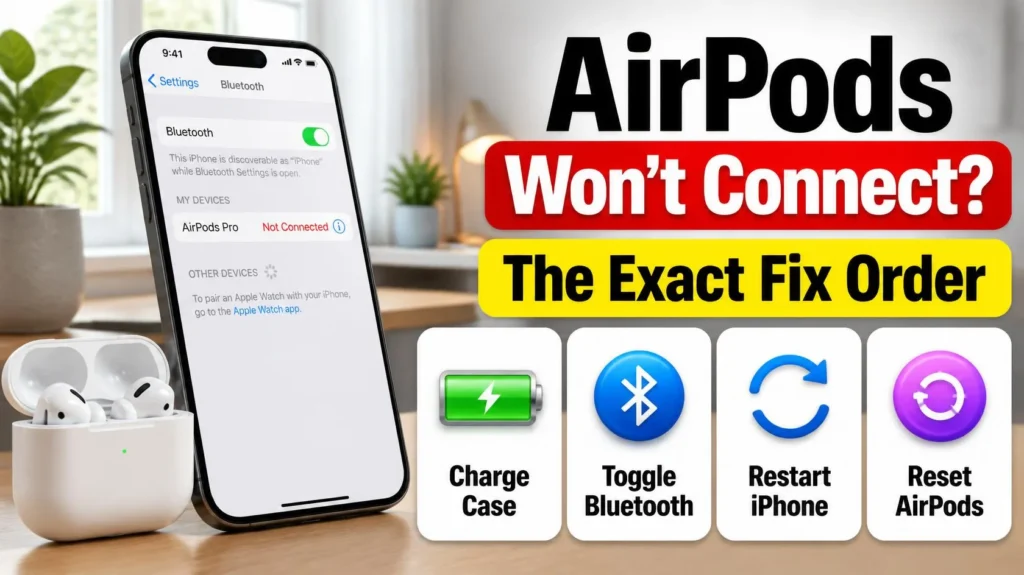
iPhone not showing up on your computer usually comes down to one of four things: the Trust alert was missed or declined, the cable only carries power, the iPhone was locked when you plugged it in, or the computer’s software is out of date. The fixes below follow Apple’s own order, with separate steps for a Mac and a Windows PC. If yours stopped showing up right after iOS 27.2, jump to that section first.
Table of Contents
Why Your iPhone Is Not Showing Up on Computer
Charging and showing up are two different things. Power needs only two wires in the cable. Showing up in Finder or the Apple Devices app needs a working data connection, and then the iPhone has to agree to share its data. So an iPhone that charges fine can still be invisible to the computer.
Use what you see to narrow it down:
| What happens | Most likely cause | Start with |
|---|---|---|
| Charges, but never appears | Charge-only cable, hub, or Trust not given | Fixes 1–3 |
| Appeared before, not anymore | Trust reset, software update, security app | Fixes 4–6 |
| Trust alert never shows up | Locked iPhone or old Mac/PC software | Fixes 1, 5, 6 |
| Doesn’t charge either | Port, cable or adapter | Port section below |
9 Fixes to Try, in Order
Try each one, then plug the iPhone back in before moving to the next. Most people are done by fix 3.
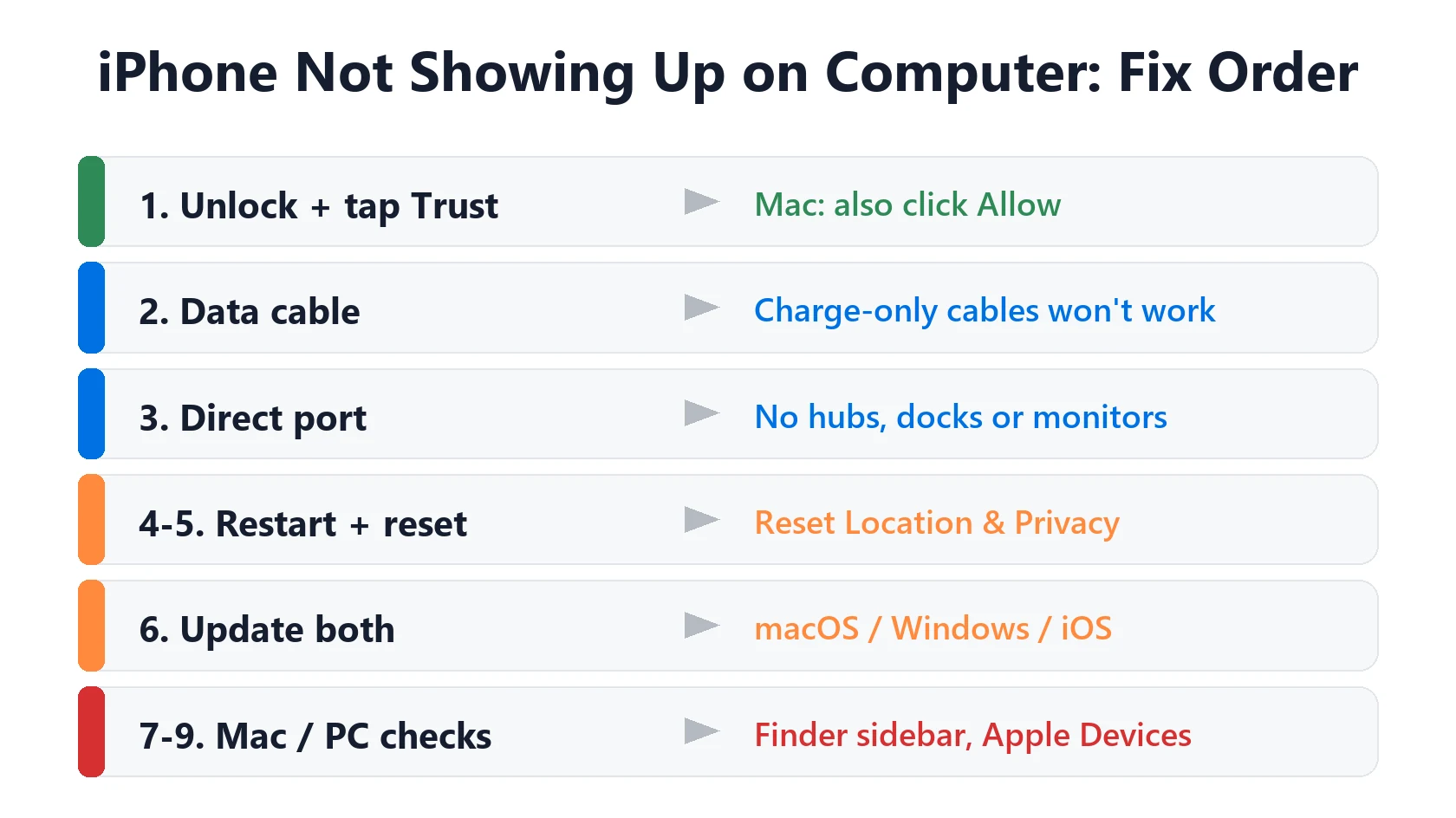
1. Unlock your iPhone and tap Trust
Unlock the iPhone before you plug it in and keep it on the Home Screen. The "Trust This Computer?" alert only appears on an unlocked phone, and it’s easy to miss if the screen goes dark. Tap Trust and enter your passcode. On a Mac you may also see "Allow accessory to connect?". Click Allow, or the Mac ignores the iPhone (Apple).
Since iOS 16, the alert also appears when you back up, and every time you connect if automatic backups are on. That’s normal. Tapping Don’t Trust blocks the computer, and the question comes back on every connection (Apple).
2. Use a cable that carries data
Apple says the cable must support both data and charging. Many cheap cables, and the short ones bundled with power banks or lamps, are charge-only. If you have the cable that came in the iPhone box, use that one. A good test: if a cable works with another phone or device on the same computer, the cable isn’t the problem.
3. Plug straight into the computer
Skip USB hubs, monitor ports, keyboards and docks for now and use a port on the computer itself. Try a second port. When it connects properly, the iPhone chimes or vibrates. If it doesn’t, Apple suggests unplugging and checking the iPhone’s charging port for lint (Apple).
4. Restart the iPhone and the computer
A restart clears a stuck connection on either side. Restart both, unlock the iPhone, then plug it in again.
5. Reset Location & Privacy to bring Trust back
If you tapped Don’t Trust by mistake, or the alert never appears, go to Settings → General → Transfer or Reset iPhone → Reset → Reset Location & Privacy. Your photos and data stay put. The iPhone forgets which computers it trusts and which apps can use your location, so apps will ask again. Plug in and the Trust alert should show (Apple).
6. Update the computer and the iPhone
Old software on either end can stop the two from talking. On a Mac, install the latest macOS. On Windows, install Windows updates and the latest Apple Devices app (or iTunes) from the Microsoft Store. On the iPhone, go to Settings → General → Software Update.
7. On a Mac: check Finder’s sidebar and security apps
Open Finder and look in the sidebar under Locations. No sidebar? Choose View → Show Sidebar. Then open Finder → Settings → Sidebar and tick CDs, DVDs and iOS Devices, or the iPhone stays hidden even when it’s connected. Apple also lists VPNs and third-party security software as a known cause, so pause them and try again (Apple).
8. On Windows: check the Apple software and its service
Open the Apple Devices app first, then connect. If you use iTunes from the Microsoft Store, Apple says iTunes Mobile Device Helper must be on as a startup item (Task Manager → Startup apps) (Apple). Antivirus and security tools can block the connection too, which Apple calls a software conflict.
One iPhone 16 owner on Microsoft’s Q&A forum whose PC charged the phone but showed no Apple driver tried restarting the Apple Mobile Device Service (press Windows + R, type services.msc) and reinstalling iTunes. Microsoft’s replies suggested showing hidden devices in Device Manager and removing greyed-out Apple entries, or trying another Windows user account. Those are worth a go if nothing above worked.
9. Reset network settings
This is the last step on Apple’s list for a Trust alert that won’t appear or won’t accept your answer. Go to Reset Network Settings, in the same Reset menu as fix 5. Your iPhone forgets every Wi-Fi network it knows, plus any VPN and custom cellular setup, so note your home Wi-Fi password before you tap it (Apple).
Not Showing Up After iOS 27.2?
Since October 31, readers of the TechBetweenTheLines iOS 27 tracker with an iPhone 17, an iPhone 18 Pro and an older iPhone have reported that their Mac or PC no longer sees the phone over USB after iOS 27.2. It doesn’t appear in Finder, the Music app or iTunes, and tapping Trust does nothing, though the iPhone still charges. That’s a small number of reports, the tracker hasn’t confirmed a pattern, and Apple hasn’t commented.
If that sounds like you, start with fixes 1, 5 and 6: unlock first, reset Location & Privacy, and make sure both devices are fully updated. iOS 27.2.1 doesn’t mention USB in its notes, but it’s the current version. If it still won’t connect, report it to Apple Support so the problem is logged against your model. Our iOS 27.2 problems list tracks what else owners are seeing.
Where Your iPhone Should Appear on a Mac or PC
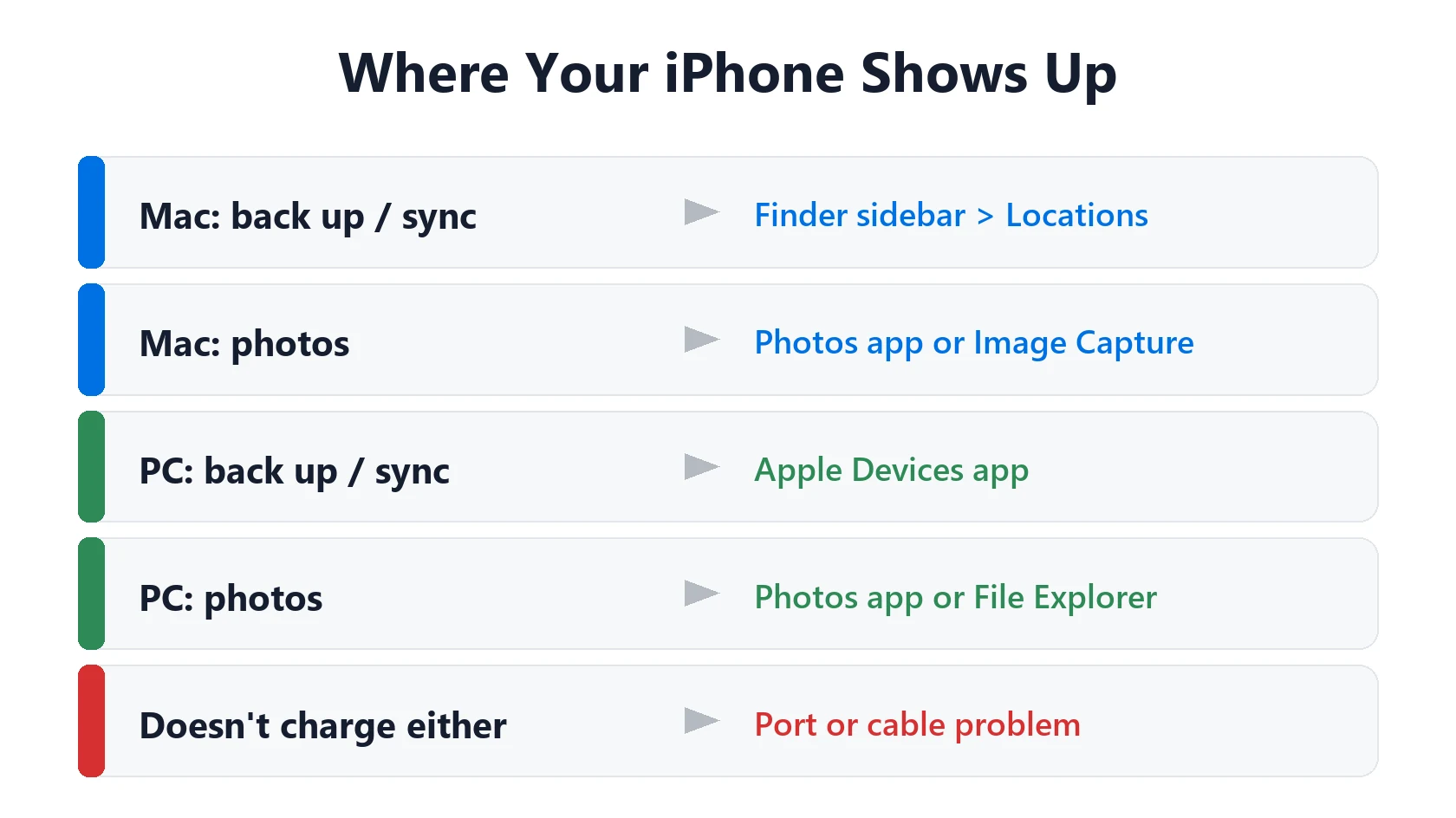
Sometimes an iPhone not showing up on a Mac or PC is connected, and you’re just looking in the wrong place. Where it shows up depends on the computer and on what you want to do:
| You want to | On a Mac | On a Windows PC |
|---|---|---|
| Back up, update or sync | Finder sidebar, under Locations | Apple Devices app (or iTunes) |
| Copy photos and videos | Photos app or Image Capture | Photos app, or File Explorer → Apple iPhone |
| Restore in recovery mode | Finder | Apple Devices app (or iTunes) |
On Windows, File Explorer only shows the iPhone’s photo folders while the phone is unlocked and trusted. If the folder looks empty, unlock the iPhone and open it again.
When It’s the Port, the Cable or the iPhone
If the iPhone doesn’t charge from the computer or a wall adapter, the problem is power, not data. Work through iPhone not charging when plugged in and iPhone charging port not working instead.
If your computer is not recognizing your iPhone, and it charges but won’t appear on two different computers with two different data cables, after every fix above, the iPhone’s port or its data connection may be faulty. That’s the point where Apple says to contact support for service. If the iPhone is stuck on the Apple logo and you need a computer to restore it, see iPhone stuck on the Apple logo.
Frequently Asked Questions
Why is my iPhone charging but not showing up on my computer?
The cable may be charge-only, the iPhone may have been locked when you plugged it in, or you haven’t tapped Trust. Try the cable that came with your iPhone, plug straight into the computer, unlock the phone, then tap Trust.
Why is my iPhone not showing up on my PC after trusting?
Open the Apple Devices app before you connect, and check that it’s up to date. If you use iTunes from the Microsoft Store, make sure iTunes Mobile Device Helper is on in Startup apps. Then restart the PC and the iPhone.
Why doesn’t my iPhone show up in File Explorer?
File Explorer only lists the iPhone while it’s unlocked and you’ve tapped Trust. It shows photos and videos only, not your other files. For backups and syncing, use the Apple Devices app.
Can my iPhone show up on my computer without a cable?
Yes, after you connect once with a cable. Turn on Show this iPhone when on Wi-Fi in Finder, or the Wi-Fi sync option in the Apple Devices app. The iPhone and computer then need to be on the same Wi-Fi network.
Does Reset Location & Privacy delete anything?
No photos, messages or apps are deleted. It resets which computers your iPhone trusts and the location and privacy permissions you gave apps, so they’ll ask again the next time you open them.
📚 Related Guides
Written by S M Momin Arif
Founder and lead writer at iPhoneFixDaily, writing practical iPhone troubleshooting guides checked against Apple’s official support documentation. Read more about our approach →