Latest status · Last checked November 27, 2026
Where are you stuck?: Find your stage in the table below. Each one has different fixes
Is your iPhone broken?: Almost never. A stuck update is usually a network, storage or server delay
Fix owners mention most: turning off Low Data Mode for Wi-Fi when it sits on Update Requested
Current release: 27.2.1 is the version to install now, and iOS 27.3 is expected in December
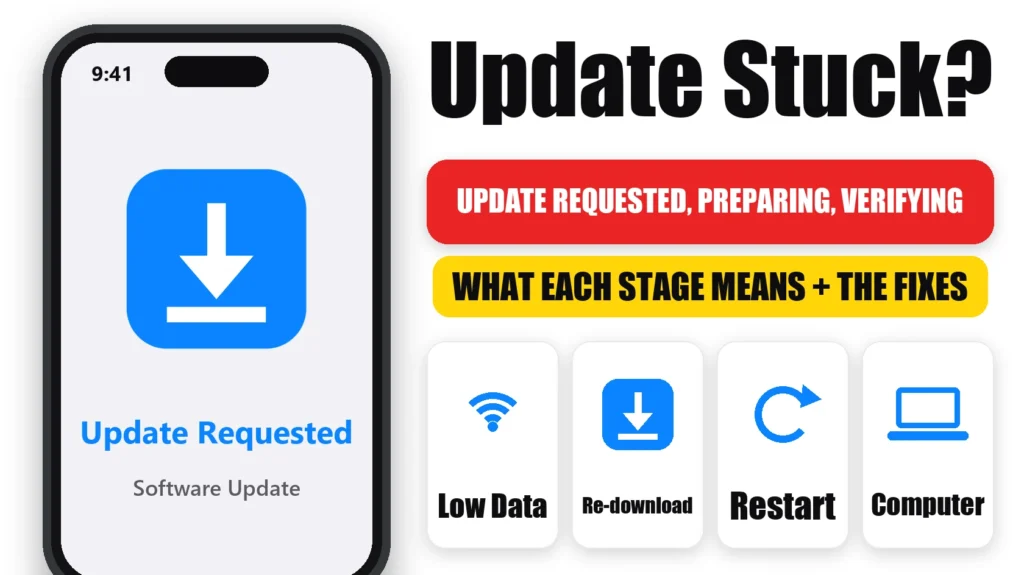
iPhone stuck on Update Requested? You tapped Download and Install, and the screen just sits there. Or it got further and now won’t move past Preparing Update, Verifying Update, or a progress bar under the Apple logo. Each of those is a different stage of the update, and each one gets stuck for different reasons. Find the stage you’re on, then work through the fixes for it. Your photos and apps are safe while it waits.
Table of Contents
What Each Update Stage Means
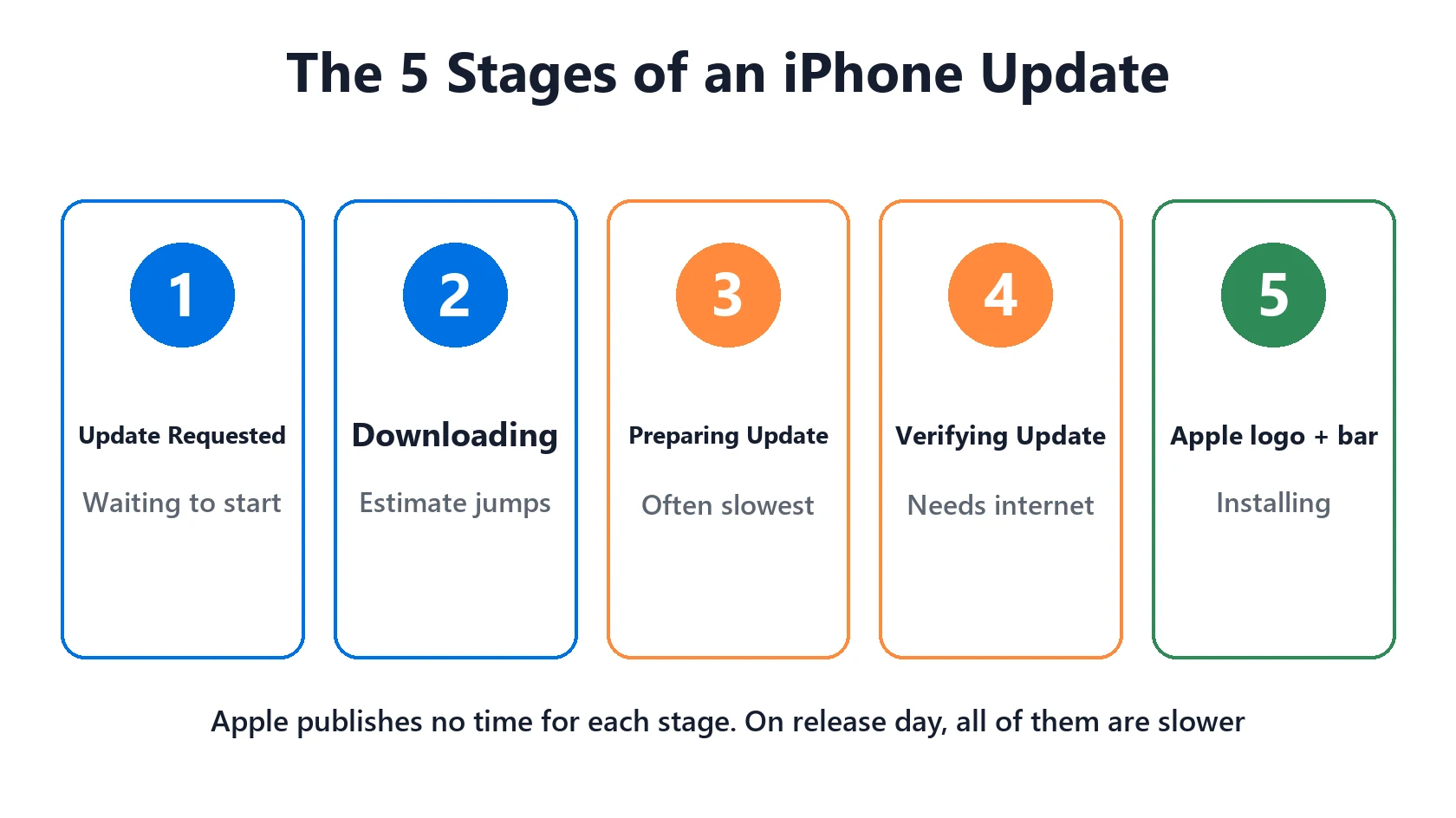
Apple doesn’t publish a description of these stages or how long each should take, so this is our plain-English version, based on what the screen says and what owners report:
| What you see | What’s happening | When to worry |
|---|---|---|
| Update Requested | Your iPhone has asked Apple for the update and is waiting for the download to start | Still there after about an hour |
| Downloading (time remaining) | The update is downloading. The time estimate jumps around a lot | The bar stops moving for a long time |
| Preparing Update | The download is being unpacked and checked on the phone. Often the slowest step | No change after about an hour |
| Verifying Update | Your iPhone confirms the update with Apple before installing. It needs internet | Loops back every time you try |
| Apple logo and progress bar | The update is installing. The phone restarts at least once | Frozen for hours, or the logo shows with no bar |
The “about an hour” limits are our suggestion, not Apple’s. Apple only says that download time depends on the update size and your internet speed, and that the install time depends on the update’s size and your iPhone’s storage. On the day a big update comes out, everyone downloads at once, so everything is slower.
iPhone Stuck on Update Requested: 5 Fixes
This is the stage most people get stuck on, and the one with the clearest owner fix.
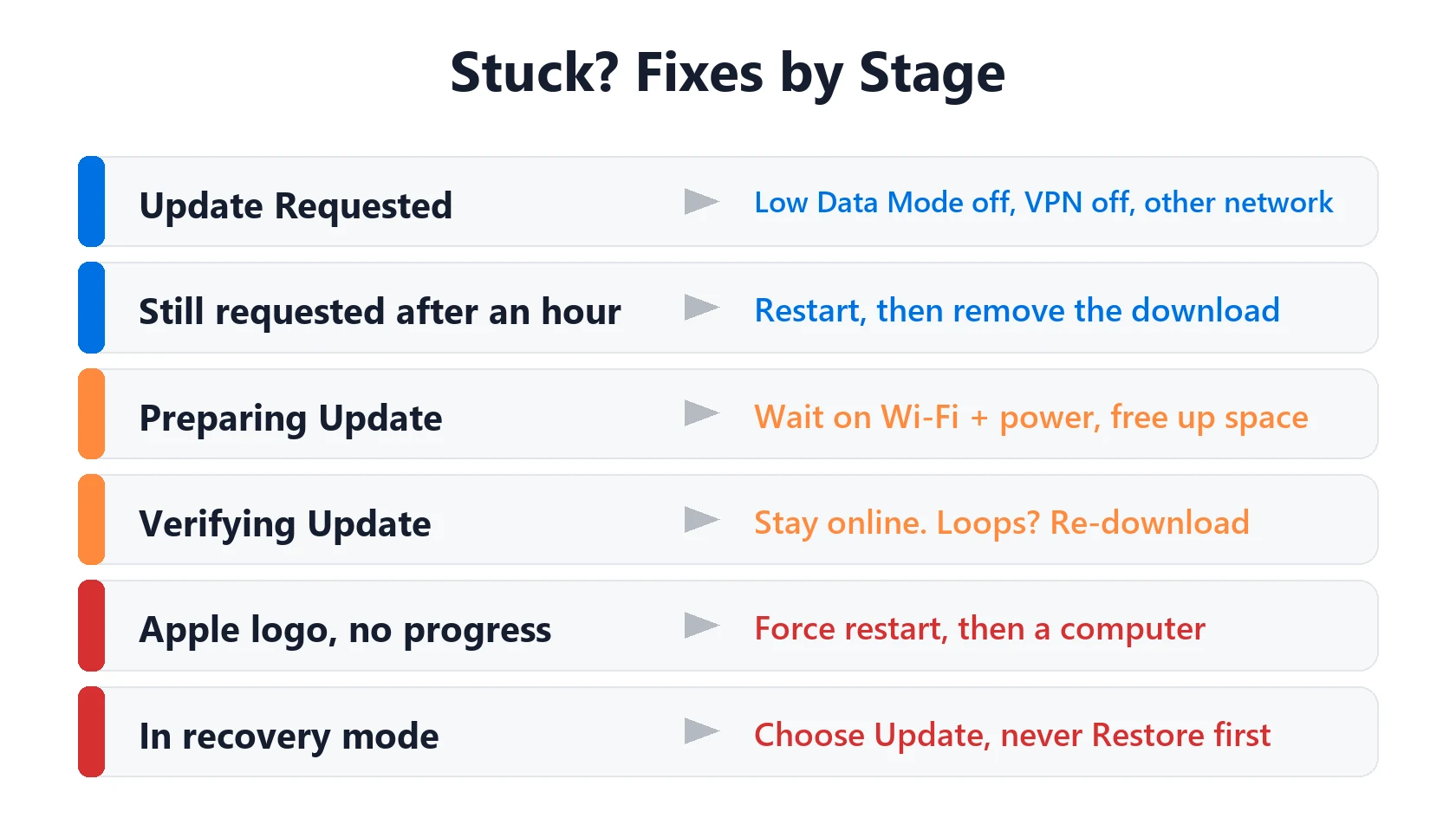
1. Turn off Low Data Mode
Low Data Mode tells your iPhone to save data, and Apple says it turns off automatic downloads and background updates. Apple doesn’t say it blocks iOS updates you start yourself, but on Apple’s forum, turning it off is the fix owners credit most. In a thread about an iPhone 16 Pro stuck at Update requested (288 people said they had the same problem), three owners said switching off Low Data Mode on their Wi-Fi fixed it. One said it “worked immediately”. Three more, including the person who started the thread, replied that it solved it for them too.
- Wi-Fi: Settings → Wi-Fi, tap the ⓘ button next to your network, and turn off Low Data Mode
- Cellular: Settings → Cellular → Cellular Data Options (then Data Mode on 5G), and make sure Low Data Mode isn’t selected
- Open Software Update again (Settings → General) and tap Download and Install
You can turn Low Data Mode back on once the update has installed.
2. Turn off your VPN and try another network
A VPN, a work network or a strict home router can get in the way of the download starting. Turn off any VPN, then try a different Wi-Fi network, or a hotspot from another phone. One owner on the same thread got both their iPhone and iPad moving by switching to cellular and turning off their VPN. Others said that didn’t help them, so if it doesn’t work for you, move on.
3. Give Apple’s servers some time
If an update came out today, Update Requested can simply mean the queue is long. Leave the iPhone on Wi-Fi and plugged in, and check back in an hour. You can keep using the phone while you wait.
4. Restart and try again
A restart is quick and clears a stalled request now and then. Be realistic: on the Apple forum thread, several owners restarted many times and stayed stuck. Treat it as a quick first try, not the fix.
5. Remove the stuck download and start over
If a half-finished download is stuck, Apple’s advice is to remove it from Settings → General → iPhone Storage and download it again. Our iPhone won’t update guide has the steps, plus what to do when it says Unable to Check for Update. If no update file shows in iPhone Storage, there’s nothing to delete. One owner found exactly that, which means the download never started. Go back to fixes 1 and 2.
Stuck on Preparing Update or Verifying Update
Once the update has downloaded, your iPhone needs free space to unpack it and an internet connection to verify it.
- Wait first. Preparing Update is often the longest stage, and owners on MacRumors saw estimates jump from minutes to hours during the iOS 27 launch week. Keep the phone on Wi-Fi and charging
- Check free space under Settings → General → iPhone Storage. Apple suggests turning on Offload Unused Apps if space is short. Our iPhone storage full guide shows what to clear first
- Stay online for Verifying. Verifying Update checks the update with Apple, so it fails without a connection. Turn off Low Data Mode and any VPN here too
- If it loops, remove the downloaded update and get a fresh copy. One iPhone XS owner on Apple’s forum got stuck at Verifying on every attempt, and the reply pointed them to updating with a computer
- Update with a computer if nothing else works. Plug it into a Mac and use Finder, or into a PC with the Apple Devices app or iTunes, then choose Update. Apple lists this as the fallback in If your iPhone won’t update
Stuck on the Apple Logo or Progress Bar
After installing starts, the iPhone shows the Apple logo with a progress bar and restarts on its own. Apple says the bar may move slowly or appear static, and it can even fill up and start again. That’s normal, so don’t unplug it.
- Leave it alone for a while, plugged in. Apple says pressing a button can help if it seems stuck, and if an “updating” message appears, it’s still working
- If it never finishes, force restart it. The button steps for every model are in iPhone stuck on Apple logo
- If the Apple logo stays for several minutes with no progress bar, Apple says to use recovery mode with a computer and choose Update. Our recovery mode steps walk through it
- Still the logo and bar after all that? Apple says the iPhone might need service
When it finally finishes, it’s normal for the phone to feel warm and drain the battery faster for a day or two. Update finishing in background explains why.
What Owners Report
These come from Apple’s forum and MacRumors. They’re individual reports that Apple hasn’t confirmed, and we haven’t reproduced them.
| iPhone and update | Stuck on | What they say helped |
|---|---|---|
| iPhone 16 Pro, iOS 26.6.1 to 27 | Update Requested | Turning off Low Data Mode on Wi-Fi (Apple Community) |
| Several owners, iOS 27 | Update Requested | Low Data Mode off: “worked immediately”, “only this worked” |
| iPhone 16 Pro Max and iPad mini 7, iOS 27 | Update Requested | Cellular data and VPN off. Didn’t help others |
| iPhone 16 Pro Max, iOS 27 | Downloading, then Preparing | Waiting. The download was labeled iOS 26.7 but installed iOS 27 (MacRumors) |
| iPhone 17 Pro Max, iOS 27 | Time remaining jumping to 2 hours | Waiting it out |
| iPhone XS | Verifying Update, every attempt | Restart didn’t help. Advice: update with a computer (Apple Community) |
| iPhone, iOS 17.1 to 26.7.3, 23 GB free | Update Requested | No fix posted (November 3) |
One thing from iOS 27 launch week: some iPhones showed two updates, iOS 26.7 and iOS 27. Owners who picked iOS 27 saw it download as “iOS 26.7” and still ended up on iOS 27 after the restart. If you see something similar, let it finish before deciding something went wrong.
What Not to Do
- Don’t choose Restore first. In recovery mode, Update keeps your data. Restore erases the iPhone. Only restore if Update fails and you have a backup
- Don’t unplug or force restart during a moving progress bar. Give it time, because Apple says the bar can restart by design
- Skip paid “iOS repair” tools. Most of the search results for this problem come from companies selling them. None of the owner reports we found needed one, and Apple’s own fixes are free
- Don’t install a beta to get around it. A beta brings its own bugs and doesn’t fix a stuck download
Frequently Asked Questions
How long should Update Requested take?
Usually a few seconds to a few minutes before the download starts. On release day it can take longer because of demand. If it’s still there after about an hour on good Wi-Fi, try turning off Low Data Mode and any VPN.
Does Low Data Mode stop iOS updates?
Apple says Low Data Mode turns off automatic downloads. It doesn’t say it blocks updates you start yourself, but several owners stuck on Update Requested say turning it off got the download going right away.
Is it safe to stop an update that’s stuck?
Before it starts installing, yes. Deleting the downloaded update from iPhone Storage doesn’t touch your data. Once the Apple logo and progress bar appear, let it run and only force restart if it never finishes.
Why does the time remaining keep changing?
The estimate is based on your connection speed at that moment, so it jumps when the speed changes or when Apple’s servers are busy. Owners during the iOS 27 launch saw it go from minutes to two hours and still finish.
Will updating with a computer erase my iPhone?
Not if you choose Update. Restore is the option that erases it. Back up first anyway.
How much free space do I need for an iOS update?
Apple doesn’t give a number. It depends on the update, and Software Update tells you if there isn’t enough room. A big release like iOS 27 needs far more space than a small one like 27.2.1.
📚 Related Guides
Written by S M Momin Arif
Founder and lead writer at iPhoneFixDaily, writing practical iPhone troubleshooting guides checked against Apple’s official support documentation. Read more about our approach →