iOS 27 widgets not working? Blank widgets, widgets stuck on old data, or widgets that disappear after the update are common, and most are fixed in a minute. The usual causes are an app that hasn’t been updated for iOS 27, Background App Refresh or Low Power Mode blocking updates, or the new Clear Home Screen look making widgets hard to read. Here are 8 fixes, in the order to try them.
Official Apple Store on Amazon
Genuine cases, cables, and accessories — sold and shipped by Apple.
📋 Quick Summary
- Restart first. It brings back most blank or missing widgets.
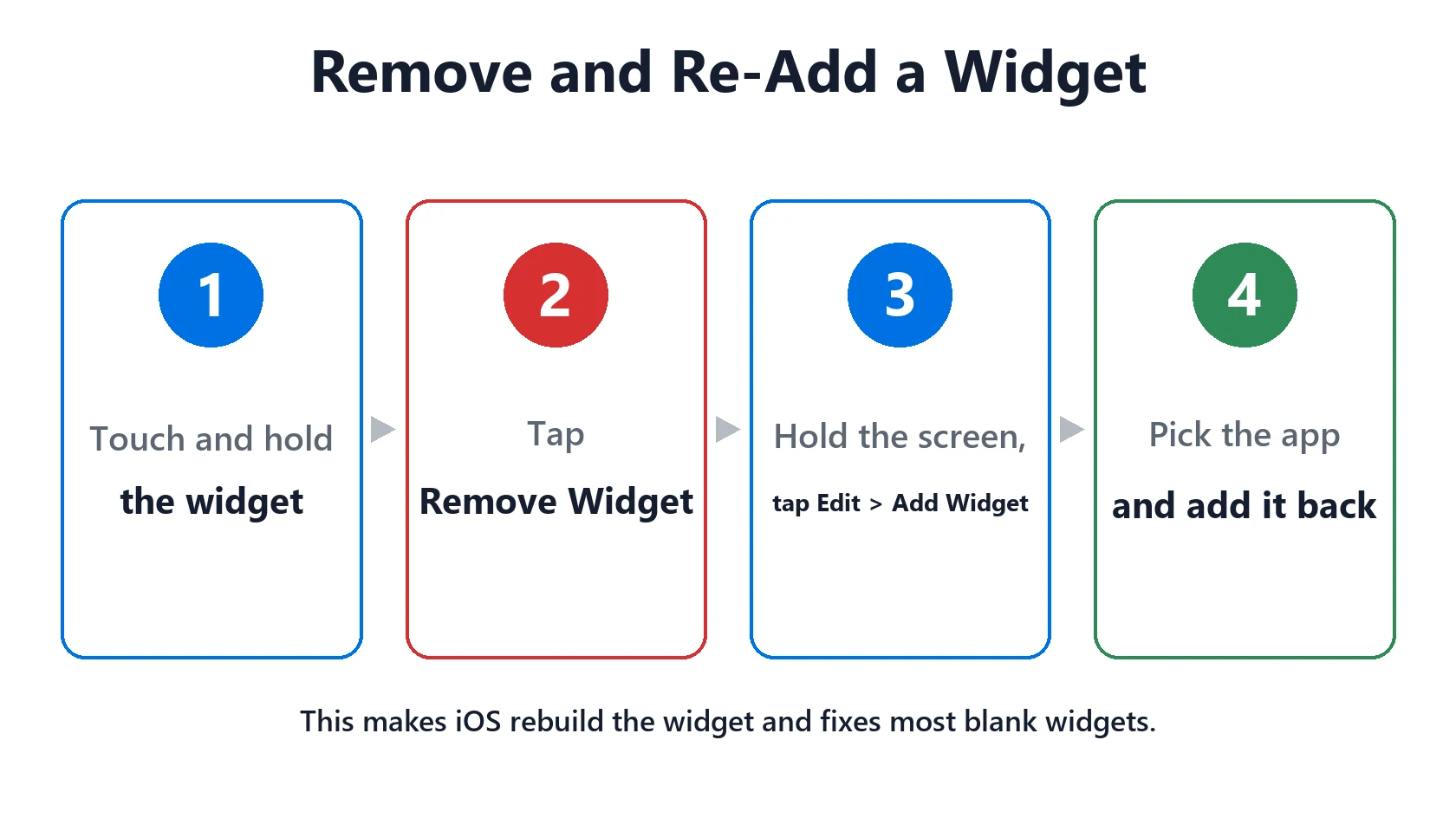
- Remove and re-add the widget to make iOS rebuild it.
- Update the app the widget belongs to. Many need an iOS 27 update.
- Check Background App Refresh, Low Power Mode and Low Data Mode. All three can stop widgets updating.
- Widgets look white or see-through? Switch the Home Screen from Clear back to Default.
Table of Contents
Why Widgets Stop Working After iOS 27
Widgets don’t run all the time. iOS gives each one a budget to refresh in the background, and the app it belongs to supplies the data. After a major update, a few things can break that:
- The app hasn’t been updated for iOS 27 yet, so its widget fails to load.
- Background refresh is limited by Background App Refresh, Low Power Mode or Low Data Mode.
- The widget’s saved state is stale after the update and needs rebuilding.
- A bug in early iOS 27 builds. Tom’s Guide listed widget and Home Screen crashes among early iPhone 18 Pro problems, most of which it reported resolved after iOS 27.0.1.
8 Fixes for iOS 27 Widgets Not Working
- Restart your iPhone. It reloads every widget and clears most glitches.
- Remove and re-add the widget. Touch and hold it, tap Remove Widget, then touch and hold an empty spot, tap Edit → Add Widget and add it again.
- Update the app. Open the App Store, tap your profile picture, and update everything, especially the app behind the broken widget.
- Turn on Background App Refresh for that app in Settings → General → Background App Refresh.
- Turn off Low Power Mode in Settings → Battery to test. It pauses background refreshes.
- Turn off Low Data Mode in Settings → Wi-Fi (tap your network) and Settings → Cellular → Cellular Data Options.
- Check location access for weather and map widgets in Settings → Privacy & Security → Location Services.
- Update iOS in Settings → General → Software Update. See iOS 27 problems for what each update fixed.
If one app’s widget still won’t work, delete and reinstall that app as a last resort, then add the widget again.
Widgets Look Blank or White? Check the Clear Look
If your widgets show up but look white, washed out or see-through, the Home Screen is probably set to the Clear look. To switch back, touch and hold an empty spot on the Home Screen, tap Edit → Customize, and choose Default (or Dark). Your widgets and icons will be solid again.
Lock Screen Widgets Not Updating
Lock Screen widgets follow the same rules, but they refresh less often to save battery. If one is stuck, remove it from the Lock Screen (touch and hold the Lock Screen, tap Customize) and add it again. If Lock Screen widgets are draining your battery instead, see Home and Lock Screen battery drain.
Match Your Problem to the Fix
| What you see | Likely cause | Fix |
|---|---|---|
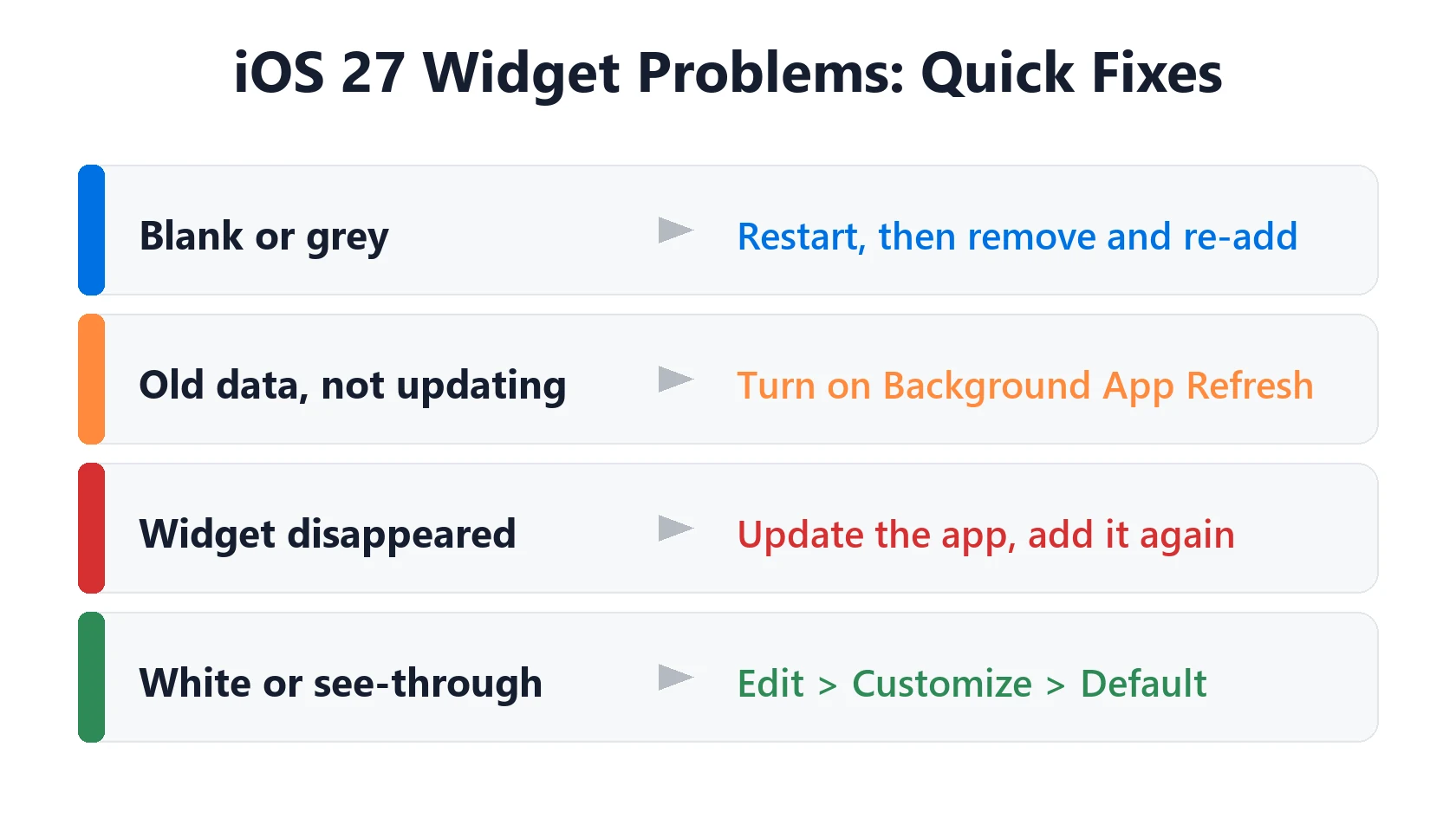
| Blank or grey widget | Stale widget state | Restart, then remove and re-add it |
| Old data, never updates | Background refresh blocked | Turn on Background App Refresh, turn off Low Power and Low Data Mode |
| Widget disappeared | App not updated for iOS 27 | Update the app, then add the widget again |
| White or see-through widgets | Clear Home Screen look | Edit → Customize → Default |
| Weather widget shows the wrong place | Location access | Allow location for the weather app |
| Only one app’s widget fails | That app | Update or reinstall the app |
Featured Apple Deals on Amazon
Current discounts on AirPods, chargers, cables, and other Apple gear.
Frequently Asked Questions
Why are my widgets not working after the iOS 27 update?
Usually the app needs an update for iOS 27, background refresh is blocked, or the widget needs to be rebuilt. Restart, update the app, then remove and re-add the widget.
Why are my iPhone widgets blank?
A blank widget usually has stale data after an update. Restart your iPhone, then remove and re-add the widget. If that fails, update or reinstall the app.
Why are my widgets white or see-through on iOS 27?
Your Home Screen is likely set to the Clear look. Touch and hold the Home Screen, tap Edit → Customize and choose Default.
Why won’t my weather widget update?
Check that the weather app has location access and Background App Refresh is on, and that Low Power Mode is off.
Do widgets drain the battery?
A few do, especially ones that refresh often. See our Home and Lock Screen battery drain guide to find out which.
📚 Related Guides
Written by S M Momin Arif
Founder and lead writer at iPhoneFixDaily, covering iPhone battery and charging diagnostics based on direct hands-on testing. Read more about our approach →