Latest status · Last checked October 10, 2026
Siri AI status: Beta, English only, on iOS 27
More languages: French, Japanese, Korean, Portuguese and Spanish are coming next, expected with iOS 27.2
Not available: In the EU and China on iPhone, and for users under 13
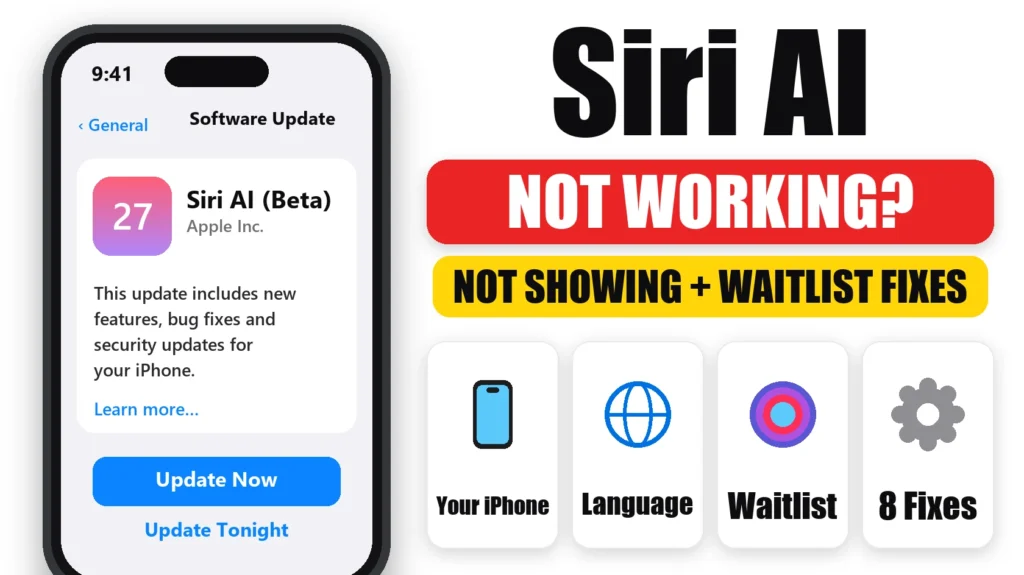
Siri AI not working or not showing up after you updated to iOS 27? Usually nothing is broken. Siri AI only works on certain iPhones, only in English for now, isn’t available in the EU or China, and new users have to join a waitlist first. This guide shows how to check each requirement, how to join the Siri AI waitlist, and 8 fixes for when Siri AI is turned on but still not working.
Official Apple Store on Amazon
Genuine cases, cables, and accessories — sold and shipped by Apple.
📋 Quick Summary
- Siri AI needs an iPhone 15 Pro, iPhone 15 Pro Max, or any iPhone 16 or newer.
- Your iPhone language and Siri language both need to be English for now.
- It’s not available in the EU or China on iPhone, or for anyone under 13.
- Join the waitlist in Settings → Siri → Try Siri AI (Beta), then wait for the notification.
- Already have it but it misbehaves? Restart, check Wi-Fi and VPN, free up storage, and remember the daily usage limit.
Table of Contents
Why Siri AI Isn’t Showing on Your iPhone
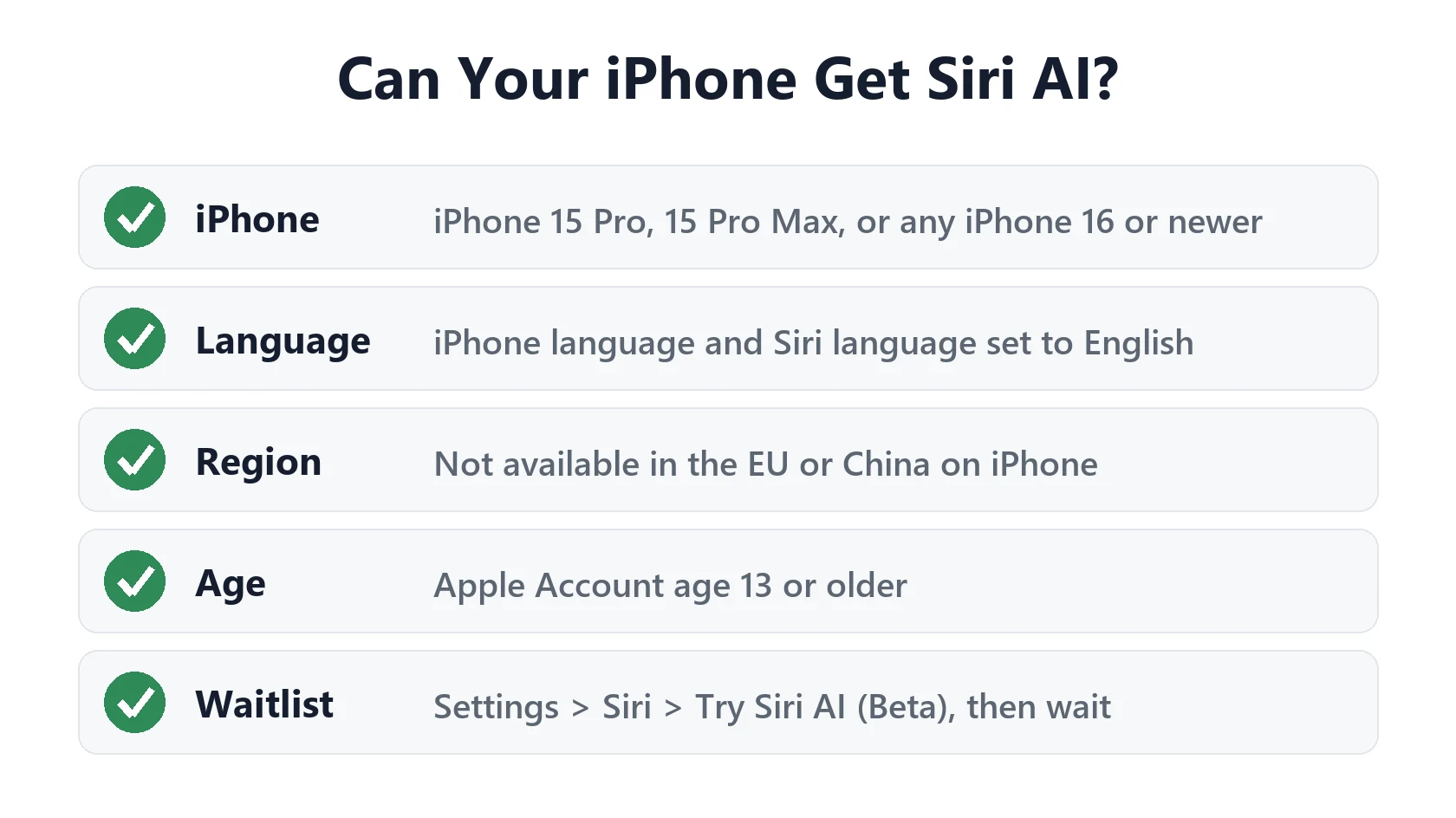
According to Apple’s Siri AI announcement, Siri AI is rolling out in beta, and it depends on your device, language and region. If any one of these doesn’t match, the option simply won’t appear in Settings:
- Your iPhone model isn’t supported.
- Your language isn’t English yet.
- Your region is the EU or China.
- Your age on your Apple Account is under 13.
- You haven’t reached the front of the waitlist yet.
Check 1: Does Your iPhone Support Siri AI?
Siri AI needs an Apple Intelligence iPhone. iOS 27 runs on older models too, but they don’t get Siri AI.
| iPhone | Siri AI? |
|---|---|
| iPhone 18 Pro, 18 Pro Max, iPhone Duo | Yes |
| iPhone 17, 17 Pro, 17 Pro Max, iPhone Air, iPhone 17e | Yes |
| iPhone 16, 16 Plus, 16 Pro, 16 Pro Max, 16e | Yes |
| iPhone 15 Pro, 15 Pro Max | Yes |
| iPhone 15, 15 Plus and older | No |
Not sure which model you have? Go to Settings → General → About, or use our iPhone model number lookup.
Check 2: Language and Region
Language: Siri AI launched in English only. Set both Settings → General → Language & Region → iPhone Language and Settings → Siri → Language to English. Apple says French, Japanese, Korean, Portuguese and Spanish are coming next. They’re part of iOS 27.2, expected in late October.
Region: Apple says Siri AI won’t be available initially in the EU on iPhone, and isn’t available in China. Availability is tied to your Apple Account’s country, not just the region setting on your phone. We don’t recommend changing your Apple Account country to get around this. It can affect purchases, subscriptions and payment methods.
How to Join the Siri AI Waitlist
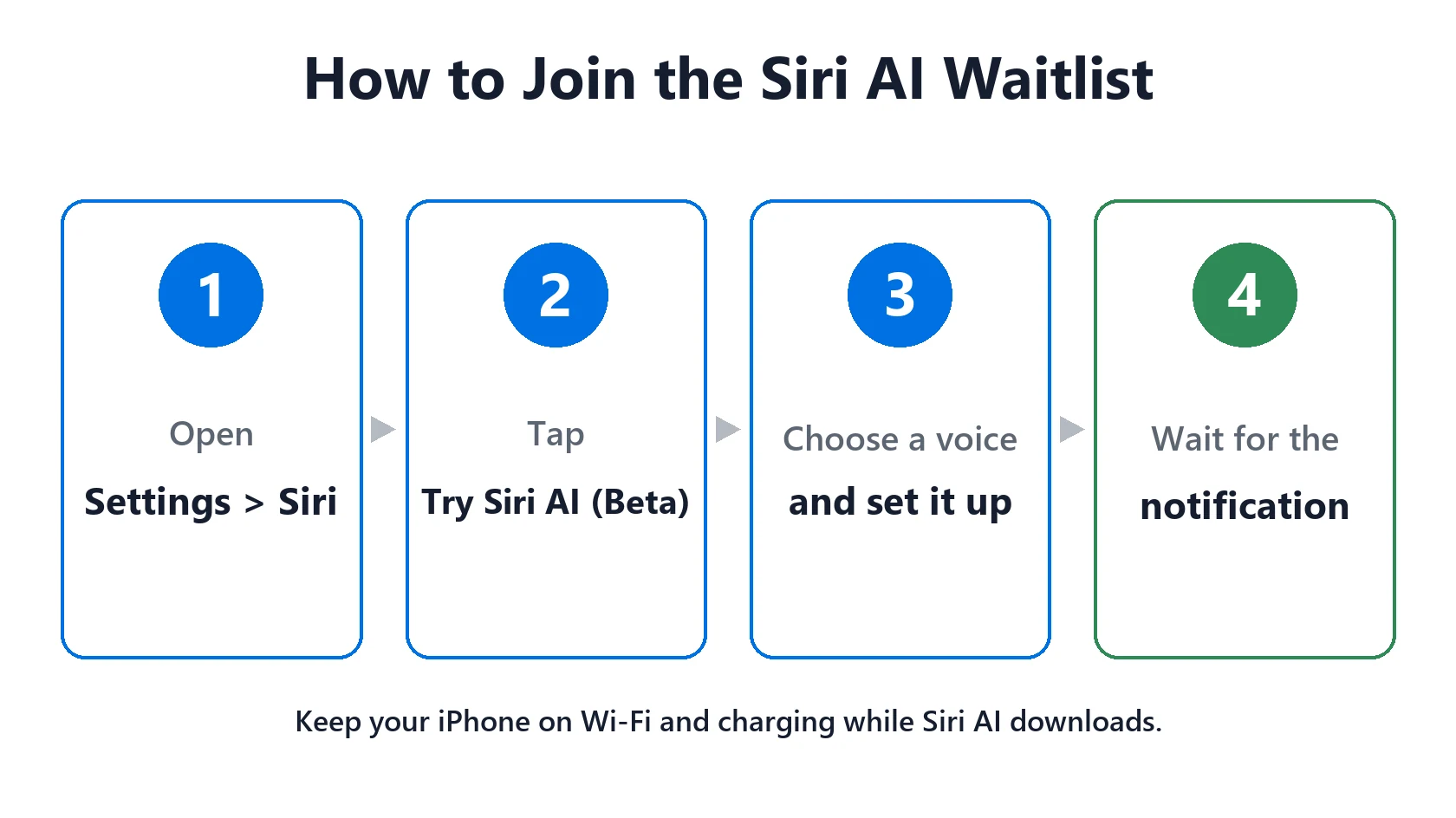
New Siri AI users join a waitlist, as reported by 9to5Mac and MacRumors. Here’s how:
- Update to the latest iOS 27 in Settings → General → Software Update.
- Open Settings → Siri and make sure Siri is turned on.
- Tap Try Siri AI (Beta).
- Follow the steps to choose a voice, set up your voice and review the privacy settings.
- That’s it. You’re on the waitlist. Your status shows in Siri settings, and you’ll get a notification when Siri AI is ready.
When your turn comes, keep your iPhone on Wi-Fi and charging while the Siri AI files download. Don’t leave and rejoin the waitlist. It doesn’t speed things up.
Siri AI Not Working? 8 Fixes When It’s Turned On
If you already have it and Siri AI is not working, whether it isn’t responding, shows errors or stops mid-answer, try these in order:
- Restart your iPhone. It clears most one-off glitches.
- Turn Siri off and on in Settings → Siri.
- Check your connection. Switch between Wi-Fi and cellular, and turn off any VPN, which can block Siri requests.
- Free up storage. Siri AI downloads models to your iPhone. If storage is nearly full, see iPhone storage full.
- Check the daily limit. Apple says Siri AI has daily usage limits during the beta. If it stops working after heavy use, try again the next day.
- Check Screen Time. In Settings → Screen Time → Content & Privacy Restrictions, make sure Siri and Apple Intelligence aren’t restricted.
- Turn on spoken replies if Siri answers silently: Settings → Siri → Siri Responses.
- Update iOS when a new version is available. See iOS 27 problems for known bugs.
Still stuck? Send a report through Feedback or contact Apple Support.
Featured Apple Deals on Amazon
Current discounts on AirPods, chargers, cables, and other Apple gear.
Frequently Asked Questions
Why is Siri AI not showing on my iPhone?
Usually your iPhone model, language or region isn’t supported yet, or you haven’t joined the waitlist. You need an iPhone 15 Pro or newer, English as your iPhone and Siri language, and a region outside the EU and China.
How long is the Siri AI waitlist?
Apple hasn’t given a timeline, and wait times vary. Some people get access in hours, others wait several days. You’ll get a notification when it’s ready.
Which iPhones get Siri AI?
iPhone 15 Pro, iPhone 15 Pro Max, and every iPhone 16 model and newer, including iPhone 17, iPhone Air, iPhone 18 Pro and iPhone Duo.
When will Siri AI support other languages?
Apple says French, Japanese, Korean, Portuguese and Spanish are coming next. They’re expected with iOS 27.2 in late October 2026.
Is Siri AI available in the EU?
Not on iPhone at launch. Apple says Siri AI won’t be available initially in the EU on iOS, iPadOS and watchOS.
Why is Siri AI not working after the iOS 27 update?
If it never appeared, check your model, language and region, and join the waitlist. If it appeared but fails, restart, check Wi-Fi and VPN, and free up storage.
Why did Siri AI stop working after I used it a lot?
Apple says Siri AI has daily usage limits during the beta. Try again the next day.
📚 Related Guides
Written by S M Momin Arif
Founder and lead writer at iPhoneFixDaily, covering iPhone battery and charging diagnostics based on direct hands-on testing. Read more about our approach →