

iPhone speaker not working, or no sound at all? Before you assume it’s broken, check the simple things. Silent mode, a Focus, sound going to AirPods or your car, or lint in the speaker grille cause most cases. Here are Apple’s steps in order, and how to tell when the speaker itself needs a repair.
📋 Quick Summary
- Turn off Silent mode and Do Not Disturb, then turn the volume up.
- Open Control Center and check sound isn’t going to AirPods, a speaker or your car.
- Remove the case and gently brush the speaker openings with a soft, dry brush.
- Test in Settings → Sounds & Haptics. If the slider is dimmed or silent, the speaker may need service.
- Crackling on calls only? It may be your network, not the speaker.
Table of Contents
Quick Fixes for an iPhone Speaker Not Working
These follow Apple’s guide for no sound or distorted sound. Test after each one.
- Turn off Silent mode. On iPhones with a Ring/Silent switch, push it towards the screen so no orange shows. On iPhones with an Action button, check Silent mode is off in Control Center.
- Turn off Do Not Disturb or any Focus in Settings → Focus or Control Center.
- Turn the volume up with the side buttons while something is playing.
- Remove cases, films and screen protectors that could cover the speaker or receiver.
- Clean the openings. Look at the speaker grille at the bottom and the receiver at the top. Brush them gently with a small, soft, clean and dry brush. Don’t push anything into the holes.
- Test the speaker. Go to Settings → Sounds & Haptics and drag the Ringtone and Alerts slider. You should hear a ringtone.
- Make a speakerphone call. If you hear nothing, or only static, the problem may be your network. Try again later or somewhere else.
Apple says if the Ringtone and Alerts slider is dimmed, or you hear no sound when you move it, your speaker might need service.

Is Sound Going to Bluetooth Instead?
A very common cause: your iPhone is still sending sound to AirPods, a Bluetooth speaker or your car, even if they’re in a case or another room.
- Open Control Center, touch and hold the music controls, and tap the AirPlay icon. Choose iPhone.
- Turn Bluetooth off for a moment to test. If sound comes back, the speaker is fine.
- If your iPhone thinks headphones are connected when they aren’t, restart it and check the charging port for lint or moisture.
Having trouble with the Bluetooth device itself? See iPhone Bluetooth not working, AirPods won’t connect or CarPlay not working.
No Sound for Calls, Alerts or One App?
- No ringtone or alert sounds, but music plays: check Silent mode, Focus, and the app’s Sounds setting in Settings → Notifications. See notifications not showing.
- Can’t hear people on calls (not on speaker): that’s the receiver at the top. Clean it, remove the screen protector, and turn up the volume during a call.
- No sound in one app: check the app’s own volume and mute settings, then update or reinstall it.
- No sound in videos but alerts work: check the video isn’t muted, and that sound isn’t going to AirPlay or Bluetooth.
Quiet, Muffled or Crackling Sound
- Muffled: usually lint or dust in the grille, or a case covering it. Brush it gently.
- Crackling only on calls: Apple says static on a call can be the network or reception. Try another location, or Wi-Fi Calling.
- Crackling on everything: it can mean speaker damage, especially after water. Let a wet iPhone dry completely before testing. See Liquid Detected.
- Quieter in the cold or on a worn battery: Apple says iPhone may reduce speaker volume in extreme cases to avoid unexpected shutdowns. Check Battery Health.
- iPhone 18 Pro crackling or popping: see our iPhone 18 Pro speaker crackling guide.
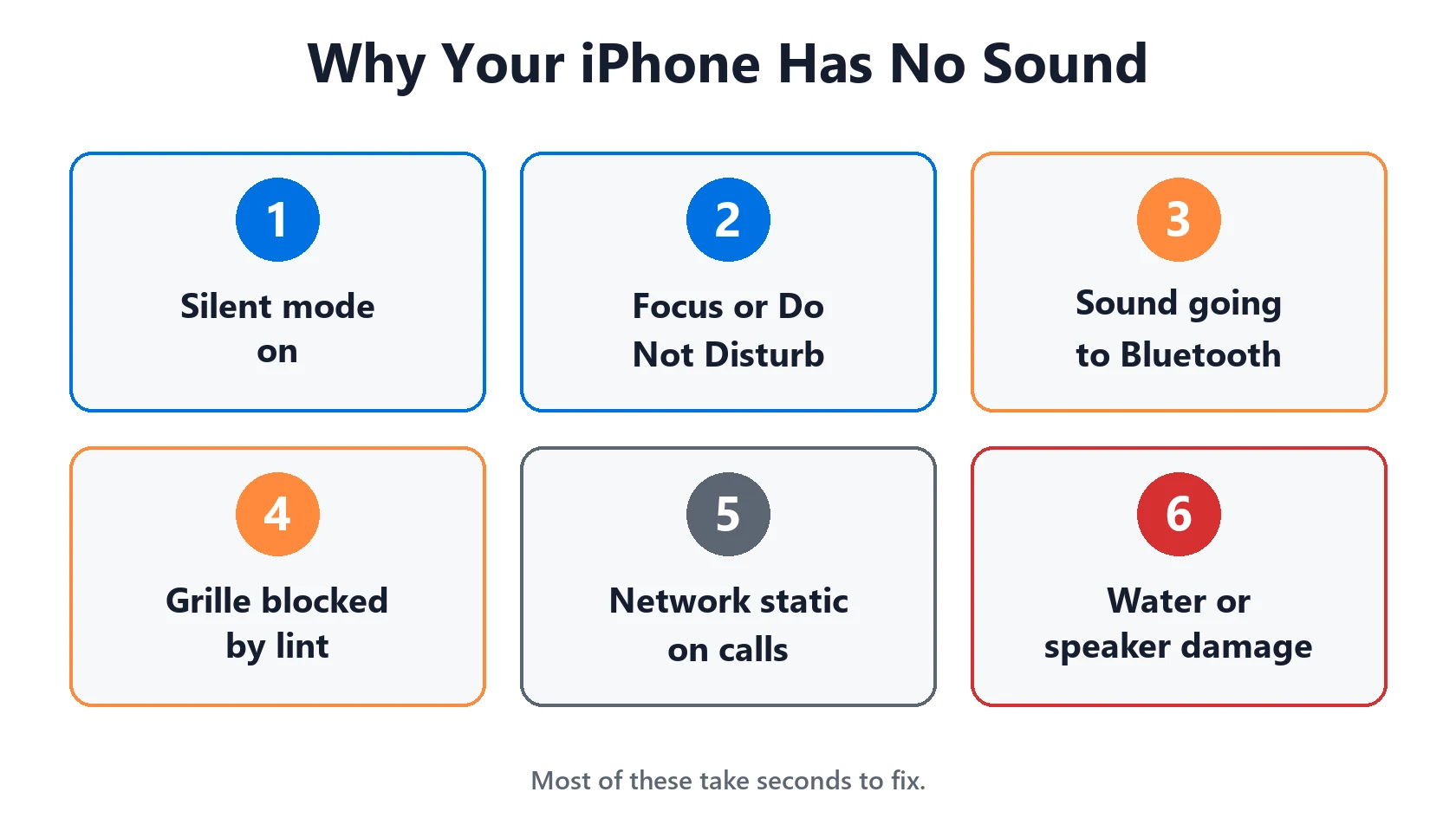
Audio Settings Worth Checking
These settings are easy to change by accident:
- Change with Buttons: in Settings → Sounds & Haptics. When it’s off, the side buttons don’t change the ringer volume.
- Balance and Mono Audio: in Settings → Accessibility → Audio & Visual. Make sure the balance slider is in the middle.
- Silenced unknown callers: Settings → Apps → Phone → Silence Unknown Callers sends calls from unknown numbers straight to voicemail without ringing.
- Focus schedules: a Sleep or Work Focus can turn on by itself and silence calls and alerts.
When the Speaker Needs a Repair
If the steps above don’t help, the Ringtone and Alerts slider is dimmed, there’s no sound anywhere after a restart, or the problem started after a drop or water damage, the speaker likely needs service. Back up first, then contact Apple Support. Want a rough price? Try our repair cost estimator.
Match Your Situation
| What you see | Likely cause | What to do |
|---|---|---|
| No ringtone, music works | Silent mode or Focus | Turn off Silent mode and Do Not Disturb |
| No sound at all, Bluetooth on | Sound going to another device | Control Center > AirPlay > iPhone |
| Muffled sound | Lint or case blocking grille | Remove case, brush gently |
| Static only on calls | Network or reception | Try another place or Wi-Fi Calling |
| Can’t hear callers | Receiver blocked | Clean receiver, remove screen protector |
| Ringtone slider dimmed or silent | Speaker fault | Back up and get service |
| Crackling after water | Wet or damaged speaker | Let it dry; get service if it stays |
Frequently Asked Questions
Why is my iPhone speaker not working?
Usually Silent mode or a Focus is on, sound is going to a Bluetooth device, or the grille is blocked. Check those, then test in Settings → Sounds & Haptics.
Why is there no sound on my iPhone except with headphones?
Check Control Center’s AirPlay output is set to iPhone. If it still thinks headphones are connected, restart it and check the port for lint or moisture.
How do I test my iPhone speaker?
Go to Settings → Sounds & Haptics and drag the Ringtone and Alerts slider. If it’s dimmed or silent, Apple says the speaker may need service.
Why can’t I hear people when I call them?
That’s the receiver at the top. Clean it, remove the screen protector and turn up the volume during the call. Static can also be your network.
Why is my iPhone speaker muffled?
Lint, dust or a case covering the grille is the usual cause. Brush it gently with a soft, dry brush.
How do I clean my iPhone speaker safely?
Use a small, soft-bristled brush that’s clean and dry. Don’t use pins, liquids or compressed air in the openings.
📚 Related Guides
Written by S M Momin Arif
Founder and lead writer at iPhoneFixDaily, writing practical iPhone troubleshooting guides checked against Apple’s official support documentation. Read more about our approach →


