

iPhone notifications not showing? In most cases nothing is broken. A Focus like Do Not Disturb or Sleep is on, the app’s notifications are turned off, they’re held for a Scheduled Summary, or they’re going to your Apple Watch. Here are Apple’s checks in order, plus the fixes for no sound, no previews and missing Messages alerts.
📋 Quick Summary
- Open Control Center and turn off any Focus (Do Not Disturb, Sleep, Work).
- Check Settings → Notifications → [app] and turn on Allow Notifications, with Lock Screen, Notification Center and Banners ticked.
- Late or bundled? Set the app to Immediate Delivery instead of Scheduled Summary.
- No sound? Turn off Silent mode and check the app’s Sounds setting.
- Missing texts? Check the chat isn’t on Hide Alerts or filtered as an unknown sender or spam.
Table of Contents
iPhone Notifications Not Showing? Quick Fixes First
Work through these first. They come from Apple’s notifications guide and fix most cases.
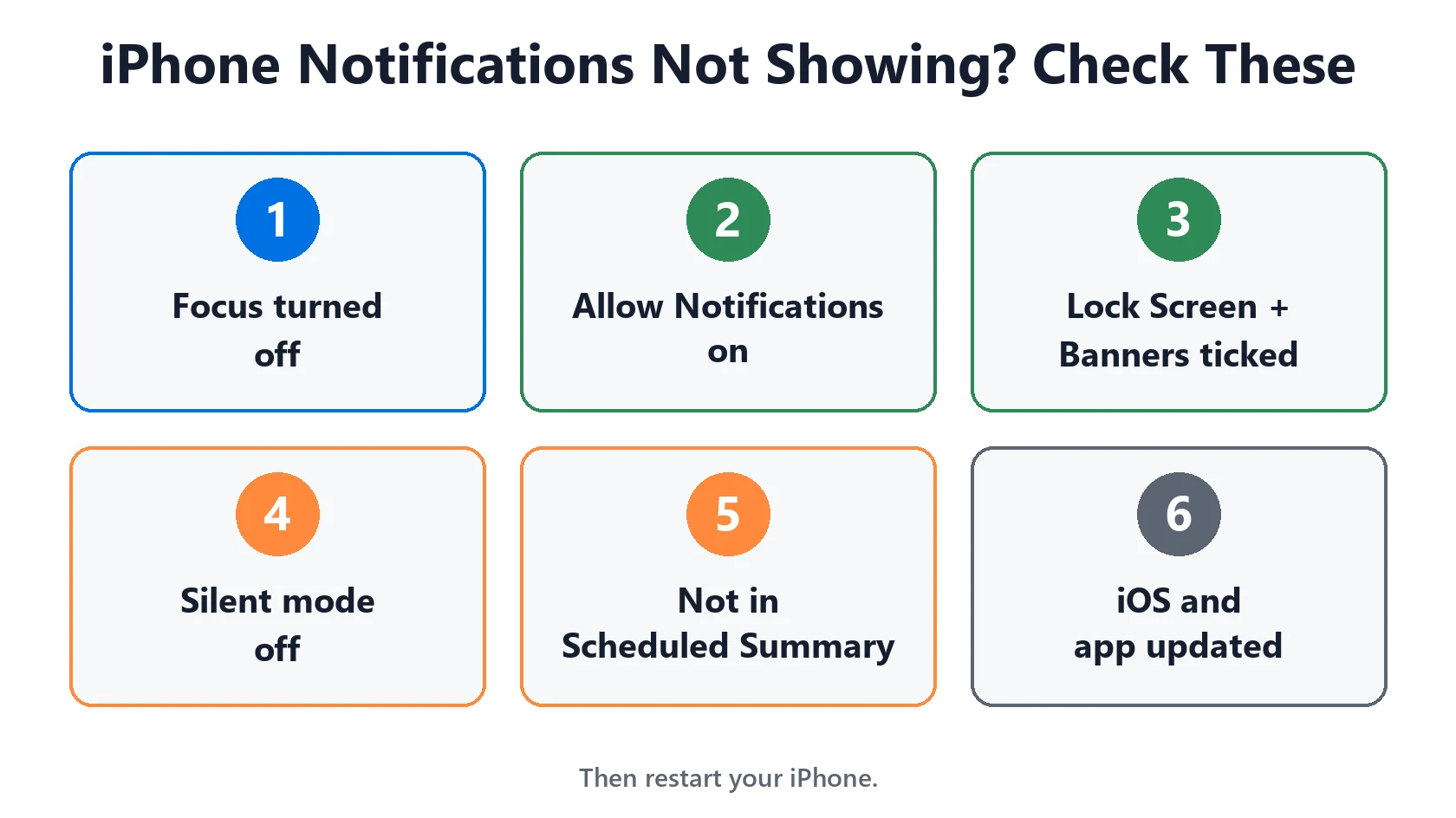
- Turn off Focus. Open Control Center and tap the Focus button to turn it off.
- Turn off Silent mode and turn the volume up, so alerts can make a sound.
- Check the app is allowed in Settings → Notifications.
- Restart your iPhone.
- Update iOS and the app. Go to Settings → General → Software Update, then update the app in the App Store.
- Open the app and sign in. Many apps, like banking and email apps, also have their own notification switches inside the app.
Check the App’s Notification Settings
- Go to Settings → Notifications and tap the app.
- Turn on Allow Notifications.
- Under Alerts, tick Lock Screen, Notification Center and Banners.
- Set Banner Style to Persistent if banners disappear before you see them.
- Turn on Sounds and Badges if you want them.
If an app isn’t in the Notifications list at all, it hasn’t asked for permission yet. Open the app and look for a notifications option in its settings. Some apps also support Time Sensitive alerts, which can get through some Focus settings, and a few support Critical Alerts, which Apple says come through even when other notifications are silenced.
Focus or Do Not Disturb Is Hiding Them
A Focus silences notifications, and they collect quietly in Notification Center. You’ll see the Focus icon in the status bar and on the Lock Screen.
- Turn it off in Control Center, or check Settings → Focus for a schedule that turns one on automatically, like Sleep at night.
- Let people or apps through. In Settings → Focus, choose a Focus, tap People or Apps and add them under Allow Notifications From.
- Check your other devices. With Share Across Devices on, a Focus turned on on your iPad, Mac or Apple Watch also turns on on your iPhone.
- Driving Focus doesn’t allow app exceptions, Apple says. It can turn on by itself when your iPhone connects to car Bluetooth or CarPlay.
Notifications Arrive Late or All at Once
If notifications appear in a batch at certain times, Scheduled Summary is holding them. Go to Settings → Notifications → Scheduled Summary and remove the app, or turn Scheduled Summary off. In the app’s own notification settings, choose Immediate Delivery.
If they’re late but not bundled:
- Turn off Low Power Mode in Settings → Battery. It cuts back background activity, so some apps check for new content less often.
- Turn on Background App Refresh for the app in Settings → General → Background App Refresh.
- Check your connection. Notifications come through Apple’s push service. On work or school Wi-Fi with a firewall, Apple says certain ports must be open. Try cellular data instead. Wi-Fi dropping out? See iPhone Wi-Fi keeps disconnecting.
No Sound, or No Preview on the Lock Screen
- No sound: turn off Silent mode, turn the volume up, and check the app’s Sounds switch. In Settings → Sounds & Haptics, check the alert tones aren’t set to None.
- No preview text: go to Settings → Notifications → Show Previews and choose Always or When Unlocked. You can also change it per app. Apple notes not all apps support previews.
- Not on the Lock Screen: check Lock Screen is ticked for the app. If you only see a number, swipe up from the middle of the Lock Screen, or change the display style in Settings → Notifications → Display As.
- No wake-up for notifications: with an Apple Watch, notifications may go to the watch instead (see below).

Messages Notifications Not Showing
Apple’s Messages guide lists three things to check:
- A muted conversation. Open the chat, tap the name or icon at the top and turn off Hide Alerts. A bell with a line through it shows a muted chat.
- A filtered message. On iOS 26 and later, Filter Spam is on by default. With Screen Unknown Senders on, messages from unknown senders or marked as spam don’t send a notification. Check the Unknown Senders and Spam folders, and move the chat to your conversations list.
- Messages notifications off. Go to Settings → Apps → Messages → Notifications and turn on Allow Notifications.
Also, you won’t get a notification for each message while Messages is open on that chat. To always hear someone, open their contact, tap Edit → Text Tone and turn on Emergency Bypass. iMessage not working at all? See iMessage waiting for activation.
Going to Your Apple Watch Instead
With an Apple Watch, notifications go to the watch or the iPhone, not both. Apple says that when your iPhone is unlocked, they show on the iPhone. When it’s locked or asleep, they go to your watch, unless the watch is locked.
To change it for an app, open the Watch app on your iPhone, tap My Watch → Notifications, choose the app and pick Mirror my iPhone or Custom.
Match Your Situation
| What you see | Likely cause | What to do |
|---|---|---|
| No notifications at all | Focus is on | Turn off Focus in Control Center |
| One app never notifies | App notifications off | Settings > Notifications > app > Allow Notifications |
| Notifications come in batches | Scheduled Summary | Choose Immediate Delivery for the app |
| Notifications arrive late | Low Power Mode or network | Turn off Low Power Mode, try cellular data |
| No sound | Silent mode or Sounds off | Turn off Silent mode, check app Sounds |
| No message text shown | Show Previews | Set Show Previews to Always or When Unlocked |
| Missing texts from one person | Hide Alerts or spam filter | Turn off Hide Alerts, check Unknown Senders |
| Show on watch, not iPhone | Apple Watch routing | Normal while iPhone is locked |
Frequently Asked Questions
Why are my iPhone notifications not showing?
Usually a Focus like Do Not Disturb is on, or the app’s notifications are off. Turn off Focus in Control Center and check Settings → Notifications → [app].
Why are my notifications not showing on the Lock Screen?
Check Lock Screen is ticked in the app’s notification settings, and swipe up on the Lock Screen if only a count is showing.
Why do my iPhone notifications come late?
Scheduled Summary, Low Power Mode or a weak connection. Set the app to Immediate Delivery and turn off Low Power Mode.
Why don’t I hear my notification sound?
Silent mode may be on, the volume may be low, or the app’s Sounds setting may be off. A Focus also silences sounds.
Why am I not getting text message notifications?
The conversation may be on Hide Alerts, or the sender is filtered as unknown or spam. Check the Unknown Senders and Spam folders in Messages.
Why do notifications go to my Apple Watch and not my iPhone?
That’s normal. When your iPhone is locked, notifications go to your unlocked Apple Watch instead.
📚 Related Guides
Written by S M Momin Arif
Founder and lead writer at iPhoneFixDaily, writing practical iPhone troubleshooting guides checked against Apple’s official support documentation. Read more about our approach →


