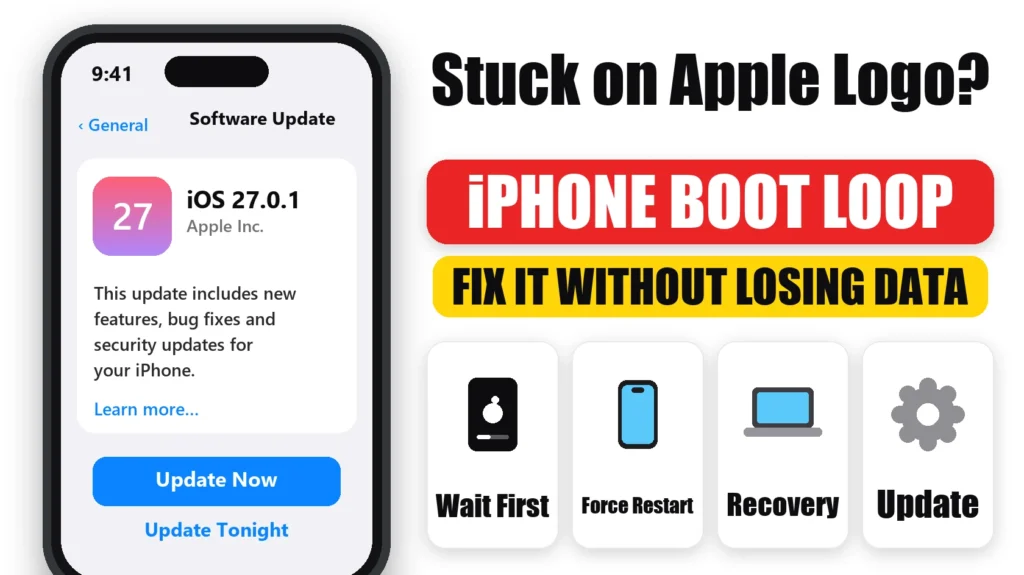
iPhone stuck on the Apple logo after an iOS 27 update, or restarting over and over? Don’t erase it yet. An update can sit on the Apple logo for a long time while it finishes, and if it really is stuck, Apple’s own fix reinstalls iOS without deleting your data. Here’s how to tell whether it’s stuck, and the exact steps in the order Apple recommends.
Official Apple Store on Amazon
Genuine cases, cables, and accessories — sold and shipped by Apple.
📋 Quick Summary
- If there’s a progress bar, wait. Apple says it can take over an hour.
- Try a force restart first. It doesn’t delete anything.
- Still stuck? Use a computer, put the iPhone in recovery mode and choose Update. That keeps your data.
- Restore erases your iPhone. Only use it if Update fails, and restore from a backup.
- Keep it plugged in the whole time.
Table of Contents
Is It Stuck, or Still Updating?
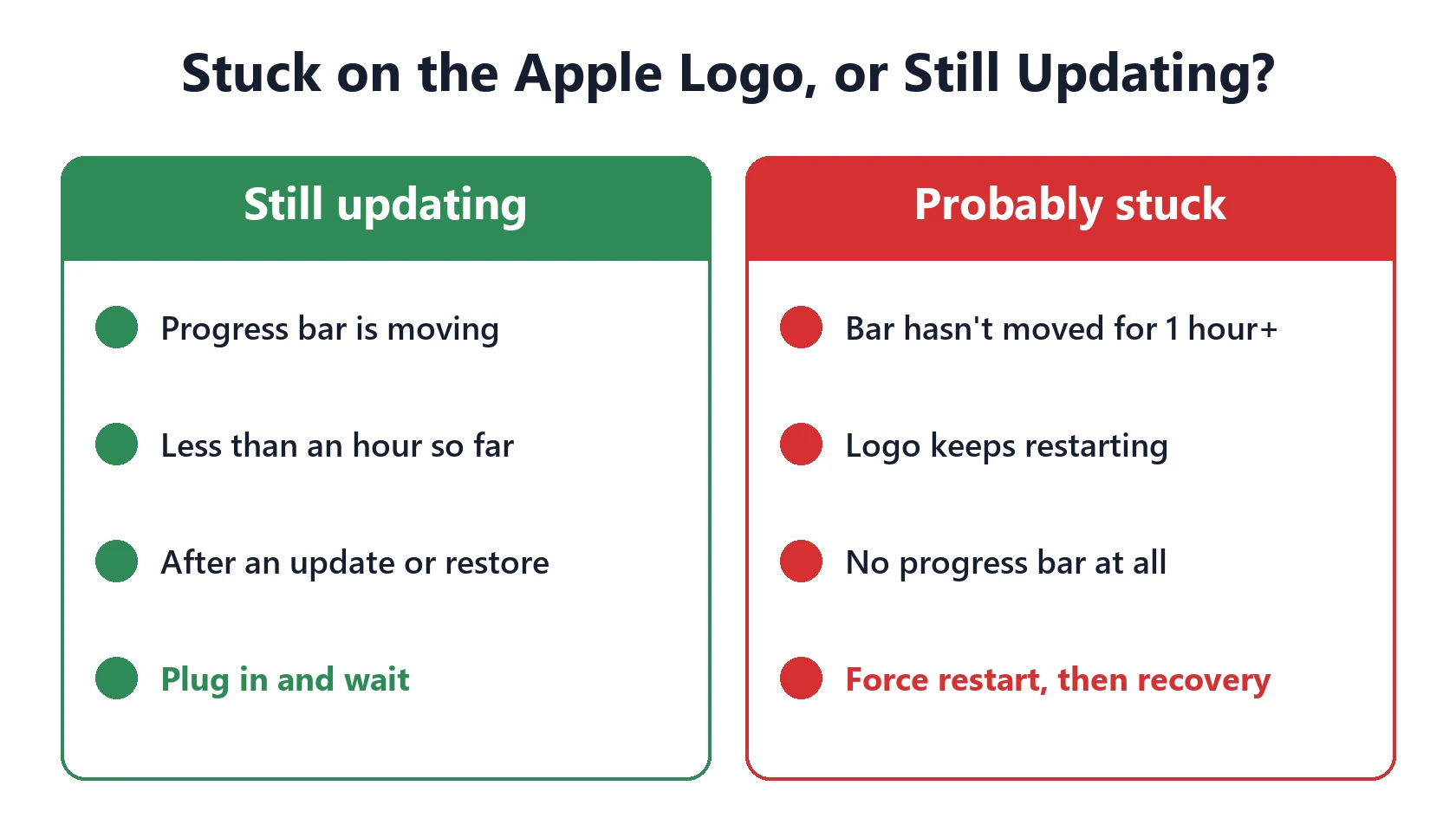
If you see the Apple logo with a progress bar after updating, your iPhone is most likely still installing. Apple’s article on the Apple logo with a progress bar says it can stay on that screen for a while, and after a restore or transfer it can take more than an hour. Plug it in and leave it.
It’s probably stuck if the progress bar hasn’t moved for over an hour, or if the Apple logo keeps appearing, disappearing and coming back (a boot loop).
Step 1: Force Restart Your iPhone
A force restart doesn’t erase anything. With your iPhone plugged in, use the steps for your model:
- iPhone 8 and later, including iPhone SE (2nd and 3rd generation): press and quickly release Volume Up, press and quickly release Volume Down, then press and hold the Side button. Keep holding until the Apple logo appears again, or the screen goes off and on.
- iPhone 7 and 7 Plus: press and hold Volume Down and the Side button together.
- iPhone 6s and earlier: press and hold the Home button and the Side (or Top) button together.
If it starts up normally, you’re done. Give it a few days to finish indexing, and see iOS 27 problems if anything else misbehaves.
Step 2: Recovery Mode and Update (Keeps Your Data)
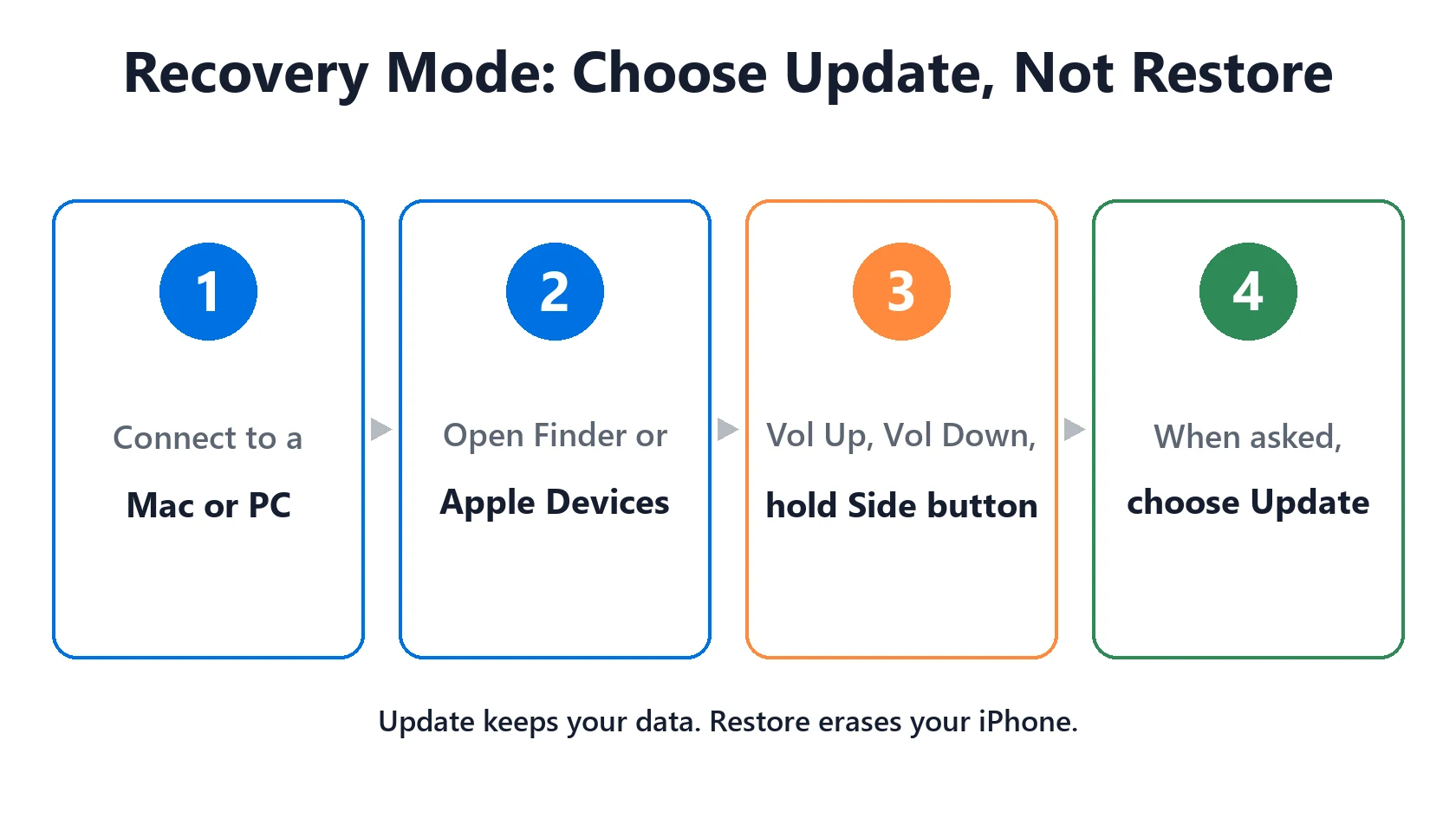
If a force restart doesn’t help, follow Apple’s steps for an iPhone stuck on the Apple logo. You’ll need a Mac or PC and a cable:
- Connect your iPhone to the computer.
- Open Finder on a Mac (macOS Catalina or later), or the Apple Devices app or iTunes on a PC or older Mac.
- Put the iPhone in recovery mode. On iPhone 8 and later: press and release Volume Up, press and release Volume Down, then hold the Side button. Keep holding past the Apple logo until you see the computer-and-cable recovery screen.
- Choose Update when the computer asks. It reinstalls iOS and keeps your data.
- Wait. If the download takes more than 15 minutes, the iPhone may leave recovery mode. Let the download finish, then repeat step 3.
Step 3: Restore, Only as a Last Resort
If Update fails, choose Restore. This erases your iPhone and installs a fresh copy of iOS. Afterwards, restore from your iCloud or computer backup during setup. If you don’t have a backup, the data on the iPhone can’t be recovered, so try Update several times before choosing Restore.
If the update or restore itself fails with an error, see Apple’s guide If you can’t update or restore your iPhone, or our guide to iPhone won’t update.
When It’s a Hardware Problem
If your iPhone stays stuck even after a restore, or it got stuck after a drop or water exposure, it’s likely a hardware fault, such as the battery or logic board. Contact Apple Support or visit an Apple Store. A worn battery can also cause restart loops on older iPhones. See iPhone battery replacement cost.
How to Avoid It Next Time
- Back up before every major update.
- Charge to at least 50%, or stay plugged in while updating.
- Free up storage. See iPhone storage full.
- Don’t force restart during an update unless the progress bar hasn’t moved for over an hour.
Thinking about the next update? Our should I update iOS page has our current verdict, and iOS 27.2 covers what’s coming next.
Featured Apple Deals on Amazon
Current discounts on AirPods, chargers, cables, and other Apple gear.
Frequently Asked Questions
Why is my iPhone stuck on the Apple logo after updating?
It may still be installing, especially if there’s a progress bar. If nothing changes for over an hour, the update likely failed. Force restart, then use recovery mode and choose Update.
Will I lose my data fixing an iPhone stuck on the Apple logo?
Not with a force restart or the Update option in recovery mode. Only Restore erases your iPhone.
How long can an iPhone stay on the Apple logo during an update?
Apple says it can take more than an hour in some cases, such as after a restore. Leave it plugged in and wait at least an hour.
Can I fix it without a computer?
You can try a force restart. If that doesn’t work, recovery mode needs a Mac or PC, or a visit to Apple.
What if my iPhone keeps restarting in a loop?
That’s a boot loop. Force restart once, then use recovery mode and choose Update. If it keeps happening after a restore, contact Apple.
📚 Related Guides
Written by S M Momin Arif
Founder and lead writer at iPhoneFixDaily, covering iPhone battery and charging diagnostics based on direct hands-on testing. Read more about our approach →