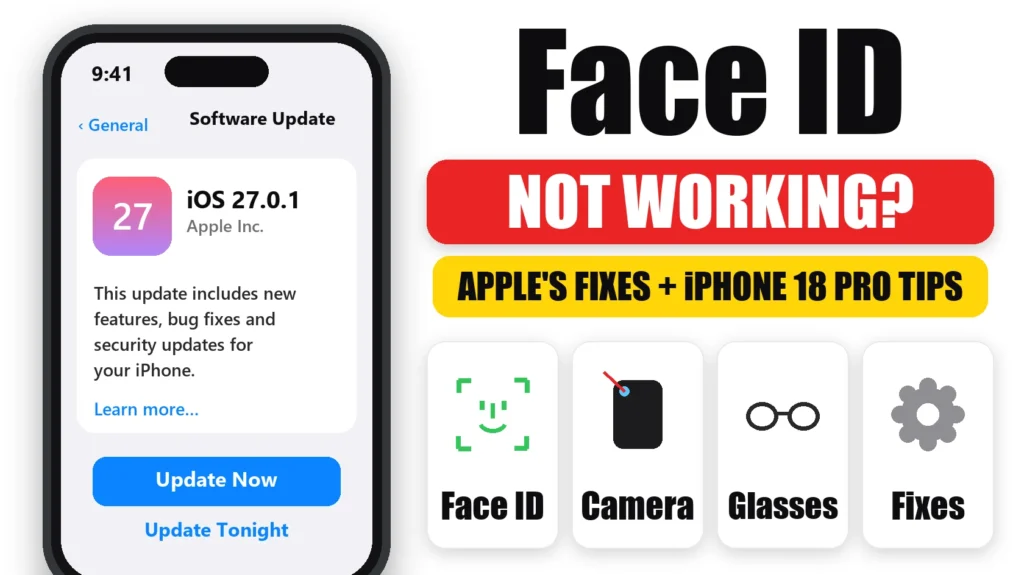
Face ID not working on your iPhone? Most of the time it’s something simple: a smudge or screen protector over the TrueDepth camera, a mask or sunglasses, the angle you’re holding the phone, or a Face ID setting that’s turned off. Sometimes iPhone just needs your passcode, which is normal. Here are Apple’s fixes in order, what to do on the new iPhone 18 Pro, and when Face ID needs a repair.
Official Apple Store on Amazon
Genuine cases, cables, and accessories — sold and shipped by Apple.
📋 Quick Summary
- Start with the basics: update iOS, clean the TrueDepth camera and restart.
- Check Settings → Face ID & Passcode that Face ID is on for what you’re using it for.
- Asking for your passcode after a restart or five failed tries is normal, not a fault.
- iPhone 18 Pro: the TrueDepth camera is at the top-left corner. Don’t cover it in landscape. iOS 27.0.1 fixes restarts when Face ID fails.
- “Face ID has been disabled” means a TrueDepth camera problem. Update, then get service.
Table of Contents
Quick Fixes First
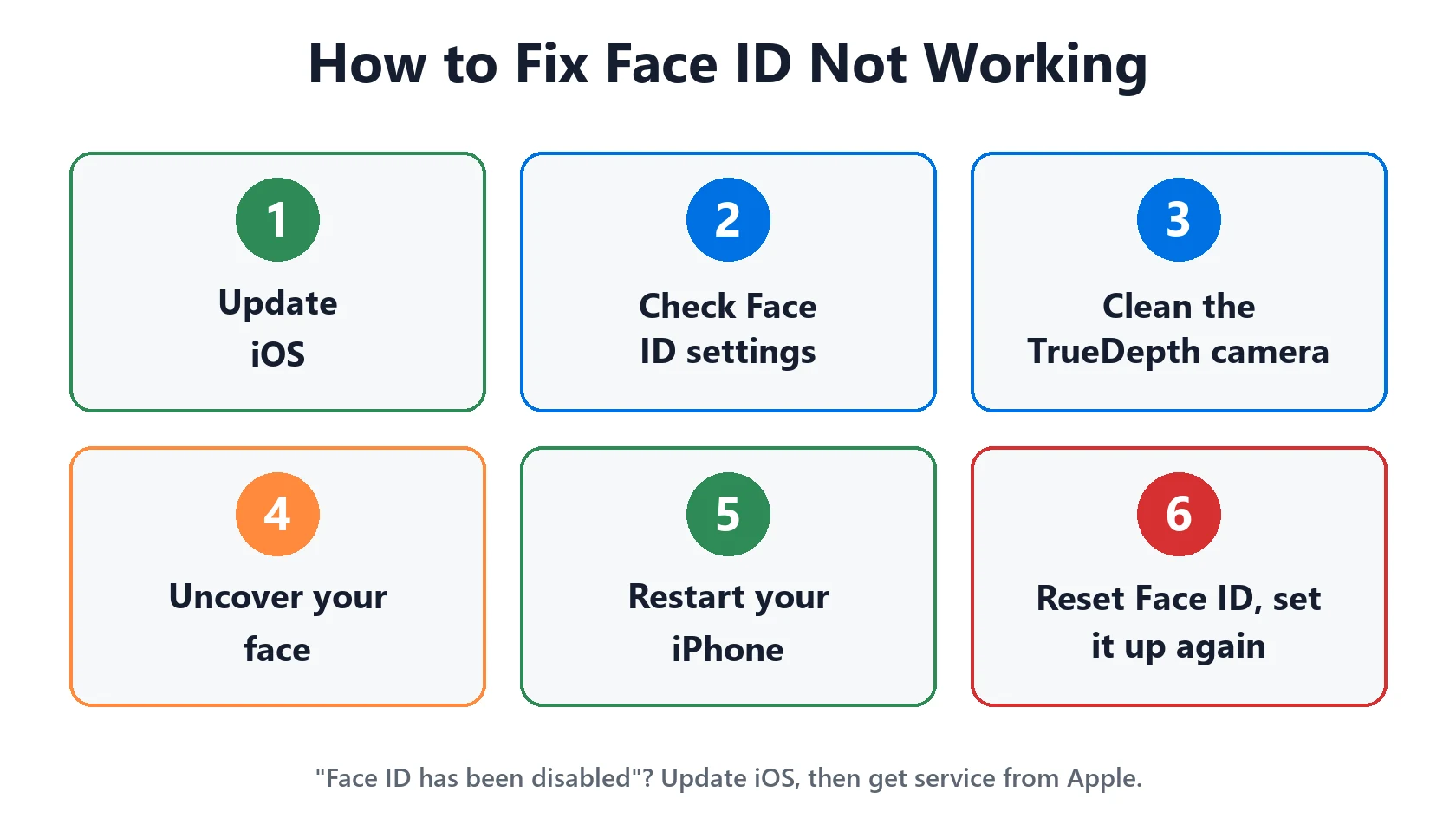
Work through these in order. They’re the first steps in Apple’s Face ID troubleshooting guide. Test Face ID after each one.
- Update iOS in Settings → General → Software Update.
- Check your settings. Go to Settings → Face ID & Passcode and make sure Face ID is set up and turned on for iPhone Unlock, Apple Pay, App Store or whatever you’re trying to use.
- Clean the TrueDepth camera at the top of the screen. Remove any case or screen protector that covers it.
- Uncover your face. Your eyes, nose and mouth need to be visible.
- Hold your iPhone at arm’s length or closer, about 10 to 20 inches (25 to 50 cm) from your face, like taking a selfie.
- Restart your iPhone, enter your passcode, then try Face ID again.
Not sure your iPhone has Face ID? Check Apple’s list of supported models.
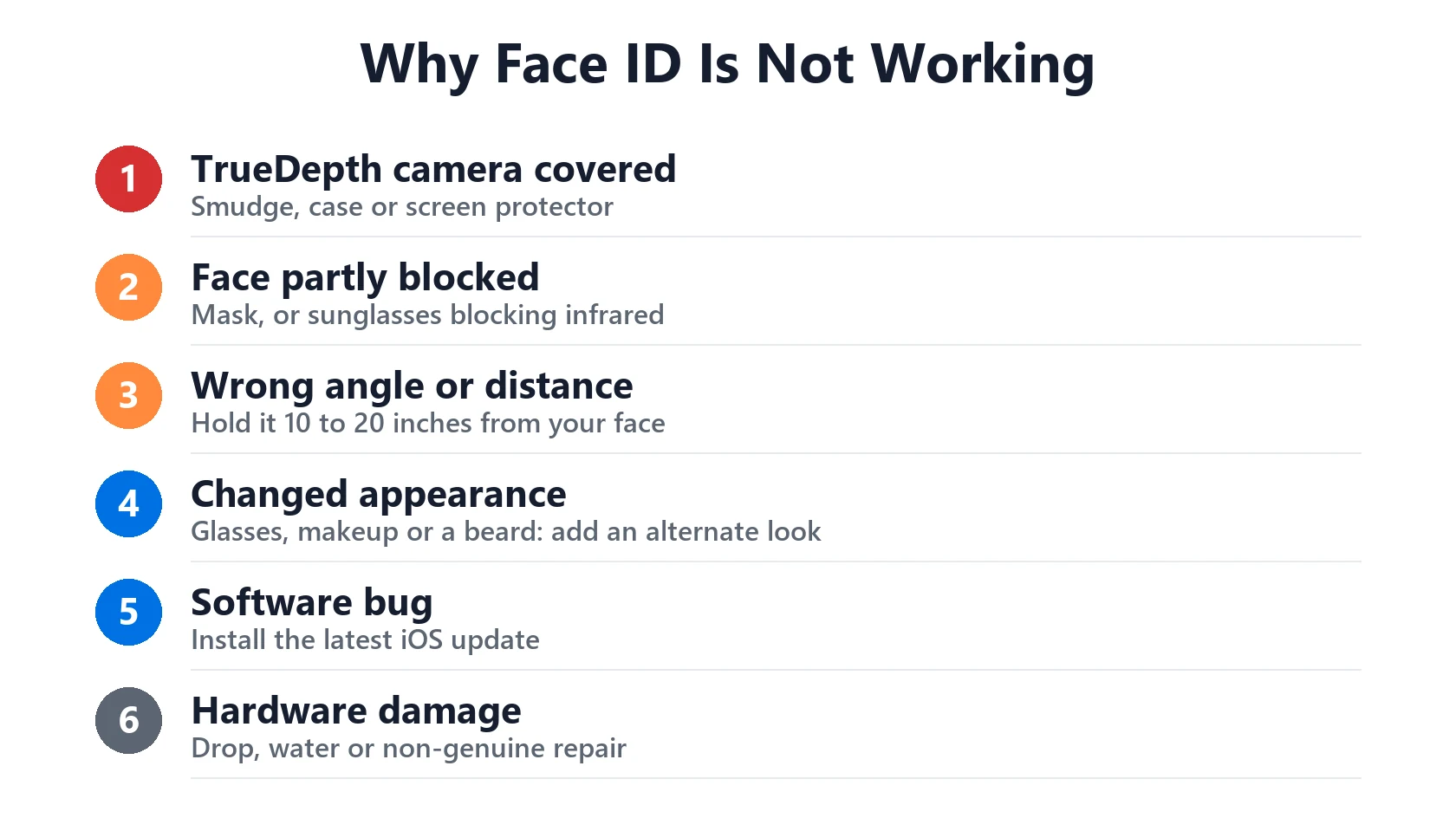
Why Face ID Is Not Working: 6 Causes
- Something covering the TrueDepth camera. A smudge, a case lip or a screen protector (especially a privacy screen protector) can block it.
- A mask or sunglasses. By default, Face ID needs your mouth and nose visible. Apple says some sunglasses block the infrared light Face ID uses.
- The wrong angle or distance. Too close, too far, or not facing the camera. On iPhone 12 and older, Face ID only works in portrait.
- A changed appearance. Heavy makeup, a new beard or new glasses can confuse it until you add an alternate appearance.
- A software bug. An iOS update can cause Face ID problems, and a later update fixes them.
- Hardware damage. A drop, water damage or a repair with non-genuine parts can stop the TrueDepth camera working.
When iPhone Asks for Your Passcode Instead
Sometimes Face ID works fine, but iPhone asks for your passcode anyway. That’s a security feature. According to Apple’s security guide, your passcode is required when:
- Your iPhone has just been turned on or restarted.
- It hasn’t been unlocked for more than 48 hours.
- You haven’t used your passcode in 6.5 days and haven’t used Face ID in the last 4 hours.
- There were five failed Face ID attempts in a row.
- You used Emergency SOS or the power-off screen by holding the side and volume buttons.
- It received a remote lock command from Find My.
- You’re updating software, erasing the iPhone or changing passcode settings.
Enter your passcode once, and Face ID should work again next time.
Face ID Not Working on iPhone 18 Pro
Apple updated its Face ID guide for the iPhone 18 Pro and iPhone 18 Pro Max, which have a new TrueDepth camera. If Face ID isn’t working on yours:
- Install iOS 27.0.1 or later. Apple says iOS 27.0.1 fixes an issue where iPhone 18 Pro and Pro Max may unexpectedly restart when Face ID fails to authenticate. See iOS 27 problems and should I update.
- Know where the camera is. On iPhone 18 Pro models, the TrueDepth camera is at the top of the device towards the left corner. In landscape, keep your finger or palm off it.
- Remove a privacy screen protector.
- Glasses and a mask in low light? Take off the glasses or adjust the mask.
- Avoid strong backlight, like the sun right behind you.
- Wear glasses? Add an alternate appearance while wearing them (steps below).
Still restarting or showing errors after updating? Back up and contact Apple Support, since the phone is under warranty.
How to Reset Face ID
If the steps above don’t help, Apple’s next fix is to reset Face ID and set it up again:
- Go to Settings → Face ID & Passcode and enter your passcode.
- Tap Reset Face ID.
- Tap Set Up Face ID and follow the steps, moving your head slowly in a circle.
- Turn Face ID back on for iPhone Unlock, Apple Pay and the rest.
If your look changes a lot, tap Set Up an Alternate Appearance in the same screen. You can also set up Face ID with a mask on iPhone 12 and later. It works in portrait only.
“Face ID Has Been Disabled” or “Not Available”
If you see “A problem was detected with the TrueDepth camera. Face ID has been disabled”, or a Face ID issue in Settings → General → About → Parts and Service History, Apple’s diagnostics have found a problem with the TrueDepth camera. Apple says to update iOS first. If Face ID still won’t set up, it needs service.
You can keep using your iPhone with your passcode, but Face ID, Animoji, Memoji and some front camera features may not work until it’s fixed. If setup keeps asking you to move your face into the frame without continuing, that’s also a sign of a hardware fault.
Only Apple or an Apple Authorized Service Provider should repair it. The TrueDepth camera contains lasers, and Apple warns that non-genuine parts can stop its safety features working. Want a rough price first? Try our repair cost estimator.
Match Your Situation
| What you see | Likely cause | What to do |
|---|---|---|
| Asks for passcode after a restart | Normal security | Enter your passcode once |
| Fails with a mask or sunglasses | Face blocked | Uncover your face or set up Face ID with a mask |
| Fails in landscape on iPhone 18 Pro | Hand over the top-left camera | Move your hand |
| Fails with glasses | Changed appearance | Add an alternate appearance |
| iPhone 18 Pro restarts when Face ID fails | iOS 27.0 bug | Update to iOS 27.0.1 or later |
| “Face ID has been disabled” | TrueDepth camera problem | Update iOS, then get service |
Featured Apple Deals on Amazon
Current discounts on AirPods, chargers, cables, and other Apple gear.
Frequently Asked Questions
Why is my Face ID not working all of a sudden?
Usually something is covering the TrueDepth camera, your face is partly blocked, or Face ID needs your passcode after a restart. Clean the camera, check Settings → Face ID & Passcode and restart.
How do I fix Face ID not working after an update?
Install any newer update, restart your iPhone, then reset Face ID and set it up again if it still fails.
Why does Face ID not work with my sunglasses?
Some sunglasses block the infrared light Face ID uses. Face ID with a mask also isn’t designed to work with sunglasses.
Why does my iPhone keep asking for my passcode instead of Face ID?
It’s required after a restart, five failed attempts, 48 hours without unlocking, and a few other security cases. Enter your passcode once.
Can a screen repair break Face ID?
Yes, if the TrueDepth camera was damaged or repaired with non-genuine parts. Apple recommends repairs by Apple or an Apple Authorized Service Provider.
Is Face ID fixed on iPhone 18 Pro?
Apple says iOS 27.0.1 fixes unexpected restarts when Face ID fails on iPhone 18 Pro and Pro Max. If you still have problems after updating, contact Apple Support.
📚 Related Guides
Written by S M Momin Arif
Founder and lead writer at iPhoneFixDaily, covering iPhone battery and charging diagnostics based on direct hands-on testing. Read more about our approach →