

iPhone Quick Start not working on your new iPhone? Quick Start is the setup screen that copies everything from your old iPhone to the new one when you hold them close together. When it fails, the setup prompt never shows up, the transfer freezes partway, or your phone number stays on the old phone. With iPhone Duo arriving on October 23 and many people moving from older iPhones, here’s how to fix each problem, using the steps in Apple’s Quick Start guide.
📋 Quick Summary
- Put your old iPhone on Wi-Fi with Bluetooth on, unlocked, on the Home Screen.
- Prompt disappeared or never appeared? Apple’s fix is to restart both iPhones.
- Keep both phones close together and plugged in until the transfer finishes.
- Stuck for good? Use Download from iCloud, a cable, or a backup instead.
- Number didn’t move? Use Settings → Cellular → Add eSIM or call your carrier.
Table of Contents
Before You Start: What Quick Start Needs
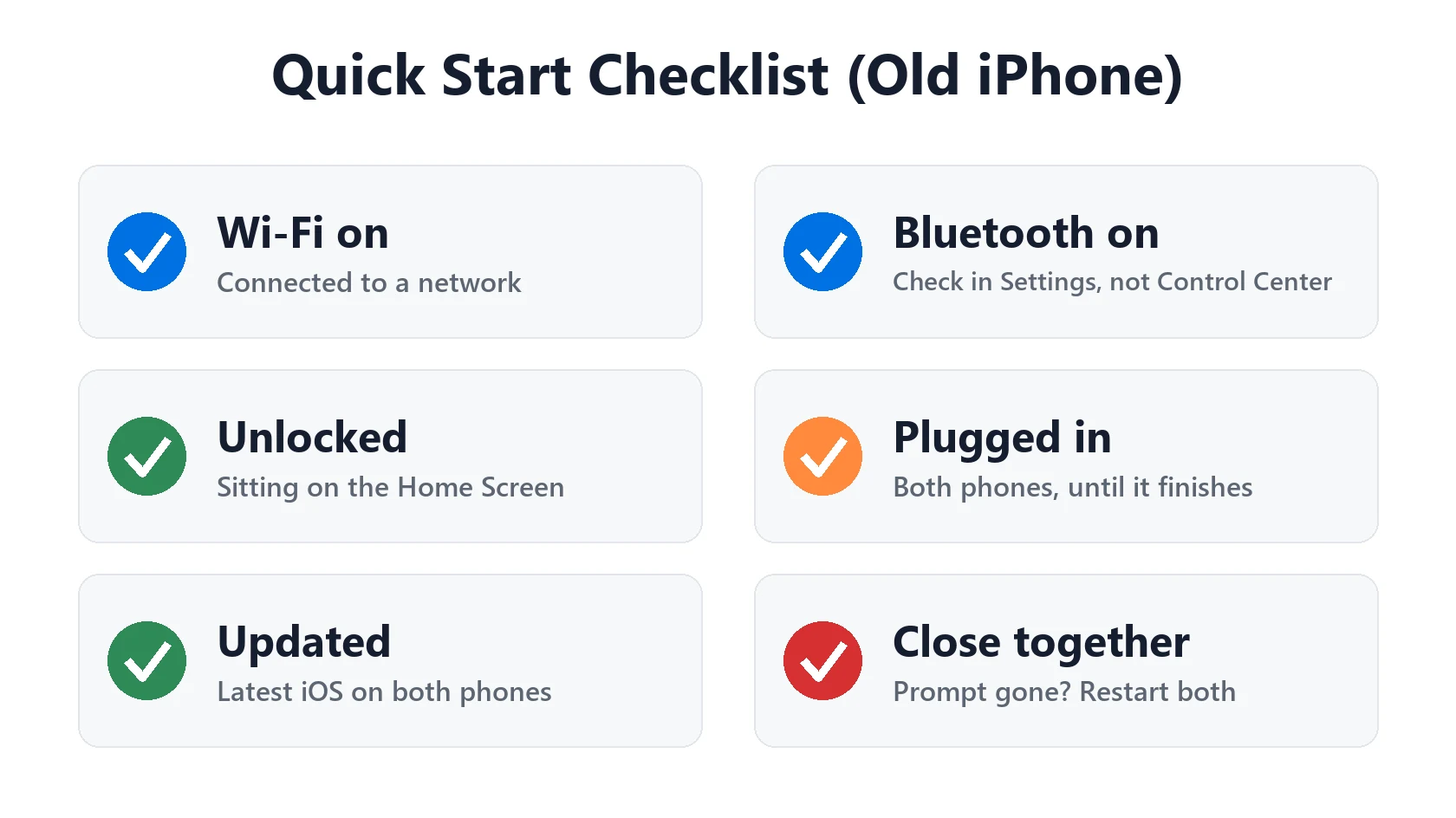
Most cases of Quick Start not working come from a missed requirement. Apple says Quick Start works when your current iPhone or iPad has iOS 11, iPadOS 13 or later, but it also asks you to update both devices to the latest software first. Check these before you turn the new iPhone on:
- Old iPhone on Wi-Fi and Bluetooth turned on.
- Old iPhone unlocked and showing the Home Screen.
- Both iPhones plugged in to power. A transfer can run long and drain the battery.
- Free time. Apple says you won’t be able to use your current iPhone for a while during the transfer.
- Your Apple Account password ready, because the new iPhone will ask for it.
- Not a work or school phone. If the new iPhone is enrolled in Apple School Manager or Apple Business, Apple says Quick Start can’t transfer data from your current device.
iPhone Quick Start Not Working: The Prompt Never Appears
You turn on the new iPhone, hold it next to the old one, and nothing happens. Work through these in order:
- Restart both iPhones. This is Apple’s own fix when the setup prompt disappears from the current device.
- Check Bluetooth on the old iPhone in Settings → Bluetooth. Turning it off in Control Center only disconnects accessories, so check in Settings.
- Unlock the old iPhone and stay on the Home Screen. The prompt won’t show on the Lock Screen or inside an app.
- Hold the phones a few inches apart, not across the room.
- Update the old iPhone in Settings → General → Software Update. If it won’t update, see our iPhone won’t update guide.
- Already skipped Quick Start on the new iPhone? You can return to the setup screens by erasing the new iPhone in Settings → General → Transfer or Reset iPhone → Erase All Content and Settings. Only do this on the new phone, and only if it has nothing on it you need.
If the prompt still won’t appear, check that Bluetooth works with something else. Our iPhone Bluetooth fix guide covers that.
Transfer Stuck or Taking Forever
Apple says transfer times vary with network conditions and the amount of data, so a phone with a big photo library can take a long time. The time estimate also jumps around at the start. Before you assume it’s frozen:
- Keep both phones close together and plugged in. Apple says to leave them like that until the migration is complete.
- Don’t use either phone or lock the old one during a direct transfer.
- Stay on a strong Wi-Fi network. If your Wi-Fi is the weak link, see why iPhone Wi-Fi keeps disconnecting.
- Give it time. If the progress bar truly hasn’t moved for a long time, restart both phones and start again, or switch to one of the other methods below.
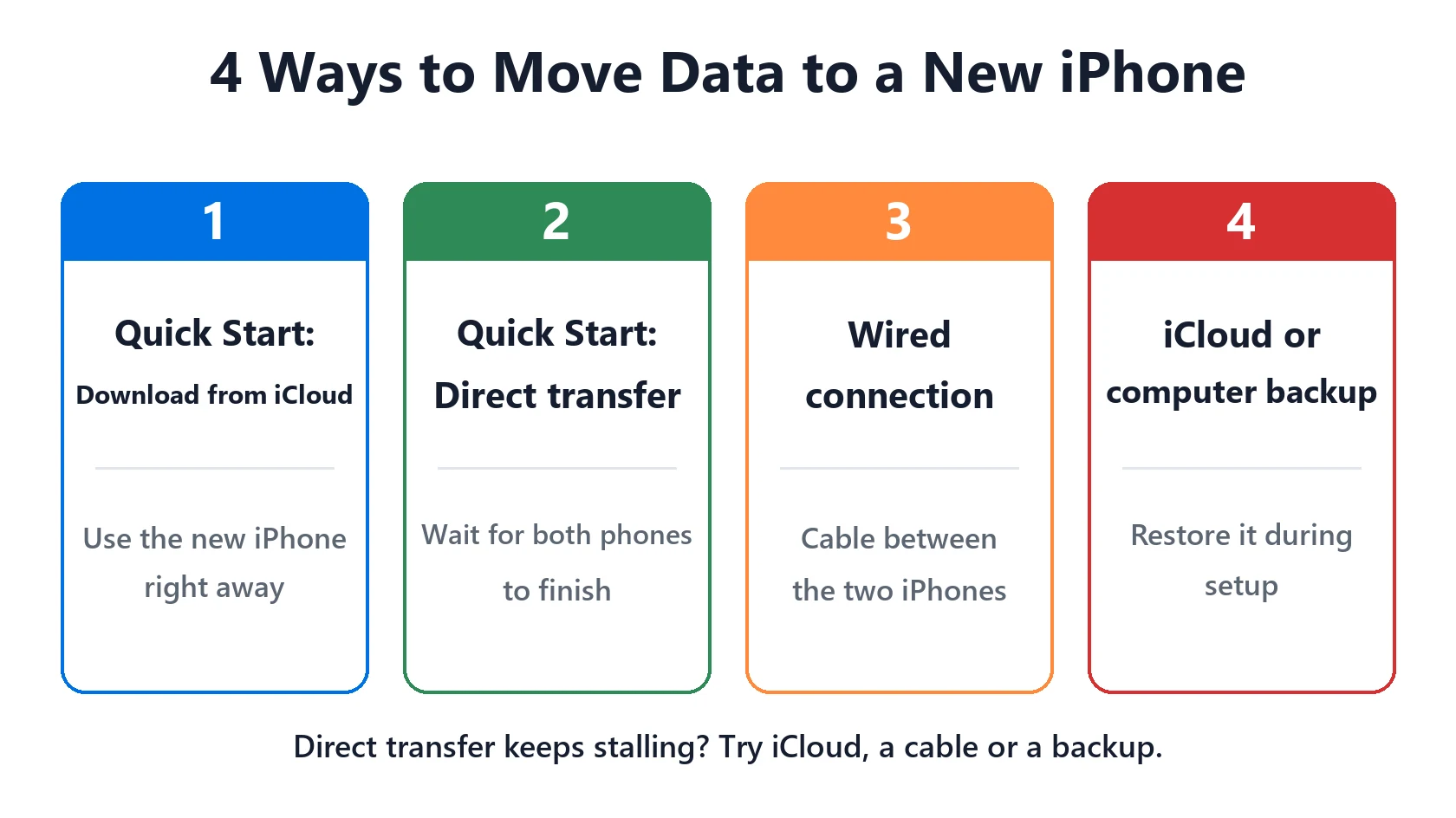
Your choice of transfer method matters. Apple explains that with Download from iCloud, your apps and data download in the background so you can use the new iPhone right away. With a direct transfer from your old iPhone, you have to wait for the transfer to finish on both phones. If a direct transfer keeps stalling and you have an up-to-date iCloud backup, the iCloud option is often the easier path.
Phone Number or eSIM Didn’t Transfer
Setup usually offers to move your phone number to the new iPhone. Many iPhones use eSIM only (Apple says iPhone Duo has no SIM tray), so this step matters. For eSIM Quick Transfer, Apple says both phones need iOS 18.4 or later, the same Apple Account, Bluetooth on, and the old iPhone unlocked with its passcode. If the number didn’t move during setup:
- Open Settings → Cellular on the new iPhone.
- Tap Set Up Cellular or Add eSIM.
- Choose the number to transfer. If no list appears, tap Transfer From Nearby iPhone.
- Confirm on the old iPhone, or enter the code the new iPhone shows.
- If you see Finish Setting Up Your Carrier’s Cellular Plan, tap it to finish on your carrier’s website.
When the new plan activates, the old SIM stops working. Make a test call. If you can’t call, or the new iPhone shows SOS or No Service, contact your carrier. Our guides to SOS and No Service and Invalid SIM errors can help too.
Other Ways to Move Your Data
If Quick Start keeps failing, Apple lists two other ways to move everything:
- A wired connection. Connect the two iPhones with a cable and transfer directly. See Apple’s wired transfer steps for the cable you need.
- An iCloud or computer backup. Back up the old iPhone, then restore it on the new one during setup. Follow Apple’s backup transfer guide. If the backup itself fails, see iCloud backup failed.
Either way, your old iPhone keeps its data until you erase it, so don’t trade it in or reset it until you’ve checked your photos, messages and apps on the new one.
New to iPhone? Our iPhone Basics for beginners guide walks through setup, gestures, calls, texts and more in 10 short lessons.
Frequently Asked Questions
Why is Quick Start not working on my new iPhone?
Usually Bluetooth or Wi-Fi is off on the old iPhone, it’s locked, or it needs an update. Apple’s fix when the prompt disappears is to restart both iPhones.
How long does Quick Start take?
Apple doesn’t give a fixed time. It depends on your network and how much data you have, so a large photo library takes much longer.
Can I use Quick Start after setting up my new iPhone?
Not from Settings. You’d have to erase the new iPhone to get back to the setup screens. If it has nothing you need yet, that’s safe.
Should I choose Download from iCloud or transfer directly?
Download from iCloud lets you use the new iPhone sooner while things download. A direct transfer copies from the old phone but ties up both until it’s done.
Why didn’t my phone number move to the new iPhone?
eSIM Quick Transfer needs iOS 18.4 or later on both phones, the same Apple Account and Bluetooth on. Try Settings → Cellular → Add eSIM, or contact your carrier.
📚 Related Guides
Written by S M Momin Arif
Founder and lead writer at iPhoneFixDaily, writing practical iPhone troubleshooting guides checked against Apple’s official support documentation. Read more about our approach →


