iPhone not charging when plugged in? The cause is usually the outlet, cable or adapter, lint in the port, or a software hiccup, not a dead battery. Work through the fixes below in order. They follow the same sequence as Apple’s own troubleshooting, and most people are charging again by Fix 3. If your iPhone won’t charge at all, or charges but stops at 80%, jump to Fix 3 or Fix 5.
Updated October 8, 2026 for iOS 27 and iPhone 17 and 18 models.
Official Apple Store on Amazon
Genuine cases, cables, and accessories — sold and shipped by Apple.
🎧 LISTEN TO THIS GUIDE
~2 min listen
📋 Quick Summary
- Start with a different outlet, cable and adapter. These fix it more often than anything else.
- Won’t charge at all? Apple says charge for 30 minutes, force restart, then charge 30 minutes more.
- Read the screen: Liquid Detected, Accessory may not be supported and Charging On Hold each have a different fix.
- Stuck at 80%? That’s usually Optimized Battery Charging or your charge limit, not a fault.
- If wireless charging works but the cable doesn’t, the problem is the port or cable, not the battery.
Table of Contents
Fix 1: Try a Different Outlet, Cable and Adapter
- Try a different wall outlet. Use a wall socket rather than a laptop, hub or car port. Those can be too weak to charge, especially while you’re using the phone.
- Try a different cable. Check both ends for fraying, kinks or bent pins. A worn cable is one of the most common reasons an iPhone won’t charge.
- Try a different adapter. Power adapters fail more often than people expect. If you have a second one, swap it in before blaming the phone.
If one combination works and another doesn’t, you’ve found the faulty part. For the fastest charging, use a USB-C Power Delivery adapter of 20W or more. See our Slow Charger message guide for the exact wattage.
🔌 Gear Worth Having on Hand for Charging Troubleshooting
Apple 20W USB-C Power Adapter
Apple’s own adapter — the quickest way to rule out a faulty charger. $14.99.
Apple USB-C to Lightning Cable (1m)
For iPhone 14 and earlier — rules out a worn or uncertified cable. $19.00.
Apple USB-C to USB-C Cable (2m)
For iPhone 15 and later — the correct connector for USB-C iPhones. $24.00.
Anker Nano Smart Display Charger, 45W
Faster ceiling for iPhone 17/16, plus a Care Mode that reduces charging heat — the actual factor behind long-term battery wear. $25.99.
Fix 2: Push the Cable In Firmly and Check the Port
Push the cable in firmly. If it doesn’t click into place, feels loose, or only charges at a certain angle, something is in the way. Shine a flashlight into the port: pocket lint often packs into a grey layer at the bottom.
Clean it gently with a wooden toothpick or a soft, dry brush, never metal. Our iPhone charging port not working guide has the safe step-by-step method for both Lightning and USB-C ports, and what to do if the port is damaged.
Fix 3: Charge for 30 Minutes, Then Force Restart
If your iPhone won’t charge at all or won’t turn on, the battery may be fully drained. Apple’s advice in If your iPhone won’t charge is to plug it into a wall outlet and leave it for half an hour. If it still doesn’t respond, force restart it while it’s still plugged in, then leave it charging for another half hour.
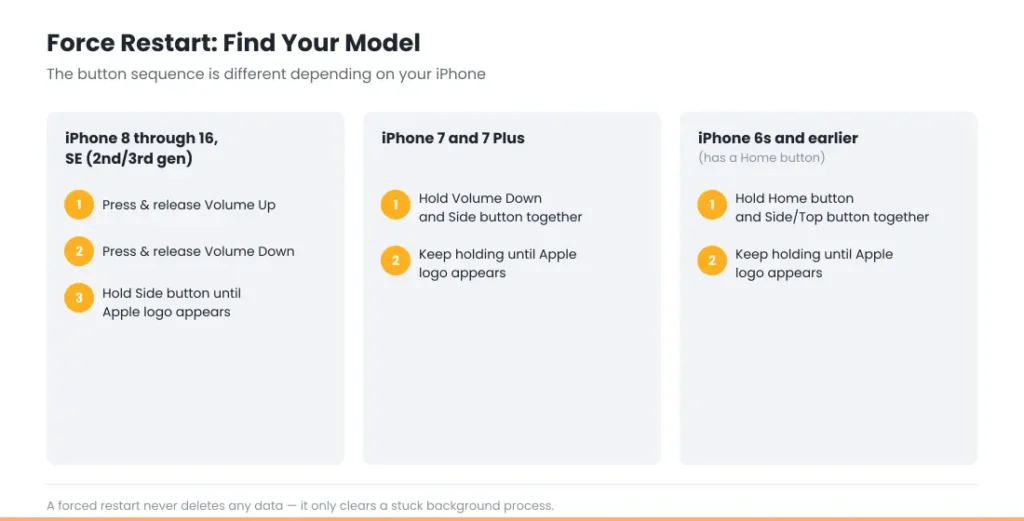
A force restart doesn’t delete anything. The button sequence depends on your model, as described in Apple’s force restart guide:
- iPhone 8 and later, including every Face ID iPhone, iPhone SE (2nd and 3rd generation), iPhone 16e and iPhone 17 and 18 models: press and quickly release Volume Up, press and quickly release Volume Down, then press and hold the Side button until the Apple logo appears.
- iPhone 7 and 7 Plus: press and hold Volume Down and the Side button together until the Apple logo appears.
- iPhone 6s and earlier, and iPhone SE (1st generation): press and hold the Home button and the Side (or Top) button together until the Apple logo appears.
If the screen shows a red battery or a cable icon, keep it charging. That means the battery is simply very low.
Fix 4: Read the Alert on Your Screen
If an alert appears when you plug in, it tells you exactly what’s wrong:
- “Liquid Detected in Lightning Connector” or “…USB-C Connector”: there’s moisture in the port. Unplug and let it dry. See Liquid Detected on iPhone.
- “Accessory may not be supported”: usually the cable, an adapter or lint in the port. See the accessory not supported iPhone error.
- “Charging On Hold”: your iPhone is too hot or too cold. See Fix 6 and Charging On Hold on iPhone.
- “Slow Charger”: it is charging, just slowly. Use a stronger adapter. See iPhone charging slowly.
No alert, and no charging icon at all? Go back to Fixes 1 to 3. The phone isn’t detecting power.
Fix 5: Stuck at 80%? Check Your Charging Settings
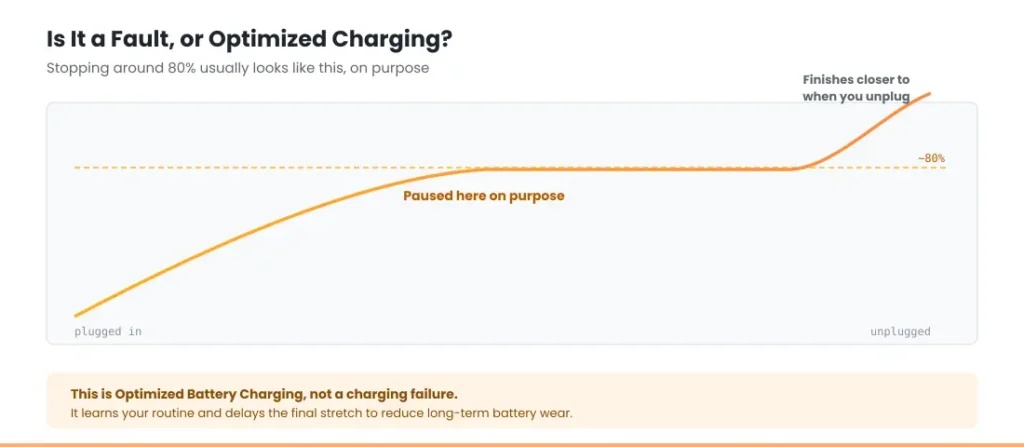
If your iPhone is not charging when plugged in past about 80%, it’s almost always a setting, not a fault:
- Optimized Battery Charging learns your routine and holds charging at 80% until shortly before you usually unplug. You’ll see a notification saying when it will finish charging.
- Charge Limit (iPhone 15 and later) stops charging at the level you chose, from 80% to 100%. Check it in Settings → Battery → Charging and choose 100% if you want a full charge.
- A warm battery. Apple says iOS may limit charging above 80% when the battery gets too warm. It resumes once the phone cools down.
Your iPhone will also charge to 100% now and then, even with a limit set, to keep its battery percentage accurate. That’s expected.
Fix 6: Let a Hot or Cold iPhone Return to Normal
iPhone pauses charging when it’s too hot or too cold to protect the battery. Move it out of direct sun, off pillows or a car dashboard, and take off a thick case. Stop gaming, navigating or streaming while it charges, since that adds heat. In the cold, let it warm up to room temperature gradually. Charging resumes on its own.
Fix 7: Update iOS
Once your iPhone has a little charge, go to Settings → General → Software Update. Apple has fixed charging bugs in point releases before, and some accessories need the latest iOS to work. Our should I update to iOS 27 page shows the current version and what it fixes.
Fix 8: Try Wireless Charging to Narrow It Down
If you have a MagSafe or Qi charger, try it. iPhone 8 and later support wireless charging. This is a quick way to narrow things down:
- Wireless works, cable doesn’t: the problem is the cable, adapter or charging port. Go back to Fix 2.
- Neither works: the battery or the phone itself likely needs service. See the next section.
Wireless charging is also a good way to keep using your iPhone while you arrange a port repair. Our guide to Qi2 vs MagSafe explains which charger to get.
When Your iPhone Not Charging Is a Hardware Problem
If you’ve tried a different outlet, cable and adapter, cleaned the port, force restarted and updated iOS, and your iPhone still won’t charge, it’s likely a hardware fault. The usual suspects are a damaged charging port, a worn-out battery, or damage from a drop or liquid.
Check Settings → Battery → Battery Health. If maximum capacity is low or you see a service message, the battery may need replacing. Use the checker below for a quick read, then see iPhone battery replacement cost. For anything else, contact Apple Support or an authorized repair shop.
Battery Health Checker
Enter your numbers below for an instant read on whether your battery is degrading normally.
How to find these numbers on your iPhone
General estimate based on typical lithium-ion degradation — not a diagnostic.
If your iPhone got wet, don’t keep trying to charge it. Let it dry fully first. If you notice swelling or a lifted screen or back panel, stop using it and see the safety advice in our battery and charging guide. Don’t try to open it yourself.
Match Your Situation
Still stuck with your iPhone not charging when plugged in? Find your symptom below.
| Symptom | Likely cause | What to do |
|---|---|---|
| Works with one cable or adapter, not another | Faulty cable or adapter | Replace it with an Apple or MFi-certified one |
| Charges from the wall, not from a laptop or car | Weak power source | Use a 20W or higher wall adapter |
| Cable feels loose or only works at an angle | Lint or a worn port | Clean the port. See our charging port guide |
| Won’t turn on, black screen | Fully drained battery or frozen software | Charge 30 min, force restart, charge 30 min more |
| Stops at 80% | Optimized Charging, Charge Limit or heat | Check Settings → Battery → Charging |
| Liquid Detected alert | Moisture in the port | Unplug and let it dry fully |
| Charging On Hold | Too hot or too cold | Move it somewhere cooler or warmer |
| Wireless works, cable doesn’t | Port or cable | Clean the port, then get it inspected |
| Nothing works, even wireless | Battery or hardware fault | Contact Apple Support or a repair shop |
RECOMMENDED FIRST STEP
Fix iPhone not charging when plugged in — start here
A worn or damaged cable is the single most common cause — try a different one before assuming it’s your phone.
See the Full Battery & Charging GuideFeatured Apple Deals on Amazon
Current discounts on AirPods, chargers, cables, and other Apple gear.
Frequently Asked Questions
Why is my iPhone not charging when plugged in?
Most often it’s the outlet, cable or adapter, lint in the charging port, or a software glitch. Try a different outlet, cable and adapter first, clean the port, then force restart. Hardware faults are less common.
Why does my iPhone show the charging icon but the percentage doesn’t go up?
The power source may be too weak, especially if you’re using the phone. Try a 20W or higher wall adapter and lock the screen. If it’s stuck at 80%, that’s Optimized Battery Charging or a charge limit.
Why won’t my iPhone charge past 80%?
Usually Optimized Battery Charging or the Charge Limit setting on iPhone 15 and later. Check Settings → Battery → Charging. A warm battery can also pause charging above 80%.
My iPhone won’t charge or turn on. What should I do?
Plug it into a wall outlet for 30 minutes. If nothing happens, force restart it while it’s still plugged in, then charge for another 30 minutes. If it still won’t respond, it needs service.
Does a force restart delete anything?
No. A force restart works like a normal restart. It doesn’t erase any data.
Should I keep trying to charge my iPhone after it got wet?
No. Unplug it and let it dry fully first, because charging a wet port can cause corrosion. If it shows Liquid Detected, follow Apple’s drying steps before trying again.
📚 Related Guides
- iPhone Battery and Charging Problems: The Complete Guide
- iPhone Charging Port Not Working: Cleaning & Repair Guide
- iPhone Battery Drains Overnight: Real Causes & Fixes
- iPhone Dies at 20 Percent (Even Though It Says It’s Charged)
- Accessory Not Supported iPhone Error: What It Means and 7 Fixes
- Charging On Hold on iPhone: What It Means
- Liquid Detected in Lightning or USB-C Connector: What to Do
- Free Tool: iPhone Charger Wattage Checker
- Free Tool: iPhone Repair Cost Estimator
Written by S M Momin Arif
Founder and lead writer at iPhoneFixDaily, covering iPhone battery and charging diagnostics based on direct hands-on testing. Read more about our approach →