Seeing “This accessory may not be supported” when you plug something into your iPhone? The accessory not supported iPhone error almost always comes down to the cable, the accessory or a dirty port, not a broken phone. Apple names four causes: a damaged accessory, one that isn’t Apple-certified, one that isn’t made for your iPhone model, or a dirty or damaged port. Most of the time you can clear it in a couple of minutes. Here’s what each cause looks like and the order to fix them in.
Updated October 8, 2026 for iOS 27 and USB-C iPhones.
Official Apple Store on Amazon
Genuine cases, cables, and accessories — sold and shipped by Apple.
🎧 LISTEN TO THIS GUIDE
~90 sec listen
📋 Quick Summary
- Apple’s official causes: the accessory is damaged, not Apple-certified, or not supported by your iPhone, or the port is dirty or damaged.
- The most common real cause is a cheap or worn cable, not a hardware fault.
- Fix order: unplug and reconnect, update iOS, check the cable, clean the port, restart.
- If it only happens through a hub, dongle or adapter, that middle piece is usually the problem.
- If the alert shows up with nothing plugged in, your iPhone may need service.
Table of Contents
What “Accessory Not Supported” Means on iPhone
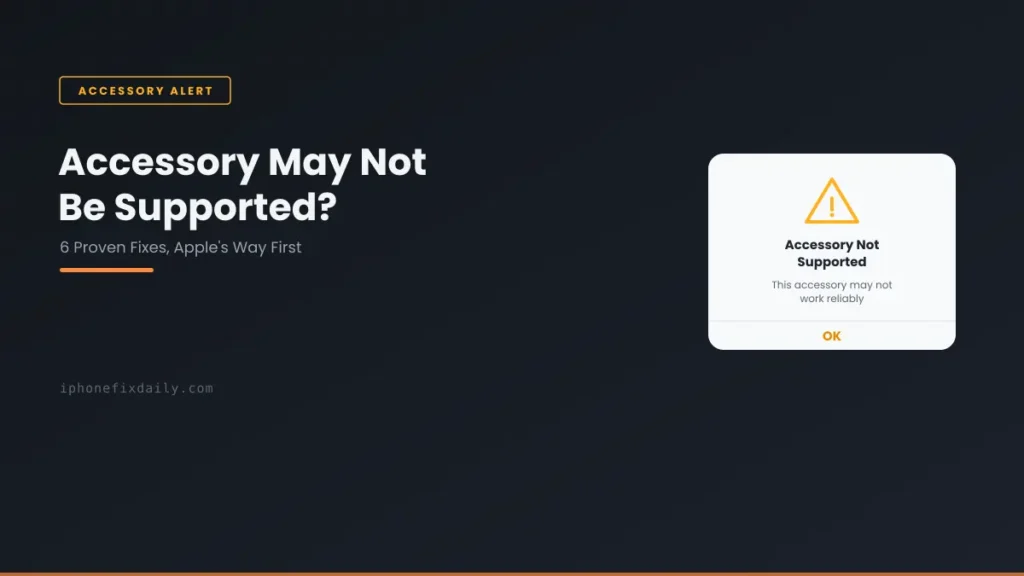
According to Apple’s support page for this alert, it appears when an accessory is damaged, isn’t Apple-certified, or isn’t supported by your device, or when your iPhone’s port is damaged or dirty. Apple’s fix order is short: update iOS, check that the accessory works with your model, then disconnect and reconnect it.
You may see the alert worded a few different ways:
- “This accessory may not be supported” or “Accessory may not be supported”: the standard alert.
- “This accessory is not supported by this iPhone”: usually an accessory made for a different model or connector.
- “Charging is not supported with this accessory”: the accessory can connect, but it can’t charge your iPhone. Common with car adapters, docks and cheap cables.
All three point to the same checks below. The alert is a warning, not a safety lockout, so it’s fine to dismiss it while you troubleshoot.
7 Causes of the Accessory Not Supported iPhone Error
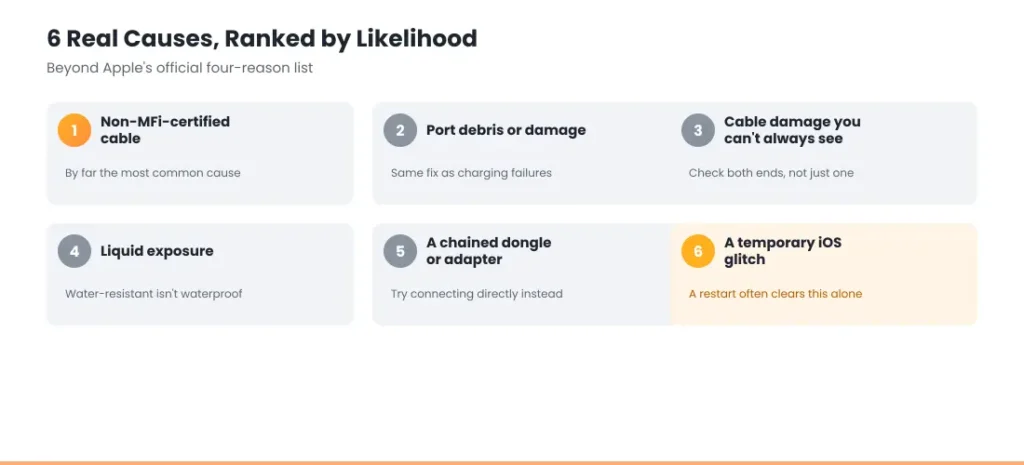
Ranked roughly by how often each one turns out to be the problem.
1. An uncertified or low-quality cable
This is the most common cause. On Lightning iPhones (iPhone 14 and earlier), cables and accessories should be MFi certified (Made for iPhone). Uncertified ones often work for a while, then start showing this alert. iPhone 15 and later use USB-C, which doesn’t need MFi, but very cheap USB-C cables and adapters can still cause it.
MFi-Certified Cables Worth Trusting
Apple 20W USB-C Power Adapter
Apple’s own adapter — rules out a third-party charger as the cause. $14.99.
Apple USB-C to Lightning Cable (1m)
For iPhone 14 and earlier — rules out a worn or uncertified cable. $19.00.
Apple USB-C to USB-C Cable (2m)
For iPhone 15 and later — the correct connector for USB-C iPhones. $24.00.
2. Lint or dirt in the charging port
Pocket lint builds up in the port and stops the connector from seating fully. The plug may feel loose or not click in. Our guide to an iPhone charging port not working shows the safe way to clean it. Never use metal or liquid.
3. A damaged cable or connector
Look for fraying, kinks or discoloration near the plug, and check both ends of the cable, not just the end that goes into your iPhone. Bent or blackened pins on the connector are a sign to replace it.
4. The accessory isn’t made for your iPhone model
Some accessories only work with certain models or need a newer iOS version. This is common with older Lightning accessories used through an adapter on a USB-C iPhone. Check the accessory’s box or the manufacturer’s site for your exact model.
5. Moisture in the port or connector
A damp port or connector can trigger this alert, sometimes long after the phone got wet. If you also see “Liquid Detected”, follow our guide to Liquid Detected in the Lightning or USB-C connector and let it dry fully before charging.
6. A hub, dongle or adapter in between
If you connect through a hub, multi-port adapter or Lightning-to-USB-C adapter, the problem is often that middle piece rather than your cable or iPhone. Connect the accessory directly to find out.
7. A temporary iOS glitch
Sometimes the alert appears with a perfectly good, certified accessory. Unplugging it and restarting your iPhone clears this more often than you’d expect.
How to Fix It: Step-by-Step
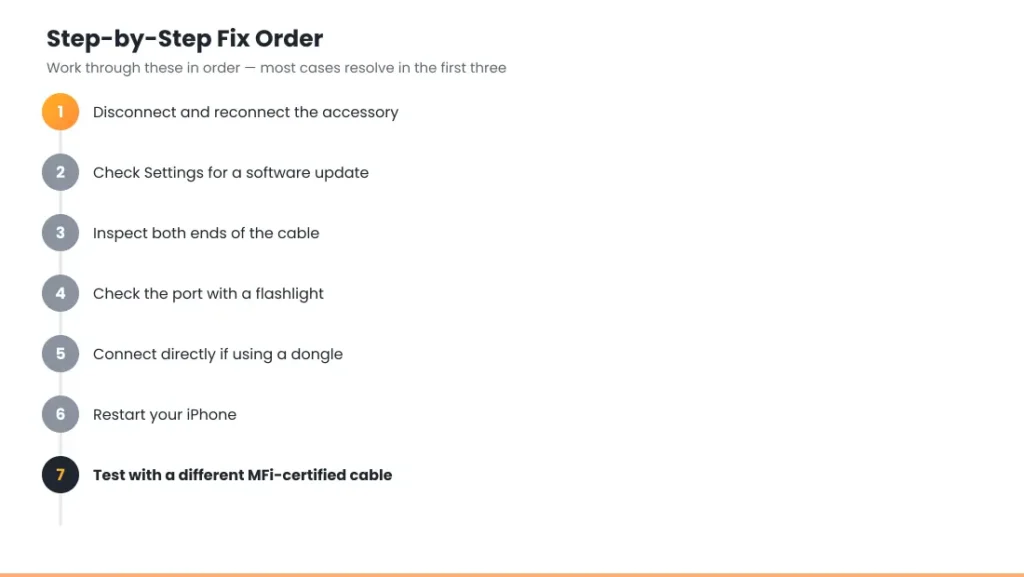
- Unplug the accessory and plug it back in. This alone often clears the alert.
- Update iOS in Settings → General → Software Update. Some accessories need the latest version. See should you update to iOS 27 if you’re unsure.
- Inspect both ends of the cable for fraying, discoloration or bent pins.
- Look into the port with a flashlight and gently clear any lint with a wooden toothpick or a soft, dry brush.
- Remove any hub, dongle or adapter and connect directly.
- Restart your iPhone. If it’s frozen, use the force restart steps for your model.
- Try a different, known-good cable, ideally an Apple or MFi-certified one. If the new cable works, the old one was the problem. If no cable works, look at the port.
Match Your Situation
If the accessory not supported iPhone error keeps coming back after the steps above, find your symptom here.
| Symptom | Likely cause | What to do |
|---|---|---|
| Only with one cheap or off-brand cable | Uncertified or low-quality cable | Replace it with an Apple or MFi-certified cable |
| With every cable, including Apple ones | Lint or damage in the port | Clean the port. If that doesn’t help, get it inspected |
| Started after the phone got wet | Moisture | Unplug everything and let it dry fully before charging |
| Only through a hub, dongle or adapter | The middle accessory | Connect directly to confirm, then replace the adapter |
| Only with one older accessory | Not made for your model or iOS version | Check the maker’s compatibility list and update iOS |
| Happened once, then cleared after reconnecting | Temporary glitch | Nothing to do |
| Appears with nothing plugged in | Port damage or moisture | Contact Apple Support for service |
When the Alert Appears With Nothing Plugged In
If “Accessory may not be supported” pops up when nothing is connected, the problem is inside the port, not with an accessory. Moisture or debris you can’t see, or a damaged connector, can make your iPhone think something is plugged in. Let the phone dry if it may have got wet, and gently clean the port.
If the alert keeps appearing with an empty port, Apple says your iPhone may need service. Contact Apple Support or visit an Apple Store. If you’re out of warranty, a port repair is often worth comparing against the cost of upgrading instead.
If It’s Not the Accessory
Not every charging problem comes from a cable. If your iPhone connects without the alert but still won’t charge properly, see iPhone not charging when plugged in or iPhone charging slowly. If you see “Charging On Hold”, your iPhone is too hot or too cold. See Charging On Hold on iPhone.
If you’re also seeing sudden shutdowns or short battery life, the battery may be the real issue. Check its health with the tool below, or read iPhone dies at 20 percent.
Found your battery health % in Settings → Battery → Battery Health? Check what it means.
Open the full iPhone Battery Health Checker →
This guide covers accessory and cable causes only. If you notice swelling or a lifted screen or back panel, stop using the phone and see the safety advice in our battery and charging guide. Don’t try to open it yourself.
RECOMMENDED FIRST STEP
Disconnect and reconnect first
This alone clears “accessory may not be supported” in a meaningful share of cases — try it before anything else.
See the Full Battery & Charging GuideFeatured Apple Deals on Amazon
Current discounts on AirPods, chargers, cables, and other Apple gear.
Frequently Asked Questions
Why does my iPhone say “This accessory may not be supported” with a genuine Apple cable?
Even genuine cables wear out. A damaged connector, lint in the port, or a temporary glitch can all trigger the alert. Clean the port and restart your iPhone, then try another cable.
What does “This accessory is not supported by this iPhone” mean?
Usually that the accessory was made for a different iPhone model or connector, or needs a newer version of iOS. Check the maker’s compatibility list and update your iPhone.
Is it safe to keep using an accessory that shows this alert?
The alert itself is a warning, not an emergency. But an uncertified or damaged cable can charge unreliably or overheat, so replace it rather than keep using it.
Does this alert mean my charging port is broken?
Not usually. A cable problem or lint in the port is far more common. Only suspect the port if every cable shows the alert, or it appears with nothing plugged in.
Do USB-C iPhones need MFi-certified cables?
No. iPhone 15 and later use standard USB-C, so MFi doesn’t apply. Very cheap USB-C cables and adapters can still cause problems, so stick with reputable brands.
Can a software update fix the accessory not supported error?
Sometimes. Apple lists updating iOS as the first step because some accessories need the latest version to be recognized.
📚 Related Guides
- iPhone Battery and Charging Problems: The Complete Guide
- iPhone Charging Port Not Working: Cleaning & Repair Guide
- iPhone Not Charging When Plugged In: Full Troubleshooting Guide
- iPhone Charging Slowly? 7 Quick Fixes & Real Causes
- iPhone Battery Drains Overnight: Real Causes & Fixes
- Home and Lock Screen Battery Drain: 5 Real Causes
- iPhone Dies at 20 Percent (Even Though It Says It’s Charged)
- Liquid Detected in Lightning or USB-C Connector: What to Do
Written by S M Momin Arif
Founder and lead writer at iPhoneFixDaily, covering iPhone battery and charging diagnostics based on direct hands-on testing. Read more about our approach →