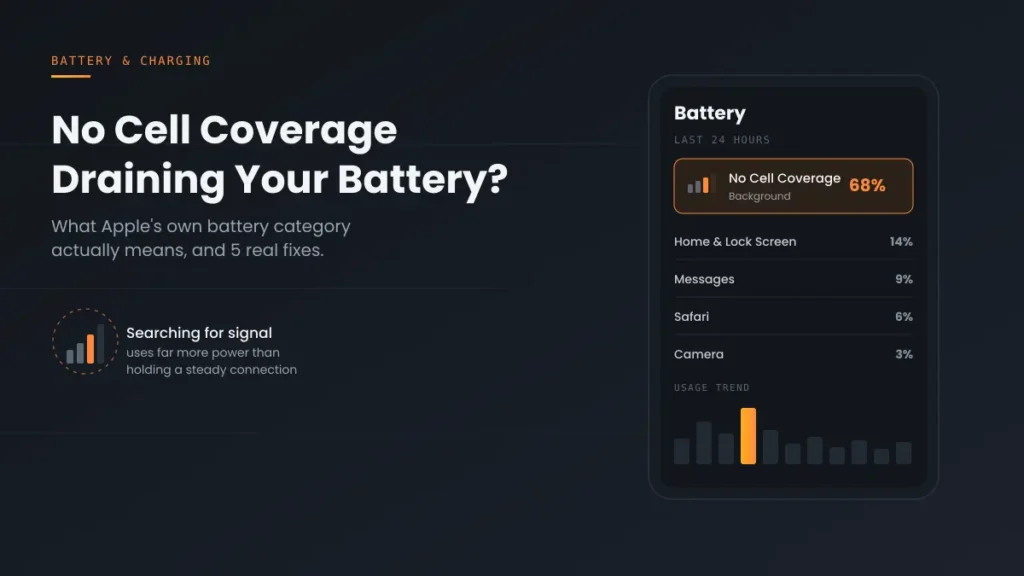
Why does poor cell coverage drain your iPhone battery? When signal is weak, your iPhone raises its radio power and keeps searching for a tower, which uses far more energy than a steady connection. Apple tracks this separately as No Cell Coverage in Settings → Battery, and in a bad spot it can account for a large share of a day’s battery. If it’s near the top of your list, turn on Airplane Mode before you enter a known dead zone. Here’s exactly what the category means, the five real causes ranked by likelihood, and how to stop it.
Official Apple Store on Amazon
Genuine cases, cables, and accessories — sold and shipped by Apple.
🎧 LISTEN TO THIS GUIDE
~90 sec listen
📋 Quick Summary
- No Cell Coverage battery drain is a real, Apple-tracked category — not a bug or an app.
- Per Apple’s own guidance, it means your iPhone is actively searching for a signal in a poor-coverage area, or was recently used in one.
- Repeated connect/disconnect cycling in marginal signal areas is worse than steady weak signal.
- Airplane Mode is Apple’s own recommended fix when you know you’re entering a dead zone.
- This does not affect long-term Battery Health — it’s a single-charge usage pattern, not degradation.
Battery Health Checker
Enter your numbers below for an instant read on whether your battery is degrading normally.
How to find these numbers on your iPhone
General estimate based on typical lithium-ion degradation — not a diagnostic.
No Cell Coverage is one of the more confusing entries people find in Settings → Battery, mostly because it isn’t an app — it’s a system-level category that only shows up when your phone has spent meaningful time searching for a signal instead of connected to one. Seeing it at the top of your battery usage list, sometimes at 40–90% of total usage, is a strong signal that weak or absent coverage is the actual problem, not a misbehaving app.
What No Cell Coverage Means in Your Battery Settings
According to Apple’s own official battery guidance, this indicates either that you’re in a poor cell coverage area and your device is actively searching for a better signal, or that you’ve recently used the device in low-signal conditions, which has affected battery life on its own. The mechanism behind it comes down to power: maintaining a connection on a weak signal uses far more energy than maintaining one on a strong signal, and searching for a connection that isn’t there uses more still.
5 Real Causes, Ranked by Likelihood
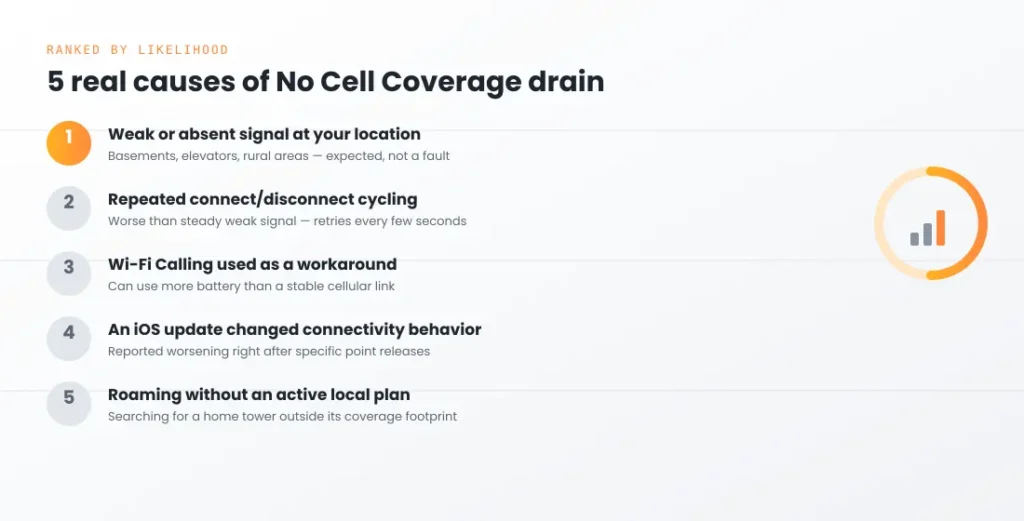
- Weak or absent signal at your specific location. The single biggest driver. Basements, elevators, rural areas, and buildings with dense construction materials all commonly produce this pattern, and it’s expected behavior given how cellular radios work, not a fault with your phone.
- Repeatedly losing and regaining a marginal connection. This is worse than steady low signal. Every time your iPhone drops connection, it sends signals to reconnect every few seconds; if there’s no response for several minutes it backs off, then tries again — a cycle that repeats all day in an area where coverage flickers in and out.
- Wi-Fi Calling used as a workaround in a no-coverage area. Some users specifically report Wi-Fi Calling using more battery than a stable cellular connection would, though this varies by device and network conditions.
- An iOS update changing background connectivity behavior. Multiple Apple Community reports describe this drain appearing or worsening immediately after a specific point release, even in areas with historically reliable coverage.
- International travel or roaming without an active local plan. Searching for a home carrier’s tower from outside its coverage footprint, or searching without any active data plan at all, produces the same aggressive searching behavior as a simple dead zone.
Step-by-Step Fix Order
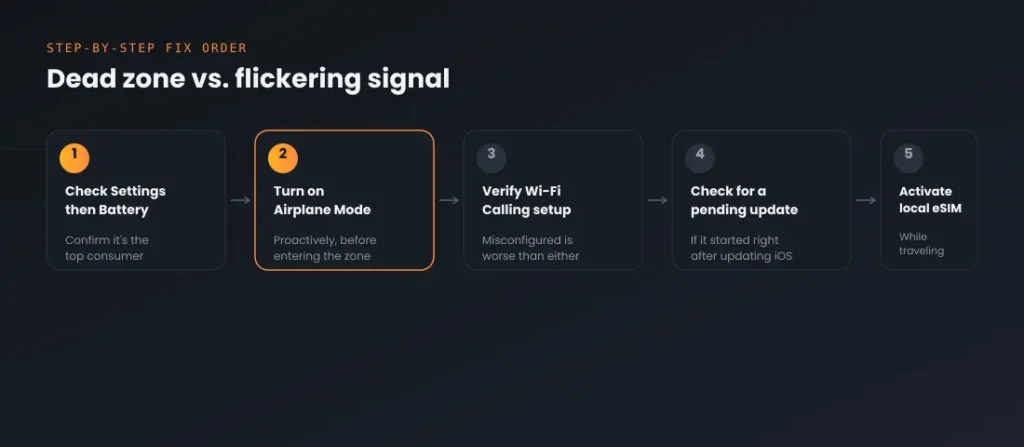
- Open Settings → Battery and confirm No Cell Coverage is actually the top consumer, not just present in the list — a small percentage is normal and not worth troubleshooting.
- If you know you’re heading into a dead zone (a basement, a flight, a rural drive), turn on Airplane Mode proactively from Control Center rather than waiting for the drain to already happen.
- If you rely on Wi-Fi Calling in a no-coverage area, confirm it’s actually enabled correctly under Settings → Cellular → Wi-Fi Calling, since a misconfigured version can behave worse than either pure cellular or pure Wi-Fi.
- Check Settings → General → Software Update for a pending release if the pattern started right after updating iOS.
- If you’re traveling internationally, either activate a local eSIM plan or manually disable cellular data under Settings → Cellular rather than leaving your phone searching for a network it can’t join.
Match Your Situation
| Symptom | Likely cause | What to do |
|---|---|---|
| Happens at a specific fixed location (home, office, basement) | Weak signal at that location | Use Airplane Mode or Wi-Fi Calling proactively there |
| Signal flickers between bars constantly | Repeated connect/disconnect cycling | Airplane Mode is more effective here than tolerating the flicker |
| Started right after an iOS update | Version-specific connectivity change | Check for a follow-up software update |
| Happening while traveling internationally | Searching without an active local plan | Activate a local eSIM or disable cellular data |
| Only happens while Wi-Fi Calling is on | Wi-Fi Calling configuration | Verify Wi-Fi Calling setup or test with it temporarily off |
A Safety Note Before You Rely on Airplane Mode
One thing worth knowing before you lean on Airplane Mode as your default fix: Airplane Mode blocks all cellular communication, including emergency calls, unless you’re on a device and iOS version that supports Emergency SOS via satellite. If you’re in a genuinely remote area for safety-relevant reasons (hiking, remote travel), don’t treat Airplane Mode as a blanket fix for this drain without knowing whether your specific device supports that fallback.
A note on scope: this guide covers the No Cell Coverage battery category specifically. For general overnight drain not tied to signal, see iPhone Battery Drains Overnight. If Home & Lock Screen is your top consumer instead, that’s covered separately in Home and Lock Screen Battery Drain.
Recommended First Step
Use Airplane Mode proactively, not reactively
If No Cell Coverage drain keeps happening at the same fixed location, switch to Airplane Mode before you enter that zone — it stops the search before it starts.
See the Full Battery & Charging GuideFeatured Apple Deals on Amazon
Current discounts on AirPods, chargers, cables, and other Apple gear.
Frequently Asked Questions
Is No Cell Coverage battery drain a bug Apple needs to fix?
No — Apple’s own documentation describes this as expected behavior tied to how cellular radios work in poor signal conditions, not a defect. The drain is real, but it’s a byproduct of physics, not a software fault.
Will Airplane Mode really stop No Cell Coverage draining iPhone battery?
Yes, since it stops the phone from searching for a cellular signal entirely. The tradeoff is losing calls and texts unless you’re on Wi-Fi, so it’s best used proactively in places you already know have no coverage rather than as a permanent setting.
Does Low Power Mode help with this specific issue?
It helps somewhat by reducing background activity generally, but it doesn’t stop the phone from searching for cellular signal, so it won’t fully resolve it on its own the way Airplane Mode does.
Why does this happen more after an iOS update?
Apple occasionally changes background connectivity and radio management behavior in point releases, and Community reports have described this pattern appearing or worsening right after specific updates in areas with previously normal coverage.
Should I be worried this means my iPhone’s antenna is failing?
Not usually. If every other phone on the same carrier in the same location shows similar signal problems, it’s almost certainly the coverage itself, not your specific device. A hardware issue is more likely if your phone shows significantly worse signal than an identical phone in the same spot.
Does this affect iPhone battery health long-term?
No — it affects a single charge cycle’s battery life, not your battery’s long-term Maximum Capacity. It’s a usage pattern issue, not a degradation issue.
📚 Related Guides
- iPhone Battery and Charging Problems: The Complete Guide
- iPhone Not Charging When Plugged In: Full Troubleshooting Guide
- iPhone Charging Slowly? 7 Quick Fixes & Real Causes
- iPhone Charging Port Not Working: Cleaning & Repair Guide
- Accessory Not Supported iPhone: 6 Proven Fixes
- iPhone Battery Drains Overnight: 5 Real Causes & Fixes
- Home and Lock Screen Battery Drain: 5 Real Causes
- iPhone Dies at 20 Percent (Even Though It Says It’s Charged)
- iOS 26.6 Battery Drain: Quick Fix & What’s Happening
- Find My Draining iPhone Battery? 5 Proven Fixes
This page may contain affiliate links. If you purchase through one, we may earn a commission at no extra cost to you. See our full Affiliate Disclosure for details.
Written by S M Momin Arif
Founder and lead writer at iPhoneFixDaily, covering iPhone battery and charging diagnostics based on direct hands-on testing. Read more about our approach →