If your iPhone won’t charge, drains faster than it used to, or throws a warning about your battery health, you’re dealing with one of the most searched iPhone battery and charging problems there is. These issues span a wide range of causes — some fixable in two minutes with a cleaning tool, others a sign your battery has simply reached the end of its usable life.
This guide is the hub for every iPhone battery and charging problem we cover on iPhoneFixDaily. Below, you’ll find a fast self-diagnosis path, the real numbers behind Apple’s battery specifications, a breakdown of when to DIY versus when to get professional help, and links to our in-depth guides for each specific symptom.
Official Apple Store on Amazon
Genuine cases, cables, and accessories — sold and shipped by Apple.
🎧 LISTEN TO THIS GUIDE
~2 min listen
📋 Quick Summary
- iPhone 14 and earlier: battery rated for 80% capacity at 500 charge cycles. iPhone 15 and later: 80% at 1,000 cycles — per Apple’s official specifications.
- Most “won’t charge” problems are caused by a dirty port, a bad cable, or a non-certified accessory — not a dead battery.
- Official Apple battery replacement costs $69–$119 depending on model; free under AppleCare+ if health is below 80%.
- Check Settings → Battery → Battery Health & Charging before assuming you need a replacement.
- Never attempt battery removal on a swollen battery — see the safety note further down this page.
📑 On This Page
- Start Here: Find Your Symptom
- New on iOS 27 and iPhone 18
- Understanding Battery Health: The Real Numbers
- How iPhone Charging Actually Works
- Common Charging Myths, Debunked
- How to Extend Your Battery Lifespan
- Quick Glossary: Battery & Charging Terms
- DIY vs. Professional Repair
- Signs You Need Professional Repair
- Frequently Asked Questions
Found your battery health % in Settings → Battery → Battery Health? Check what it means.
Open the full iPhone Battery Health Checker →
iPhone Battery and Charging Problems: Start Here
Symptoms usually fall into one of four buckets. Find yours below and jump straight to the detailed guide — the rest of this page covers the background info worth knowing regardless of which one applies to you.
| Symptom | Likely Cause | Guide |
|---|---|---|
| Won’t charge at all | Dirty port, bad cable, accessory error | Read the guide → |
| Charging slowly | Wrong adapter wattage, background activity | Read the guide → |
| Draining fast / overnight | Background apps, iOS update bug, aging battery | Read the guide → |
| Battery Health below 80% | Normal aging — replacement worth considering | Read the guide → |
iPhone Won’t Charge At All
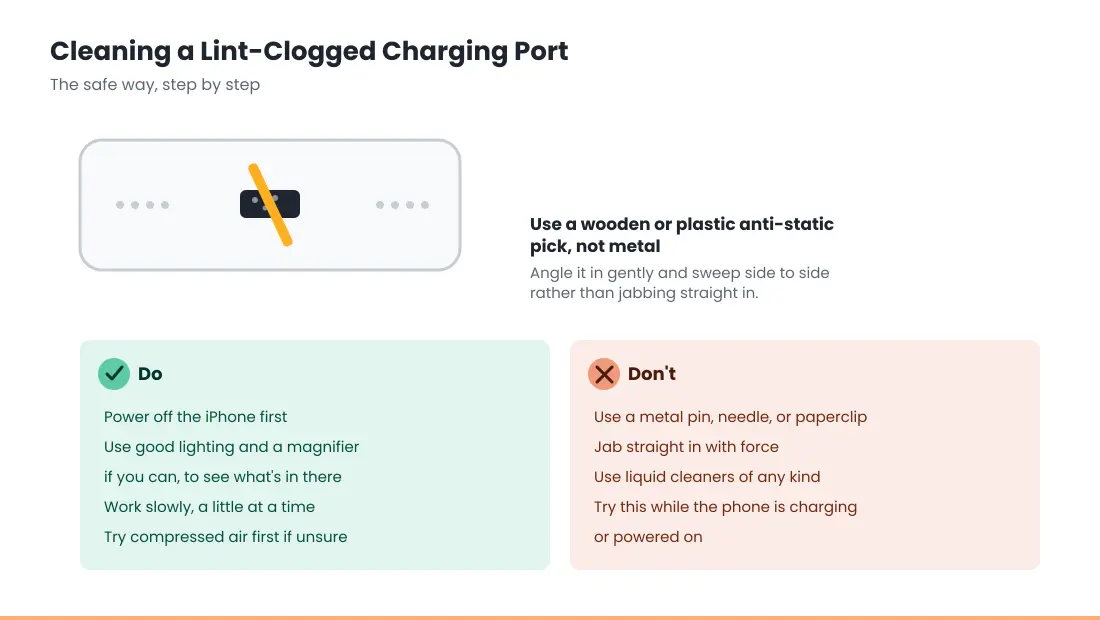
This is almost always one of three things, in order of likelihood: lint or debris packed into the charging port (extremely common if you carry your phone in a pocket), a worn or non-certified cable, or a software glitch that’s easier to fix than you’d expect. A simple restart resolves a surprising number of “dead” charging reports. Actual battery failure severe enough to prevent charging entirely is the least common cause, not the first thing to assume. If you’re specifically seeing an ‘Accessory may not be supported’ alert, that has its own dedicated causes — see Accessory Not Supported iPhone. If it says “Liquid Detected” or “Charging not available,” the port is wet — see Liquid Detected in Lightning or USB-C Connector. If it says “Charging On Hold,” the phone is too hot or cold — see Charging On Hold on iPhone. For the complete troubleshooting sequence, see iPhone Not Charging When Plugged In.
iPhone Charging Slowly
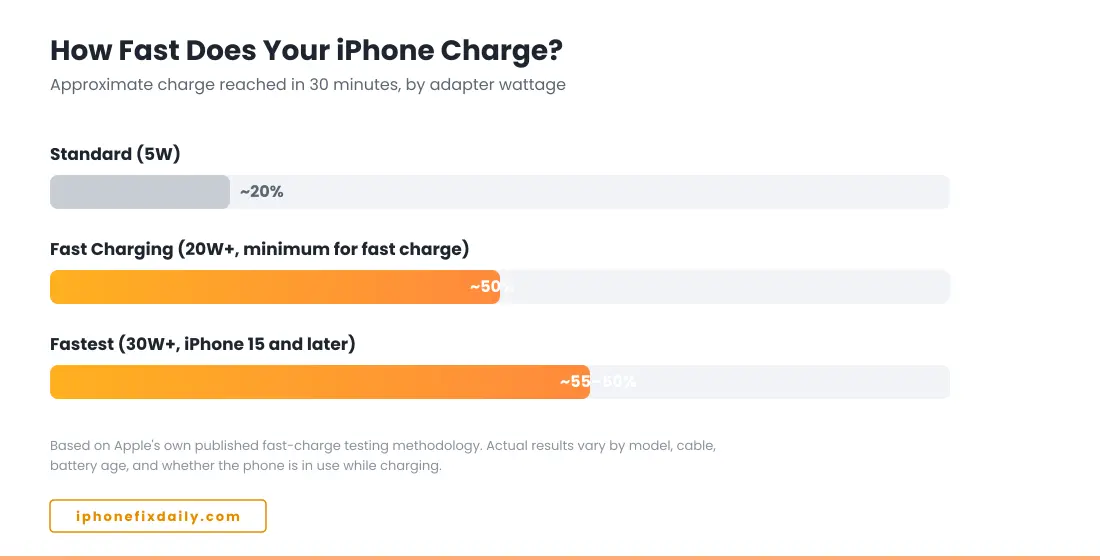
Slow charging usually comes down to wattage mismatch — using an old 5W adapter on a modern iPhone that supports much faster charging — or background activity competing for power while you charge. Apple’s official guidance is that iPhone 12, iPhone SE (3rd generation), and later models need a minimum 20W USB-C power adapter to fast-charge at all; anything less will charge, just slowly. See our full guide on iPhone Charging Slowly for all 7 ranked causes, including a hidden iOS 18 warning most people miss.
iPhone Draining Fast Or Overnight
Sudden drain is more often a misbehaving app or a recent iOS update still finishing background indexing than it is a failing battery. Check Settings → Battery before assuming hardware is at fault — it will show you exactly which app is responsible, which resolves the question in under a minute. For a full breakdown of overnight-specific causes, see iPhone Battery Drains Overnight. If the drain started right after updating, check iOS 27 Battery Drain (or iOS 26.6 Battery Drain if you haven’t moved to iOS 27 yet) for what’s currently known. And if “Home & Lock Screen” shows up as your top battery consumer in Settings, that’s a distinct, common pattern covered in Home and Lock Screen Battery Drain. If "No Cell Coverage" is near the top instead, your iPhone is hunting for signal; see Poor Cell Coverage Draining iPhone Battery. If you own an AirTag, that’s also worth checking directly — see Find My Draining iPhone Battery. If Photos is your top consumer instead, that’s usually iCloud sync working in the background — see Photos Draining iPhone Battery. And if you’re seeing a persistent Update Finishing in Background message under Battery, see Update Finishing in Background iPhone for when that’s actually stuck versus normal. If you’re not sure which specific app or category is behind your drain, start with Which Apps Actually Drain iPhone Battery — it walks through how to read your own Settings data instead of guessing.
Battery Health Reads Below 80%
This is normal lithium-ion aging, not a malfunction. Apple’s own threshold for “replacement worth considering” is 80% Maximum Capacity — below that line your iPhone still works, but you may notice reduced screen-on time and, on older models, active performance management to prevent unexpected shutdowns. A related symptom worth knowing about: if your iPhone shuts down unexpectedly while the percentage still shows charge remaining, that’s a related but distinct issue — see iPhone Dies at 20 Percent. And if Battery Health says “Unable to verify this iPhone has a genuine Apple battery,” or Settings shows “Unknown Part” next to the battery, the percentage may not be accurate — see iPhone Battery “Unknown Part” Message. To judge whether your number is normal for your phone’s age, see iPhone battery cycle count and iPhone 16 Pro battery health dropping fast. When it’s time to replace it, iPhone battery replacement cost compares Apple, AppleCare+ and repair shops.
New on iOS 27 and iPhone 18
If your battery or charging problem started with iOS 27 or a new iPhone 18, these guides cover what’s specific to them:
- iOS 27 battery drain: what’s normal after updating and how long it lasts.
- iOS 27.2: the next update, expected in late October, and whether to install it.
- iPhone 18 Pro overheating and battery drain: what owners are reporting.
- iPhone overheating: when warmth is normal and how to cool it down safely.
- iPhone 18 Pro Max SOS on AT&T: a phone stuck searching for signal also drains faster.
Understanding Battery Health: The Real Numbers
Apple publishes specific, official figures for how long an iPhone battery is designed to last — it’s not guesswork, and knowing these numbers helps you judge whether what you’re seeing is normal wear or an actual problem.
| Model Range | Rated Cycles to 80% Capacity |
|---|---|
| iPhone 14 and earlier | 500 complete charge cycles |
| iPhone 15 and later | 1,000 complete charge cycles |
Source: Apple’s official iPhone battery and performance documentation. A “complete charge cycle” is Apple’s term for using an amount of power equal to 100% of your battery’s capacity — whether that’s one full 100%–0% discharge, or several smaller partial charges that add up to the same total.
For most people, this translates to roughly 2–4 years before Battery Health drops meaningfully below 80%, since few people drain their battery fully every single day. Heavy users who regularly deep-discharge their phone can reach that threshold closer to 18–24 months; lighter users can stretch well past three years.
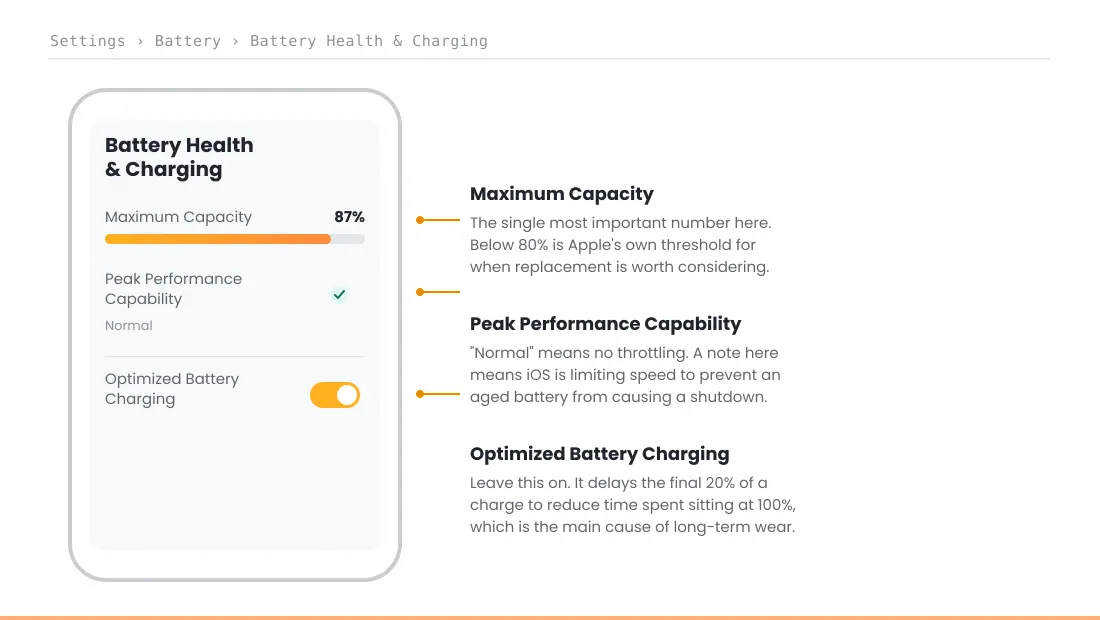
You can check your own numbers any time: Settings → Battery → Battery Health & Charging. Two figures matter most — Maximum Capacity (the percentage) and Peak Performance Capability (whether iOS is throttling performance to prevent unexpected shutdowns).
How iPhone Charging Actually Works
Most confusion around iPhone battery and charging problems comes from not knowing what’s actually happening inside the cable. A quick primer helps make sense of every symptom above.
USB Power Delivery (USB-PD) is the charging standard modern iPhones use to negotiate how much power to draw. The phone, not the charger, decides how much current it pulls — a higher-wattage adapter doesn’t “push” more power, it just makes more available if the phone asks for it. This is why using a 65W laptop charger on an iPhone is completely safe: the phone only takes what it needs.
For fast charging specifically, Apple’s official specification requires a minimum 20W USB-C power adapter on iPhone 12, iPhone SE (3rd generation), and later. Newer, larger-battery models (iPhone 15 and up) will charge a bit faster still with a 30W+ adapter, though 20W remains the baseline for fast-charge behavior to kick in at all.
Wireless and MagSafe charging work differently. MagSafe uses magnets to align the coil precisely against the back of the iPhone, which is why it can reach higher peak wireless wattage than generic Qi charging pads — misalignment is the single biggest cause of “wireless charging is slow” complaints, more so than the charger itself. If you’re specifically trying to figure out which standard your charger and iPhone actually support — Qi, Qi2, Qi2.2, or MagSafe — see Qi2 vs MagSafe iPhone for the full breakdown.
Optimized Battery Charging, a setting introduced in iOS 13, is worth understanding since it affects how “normal” overnight charging looks. Rather than charging straight to 100% and holding there for hours, iOS learns your daily routine and deliberately pauses around 80%, resuming to finish the last 20% closer to when you actually unplug and use the phone. If you’ve noticed your iPhone taking longer than expected to hit 100% overnight, this is very likely why — not a fault. On iPhone 15 and later there’s also a Charge Limit setting (80% to 100%) in Settings → Battery → Charging, which stops charging at the level you choose.
Common iPhone Charging Myths, Debunked
A lot of the advice floating around about iPhone batteries is outdated, oversimplified, or was true for older nickel-based batteries but doesn’t apply to modern lithium-ion cells. Worth clearing up before it changes how you actually use your phone.
Myth: Charging overnight ruins your battery.
Modern iPhones stop drawing power once they reach 100% and use trickle charging to maintain that level — combined with Optimized Battery Charging, overnight charging is not the battery killer it once was with older device chemistries. Heat, not charge duration, is the bigger long-term stressor.
Myth: You should fully drain your battery before recharging.
This was good advice for older nickel-cadmium batteries, which had “memory effect” issues. Lithium-ion batteries, which is what every current iPhone uses, actually prefer frequent partial charges over repeated deep discharges to 0%.
Myth: Any charger that isn’t made by Apple will damage your phone.
Any USB-PD compliant charger from a reputable brand is safe to use. The real risk is uncertified, counterfeit accessories that skip proper voltage regulation — brand matters less than whether the accessory meets the actual USB-PD/MFi specification.
Myth: Force-closing background apps saves meaningful battery.
iOS already manages background app suspension on its own. Habitually swiping apps closed can use more energy overall, since fully reopening an app from scratch typically costs more power than resuming it from a suspended state.
Myth: Fast charging always wears out the battery faster than slow charging.
Heat generated during charging is the actual factor that accelerates degradation — fast charging generates more heat, but it isn’t the speed itself doing the damage. This is largely why Optimized Battery Charging and thermal management exist in the first place.
How to Extend Your iPhone’s Battery Lifespan
None of this reverses existing wear, but it slows how fast new wear accumulates:
- Avoid extreme heat. Leaving your iPhone in direct sun, a hot car, or under a thick case while fast-charging is the single most damaging habit for long-term battery health — more so than charging habits themselves.
- Keep Optimized Battery Charging enabled. It’s on by default under Settings → Battery → Battery Health & Charging, and is specifically designed to reduce time spent sitting at a full 100% charge.
- Avoid letting your iPhone sit at 0% for long periods. A battery that stays fully depleted for an extended stretch (days, not hours) ages faster than one kept in a moderate charge range.
- Use MFi-certified or genuine cables. Non-certified cables are more likely to deliver inconsistent voltage, which generates unnecessary heat during charging.
- Keep iOS updated. Apple has shipped genuine charging and power-management bug fixes in point releases before — an outdated iOS version is occasionally the actual cause of drain complaints, not the hardware.
🔌 A Charger Built Around This Exact Advice
Anker Nano Smart Display Charger, 45W
Faster ceiling for iPhone 17/16, plus a Care Mode that reduces charging heat — the actual factor behind long-term battery wear. $25.99.
Quick Glossary: Battery & Charging Terms
| Charge cycle | Using an amount of power equal to 100% of battery capacity, whether in one full discharge or several partial ones that add up to the same total. |
| mAh (milliamp-hours) | The unit measuring battery capacity — higher mAh generally means longer runtime per charge, all else equal. |
| Maximum Capacity | The percentage figure in Battery Health showing how much charge your battery can currently hold compared to when it was new. |
| Peak Performance Capability | Indicates whether iOS is actively throttling performance to prevent an aged battery from causing an unexpected shutdown. |
| USB-PD | USB Power Delivery — the standard that lets a device and charger negotiate how much power to draw, used for iPhone fast charging. |
| MFi | “Made for iPhone/iPad” — Apple’s certification program for third-party accessories that meet its electrical and safety specifications. |
| Optimized Battery Charging | An iOS feature that learns your routine and delays the final 20% of charging to reduce time spent at 100%. |
DIY vs. Professional Repair: Weighing Your Options
Once Battery Health drops below 80%, or you’re dealing with a persistent charging fault, you’ll generally choose between three paths. Here’s how they actually compare.
✅ Apple / Authorized Service
$69–$119 depending on model. Genuine battery, 90-day warranty, free under AppleCare+ if health is below 80%. Safest option, no risk to warranty status.
⚠️ Third-Party Repair Shop
Typically $49–$90. Faster, often cheaper, but part quality varies by shop and may trigger a genuine-parts warning in Battery Health afterward.
🔧 DIY Kit
The cheapest option, at roughly $20–$40 in parts. See iPhone battery replacement cost for the full comparison. Requires confidence with small tools and 30 minutes to a couple of hours.
Which option makes sense depends less on price alone and more on what you’re optimizing for. If your iPhone is still under AppleCare+ and Battery Health has dropped below 80%, there’s no real decision to make — a free official replacement is strictly better than paying anywhere else. Outside of that scenario, the calculation shifts: Apple and authorized providers are the only paths that preserve your ability to claim warranty service afterward, since a third-party battery can flag a “non-genuine part” notice in Battery Health that some future Apple service visits may treat differently.
A DIY kit makes the most sense if you’re comfortable working with adhesive strips and small connectors, aren’t worried about that genuine-parts notice, and want to save the most money. It’s the path most likely to go wrong for someone doing it for the first time under time pressure — if your only working phone is the one you’re operating on, that’s a good reason to budget an extra day before you need it back, rather than starting the night before a trip.
Signs You Need Professional Repair, Not a DIY Fix
Most iPhone battery and charging problems are safe to troubleshoot yourself. A specific handful of signs mean it’s time to stop and get professional help instead:
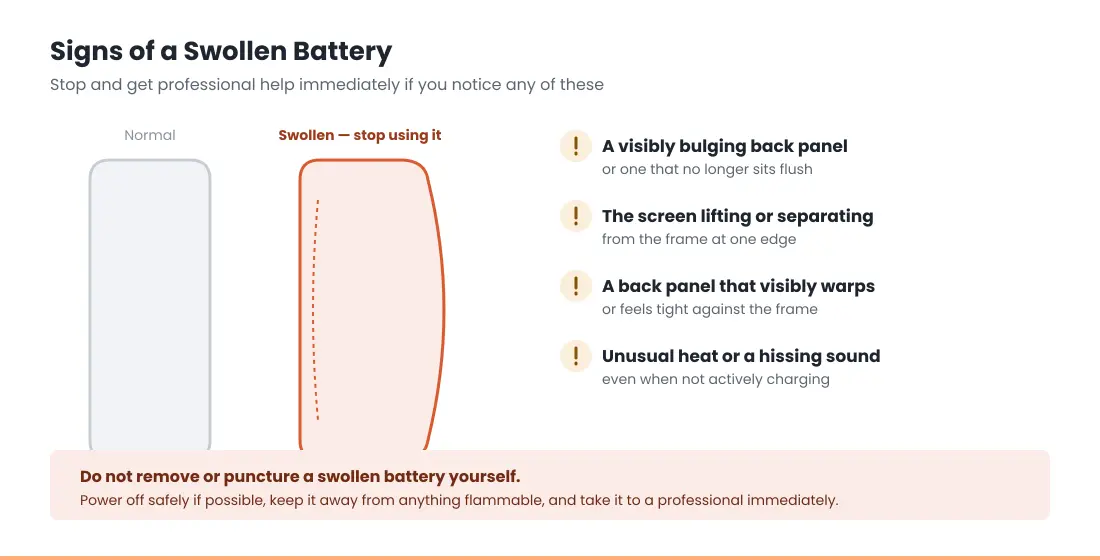
- Any visible swelling or a bulging back panel — covered in detail in the safety note below. Do not attempt to open the device yourself.
- A burning smell, unusual heat, or visible damage to the charging port itself — this can indicate a hardware fault beyond a simple lint blockage.
- Liquid exposure followed by charging problems — internal corrosion isn’t something a cleaning tool or new cable fixes, and attempting to charge a liquid-damaged device can make things worse.
- The phone won’t power on at all, even after a confirmed-working charger and cable, and even after a forced restart. This points toward a logic board or connector issue rather than the battery itself.
- Battery Health has dropped sharply in a short window (e.g., a 10%+ drop in a few weeks) rather than gradually over months — sudden drops are more often a sign of a specific fault than of ordinary aging.
⚠️ Do Not Attempt This At Home
If your iPhone’s battery appears swollen (a bulging back panel, a screen lifting away from the frame, or visible warping), do not try to remove or puncture it yourself. A swollen lithium-ion battery is a fire and injury risk. Power off the device if it’s safe to do so, keep it away from flammable material, and take it to Apple or a professional repair service immediately. See our full Disclaimer for more on DIY repair risk.
RECOMMENDED FIRST STEP
Not sure which problem you have?
Start with the most common cause: check your cable and charging port before assuming it’s the battery.
See the Full Charging Troubleshooting GuideFeatured Apple Deals on Amazon
Current discounts on AirPods, chargers, cables, and other Apple gear.
Frequently Asked Questions
A few questions that come up constantly around iPhone battery and charging problems:
Why is my iPhone battery draining so fast all of a sudden?
Sudden drain is usually tied to a specific app misbehaving in the background, a recent iOS update still indexing or optimizing in the background, or a location/notification setting running more often than needed — not necessarily a failing battery. Check Settings → Battery to see which app is using the most power before assuming hardware is at fault.
Is 80% battery health bad?
No — 80% is Apple’s official threshold where a replacement becomes worth considering, not a failure point. Your iPhone will continue to function below 80%, though you may notice reduced screen-on time or, on older models, performance management kicking in to prevent unexpected shutdowns.
Can I replace my iPhone battery myself?
Yes, with a DIY kit, though it requires comfort with small tools and following precise steps around adhesive strips and connector cables. If your iPhone is swollen, under warranty, or you’re not confident opening the device, professional service is the safer route.
Does fast charging damage iPhone batteries faster?
Fast charging generates more heat than standard charging, and heat is the biggest factor in long-term battery degradation — more so than charge speed itself. Apple’s Optimized Battery Charging feature is designed to reduce this impact by learning your routine and slowing the final charge to 100%.
How much does it cost to replace an iPhone battery?
Official Apple pricing ranges from $69 for older models to $119 for the latest Pro-tier devices, and is free under AppleCare+ if your Maximum Capacity has dropped below 80%. Third-party shops typically charge $49–$90, and DIY parts run roughly $20–$40. See our battery replacement cost guide for prices by model.
Does using my iPhone while it’s charging damage the battery?
No, though it does generate slightly more heat than charging while idle, since the processor is active at the same time power is flowing in. Heavy use while charging (gaming, video recording) on a hot day is the specific combination worth avoiding, not casual use in general.
Is it normal for an iPhone to get warm while charging?
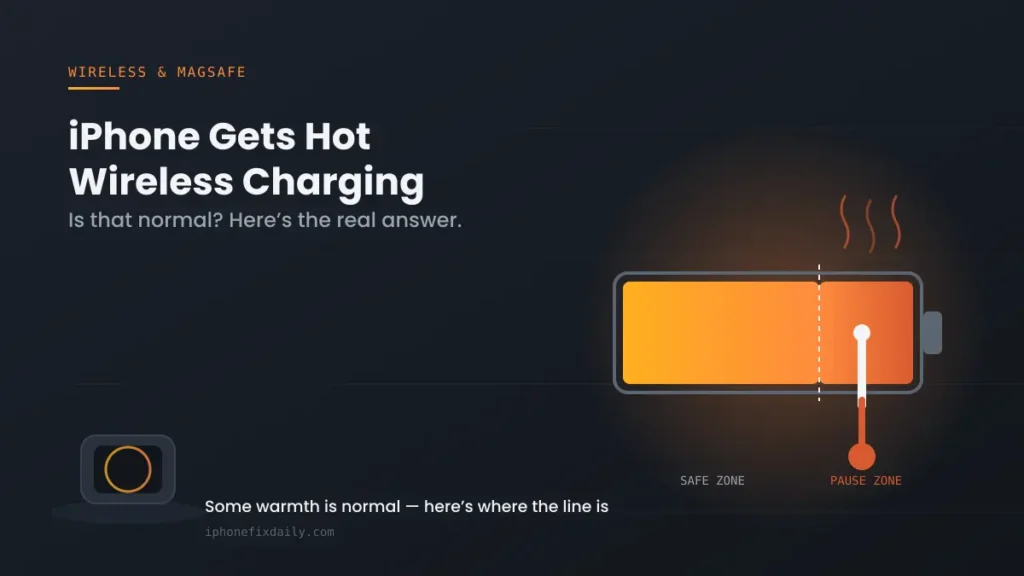
Mild warmth is normal, especially during fast charging or while wireless charging. It should never feel hot to the touch or visibly affect the case — if it does, remove it from the charger, let it cool, and treat that as a signal worth investigating rather than ignoring.
Why does my battery percentage drop quickly right after unplugging at 100%?
This is often a display quirk rather than an actual sudden loss of charge — the percentage indicator can take a moment to recalibrate after being held at 100% by Optimized Battery Charging. If the drop is consistently large and immediate, it’s worth checking Battery Health, since it can also indicate the battery’s Maximum Capacity has declined enough that a “full charge” is no longer the same as it used to be.
Should I turn my iPhone off while it charges?
There’s no need to for battery health reasons — iPhones are designed to charge safely whether powered on or off. Turning it off can make it charge marginally faster since no background processes are competing for power, but the difference is small enough that it’s really a matter of personal preference rather than a meaningful fix for any of the problems covered on this page.
Does a cracked screen or water damage affect charging?
It can, indirectly. A cracked screen doesn’t usually affect the charging port itself, but any prior water exposure can cause corrosion inside the charging port or on the battery connector over time, even if the phone appeared to survive the initial exposure. If charging problems started shortly after a drop or liquid exposure, that timing is a stronger clue than the symptom itself.
📚 Related Guides
- iPhone Overheating? Why It Gets Hot and How to Cool It Down
- iPhone Battery Cycle Count: What It Means
- iPhone Battery Replacement Cost (2026 Price Guide)
- iPhone 16 Pro Battery Health Dropping Fast?
- iPhone 18 Pro Overheating or Draining Battery?
- iPhone Not Charging When Plugged In: Full Troubleshooting Guide
- iPhone Charging Slowly? 7 Quick Fixes & Real Causes
- iPhone Charging Port Not Working: Cleaning & Repair Guide
- iPhone Battery Drains Overnight? 8 Causes and Fixes
- Home and Lock Screen Battery Drain on iPhone: 7 Fixes
- Poor Cell Coverage Draining iPhone Battery: 5 Fixes
- iPhone Dies at 20 Percent (Even Though It Says It’s Charged)
- iOS 26.6 Battery Drain: Quick Fix & What’s Happening
- Accessory Not Supported iPhone Error: 7 Fixes
- Find My Draining iPhone Battery? 5 Proven Fixes
- Photos Draining iPhone Battery? 5 Proven Fixes
- Update Finishing in Background iPhone? 5 Proven Fixes
- Slow Charger Message on iPhone? 5 Proven Fixes
- iOS 27 Battery Drain: 6 Causes & Step-by-Step Fixes
- Which Apps Actually Drain iPhone Battery? 5 Proven Signs
- Qi2 vs MagSafe iPhone: 4 Standards, One Clear Solution
- iPhone Gets Hot While Wireless Charging? What’s Normal
- Charging On Hold on iPhone: What It Means and How to Resume Charging
- Liquid Detected in Lightning or USB-C Connector: What to Do
- iPhone Battery “Unknown Part” Message: What It Means
- iPhone Won’t Update? Fixes for “Unable to Check for Update”
Written by S M Momin Arif
Founder and lead writer at iPhoneFixDaily, covering iPhone battery and charging diagnostics based on direct hands-on testing. Read more about our approach →